













 AIIllustrative image: AI-generated
👥 WordPress user roles and permissions: complete 2026 guide
You launched a site on WordPress, set up a theme, and now you're inviting people to work on content. But giving everyone full admin access is risky: one careless click can break the entire site. WordPress solves this problem through a role system, six built-in access levels from Subscriber to Super Admin.
Each role defines a clear set of permissions (around 60 capabilities). An Author publishes their own posts but cannot see others' posts. An Editor manages all content but doesn't touch plugins. An Administrator can do everything. Below, we'll examine what exactly each role is allowed to do, how to add users, and how to configure custom permissions for your specific project.
💡 Quick overview:
- Understand how WordPress checks access permissions through the Capabilities system
- Study the permissions table for all six roles: from Subscriber to Super Admin
- Add a new user and assign a role in six steps through the admin interface
- Configure custom roles with the Capability Manager Enhanced plugin for non-standard scenarios
How the WordPress role system works
WordPress was originally designed for teams: one person writes, another edits, a third publishes. To differentiate access, the core includes a Capabilities system. Each role is a collection of flags like edit_posts or manage_options: from publishing content to installing plugins, around 60 permissions in total.
A role is assigned to an account upon creation. When someone enters the admin panel, WordPress runs a current_user_can('capability') check and shows only those menu items for which permission exists. Attempting to open a page without the proper permission results in an "Insufficient permissions" error. No magic here, just conditional statements in the core code.
An important nuance: roles are NOT formally hierarchical. An Administrator is "above" an Editor in the everyday sense, but in the database they are simply different sets of flags. This structure allows plugins to flexibly modify any role's permissions, add their own capabilities, or create entirely new roles. We'll use this at the end of the article.
Permissions table: six roles in a minute
Capability | Super Admin | Admin | Editor | Author | Contributor | Subscriber |
|---|---|---|---|---|---|---|
Manage network of sites | ✅ | ❌ | ❌ | ❌ | ❌ | ❌ |
Install and delete themes/plugins | ✅ | ✅ | ❌ | ❌ | ❌ | ❌ |
Manage users | ✅ | ✅ | ❌ | ❌ | ❌ | ❌ |
Access site settings | ✅ | ✅ | ❌ | ❌ | ❌ | ❌ |
Publish and delete any posts | ✅ | ✅ | ✅ | ❌ | ❌ | ❌ |
Moderate comments | ✅ | ✅ | ✅ | ❌ | ❌ | ❌ |
Publish own posts | ✅ | ✅ | ✅ | ✅ | ❌ | ❌ |
Upload media files | ✅ | ✅ | ✅ | ✅ | ❌ | ❌ |
Create drafts | ✅ | ✅ | ✅ | ✅ | ✅ | ❌ |
Log into admin and read profile | ✅ | ✅ | ✅ | ✅ | ✅ | ✅ |
1. Administrator: full control over the site
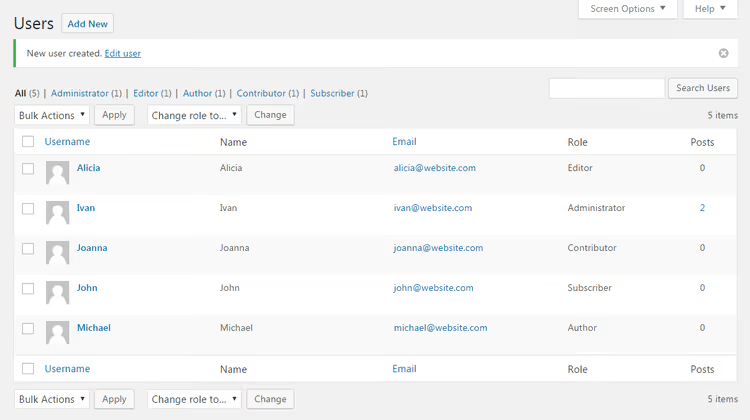
The Administrator is the user with the broadest permissions on a regular WordPress site. The person who installed WordPress automatically receives this role. In practice, this is the site owner or lead developer.
What an administrator can do:
- Install, activate, update, and delete themes and plugins
- Create, edit, publish, and delete any posts, pages, and media files
- Add new users and assign them roles
- Manage all site settings: permalinks, search engine visibility, comments, menus
- Update the WordPress core to new versions
- Export and import content, restore from backups
- Edit theme and plugin files through the built-in code editor
The Administrator sees absolutely all WordPress menu items and plugin menus. This is a role for people with absolute trust: an administrator can delete other administrators, including you. If you're building a site for a client, hand over the administrator account after delivery, and keep a second account with the same role for yourself if needed.
2. Editor: complete content ownership without access to settings
The Editor manages all content: posts, pages, comments. But the technical side is inaccessible: themes, plugins, site settings, user management are all hidden.
The standard Editor workflow looks like this. Authors and Contributors submit drafts for review. The Editor reads the material, makes edits, adds categories, assigns a featured image, and publishes the finished post. They also handle comments: approving, replying, deleting spam, banning trolls.
Key role capabilities:
- Publishing, editing, and deleting any posts and pages, including others' content
- Moderating comments: approving, editing, deleting
- Creating and managing categories, tags, menus
- Uploading and deleting any media files from the library
This role is essential for news sites and blogs with a team of authors. The Editor takes the content workload off the administrator without gaining access to sensitive settings that could break the site.
What an Editor CANNOT do: install plugins, change themes, update WordPress, edit files directly, manage users, or access the "Settings" section.
3. Author: publishes own posts without prior review
The Author is the first role with content publishing rights. But only their own content. Other people's posts are inaccessible to Authors even for reading in edit mode.
Key Author capabilities:
- Creating, editing, publishing, and deleting their own posts
- Uploading images, videos, and other media files through the WordPress library
- Adding new tags to posts
- Viewing all comments (without rights to approve or edit)
What an Author CANNOT do:
- Touch others' posts: no editing, no deleting, even other authors' drafts are invisible
- Create new categories, only select from existing ones
- Publish Pages, only posts are available
- Moderate comments, even under their own materials
The Author is the ideal role for a regular columnist or staff writer whom you trust to publish without prior editor review. In practice, this saves time: the person chooses when to publish, adds images, and makes edits after the post goes live.
4. Contributor: creates drafts without publishing rights
The Contributor is a stripped-down version of the Author. They write materials and submit them for review but don't see a "Publish" button. This is the role for freelance authors, guest bloggers, or new employees on probation.
The key difference from Author: Contributors cannot upload media files. If an article needs an image attached, they send the file to the editor separately (via email or cloud storage), and the editor inserts the image into the material during publication.
Contributors can see the list of all comments on the site but cannot approve, edit, or delete them. They can select existing categories from the list and add tags. After submitting a draft for review, the Contributor loses access to it: editing the material again is only possible if the editor returns the draft to "Pending review" status.
This role is suitable when you want to see guest materials on the site but aren't ready to give someone full publishing freedom. On news portals, interns are made Contributors: they write news under supervision while the editor publishes.
5. Subscriber: minimal rights for accessing restricted content
The Subscriber is the most limited role. The person can only log into the admin panel, open their profile, and change their password and email. That's it. No posts, pages, comments, or settings. The admin interface for a Subscriber is practically empty: the left menu shows only "Profile" and the logout button.
Why is this role needed? Two main scenarios:
Restricted content for registered users. You're launching a membership site, online course, or knowledge base where some materials are only accessible after registration. Subscribers gain access to protected pages but cannot break anything on the site. This is a safe way to provide content to students, clients, or community members.
Commenting with required registration. In the "Settings → Discussion" section, there's an option "Users must be registered and logged in to comment." If you enable it, every commenter automatically becomes a Subscriber. This blocks spam bots and gives moderators the ability to ban violators by account.
Subscribers can see private posts (if you check "Visibility: Private" when publishing) but cannot create their own materials or upload files.
6. Super Admin: managing a network of multiple sites
The Super Admin appears only in a WordPress multisite network, when dozens or hundreds of sites run on a single core. A classic example is a university launching a separate blog for each department. All sites use one WordPress installation, and the Super Admin manages the entire network.
In addition to regular Administrator rights, a Super Admin can:
- Create new sites within the network and delete existing ones
- Install themes and plugins for all network sites at once
- Manage users at the network level: assign roles on different sites simultaneously
- Configure settings common to all sites (registration, domains, quotas)
If you have a single WordPress site, the Super Admin role isn't in the list, and that's normal. It appears automatically only when creating a multisite network. The Administrator of a regular site and the Super Admin of a network have identical rights on a specific site, but the Super Admin sees an additional "Network" menu with tools for managing the entire infrastructure.
How to manage users: adding and changing roles
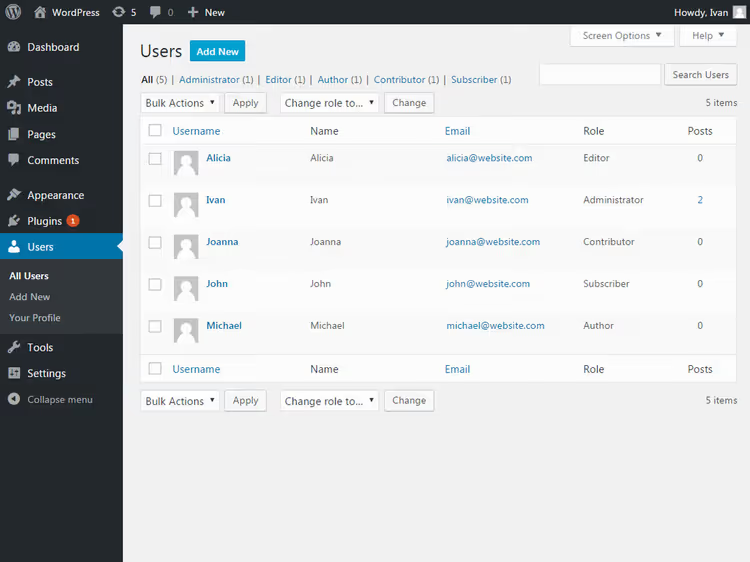
Open "Users → All Users" in the admin panel. The table shows all accounts with roles. Role filters at the top help you quickly find the right people.
Hover over a row for the "Edit" and "Delete" menu. For bulk operations, check multiple users, select "Change role to," and click "Apply."
How to add a new user: six steps
Open "Users → Add New" and fill out the form:
- Create a username (Latin characters only, cannot be changed later) and enter an email
- Click "Show password" for automatic secure password generation
- Check "Send the new user an email about their account" to send login credentials
- Select a role and click "Add New User"
The user will receive an email with a login link and can set their own password.
Setting up custom roles: when the standard six aren't enough
Standard roles cover most typical scenarios, but large projects and non-standard configurations need fine-tuning. Examples from practice:
- You want the Editor to be able to install plugins but not touch the theme or site settings
- An SEO specialist needs access to Yoast meta fields but not to content editing
- A designer needs to upload media files and create pages but not see blog posts
- An online store manager processes WooCommerce orders but doesn't manage products
The standard WordPress core doesn't allow changing role permissions through the interface. You can do this via code in functions.php using add_cap() and remove_cap() functions, but any typo in a permission name will break the access logic.
The free Capability Manager Enhanced plugin solves this task through a convenient visual interface. It has over 100,000 active installations and was last updated in June 2026.
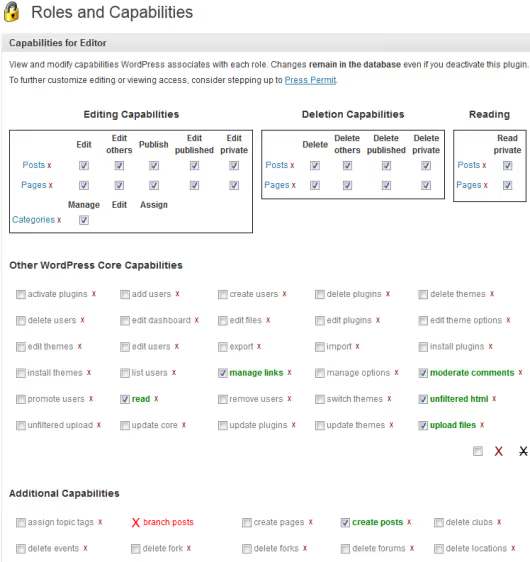
Plugin capabilities:
- Modify permissions for any existing role through a checkbox list: check the box, save, done
- Copy a role and modify the copy (faster than configuring a new role from scratch)
- Create entirely new roles for specific users or company departments
- Grant individual permissions to one person without changing their role globally
- Reset roles to default WordPress settings with one button
The plugin works through the same Capabilities API that the WordPress core uses. After removing the plugin, custom roles remain in the database and continue to work.
After installation, open "Users → Capabilities," select a role from the list, and check the needed permissions. To create a new role, click "Add Role," select a base (copies permissions from an existing role), and configure it for your task.
The video above shows step-by-step role configuration in WordPress. It's in English, but the interface is visually clear.
⁉️🤔 Frequently asked questions
Can you have multiple administrators on one site?
Yes, WordPress allows you to create any number of administrators. But remember: each administrator can delete others, including you, and change any site settings. Give administrator rights only to people with absolute trust. For editing content and moderating comments, the Editor role is sufficient.
What's the difference between Author and Contributor?
Authors can publish their posts independently and upload media files to the library. Contributors only create drafts without publishing rights and without file upload access. In practice, Author suits staff columnists with a proven reputation, while Contributor suits guest authors and newcomers on probation.
How do I find out a specific user's role?
Open "Users → All Users" in the WordPress admin. In the table, find the "Role" column, which shows each account's current role. When you hover over a row, a quick edit menu appears where you can change the role with one click without opening the full profile form.
Can I change default role permissions without a plugin?
Yes, through code in your child theme's
functions.phpusingadd_cap()andremove_cap()functions. This is a working method for developers but requires knowing the exact names of all 60 WordPress permissions. The Capability Manager Enhanced plugin does the same thing through a visual interface and protects against typos in capability names.
Is a Super Admin needed on a regular site?
No. The Super Admin role exists only in a WordPress multisite network. On a standard single site, it's not in the list of available roles, and you cannot add it (nor would you need to). For managing one site, the Administrator role with full permissions is sufficient.
Can one user have multiple roles simultaneously?
By default, WordPress assigns one role per account. However, some role management plugins (Members, User Role Editor) allow assigning multiple roles to one person. In this case, the user gets the union of all their roles' permissions, following "OR" logic: if at least one role grants a permission, they have it.
Which role to assign in a specific situation
For the site owner and lead developer, always choose Administrator with access to all settings and functions. Assign Editor to a content manager or chief editor: they can handle posts, pages, and comments but won't break the site through accidental settings changes.
For staff writers whom you trust to publish independently without prior review, give the Author role. Guest bloggers, interns, and freelance writers are suited for the Contributor role: they create materials, but the editor publishes after review.
For online course visitors, closed community members, or users who need to leave comments with required registration, assign Subscriber. This role provides minimal rights without risk to the site.
If your project requires finer permission distribution (SEO specialist, store manager, forum moderator), install Capability Manager Enhanced and create custom roles for specific tasks. The ability to remove unnecessary admin menu items for each role disciplines the team and reduces the likelihood of accidental errors.
On large sites with dozens of employees, proper role configuration saves hours of administrator work. Instead of constantly checking "who did what," you initially give people access only to the tools they need for their work.

A professional team of writers and editors specializing in creating quality content.