













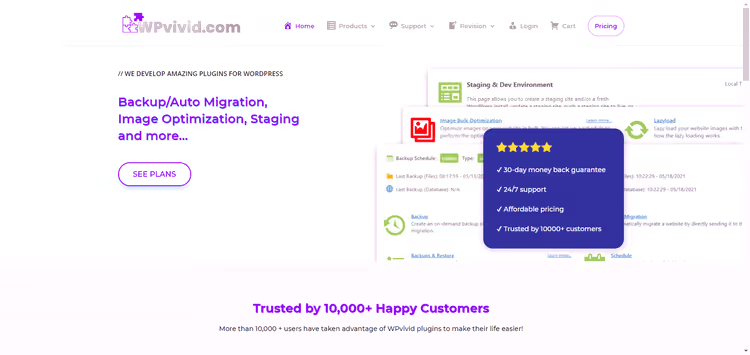
🗄 WPvivid: backup, migration and restoration for WordPress sites
Updated a plugin and your site crashed? Or migrating to a new host and worried about losing your database? Every WordPress owner has been in a situation at least once where the only thing standing between them and disaster is a fresh backup.
The problem is that standard hosting tools often fail: backups don't get created, restoration doesn't work, and built-in migration drags on for hours. You need a plugin that does all this for free, without jumping through hoops, and with a human-friendly interface.
WPvivid is one such tool. It's a free plugin for backup and migration that has been installed on over 900,000 sites. In this review: its real capabilities, a comparison of Free and Pro versions, and an honest verdict on when it's worth paying.
💡 Quick overview:
- What WPvivid can do: backups, migration, cloning, and cloud storage
- Free version: full functionality with no time limits
- Pro upgrade: incremental backups, update rollback, and multisite
- Two-click installation and first run
- Comparison with Duplicator, UpdraftPlus, and other alternatives
What is WPvivid
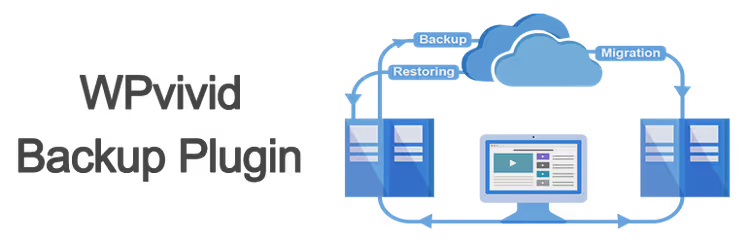
WPvivid is a free WordPress plugin that combines three functions: backup, site migration, and staging site creation. The developer is WPvivid (also known as ATOZSOFTWARE INC, Canada). The plugin is available in the official WordPress.org directory with a 4.9 out of 5 rating based on 1,495 reviews and 900,000+ active installations.
The latest version 0.9.129 (June 2026) is fully compatible with WordPress 7.0 and PHP 8.5 (version history on WordPress.org).
WPvivid's main advantage over competitors: the free version is not artificially limited. You get full backup, one-click migration, support for seven cloud storage providers, and basic scheduling, without payment and without ads. The paid upgrade adds what professionals need: incremental copies, update rollback, and multisite support.
Key features
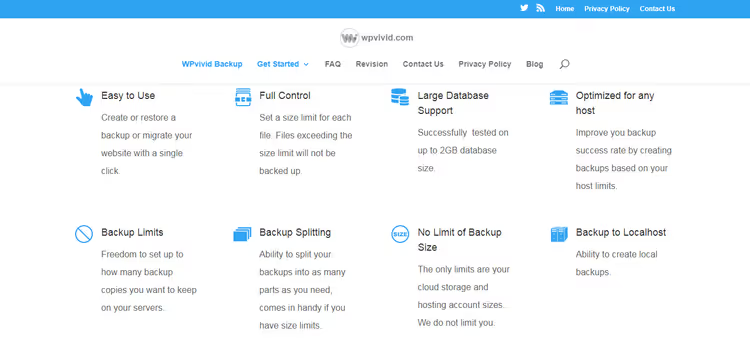
The plugin's core consists of four modules that cover the main site management scenarios. Let's examine each one.
Backup and restore
Backups are created manually or on a schedule. You can choose: a full site snapshot (files + database), files only, or database only. Restoration is done with a single button from the admin panel.

The schedule is flexibly configured: every 12 hours, daily, weekly, biweekly, or monthly. For each task, you specify what to back up and where to store it. In practice, daily database backup + weekly full snapshot is enough for most projects.
An important detail: backups are not stored forever. You can set a retention rule (for example, keep the last 5 copies), and old ones will be deleted automatically. This protects your server's disk space from overflowing.
Migration between domains

Automatic migration is the flagship feature. The plugin transfers your site to a new domain directly, without manually downloading and uploading an archive. Supported scenarios include: from dev environment to production, from old server to new, from one domain to another, including transfer to a subdirectory.

The process is simple: install the plugin on both sites, generate a migration key on the target site, enter it on the source site in the "Auto-Migration" tab, and the process begins. The plugin automatically adapts to hosting limitations and reassembles the archive if the connection drops. For migrating large sites (1 GB and up), this solves the main pain point of uploading a heavy zip file via slow FTP.
Cloud storage
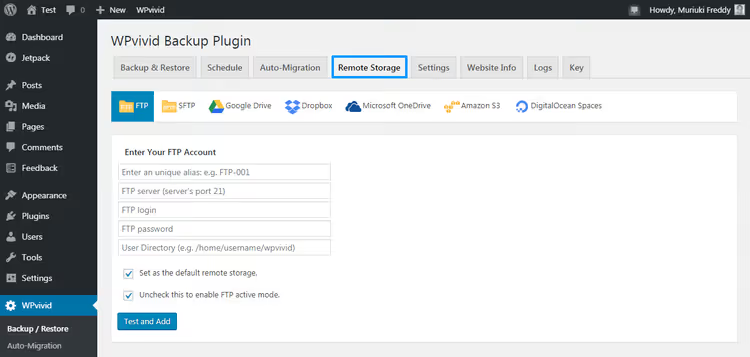
The free version supports seven cloud providers: Dropbox, Google Drive, Microsoft OneDrive, Amazon S3, DigitalOcean Spaces, FTP, and SFTP. Connecting each one requires OAuth authorization (for Dropbox/Google) or entering credentials (for FTP/S3). Backups can be automatically sent to the cloud immediately after creation while not storing local copies, saving server space.
The Pro version adds Backblaze B2, Wasabi, pCloud, WebDAV, and S3-compatible storage. For those already using Backblaze B2 cold storage (from $6/TB/month according to Backblaze pricing), this is a significant argument.
Settings and diagnostics

The Settings tab provides fine-grained control: splitting backups into chunks of a specified size (a lifesaver for hosts with zip file limits), excluding files larger than a specified threshold, setting PHP script timeout, renaming the backup folder (default is wpvividbackups), email reports about created copies, and export/import of configuration for quick plugin setup on another site.

The Website Info tab collects diagnostic data: PHP version, database size, server settings. WPvivid support asks for this information when you contact them, saving time on figuring out your environment.
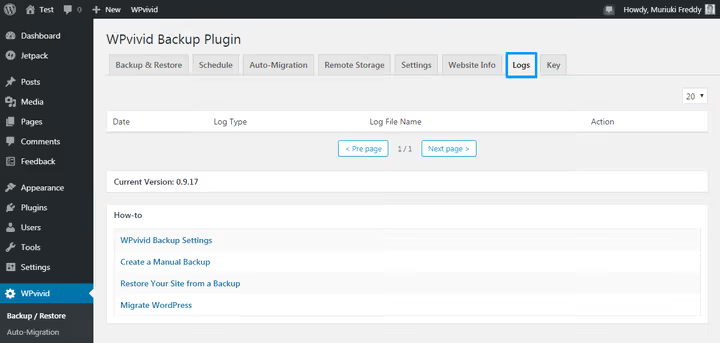
Logs record every operation: backup creation, cloud upload, restoration. When something fails, this is the first place to look.
WPvivid Free vs Pro: comparison table
The free version covers the needs of most single-site owners. Pro is needed by those who administer multiple projects or want additional insurance when updating.
Feature | Free | Pro (from $49/year) |
|---|---|---|
Full backup (files + database) | ✅ | ✅ |
Scheduled backup | Basic | Advanced (multiple schedules) |
One-click migration | ✅ | ✅ + connection drop protection |
Cloud storage | 7 (Dropbox, Google Drive, S3, OneDrive, DigitalOcean, FTP, SFTP) | 12 (+ Backblaze, Wasabi, pCloud, WebDAV, S3-compatible) |
Incremental backups | ❌ | ✅ |
Selective backup (exclusions) | ❌ | ✅ |
Core/plugin/theme rollback | ❌ | ✅ |
Staging site | Creation | Creation + Push to production |
Multisite | ❌ | ✅ |
White label | ❌ | ✅ |
Backup encryption | ❌ | ✅ |
Support | Forum | 24/7 tickets |
Pro prices according to data from the official website (annual subscription / one-time payment, current as of June 2026):
- Blogger, $49/year or $99 lifetime (2 domains)
- Freelancer, $69/year or $139 lifetime (up to 10 domains)
- Small Business, $99/year or $199 lifetime (up to 50 domains)
- Ultimate, $149/year or $299 lifetime (unlimited)
Refund: 30 days no questions asked. Licenses can be transferred between domains (Blogger: once every 3 days, others without restrictions).
Installation and interface
Installation takes two minutes. In the WordPress admin panel: Plugins → Add New → type "WPvivid" in the search → Install Now → Activate.

Click "Install Now", wait for the download to complete, and the button will change to "Activate".

After activation, you land on the main panel. The interface is straightforward: on the left are tabs (Backup, Schedule, Migration, Remote Storage, Settings, Logs), on the right is the work area. No ads and no intrusive notifications.
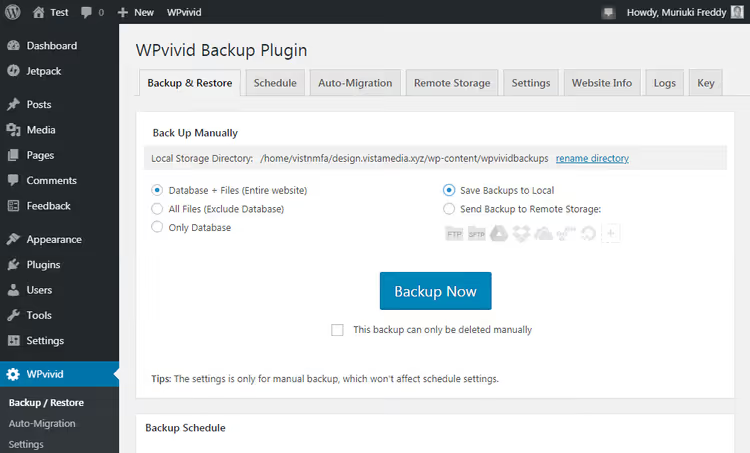
The start screen shows three large buttons: manual backup, restore, and migration. Nearby are links to documentation with step-by-step instructions. A beginner will figure it out without googling, and an experienced user can get straight to work.
WPvivid video review
To see the plugin in action, watch this 12-minute tutorial on setting up backups, restoration, and migration:
⁉️🤔 Frequently asked questions
How is WPvivid better than UpdraftPlus?
UpdraftPlus is a veteran with 3 million installations and broad cloud integration. WPvivid wins with free one-click migration: UpdraftPlus requires manually downloading and uploading the archive when moving. The second advantage is the built-in staging site, which UpdraftPlus lacks. For cloud storage in the free version, it's a tie: both support Google Drive, Dropbox, S3, and several other providers.
Does WPvivid work on cheap hosting?
Yes. One of the key features is automatic backup splitting into chunks of a specified size (configured in the Settings tab). If your host limits zip file size to 50 MB, the plugin will slice the archive into 50 MB pieces and reassemble them during restoration. You can also increase the PHP script timeout, which helps on slow servers.
Do I need Pro for migrating a large site?
The free version handles sites up to 2-3 GB without problems. Pro adds connection drop protection during migration and the ability to transfer a site via cloud storage (upload a backup to Google Drive from one server, restore on another). If your site is larger than 5 GB or your host has strict memory limits, Pro is justified.
What happens to free backups after deactivating Pro?
Access to Pro features will stop, but previously created backups will remain. You can still create full backups, restore them, and migrate your site, as basic functionality is not disabled. Incremental copies created in Pro will not update without an active license.
Does WPvivid replace hosting backups?
No, and we don't recommend relying on a single tool. Host backups are the first line of defense (restoration through the panel, often free). WPvivid is the second: a backup that resides in your cloud and doesn't depend on the host. The "3-2-1" rule: three copies, on two different media, one offsite. WPvivid + Google Drive covers this rule for a typical WordPress site.
Is upgrading to Pro worth it: final verdict

If you have one site, the free version is more than enough. You get full backup, migration, 7 cloud storage providers, and scheduling without any artificial limitations. This is rare in the WordPress plugin market.
The Pro upgrade is justified in four cases. First: you administer multiple sites and want to manage backups centrally (plus white label for clients). Second: you need incremental copies, as they save space and time on hosting with limited disk space. Third: you frequently experiment with plugins and themes, and automatic rollback on a problematic update saves your nerves. Fourth: you have a WordPress multisite.
Price comparison with competitors also favors WPvivid. UpdraftPlus Pro prices start at $70/year for 2 sites, Duplicator Pro starts at $99/year for 2 sites. WPvivid Pro Blogger is $49/year. A lifetime license for $99 for 2 domains pays for itself in two years compared to any competitor's annual subscription.
🔗 WPvivid Free on WordPress.org🔗 WPvivid Pro pricing🔗 WPvivid documentation

A professional team of writers and editors specializing in creating quality content.