














☁️ How to display a tag cloud in WordPress: manual method and built-in block
Tag clouds: that thing in the sidebar many people install and forget. Mechanically, "just to have it." That's a mistake: a well-designed cloud collects internal navigation clicks as effectively as a navigation menu. Especially on sites with hundreds of posts, where category navigation no longer keeps up.
The problem is that the standard "Tag Cloud" widget is barely configurable. Font size, at most. Colors, none. Shape, a flat list of links that's embarrassing to show. If the theme hasn't written styles for it, the result is depressing.
Fortunately, WordPress offers two paths: manually calling wp_tag_cloud() directly in theme files and the native "Tag Cloud" block in Gutenberg. The first gives complete control over markup, the second works when you need something quick and code-free. We'll cover both below with live snippets, screenshots, and video.
💡 Quick overview:
- Insert
wp_tag_cloud()insidebar.phporfooter.phpto get a tag cloud anywhere - Style the output through CSS: buttons with backgrounds, rounded corners, and hover effects
- Use the "Tag Cloud" block in the Gutenberg editor (three clicks, zero code)
- Watch the video tutorial on setup right from the WordPress admin panel
Manual output via wp_tag_cloud()
WordPress has included the wp_tag_cloud() function since version 2.3. It collects all site tags, counts usage frequency, and generates a cloud where each tag's font size is proportional to the number of posts containing it. The call is inserted directly into a theme file, wherever the cloud should appear.
Basic snippet for sidebar.php, footer.php, or a custom template:
1 <?php 2 wp_tag_cloud( array( 3 'smallest' => 8, 4 'largest' => 22, 5 'unit' => 'pt', 6 'number' => 45, 7 'orderby' => 'name', 8 'order' => 'ASC', 9 'taxonomy' => 'post_tag', 10 'format' => 'flat', 11 ) );
What the parameters mean (full list in the WordPress documentation):
smallest and largest: minimum and maximum font size. Default is 8 and 22 points. If the range looks jarring, narrow it down (for example, 10 and 18).
unit: unit of measurement. Default is pt, but it accepts any CSS unit: px, em, and rem. For screens, pixels are more common.
number: how many tags to display. Zero means "all." In practice, 45-50 is plenty; otherwise the cloud turns into a mess of hundreds of differently-sized links.
orderby: sorting method. name gives alphabetical order, count shows the most frequent first. Combining orderby => 'count' with order => 'DESC' puts popular tags at the top.
taxonomy: the taxonomy. Default is post_tag, but you can substitute category or a custom taxonomy from an online store to get a cloud of categories or product tags.
format: output format. flat (links separated by spaces), list (bulleted list), or array (an array for further PHP processing).
The function can safely be placed anywhere in the theme. If you need a separate page template with the cloud, create page-tagcloud.php, add the wp_tag_cloud() call between get_header() and get_footer(), then assign this template to a page in the admin panel.
Styling tags through CSS
The function outputs raw HTML: tags inside <a> elements, wrapped in <div class="tagcloud">. Without CSS, it's a jumble of differently-sized links. The styles below turn them into neat buttons:
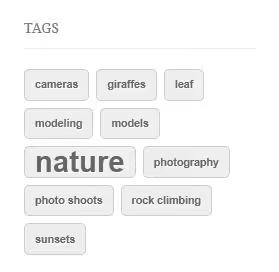
1 .tagcloud a { 2 display: inline-block; 3 padding: 4px 10px; 4 margin-right: 7px; 5 margin-bottom: 7px; 6 background: #f0f0f0; 7 color: #555; 8 font-size: 11px; 9 font-weight: bold; 10 text-transform: lowercase; 11 border-radius: 5px; 12 border: 1px solid #ccc; 13 text-decoration: none; 14 } 15 .tagcloud a:hover { 16 background: #e0e0e0; 17 color: #000; 18 text-decoration: none; 19 }
The CSS is minimal and targeted: inline-block keeps buttons inline, margin-bottom compensates for line breaks, and border-radius rounds the corners. The gray background and muted text don't clash with any brand palette. On hover, the button darkens softly.
Add this code to your child theme's style.css or in the "Additional CSS" field of the customizer ("Appearance" → "Customize" → "Additional CSS"). The second option is safer: styles won't disappear after the next theme update.
Tip: if the cloud in the sidebar and in a custom template should look different, wrap the call in an additional <div class="custom-tagcloud"> and set styles with double specificity: .custom-tagcloud .tagcloud a { ... }.
Built-in "Tag Cloud" block in Gutenberg

When you have no desire to edit theme files, WordPress offers a built-in solution. Starting with version 5.8, the block editor includes a "Tag Cloud" block that can be inserted into any post or page without a single line of code.
Adding it is standard: in the editor, click "+", find "Tag Cloud", and drag it to the desired location. The block automatically picks up all site tags, sorts them alphabetically, and scales font size proportionally to usage frequency. The sidebar panel offers these settings:
- number of tags (default 45, maximum 100)
- enabling a post counter next to each tag
- switching between tags and categories via the taxonomy dropdown
The block works in any modern theme, supports groups and columns, and is styled through the same CSS rules from the first section. This is the easiest way to get a tag cloud on a page: open the editor, add the block, publish. No plugins, no functions.php.
📺 Video: configuring a tag cloud in WordPress
A short tutorial on adding and configuring a tag cloud directly from the WordPress admin panel:
⁉️🤔 Frequently asked questions
Can I display a tag cloud without editing PHP files?
Yes, in several ways. The easiest is the built-in "Tag Cloud" block in the Gutenberg editor: add it in three clicks via "+", requiring no plugins or
functions.php. Another option is the standard "Tag Cloud" widget in "Appearance" → "Widgets", which works in any theme with a sidebar or footer area. Both methods use the samewp_tag_cloud()function under the hood.
Where should I place the wp_tag_cloud() call: in functions.php or in a template file?
Directly in a template file:
sidebar.php,footer.php,page-tagcloud.php, or any other file responsible for markup. Thewp_tag_cloud()function is not called infunctions.php, which is where you define logic; output happens in templates. If you need to customize the function's behavior, use thewp_tag_cloudfilter infunctions.php.
What's the difference between tags and categories in a cloud?
Categories are a hierarchical taxonomy, tags are flat. Visually the difference disappears, but technically the call differs: for tags use
taxonomy => 'post_tag', for categories usetaxonomy => 'category'. The function stays the same:wp_tag_cloud(), just pass the appropriate key.
How do I limit the number of displayed tags?
With the
numberparameter in thewp_tag_cloud()array. A value of 0 shows all tags; for most sites, 30-50 is reasonable (the cloud stays readable and doesn't turn into an endless stream of links).
Can I add a post counter next to each tag?
Yes, the parameter
show_count => 1(available since WordPress 4.8) displays the post count in parentheses after the tag name. For example: "wordpress (42)". In the Gutenberg block, this option is enabled via a toggle in the sidebar panel.
What if the standard widget is too boring?
You have two options for increasing control. First, manually call
wp_tag_cloud()with custom parameters and your own CSS styling, as in section 1. Second, use the Gutenberg block with the same CSS rules if you don't want to touch theme files. Both approaches give complete freedom: colors, spacing, rounded corners, hover effects (everything is in your hands).
Manual method or block: which to choose for your task?
If your site is gaining momentum and the number of tags has exceeded three dozen, a custom cloud pays for itself. It keeps visitors engaged: someone clicks a tag, lands on a curated collection of posts on that topic, and reads one or two more articles. Page depth grows without additional costs.
The approach is simple. If you need a cloud right now without fussing with code, open the editor, insert the "Tag Cloud" block, and publish. Three clicks, and the result doesn't depend on the theme. When you want to polish every detail and get full control over markup, copy the PHP snippet from the first section, style it through CSS, and the cloud becomes part of the design rather than a standard placeholder. Both approaches work in any modern theme and don't conflict with each other.
If this post helped you figure things out, save it to your bookmarks. And in the comments, tell us how you display the tag cloud on your site: widget, block, or manual call?

A professional team of writers and editors specializing in creating quality content.