














🔍 How to track WordPress activity log: 3 free plugins
Do you know who last changed your site settings and when? Or how many failed login attempts occurred in the past week?
Most WordPress owners have no idea what's happening under the hood. An admin accidentally disables a critical plugin. An editor changes the URL of a published page. A hacker methodically brute-forces passwords. Without an activity log, you only find out when the site is already down or when Google has dropped the page from search results.
The good news: you can set up activity tracking on WordPress in 5 minutes. And you don't need paid plans or complex command-line tools.
💡 Quick overview:
- Install one of three free activity log plugins
- Set up notifications for critical events (failed logins, permission changes, content deletion)
- Check which actions the plugin logs out of the box, then add any missing categories
- Review the log once a week: look for anomalies in the admin area and unexpected content edits
- If you spot suspicious activity, change passwords and block the IP
Why you need a WordPress activity log
An activity log is a chronological record of every significant event on your site: logins, content edits, plugin installations and removals, theme changes, and settings modifications. Unlike server logs, it shows actions at the WordPress level (who did what and when).
Three reasons to set up monitoring right now.
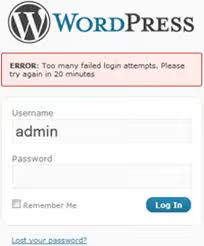
Security. The login page is WordPress's most attacked entry point. Brute-force bots knock around the clock. Without an activity log, you won't know someone is guessing passwords until it's too late. With a log, you see the IP, time, and number of attempts, and you can block the attacker before they break in.
Team management. If multiple people work on the site (editors, SEO specialists, developers), an activity log shows who changed what. Did an editor accidentally unpublish an article? Did a developer update a plugin and crash the site? The log points to the culprit in seconds.
Error diagnosis. Did the site slow down after a plugin or theme update? The log shows what changed and when. You can roll back the problematic change precisely, without guessing or trying everything one by one. The same applies to SEO errors: if a page suddenly lost rankings, the log will tell you whether its URL or title changed.

What exactly an activity log tracks
A good plugin logs more than just logins. Here's a list of events worth monitoring on any WordPress site:
- Content: creating, editing, and deleting posts and pages; status changes (published → draft); URL, title, and author modifications
- Media files: uploading, updating, and deleting images and documents
- Users: registration, deletion, role and permission changes, profile edits
- Themes and plugins: activation, deactivation, installation, updates, deletion
- Settings: changes to site parameters, permalinks, comments, homepage, time zone
- Logins: successful and failed attempts, with IP address and timestamp
- Comments: adding, approving, editing, deleting, marking as spam
- Widgets and menus: adding, reordering, removing elements
The more comprehensive the coverage, the easier it is to find the root cause of a problem. Free plugin versions differ in which events they track, so choosing the right tool for the job is a skill in itself.
3 free WordPress activity log plugins
Below are three actively maintained plugins that cover needs ranging from personal blogs to large multi-author sites. All are available for free in the WordPress.org directory.
1. Simple History
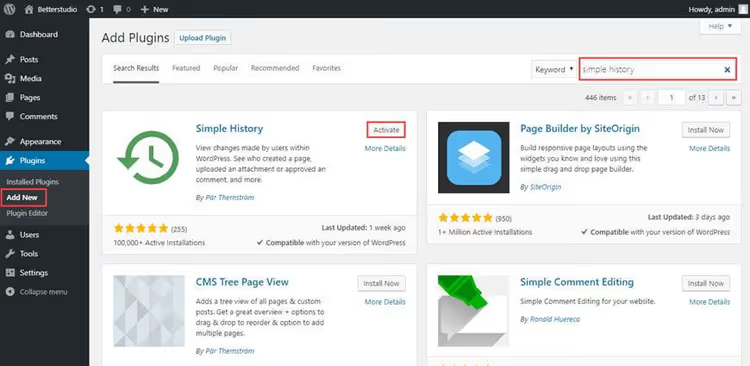
Simple History is a minimalist and fast plugin with over 200,000 active installations. Its main advantage: the log integrates directly into the WordPress dashboard and displays events in chronological order, like a news feed.
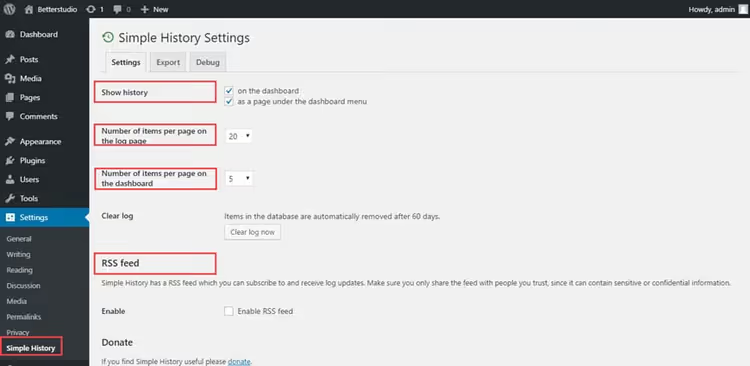
What it logs: posts, pages, media files, comments, widgets, menus, plugins, themes, user profiles, login attempts. It includes built-in RSS feed support for events, which is convenient for monitoring without logging into the admin area.
Strengths:
- Does not overload the database; uses its own table that can be cleaned on a schedule
- Shows who exactly performed an action, with avatar and username
- Compatible with login attempt limiter and user switching plugins
- RSS feed for remote monitoring
Weaknesses:
- No email notifications in the free version
- Does not log WordPress settings changes (only content and users)
Best for: owners of small sites and blogs who need a simple visual log without fine-tuning. Ideal if you want a "set and forget" approach with occasional dashboard checks.
🔗 Simple History on WordPress.org
2. WP Activity Log

WP Activity Log is the most powerful free plugin in this category, with 300,000+ active installations and a 4.8 rating. Unlike Simple History, the log here is not just a feed but a full-fledged audit tool with filters, search, and export.
What it logs: virtually everything, from permalink changes to modifications in WooCommerce, bbPress, WPForms, Yoast SEO, ACF. It has built-in integration with dozens of popular plugins.
Strengths:
- Detailed information for each event: who, when, from which IP, what exactly changed (old value → new)
- Configurable email and SMS notifications for specific events
- Role-based log separation: admin sees everything, editor sees only content
- CSV export for external audits
- Integration with WooCommerce, Yoast SEO, WPForms, and other plugins
Weaknesses:
- Some advanced features (SMS, reverse IP lookup) are in the premium version
- The interface is more feature-rich than Simple History, so the learning curve is slightly steeper
Best for: sites with teams, WooCommerce stores, projects with high security and audit requirements. If you need to know not only what happened but also which specific data changed, this is your choice.
🔗 WP Activity Log on WordPress.org
3. Activity Log

Activity Log is a lightweight plugin from the Activity Log Team, focused on simplicity and speed. Over 200,000 installations, 4.5 rating.
What it logs: posts, pages, comments, media files, users, plugins, themes, widgets, menus, settings. Supports WooCommerce, Contact Form 7, Jetpack, Yoast SEO.
Strengths:
- Does not overload the interface; everything is on one page with convenient filters by date, user, and event type
- Quick installation and minimal setup
- Good performance on low-resource hosting
- Log export
Weaknesses:
- Fewer integrations than WP Activity Log
- No RSS feed
- Email notifications only in the premium version
Best for: those who need a balance between WP Activity Log's functionality and Simple History's simplicity. A good choice for medium-sized sites with several authors.
🔗 Activity Log on WordPress.org
Comparison table
Feature | Simple History | WP Activity Log | Activity Log |
|---|---|---|---|
Content logging | ✅ | ✅ | ✅ |
User logging | ✅ | ✅ | ✅ |
Plugin and theme tracking | ✅ | ✅ | ✅ |
Email notifications (free) | ❌ | ✅ | ❌ |
RSS feed | ✅ | ❌ | ❌ |
WooCommerce integration | ❌ | ✅ | ✅ |
Log export | ❌ | ✅ (CSV) | ✅ |
Role-based separation | ❌ | ✅ | ❌ |
Active installations | 200,000+ | 300,000+ | 200,000+ |
Video tutorial: complete WP Activity Log setup
If you prefer a visual format, watch this step-by-step WP Activity Log setup in English, covering everything from installation to event filtering and notification configuration.
⁉️🤔 Frequently asked questions
Does an activity log plugin slow down the site?
Quality plugins (Simple History, WP Activity Log, Activity Log) use their own database table and asynchronous writing, so the impact on page load speed is negligible. Modern activity plugins write logs to a separate table, not to postmeta or options, so WordPress core does not slow down. For sites with very high activity, we recommend setting up auto-cleanup for logs older than 30 days.
Can I hide a specific user's actions?
Yes, WP Activity Log allows you to exclude specific users or roles from logging. Simple History does not offer this; it records all actions. Activity Log shows everyone, but you can filter when viewing. An excluded user continues to work normally; their actions are simply not recorded.
Does an activity log replace backup?
No, these are complementary tools. The log shows who changed what, but it does not save copies of data. A backup (via UpdraftPlus, BlogVault, or your host) lets you restore the entire site. Combined with an activity log, you get full control: the log points to the problematic change, and the backup restores the "before" state.
What should I do if the activity log plugin misses an event?
This rarely happens, but it is possible. Make sure the plugin is updated to the latest version and is compatible with your WordPress version. Verify that the required event type is enabled in settings. If the problem persists, contact plugin support on WordPress.org. WP Activity Log and Simple History developers typically respond within 2-3 business days.
Is it safe to store logs on the same server?
Yes, if you follow basic WordPress security practices. Logs do not contain passwords, only action metadata. For extra protection, WP Activity Log supports external storage via API in the premium version, but local storage is sufficient for the vast majority of sites. The only risk: if an attacker gains full database access, they can delete logs to cover their tracks. Therefore, admins should set up email notifications for critical events; the email goes out instantly, before the log in the database can be wiped.
Which activity log plugin to choose
The choice comes down to three scenarios. Identify yours and install the appropriate tool.
If you have a small blog or portfolio site, go with Simple History. It requires no configuration, displays events right on the dashboard, and does not burden your hosting. Install, activate, and the log is already running. Check the "Simple History" tab in your admin area every couple of weeks.
If a team works on the site, choose WP Activity Log. User filtering, notifications when permissions change, a full audit trail for every action. Especially relevant for WooCommerce stores: you can see who changed a product's price, description, or status.
If you need something in between, try Activity Log. Lightweight, with convenient filters and good performance. Use it when Simple History lacks detail but WP Activity Log feels excessive.
Most importantly, do not delay. Five minutes spent installing a plugin today saves hours of investigation tomorrow. Pick from the three options above, activate, and configure notifications for critical events. Peace of mind is worth it.

A professional team of writers and editors specializing in creating quality content.