













 AIIllustrative image: AI-generated
🚀 How to migrate to WordPress from any website or CMS: a complete guide
A site on Joomla, Bitrix, or plain static HTML, and the thought of moving to WordPress sends a chill down your spine. The fear is understandable: it seems like content will scatter, SEO rankings will crash, and internal links will turn into a graveyard of 404s.
In practice, migrating to WordPress is a methodical process, not digital surgery. If you break it into stages and do not skip preparation, the move goes smoothly. Over the years, tens of millions of sites have migrated to WordPress from various platforms, and for each CMS and website builder there is a proven path.
This guide takes you from the initial inventory of your current site to the final inclusion in search results. Without ties to any specific plugin, hosting provider, or website builder.
💡 Quick overview:
- Identify your source site type: CMS (Joomla, Drupal, Wix, Tilda) or static HTML. This determines whether you can use a ready-made import plugin or will need to transfer pages manually.
- Create a content map: what becomes pages versus posts, which categories and tags you need. Clear separation upfront saves hours during the transfer.
- Choose hosting with PHP and MySQL, install WordPress in the domain root, not in a subfolder. Most hosts offer one-click installation.
- Set up 301 redirects from old URLs to new ones via the Redirection plugin, preserve meta descriptions. Without this, search rankings will definitely drop.
- Import content: for CMS through an import plugin, for static sites manually. WordPress documentation describes dozens of import procedures for different platforms.
- Install the essential minimum: theme, contact form, anti-spam, backup, security. Do not install dozens of extensions at once.
- Test the site with mobile optimization and speed tests, then submit the XML sitemap to Google Search Console and enable indexing.
Where to start: assessing your source site

The first step is an honest inventory of your current site. By the amount of work ahead, source sites fall into two categories.
CMS-based site. If your current site runs on Joomla, Drupal, Wix, Tilda, Bitrix, or another content management system, consider yourself lucky. Most likely, a plugin or built-in tool exists for exporting content to a WordPress-compatible format. The official WordPress documentation describes import procedures for dozens of platforms, from Blogger to Drupal. If your CMS is not mentioned there, search the plugin repository for "import" plus your platform name. Almost always a community solution exists.
Static site without a CMS. HTML/CSS built without an engine requires manual work. This is not a sentence: each page transfers to WordPress separately. The upside is you get full control over structure and deeply understand WordPress logic in the process. The downside is time: a 30-page site will require a couple of days of careful transfer.
Migration plan: 10 preparation steps

It is more reliable to build a plan not from "how it was on the old site" but from "how WordPress is structured." The platform stores content as posts, pages, and custom post types, and organizes it through categories and tags. Your task is to reassemble old content into this logic, not try to reproduce your previous CMS structure using WordPress tools.
Say you are moving from Tumblr. Do not look for a plugin that mimics Tumblr behavior inside WordPress. Instead, distribute old entries across categories and tags of the new site. You will get a clean architecture without workarounds.
1. Reorganize content

Think through what on the current site is a page and what is a post. The general rule is simple and works for business sites, blogs, and portfolios alike:
- Pages are static content: "About," "Contact," "Services," portfolio. Anything not tied to a publication date and rarely changing.
- Posts are dynamic content: news, articles, announcements, case studies. Everything published regularly with a chronology.
For a restaurant site: home, "About Us," and the menu page are WordPress pages. Event announcements, weekly specials, kitchen news are posts. Clear separation upfront saves hours during transfer and provides a meaningful structure from day one.
2. Choose hosting

WordPress requires PHP and MySQL as a minimum. Virtually any shared hosting includes both in starter plans priced from 3-8 dollars per month. HostGator, SiteGround, DreamHost are long-time recommendation leaders on WordPress.org.
If your site is high-traffic (50,000+ unique visitors per month), look toward managed WordPress hosting: WP Engine, Kinsta, Cloudways. Pros: automatic backups, isolated environment, guaranteed uptime during traffic spikes. Con: higher price, from 20-30 dollars per month, with billing often based on visits.
WordPress.com is a separate conversation. It is a hosted version with limitations on plugins and themes. For a full migration from another CMS, it is better to use a self-hosted WordPress installation on your own hosting. Full control over the server and plugins is worth it.
3. Design site structure

Four key decisions to make before installing WordPress:
Domain. The ideal scenario is installing WordPress on the same domain where the old site operated. This preserves accumulated SEO weight. Changing domains means starting from scratch in search engines. Only do this during a rebrand or if the old domain has penalties.
Installation directory. WordPress in the domain root (example.com), not in a subfolder (example.com/wordpress). Most installers create a wp folder by default; uncheck that option. Moving from a subfolder to root later is an unnecessary headache.
Subdomains. If installing WordPress on a subdomain (blog.example.com), it installs in that subdomain's root. The logic is the same.
Menu. Plan navigation before transferring content: main menu, footer, sidebar. Convenient navigation directly affects both user experience and SEO.
4. Prepare the SEO perimeter
Migration is the moment of greatest vulnerability for search rankings. Two mandatory actions that minimize losses:
Meta descriptions. WordPress out of the box provides a decent SEO foundation, but for fine-tuning study the Moz SEO beginner's guide and the Yoast blog. Page metadata often gets lost after migration; it needs to be planned in advance, not recovered after the fact.
Redirects. Old URLs that do not match WordPress's default structure must remain working. The Redirection plugin is the standard tool for managing 301 redirects and tracking 404 errors. It works without editing .htaccess, logs every error, and allows bulk importing rules via CSV.
5. Contact form and spam protection

A contact form is needed even if it seems like no one has reason to contact you. It signals openness: readers see they can propose collaboration, report an error, or ask a question. Contact Form 7 is free, simple, and the most popular option with tens of millions of installations. For a broader list, see our contact form plugins collection.
Comment spam is inevitable for any blog. Install Akismet right away or check out our anti-spam plugins collection. One active plugin at launch saves dozens of hours of manual moderation in the first months alone.
6. Choose a theme
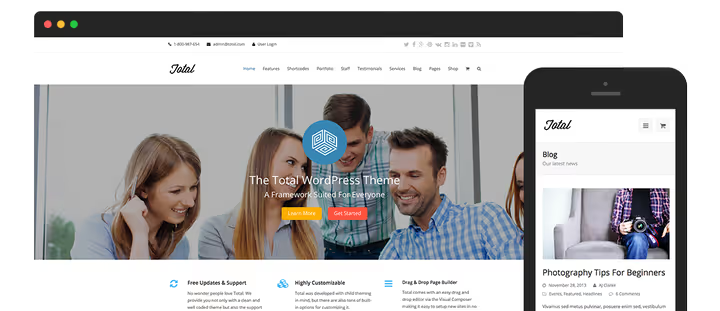
Free or premium. Free themes from the official WordPress.org repository pass code quality checks, making them a safe choice. Premium themes from reputable studios usually offer more features: extended typography settings, built-in page builders, and demo template collections for various niches.
Speed. Many beautiful themes are not optimized for fast loading. Before purchasing, run the theme demo through Google Mobile-Friendly Test and Pingdom Speed Test. A theme that fails both tests on the demo site will not become faster after installation.
Custom development. If you need to preserve the old site's design pixel-for-pixel, budget for a custom theme. It costs more than a premium theme, but frameworks like Genesis speed up development and ensure security standards for years ahead.
7. Set up backup
Backups are insurance whose importance you realize only when your site is already down. Do not wait for that moment. On WordPress, backup is configured via plugins in 10 minutes. Check out our backup plugins collection. Minimum setup: daily automatic backup to cloud storage (Google Drive, Dropbox, or S3) plus manual backup immediately before starting migration.
8. Secure the site

WordPress security is an area that newcomers systematically underestimate. The platform's popularity makes it an attractive target for automated attacks. The minimum set: a security plugin from our malware scanner collection, disabling PHP execution in the wp-content/uploads folder, and two-factor authentication for all administrators. This is the baseline level that closes most attack vectors without specialized knowledge.
9. E-commerce

If an online store is in your plans, there is one answer: WooCommerce. A free plugin from Automattic (the same company behind WordPress), with an ecosystem of thousands of extensions for payment systems, shipping, inventory management, and taxes. According to BuiltWith statistics, WooCommerce holds more than a third of the e-commerce platform market. Installation takes 5 minutes; configuring it for your business takes from one day with a ready theme.
10. Specific needs of your project

The nine points above cover most scenarios, but your project may require specific solutions: tracking scripts, social widgets, CRM integration. Since WordPress holds a dominant CMS market share (over 60% among sites with a known CMS according to W3Techs data), virtually any SaaS service has a ready plugin or module. Search for "service name + WordPress plugin," and most likely you will find an official solution from the developer.
Step-by-step transfer process
Once the plan is ready, the actual transfer follows a clear sequence. Each step is reversible; thanks to your backup, you can roll back at any moment.
Step 1. Full backup of current site. Copy files via FTP and export the database through phpMyAdmin or hosting console. Store the copy locally, not on the same server; if the server fails, a backup on it is useless.
Step 2. Placeholder page. If installing WordPress on the same hosting where the old site runs, create an index.html file with information about maintenance. Delete it after WordPress installation.
Step 3. WordPress installation. Most hosts offer one-click installation through the control panel. For manual installation, follow the official instructions. Make sure WordPress is installed in the domain root, not in a subfolder.
Step 4. Disable indexing. Immediately after logging into the WordPress admin, go to "Settings → Reading" and check "Discourage search engines from indexing this site." Until you finish the transfer and configure the structure, search engines should not see the incomplete site.
Step 5. Content import. For CMS sites, through an import plugin. The full list of import procedures is in the WordPress documentation. For static sites, manual transfer of each page. When copying, maintain the separation into pages and posts: this is the key to a clean structure.
Step 6. Organize content. Create categories, subcategories, and tags according to the plan from preparation step 1. Distribute imported content among them. At this stage, the site gains a logical structure.
Step 7. Install the essential minimum of plugins. Theme, contact form, anti-spam, backup, security: five plugins that cover the foundation. An SEO plugin is not critical at this stage; WordPress's basic SEO is sufficient for launch. Do not install dozens of extensions at once; each adds load and potential conflicts.
Step 8. Quality check. Run the site through Google Mobile-Friendly Test and Pingdom Page Speed Test. If results are poor, the problem is most likely the theme. Replace the theme before the site enters the index.
Step 9. Sitemap. Install Google XML Sitemaps or a similar plugin and generate an XML sitemap. This speeds up indexing after enabling visibility.
Step 10. Link check. Go through the site manually or with a broken link finder plugin. Redirect discovered broken URLs with 301 to a relevant page or to the home page. Leaving 404s after migration is unacceptable; each such page loses visitors and SEO weight.
Step 11. Go live. Uncheck "discourage indexing" in WordPress settings. Add the site to Google Search Console and submit the XML sitemap for indexing. The site officially lives on WordPress.
Here is a visual video on the entire process, from assessing the source site to the final check:
⁉️🤔 Frequently asked questions
Can I migrate a site to WordPress without losing SEO rankings?
Yes, with a careful approach losses are minimal. Keep the domain, set up page-by-page 301 redirects from old URLs to new ones, transfer meta descriptions and titles, create an XML sitemap and submit it to Google Search Console immediately after enabling indexing. A brief dip of 1-2 weeks is normal for any migration, but proper SEO perimeter preparation reduces it to zero.
How long does site migration take?
A small site (10-20 pages) on a popular CMS takes 2 to 4 hours including theme and plugin setup. A static site of the same size takes a day of manual work. A large project (hundreds of pages, online store) takes from several days to a week. Planning and preparation take roughly as much time as the technical transfer itself. Do not try to fit it into an hour; rushing a migration echoes for months of fixes.
Do I need to hire a developer?
For a typical site on a common CMS (Joomla, Wix, Tilda, Drupal), no, you can handle it yourself following this guide. A developer is justified in three cases: a custom CMS without ready export, a requirement to preserve non-standard design pixel-for-pixel, and a high-load project where the cost of error is measured in downtime money.
What about broken links after the move?
The first line of defense is the Redirection plugin: it enables 404 monitoring and lets you create redirect rules as they are discovered. If an old URL has no direct equivalent on the new site, set a 301 redirect to the most relevant page, not to the home page. Batch importing old URLs with assigned new addresses via CSV saves hours on sites with hundreds of pages.
Do I need to change domains when switching to WordPress?
No, changing domains without extreme necessity is not recommended. Keeping the domain is the most reliable way to retain SEO rankings. Change domains only if the old one has search engine penalties or you are doing a full rebrand. In that case, set up page-by-page 301 redirects from the old domain to the new one; this is mandatory.
After the move: what to enable first?
The true endpoint after migration is not the moment when content is loaded, but the moment when the basic perimeter is closed and the site is ready for indexing. The "first hours" checklist: daily automatic backup to cloud, malware scanner and two-factor authentication for admins, contact form, spam protection, 301 redirects for all changed URLs, XML sitemap and submission to Google Search Console.
Everything else (theme, additional plugins, fine-tuning SEO) is configured afterward. Search engines need time to recrawl, and it is better to give them a working site today than to polish it to perfection for another month. Methodically go through the preparation and execution steps, checking against this guide, and business risks reduce to a routine technical operation: migration without drama and losses.

A professional team of writers and editors specializing in creating quality content.