














🔕 How to disable WordPress admin notifications: plugin and code
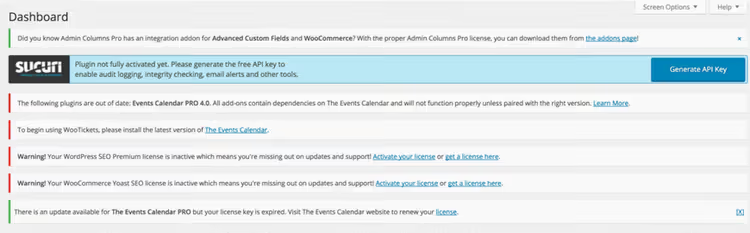
Notifications in the WordPress admin panel can turn website management into an endless click marathon. Every installed plugin feels obligated to show a banner: "Update me," "Try Pro," "Give us 5 stars." The theme adds its own, the core adds its own. After a couple of months of active work, the dashboard looks like a bulletin board in an apartment building entrance.
It's especially annoying when notifications cover important interface elements or return after every page refresh. You closed it, and a day later it's back. And amid all this noise, it's easy to miss something truly critical: a plugin conflict warning or a security update notification.
Fortunately, you can get rid of this chaos in two ways: with a free plugin in two clicks or with a few lines of code in functions.php. Both methods have been tested on current WordPress versions, require no special knowledge, and don't break update logic.
💡 Quick overview:
- Install Disable Admin Notices from the WordPress directory
- Add a snippet to functions.php to disable notifications
- Choose a mode: hide all, selective, or collect into a panel
What are admin notifications and where do they come from
Every time you visit /wp-admin, WordPress fires the admin_notices hook. This is how plugins, themes, and the core itself display their messages: errors, warnings, promo banners, license reminders.
Technically, these are <div> elements with specific classes: notice, updated, error, and is-dismissible. They render at the top of every admin page. Standard WordPress doesn't provide a global "Hide all" button: you can close each notification individually, but it will return on the next page refresh or plugin activation.
The problem gets worse as the number of plugins grows. On a site with 15-20 active extensions, the dashboard can show 6-8 notifications simultaneously. Some of them are pure marketing (upselling to the Pro version), some are informational noise (plugin successfully updated), and only a small portion are actually important messages.

Before moving on to the tools, here's a short video that clearly demonstrates both methods in 4 minutes:
Method 1: Disable Admin Notices plugin
Disable Admin Notices is a free open-source plugin that as of May 2026 has over 100,000 active installations and a 4.7★ rating on WordPress.org. The developer is WPDeveloper, a team with years of experience supporting their products.
The plugin solves the admin notification problem on three levels:
Hide forever: adds a "Hide notification forever" link under each notification. Click it, and that specific message will never appear again. Convenient for targeted cleanup: hide marketing banners, keep update warnings.
Global disable: in the settings you can choose "Hide all notifications." The plugin removes everything except critical core messages (security updates, PHP errors). This is the "set it and forget it" mode.
Notification panel: optionally collects all hidden messages into a compact bar in the top admin panel. You don't see them, but you can open them with one click and check if you missed anything important.
Installation and setup
Installation is standard, through the WordPress admin:
- Go to Plugins → Add New
- Search for "Disable Admin Notices"
- Click Install, then Activate
After activation, a "Hide Admin Notices" item will appear in the Settings menu. Inside, there are three operating modes:

All notices: hides all notifications on all admin pages. Additionally, you can enable collecting them into a compact admin bar (at the top, next to "Howdy, admin"). This is the best choice for most users: a clean admin panel plus the ability to quickly view hidden messages.
Only selected: hides only those notifications for which you manually clicked "Hide notification forever." Reset of hidden notifications is available for all site users or only for the current one.
Do not hide: the plugin is active but doesn't hide anything. A "pause" mode for debugging purposes.
The plugin works with notifications from any source: third-party plugins, themes, and the WordPress core itself. No conflicts with popular plugins (Yoast SEO, WooCommerce, Elementor) have been noticed. The project is actively maintained, with the last update released in 2026.
🔗 Disable Admin Notices on WordPress.org
Method 2: disabling notifications through code
If you try to keep the number of plugins to a minimum, you can get by with a single snippet. This method is for those who are comfortable copying 10 lines of code into a theme file.
The approach: we attach a CSS rule through the admin_enqueue_scripts hook that forcibly hides all elements with notification classes. The code performs exactly one task and adds no load to either the frontend or the database.
Where to insert the code
The safest way is through the Code Snippets plugin (also free, 500K+ installations). It allows you to add custom PHP code without editing theme files and without the risk of getting the "white screen of death" from a typo.
If the Code Snippets plugin doesn't work for you, add the code to the functions.php of your active theme (or child theme if you're using one). Path: Appearance → Theme Editor → functions.php. But before doing this, be sure to make a backup. We covered the full WordPress backup process in a separate article.
Snippet
1 /** 2 * Hide all admin notices for non-administrator users. 3 * Administrators still see everything — including critical error messages. 4 */ 5 add_action( 'admin_enqueue_scripts', 'tsd_hide_admin_notices' ); 6 function tsd_hide_admin_notices() { 7 if ( ! current_user_can( 'manage_options' ) ) { 8 echo '<style> 9 .notice, 10 .update-nag, 11 .updated, 12 .error, 13 .is-dismissible, 14 .notice-info, 15 .notice-warning, 16 .notice-success, 17 .notice-error { display: none !important; } 18 </style>'; 19 } 20 }
How it works:
- The
admin_enqueue_scriptshook fires on every admin page and allows you to insert inline styles. current_user_can('manage_options')is a permissions check. If the user does NOT have administrator rights, notifications are hidden. The administrator continues to see everything, which is critical for tracking errors.- The set of
.notice*classes covers all standard notification variants, including custom ones from modern plugins. !importantensures that built-in plugin styles don't override the hiding.
When code is better than a plugin
The code method is the choice for minimalist builds: sites on custom themes, headless configurations, multisite networks with strict plugin policies. It doesn't create database entries, doesn't add menu items, and doesn't require updates.
The downside is the lack of flexibility. You can't selectively hide a marketing banner from a specific plugin while leaving everything else. The code operates on an "all or nothing" principle for each user role.
⁉️🤔 Frequently asked questions
Is the Disable Admin Notices plugin free or is there a Pro version?
Completely free. No Pro tiers, no limited functionality, and no advertising banners inside the plugin itself. The developer (WPDeveloper) monetizes other products while supporting this one as an open-source tool for the community. The source code is available on GitHub in the developer's repository.
Does the plugin hide notifications about critical security updates?
No, this is the key difference from the code method. Even in "All notices" mode, the plugin lets through WordPress core messages about security updates and critical PHP errors. The developer has explicitly built in exceptions for system notifications like
core_update_availableandphp_version_check.
Can notifications be hidden only for specific user roles?
Through the plugin, no: it works globally. Through code, yes: modify the condition in the snippet. For example,
if ( ! current_user_can( 'edit_posts' ) )will hide notifications for everyone except editors and administrators. See the full list of roles and capabilities in the official WordPress documentation.
What should I do if the site starts behaving strangely after hiding notifications?
For diagnostic purposes, switch the plugin to "Do not hide" mode: notifications will return without deleting your hiding settings. If you used code, comment out the
add_actioncall (add//at the beginning of the line). Strange behavior after disabling notifications is almost always a symptom, not a cause: the notifications were simply masking an already existing problem.
The plugin doesn't hide a notification from a specific plugin. What should I do?
Some plugins (especially older ones or those not written according to WordPress standards) render notifications with non-standard classes or outside the
admin_noticeshook. In this case: (1) click "Hide notification forever" under the specific notification, and Disable Admin Notices will remember it through JavaScript; (2) if that doesn't help, add a targeted CSS selector from the browser inspector to the code snippet.
Plugin or code: what to use in 2026
For most WordPress users the answer is clear: the Disable Admin Notices plugin. It's free, weighs less than 100 KB, doesn't slow down the admin panel, gives precise control, and doesn't touch critical notifications. Two clicks, and the problem is solved.
Leave the code method for situations where every plugin counts: custom builds, multisite networks with dozens of sub-sites, sites maintained by agencies with strict code review. In these scenarios, a 10-line snippet is a more transparent solution than yet another plugin in the list.
What you definitely shouldn't do is put up with a cluttered admin panel. Every unnecessary notification steals your attention and masks truly important signals from the WordPress core. And a site administrator's attention is a resource worth preserving.

A professional team of writers and editors specializing in creating quality content.