














⚙️ How to remove Powered by WordPress from the footer: 3 methods from one click to editing code
The line "Proudly powered by WordPress" in the footer is like a price tag left on a suit before stepping on stage. A small thing. But your client notices it. Your competitor notices it. And the partner deciding whether to do business with you notices it too.
For a weekend blog, that line is no problem. When there's a business behind the site, an unprofessional detail in the footer works like a red flag: "thrown together," "cut corners on everything," "doesn't pay attention to details." Worse, the link takes visitors away from your WordPress site to wordpress.org. You didn't grow your traffic for that.
Legally, removing credits is completely allowed. WordPress is distributed under the GPL license, which permits editing, publishing, and distributing the code in any form. You are not obligated to advertise the platform in your footer.
Below are three working methods to remove "Powered by WordPress" from the footer. From a click in settings to careful code editing. And one method you should never use, with an explanation why.
💡 Quick overview:
- Open the Customizer and find the Footer section; most modern themes already have a built-in option to remove credits.
- If the Customizer doesn't offer options, check the theme settings and widgets in the admin panel; developers often hide the toggle there.
- For full control, edit footer.php through a child theme; this method works with any theme, including custom ones.
- Don't use the CSS trick with
display: none: hidden text hurts SEO and can lead to Google penalties.
Comparing methods: which one to choose
Criterion | Customizer | Theme settings and widgets | Footer.php + child theme |
|---|---|---|---|
Difficulty | Minimal | Low | Medium |
Requires FTP | No | No | Yes |
Requires code | No | No | Yes (PHP) |
Works with any theme | No | Not all | Yes |
Survives theme updates | Yes | Usually yes | Yes (via child theme) |
Risk of breaking site | Zero | Zero | Low (with backup) |
If your site runs on a block theme with Full Site Editing, all three methods below still work, but there's also a fourth path: Site Editor (Appearance → Editor), where the footer can be edited visually without code. More on that at the end of the article.
1. Customizer: removal in two clicks
Developers of quality themes know that users need control over the footer. In well-made themes, the option to disable credits is built right into the Customizer, the interface familiar to anyone who has ever changed colors or a logo.
Go to the WordPress dashboard: Appearance → Customize. The Customizer opens in live-preview mode, so you see results immediately before saving.
The name of the option depends on the theme: "Footer," "Footer Bar," "Copyright." Most often it's in a section with the same name in the Customizer.
Find the Footer section, and inside it, the Bottom Bar subsection. There you'll see a text field with the current content: "Proudly powered by WordPress" or a variation added by the developer.

Delete the text or replace it with your own copyright. For example: "© 2026 Company Name. All rights reserved." Click Save, and the line disappears from the site.
This method is great because it requires no plugins and no messing with code. The only limitation is that the theme developer must have included such a setting. If your theme doesn't have it, move on to method 2.
2. Theme settings and widgets
When the Customizer doesn't show footer options, the next level is direct theme settings. Open Appearance → Customize and look for a tab with the theme's name. Developers often put custom toggles there, including footer and copyright management.
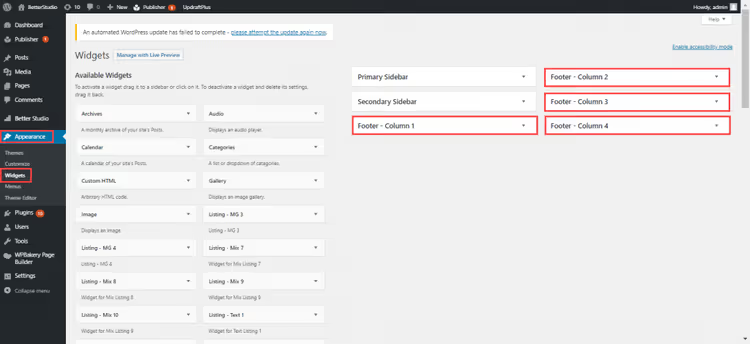
The second path is widgets. Open Appearance → Widgets. Some themes display footer text through a "Text" or "Custom HTML" widget in the "Footer" area. If you see a block with "Powered by WordPress," delete it or edit the content. Changes apply immediately.
This method doesn't work for themes where the footer is hardcoded into the template without filters and settings. For those cases, use method 3.
3. Footer.php through a child theme: full control
The footer.php file contains the HTML and PHP that form the bottom of every page. That's where the target line hides. This method is universal: it works with any theme and doesn't depend on the developer's choices. But it requires care.
Safety net: child theme
Before editing, create a child theme. This is an ironclad rule: edits made directly to the parent theme will be erased on the next update. A child theme survives any updates. Plus, if you make a mistake in the code, you can always switch back to the parent theme and the site will keep working.
The most reliable way to create a child theme is through an FTP client like FileZilla. Many hosting providers disable WordPress's built-in file editor for security reasons; FTP bypasses this limitation.
Steps:
Connect to the server via FTP. Use the credentials from your hosting provider.
Navigate to the themes directory:
public_html → wp-content → themes.

- Open the active theme's folder.

Create a child theme. Next to the active theme, create a folder (for example,
twentytwentyfive-child), put astyle.csswith the child theme header in it, and copy thefooter.phpfile there.Download
footer.phpto your computer and open it in an editor. Find the line withPowered by; it's usually inside a link towordpress.org.

In a typical WordPress theme, the code looks something like this:
1 <?php 2 do_action( 'theme_slug_credits' ); 3 ?> 4 <a href="<?php echo esc_url( home_url( '/' ) ); ?>" rel="home"><?php bloginfo( 'name' ); ?></a> 5 <a href="<?php echo esc_url( __( 'https://wordpress.org/', 'textdomain' ) ); ?>"> 6 <?php 7 printf( 8 __( 'Proudly powered by %s', 'textdomain' ), 9 'WordPress' 10 ); 11 ?> 12 </a>
The line with printf( __( 'Proudly powered by %s' ... is the target. Delete the entire <a> tag with this line or replace the content with your own copyright:
1 <a href="<?php echo esc_url( home_url( '/' ) ); ?>" rel="home"> 2 © 2026 <?php bloginfo( 'name' ); ?>. All rights reserved. 3 </a>
- Save the file and upload it back to the server into the child theme folder, overwriting the old version.
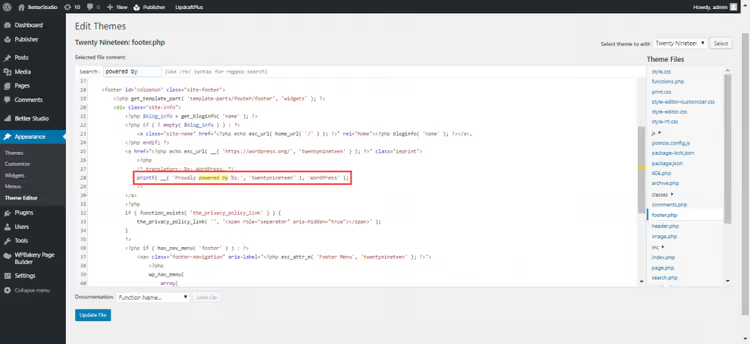
- Activate the child theme in the admin panel: Appearance → Themes, find the theme you created, and click "Activate." Check the site; the WordPress credits should be gone.
If the theme editor is hidden by your host
The Appearance → Theme Editor menu item is sometimes missing from the admin panel. This is not an error; the hosting provider disabled the file editor for security reasons. This is a sensible practice: direct access to PHP files from the admin panel is an extra attack vector. In this case, FTP is the only way.
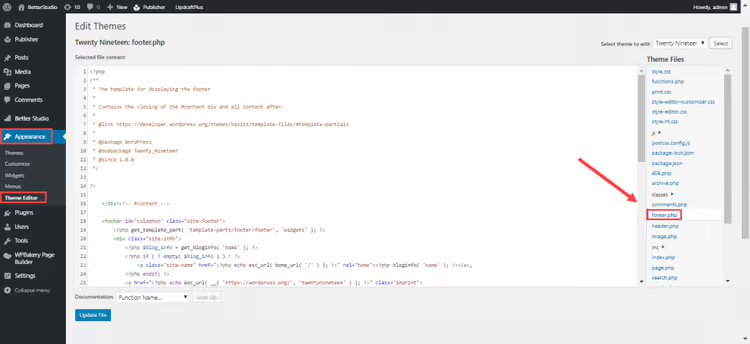
Most modern hosting providers offer a file manager in their control panel, so if you don't want to install an FTP client, you can use that. But FTP is more reliable: there are no file size limits, and it's more convenient for working with backups.
Anti-method: the CSS trick that will tank your SEO
The web is full of advice about a "simple" method using a single line of CSS:
1 .site-info { display: none; }
It hides the footer block visually. But it doesn't remove it. The text remains in the page's HTML code, and Google sees it.
Search engines treat hidden text as an attempt at manipulation. Spammers have been hiding links and keywords with display: none for decades to boost rankings. When Google detects hidden content, the algorithm doesn't examine intentions; it applies penalties. The result is a drop in search rankings or complete removal of the page from the index.
Don't hide WordPress credits with CSS. Remove them using one of the three working methods above. If you can't do it yourself, contact a developer: fifteen minutes of a specialist's work costs less than recovering rankings after a search engine filter.
Block themes and Full Site Editing
If your site runs on a block theme with Full Site Editing support (Twenty Twenty-Four, Twenty Twenty-Five, and similar), the logic is slightly different. The footer is edited through the Site Editor: Appearance → Editor. Find the footer template, select the block with the credits text, delete or replace it, and save. No code, no FTP.
The three methods described above also work for these themes (footer.php hasn't gone anywhere), but Site Editor is a more direct path for block themes.
⁉️🤔 Frequently asked questions
Is it legal to remove "Powered by WordPress"?
Yes, completely legal. WordPress is distributed under the GNU GPL v2 license, which explicitly permits modification, distribution, and use of the code for any purpose without mandatory attribution. You are not obligated to keep the link to wordpress.org in your footer; this is a matter of design and branding, not a legal requirement.
What should I put in the footer instead of credits?
The standard option is your company's copyright: "© 2026 Company Name. All rights reserved." If you accept online payments, add links to your privacy policy and terms of use. Offline businesses often include an address and phone number. The main point: the new text should not contain hidden links and should not mislead search engines.
Will changes disappear after a theme update?
If you edited
footer.phpdirectly in the parent theme, yes, they will disappear. If you used a child theme (method 3), no, the changes survive updates. Settings made through the Customizer and widgets are usually preserved regardless of updates. In any case, make a full site backup before updating.
Can I remove credits without FTP access?
It depends on the theme. If the Customizer has a footer management option (method 1), yes, FTP is not needed. If there's no option and the theme editor in the admin panel is disabled by the hosting provider, you'll need FTP or the hosting file manager. An alternative is to install a dedicated plugin from the official WordPress repository; it removes credits without editing code.
Does removing "Powered by WordPress" affect how the site works?
No. The line in the footer is purely decorative. Its presence or absence does not affect site functionality, loading speed, plugin operation, or core updates. You are simply removing text that provides no benefit to you or your visitors.
What to do after removal: a professional footer in 10 minutes
The three methods cover virtually any scenario. Customizer is for themes with well-thought-out settings. Widgets and theme options are an intermediate level. footer.php through a child theme is for when you need full control and protection from updates.
On a block theme with Full Site Editing, there's a fourth, visual path through Site Editor, without a single line of code.
Spend ten minutes right now. A professional footer without external links is one of those details that visitors don't consciously notice, but that shape their overall impression: "these people can be trusted."

A professional team of writers and editors specializing in creating quality content.