













 AIIllustrative image: AI-generated
📱 How to manage a WordPress website from your mobile phone
You opened the WordPress admin panel on your phone and realized nothing makes sense. The menu slides off the screen, buttons are the size of a pinhead, and editing text is pure agony. Meanwhile, a notification about a new comment arrived an hour ago, and you need to respond now rather than when you get back to your laptop.
WordPress developers solved this problem with official mobile apps for iOS and Android. They do not replace the desktop admin panel for complex operations like configuring plugins or editing theme code. But for everyday tasks (writing a post, replying to a comment, checking stats) they work great. We tested the WordPress app on both platforms and share our findings: what it can do, where it stumbles, and how to fit it into your workday.
💡 Quick overview:
- Install the official WordPress app on iOS or Android and connect your site; you only need the URL, admin login and password
- Create and edit posts right from your phone: text, photos, videos, categories and tags, all on one screen
- Moderate comments in real time: approve, reply, delete or mark as spam in a couple of taps
- Monitor site statistics through built-in integration with the Jetpack plugin: visits, traffic sources, popular pages
- Connect additional apps for backups, analytics, social networks and uptime monitoring to build a mobile command center
Installation and site connection
The WordPress app is available for free on the App Store and Google Play. After installation, open it and tap "Add site." You only need your site URL, admin login and password; the app will automatically detect that the site runs on WordPress and connect via REST API.
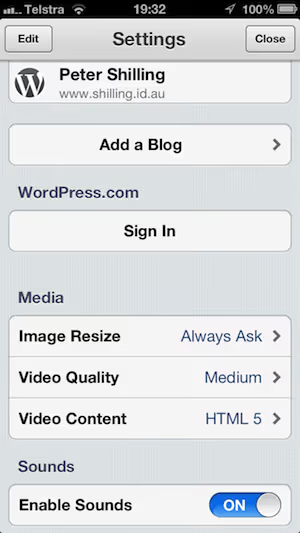
A single app instance can hold as many sites as you want. We have three blogs connected, and switching between them takes exactly one tap, more convenient than keeping three browser tabs open.
The app works with both WordPress.com sites and self-hosted installations on your own hosting. Self-hosted sites require WordPress version 4.0 or higher, but in practice any modern site works without issues. If the site has the Jetpack module installed and you log in through a WordPress.com account, the app will pull in additional functionality: statistics, push notifications for comments and a blog reader.
Creating and editing content
The post editor in the app is not a stripped-down notepad but a full-featured tool. You write text, add headings, insert images from your camera roll or take them with the camera directly from the app. Third-party photo apps are supported: for example, Camera+ on iOS is recognized as an image source.
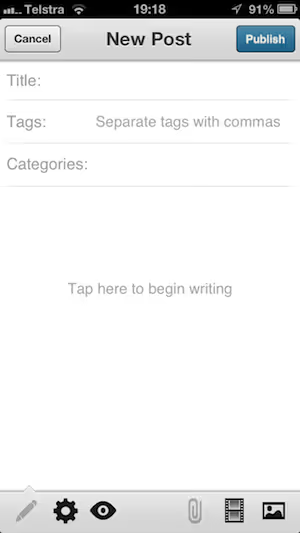
Videos can also be uploaded from your phone's gallery or recorded and added to the post immediately. All basic options are available for text content: bold, italic, lists, quotes, link insertion.
At the bottom of the editor screen you will find publication settings: status (draft, pending review, published), publication date, categories, tags and the option to set a featured image. All existing posts and pages are visible in a separate tab, and you can open any of them to edit. Noticed a typo five minutes after publishing? Fixed it from your phone in ten seconds.
What the editor lacks: working with custom fields, managing taxonomies beyond categories and tags, editing permalinks. For these tasks you still need the desktop admin panel. But the app covers the bulk of everyday content work.
Comment moderation
This is the strongest use case for the mobile app. A comment arrives when you are away from the computer: at lunch, in transit, on a walk. The WordPress app sends a push notification, you open it and see the comment in an interface similar to an email client.
Available actions: approve, reply, delete, mark as spam. All in a couple of taps. The reply is written in the same window and published instantly. For sites with an active community this saves hours; you do not need to keep the admin panel open or sort through dozens of email notifications in the evening.
Bulk moderation like in the desktop admin (selecting twenty comments with checkboxes and deleting them with one button) is not available here. But for quick responses the app is perfect.
Site statistics via Jetpack
If the Jetpack statistics module is activated on your site, the WordPress app shows detailed statistics right on your phone. You see visitor and view counts for today, yesterday and a selected period, traffic sources, the most popular pages and search queries that bring people in.
This is not a replacement for Google Analytics, rather a quick pulse check of the site. While riding the subway you glance at it: everything is fine, traffic is steady. Or the opposite: you notice an unexpected spike and head to the admin panel to figure out which article "took off."
Jetpack also shows visitor geography, link clicks and subscriber dynamics. All this data updates in real time and is packed into cards that are easier to read than GA4 tables on a small screen.
Other useful apps for WordPress
The official WordPress app is the foundation. But there are several other mobile tools that complement it and cover related tasks.
Google Analytics** for iOS**: access to GA4 reports from your phone. Custom reports, real-time reach, period comparisons. Free.
WooCommerce: if you have an online store on WooCommerce, the mobile app shows orders, revenue and popular products. It does not serve as a full replacement for desktop, but you can check the number of orders for the day in a second. Free, available on iOS and Android.
Pingdom: uptime monitoring with a push notification when the site goes down. Faster than waiting for an email from hosting. There is a free trial period, then from $10 per month.
Buffer: social media post scheduling. You wrote an article in WordPress and put together a card for Twitter and LinkedIn in Buffer on your way to work. The free plan includes up to three channels.
UpdraftPlus: a mobile app for managing backups. You can start a backup or restore from a copy without accessing the admin panel. The basic version is free; premium adds incremental backups and site cloning.
All the apps listed above are available on iOS and Android. In their basic versions each is either free or has a sufficient free tier for most site owners.
Short video: WordPress from your phone in 5 minutes
Watch this five-minute demo by 4ZEAZONS, the author shows app installation, site connection and basic content operations:
⁉️🤔 Frequently asked questions
Does the WordPress app work with sites on your own hosting, not just WordPress.com?
Yes, and this is its main advantage. The app connects to any site running WordPress 4.0 or higher via REST API, regardless of which hosting it is on. Enter the site URL, admin login and password. If you additionally authorize through a WordPress.com account and activate Jetpack, statistics and push notifications become available.
Can you install and configure plugins through the mobile app?
No. Plugin and theme management (installation, activation, deactivation, configuration) is not available through the app. You need the full desktop admin panel for this. The WordPress app is designed for content: posts, pages, comments, statistics.
What content formats does the mobile editor support?
Text with basic formatting (bold, italic, lists, quotes, headings), images from the camera roll or camera, videos from the gallery or recorded on the spot. Gutenberg blocks are not fully supported in the app; the editor uses a simplified interface. For complex layouts with columns, groups and custom blocks you need desktop.
Do notifications about new comments arrive instantly?
With active Jetpack and a connected WordPress.com account, yes, push notifications arrive within a few seconds of a comment being published. Without Jetpack you will have to go to the comments section and check manually.
Is it safe to connect a site to the mobile app?
The WordPress app uses the same authentication mechanism as regular admin login; the login and password are transmitted over HTTPS. For additional protection, enable two-factor authentication on the site: the app supports one-time passwords during login. If you lose your phone, change the admin password and the app session will become invalid.
Is it worth switching to mobile WordPress management
The official WordPress app has evolved from an experimental "reader" into a mature work tool. It covers three main scenarios: content on the go, real-time comment moderation and quick statistics monitoring. For a site with an active community or regular publications this is not a whim but a saving of two to three hours per week.
Supplement it with a couple of specialized apps for your needs (Google Analytics for deep analytics, Buffer for social networks, UpdraftPlus for backups) and you get a mobile command center that is always in your pocket. The computer will remain for complex layouts, plugin configuration and design work, while routine tasks go to the phone.
Try installing the app today and connect your site to it. Your first post written from your phone will surprise you with its speed: from idea to publication takes less than five minutes.

A professional team of writers and editors specializing in creating quality content.