













 AIIllustrative image: AI-generated
🔧 WordPress Dashboard admin panel: a complete guide to every section
You logged into WordPress and froze. On the left, a dozen menu items; in the center, a scattering of blocks with numbers and warnings; at the top, a toolbar whose purpose is not immediately clear. It feels like you sat down in an airplane cockpit without any instructions.
But the WordPress control panel is not a Boeing cockpit. It is a well-designed command center where each element serves a specific purpose. Once you understand how the Dashboard works, managing your site will transform from guesswork into a quick routine.
In this guide, we will walk through every corner of the admin panel: from logging in to color schemes, from widgets to hidden screen settings. The material is based on the current version of WordPress as of 2026, nothing outdated.
💡 Quick overview:
- Add
/wp-adminto your site URL, enter your username and password, and you are in the admin area. - The main screen consists of widgets: "Activity," "Quick Draft," "Site Health," and others. You can enable and disable them through "Screen Options."
- The left menu is a navigator for all sections: from posts and pages to plugins and users.
- You can customize the color scheme, profile, and display of panel elements to your liking in just a few clicks.
- The toolbar at the top provides quick access to key actions from any admin page.
How to log into the WordPress admin panel
The URL for accessing the WordPress admin area looks the same on any site: your-domain.com/wp-admin or your-domain.com/wp-login.php. Both addresses lead to the login page.
Enter the username and password you specified when installing WordPress. If you forgot your password, the "Lost your password?" link below the form will send instructions to the administrator's email. After a successful login, you land on the main Dashboard screen.
Some hosts (SiteGround, Bluehost, Hostinger) add a quick login button in the hosting control panel. This bypasses the login screen and is useful when you need to pop into the admin area for a minute.
The main Dashboard screen: anatomy of a command center
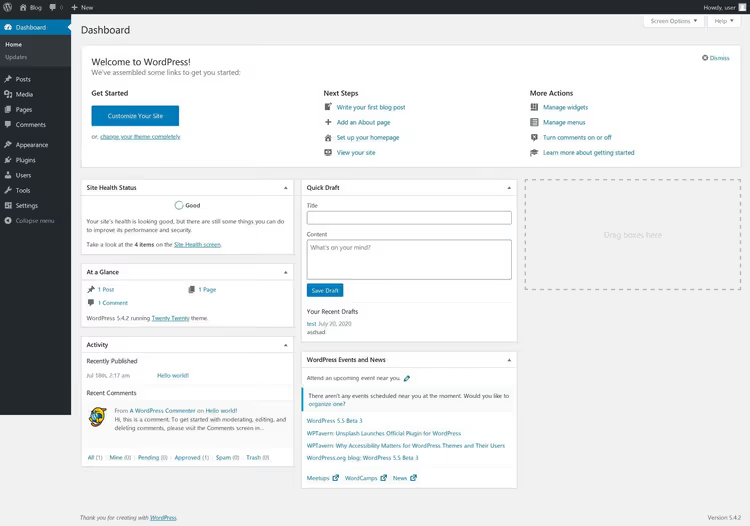
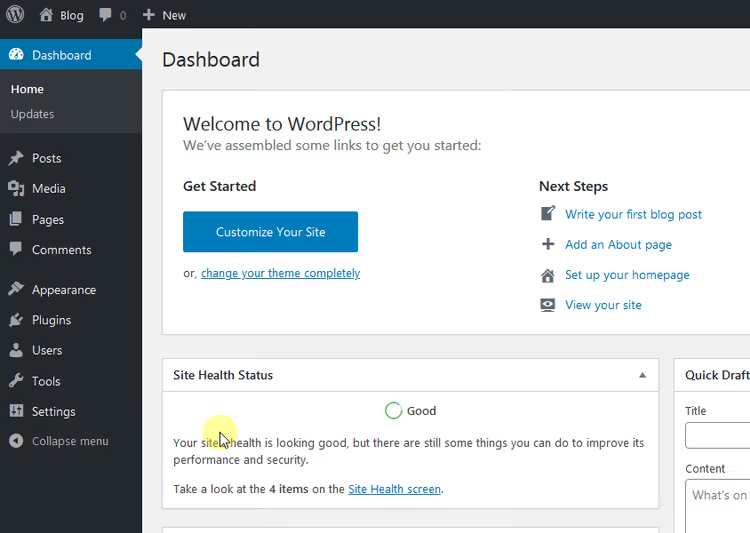
After logging in, you see a grid of widget blocks. This is the Dashboard, a summary of everything happening on your site. By default, WordPress displays six widget groups, but through "Screen Options" (the tab in the upper right corner) you can show or hide any of them.
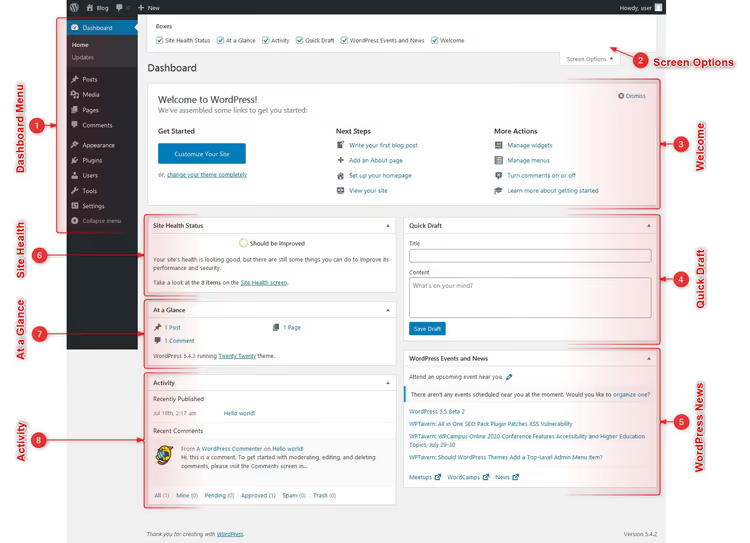
Here is what each block on the main screen contains.
"Welcome." The central block for beginners: a "Customize Your Site" button, links for writing your first post, creating an "About" page, and setting up the homepage. After the first few weeks of work, this widget is usually disabled through "Screen Options" since it has served its purpose.
"At a Glance." An instant snapshot: the number of posts, pages, and comments on the site. It also displays the current WordPress version and the name of the active theme. Clicking any number takes you to the corresponding section.
"Activity." A feed of recently published posts and fresh comments. From this block, you can moderate comments (approve, reply, mark as spam, or delete) without going to the "Comments" section.
"Quick Draft." A mini-editor for ideas: a title plus a couple lines of text. Click "Save Draft," and your thought is saved in the "Posts → Drafts" section, where you can later expand it into a full post.
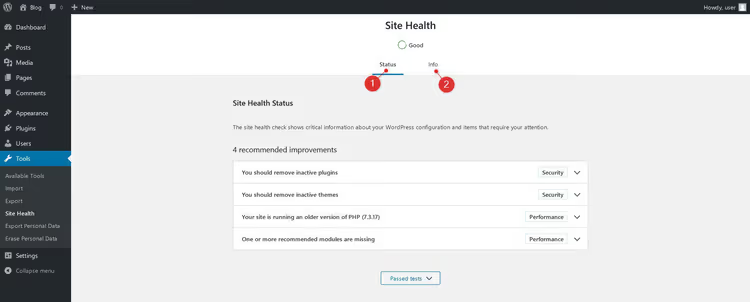
"Site Health." WordPress's built-in diagnostic tool. After a series of automatic tests, the module returns one of three ratings: "Good" (no problems), "Recommended" (improvements advisable), or "Critical" (immediate fix required). The "Info" tab contains technical details: PHP version, memory size, and server settings.
"WordPress Events and News." A feed from the official WordPress.org blog: version announcements, information about upcoming WordCamp conferences, and security warnings.
Toolbar. The dark bar at the very top of the screen, visible on every admin page. It contains: quick navigation to the site (click the site name), an indicator of pending comments, a "+ New" button (post, page, media file), and a link to your profile. Hovering over each item reveals additional options.
Admin panel menu: navigating through sections
The left vertical menu is the main navigator in WordPress. It is fixed on all admin screens and grouped by function. Let us go through each item.
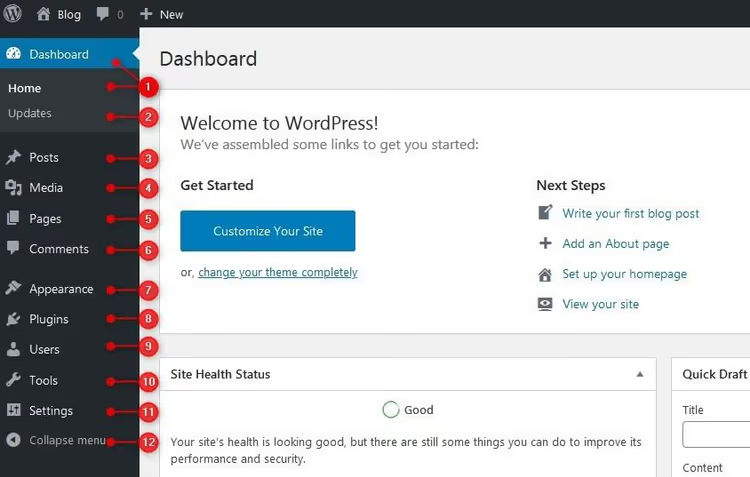
Dashboard. Returns you to the main screen with widgets from anywhere in the admin area. The "Updates" sub-item shows available new versions of the core, themes, and plugins.
Posts. The content management center: creating, editing, and deleting posts. Categories and tags for organizing materials are also here.
Media. A library of all uploaded images, documents, PDFs, and videos. It supports editing metadata (alt text, caption, description) and searching by date or name.
Pages. The hierarchical content of the site: "About Us," "Contact," "Services." Unlike posts, pages do not have categories, publication dates, and do not appear in the blog feed.
Comments. Moderation of all site comments in one interface: approval, reply, editing, spam, and deletion (in bulk or one by one).
Appearance. Management of themes, widgets, navigation menus, and starting with WordPress 5.9, the Site Editor for block-based themes. The "Customize" option for classic themes is also here.
Plugins. Installation, activation, deactivation, and deletion of plugins. For each, the version, author, and compatibility status with the current WordPress version are displayed.
Users. A list of all registered users on the site. You can add new users, edit profiles, and assign roles (Administrator, Editor, Author, Subscriber, and others) depending on responsibilities.
Tools. Import and export of data. WordPress can accept content from other CMSs (Tumblr, LiveJournal, RSS, Blogger) and export its own in XML format. The "Site Health" sub-item duplicates the diagnostic module from the main screen. Since version 4.9.6, export and deletion of personal data (a GDPR requirement) are also available here.
Settings. General site parameters: title and tagline, permalink format, homepage, comment moderation rules, time zone, language, and date format.
At the very bottom of the menu, there is an inconspicuous but useful "Collapse menu" button. Clicking it hides the item names, leaving only icons, and the panel takes up three times less width. Clicking again restores the full view.
Customizing the admin panel appearance to your liking
WordPress allows you to adapt the admin area to your taste and work style. Three main tools: screen options, color scheme, and user profile.
Screen options: enabling and disabling widgets
The "Screen Options" tab is located in the upper right corner of each admin section. On the main Dashboard screen, it controls the composition of widgets.
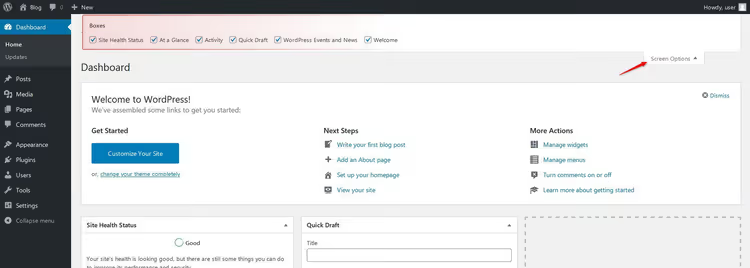
The mechanics are simple: check the box, and the widget appears on the screen.
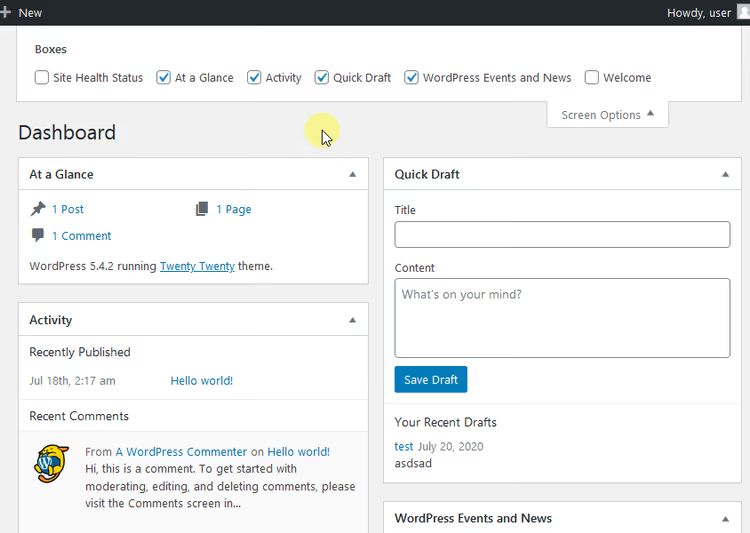
Uncheck the box, and the widget disappears.
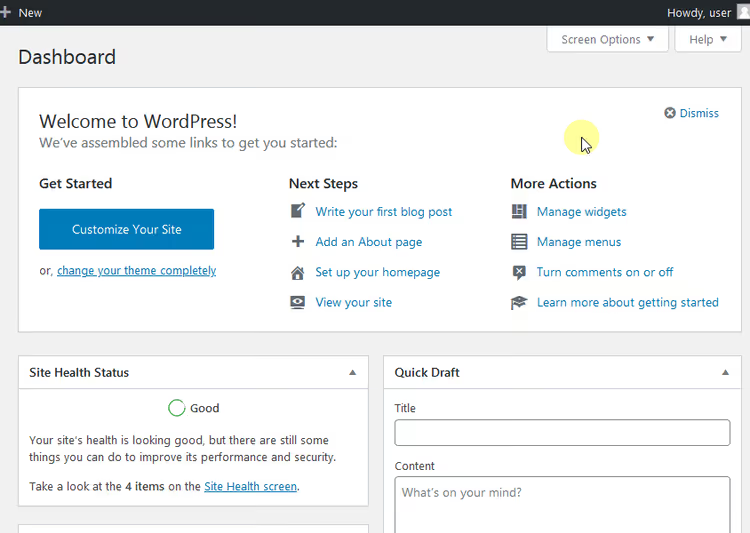
In other sections, "Screen Options" controls columns and displayed table columns (for example, in "Posts" you can enable a thumbnail column).
Color scheme: changing the admin panel colors
By default, WordPress offers nine color schemes for the admin interface. To change the colors:
- Hover over your username in the upper right corner.
- In the dropdown menu, select "Edit Profile."
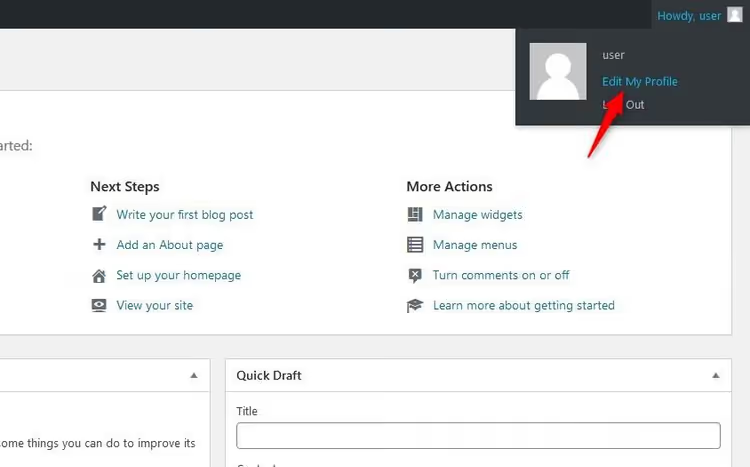
- On the profile page, find the "Admin Color Scheme" block.
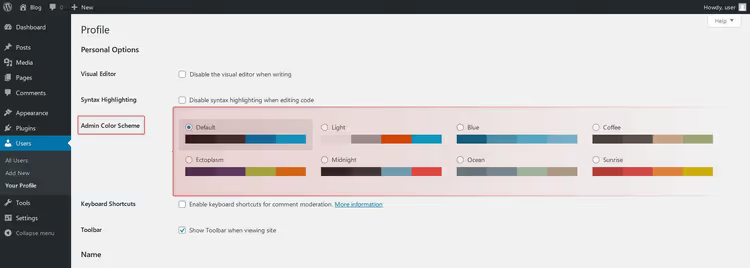
- Select the option you like, scroll down, and click "Update Profile." The scheme applies only to your account; other site users will not see the changes.
Options include the classic gray-white scheme, "Light," "Blue," "Coffee," "Sunrise," "Midnight," "Ocean," "Ectoplasm," and "Modern." The most popular non-standard option is "Midnight" (dark theme).
User profile: other settings
On the same profile page, you can set:
- First and last name, how your name appears in post bylines.
- Display name publicly as, chosen from a combination of first name, last name, and nickname.
- Contact info, email (required) and links to your website or social profiles.
- Biographical info, a short biography that may appear in the author block at the end of posts.
- Password, changing the current password with a strength indicator.
Some plugins add additional fields to the profile (avatar, job title, social media links), but the basic set fully covers the needs of an author and editor.
Video overview of the WordPress control panel
If text format is less convenient for you, here is a visual walkthrough of the WordPress admin panel from start to finish (in English):
⁉️🤔 Frequently asked questions
Can I hide menu items for specific users?
Yes, but not with built-in WordPress features. For this, plugins like Admin Menu Editor or MemberPress are used. They allow you to flexibly configure menu item visibility for each role. Without plugins, you can only collapse the entire menu ("Collapse menu" button at the bottom) or change the user's role to a less privileged one (for example, an Author does not see "Plugins" and "Settings").
How do I reset the password if I do not have access to the administrator email?
The most reliable method is a reset through phpMyAdmin in the hosting panel. Open the site's database, find the
wp_userstable, click "Edit" for the administrator user, and in theuser_passfield enter a new password, selecting the MD5 function in the dropdown menu. After saving, you will be able to log in with the new password. An alternative method is the WP-CLI commandwp user update 1 --user_pass=newpassword, if WP-CLI is installed on your hosting.
Why does the Dashboard look different on different sites?
The set of visible widgets and menu items depends on three factors: the active theme, installed plugins, and user role. A theme can add its own widgets to the main screen, plugins can add new menu items and meta boxes, and the role determines access rights (Administrator sees everything, Author sees only Posts and Media).
What should I do if the main screen loads slowly?
Slow Dashboard loading is usually caused by external requests in the "WordPress Events and News" widget (which pulls RSS from wordpress.org) and "Site Health." Solution: disable these widgets in "Screen Options." The second common culprit is plugins that add their own meta boxes with statistics and graphs to the Dashboard (for example, analytics or SEO reports). Disable them in "Screen Options" or deactivate unused plugins.
Can I access the WordPress admin area without /wp-admin?
Yes, but this is not recommended. Some security plugins change the login URL (for example, to
/mysecretlogin) to protect against brute force attacks. This is configured in plugins like WPS Hide Login or iThemes Security. If the admin area is inaccessible via/wp-adminand you did not install such a plugin, check the.htaccessfile for redirect rules and the list of active plugins through phpMyAdmin (wp_optionstable,active_pluginskey).
Will the Dashboard interface change in WordPress 7.0?
Yes, WordPress 7.0 (codename "Armstrong"), expected to be released in 2026, brings the first visual update to the admin panel since 2013. The interface is being migrated to the DataViews engine, which makes the Dashboard more modern and responsive. AI features (OpenAI, Google Gemini, Anthropic Claude) are also being integrated into the core and accessible directly from the admin area. The classic menu layout and basic navigation principles are preserved.
Should you be afraid of the WordPress Dashboard
The WordPress admin panel is designed so that a beginner can publish their first post five minutes after installation, while a professional can fine-tune permissions, permalinks, and diagnostics. There are no "extra" elements here. Each menu item, each widget, and each button either solves a specific task or can be hidden in two clicks.
The only way to truly master the Dashboard is to spend time in it. Write a draft using "Quick Draft," change the color scheme, check "Site Health," and disable widgets you do not need. In a couple of days, you will stop noticing the interface and just start working, and that is the goal of a good admin panel.
If you are just starting your WordPress journey, bookmark this page and return to it as you explore new sections.

A professional team of writers and editors specializing in creating quality content.