














🔒 How to hide a category in WordPress: 4 methods step by step
The WordPress home page by default displays everything: posts from every created category mix into a single feed. For a blog, this is normal. But if you're launching an online store, portfolio, or corporate site, some categories simply don't belong on the home page.
Worse, search engine bots index everything, including service and draft categories. The result: duplicate pages in search results, a diluted index, and dropping rankings. And a visitor who stumbles upon a closed section gets an empty page instead of content.
Fortunately, you can hide a category in WordPress in 5-10 minutes, and you don't need a developer for it. Below are four working methods: from a plugin that takes two clicks to clean code in functions.php. Choose the one that fits your task.
💡 Quick overview:
- Install Ultimate Category Excluder and mark categories to hide.
- Configure WP Categories Widget for selective hiding in the sidebar.
- Add the pre_get_posts hook to functions.php and exclude the category by ID.
- Use the Members plugin with a snippet to hide by user roles.
Why hide categories at all?
WordPress makes no distinction between a "public" and "technical" category. Everything you created in "Posts → Categories" automatically appears in the main feed and archives. In some cases this is convenient, in others it creates problems:
- Service categories (for example, "Drafts" or "For Editors") get indexed and appear in search.
- Categories with old or outdated content dilute the site's impression.
- Closed sections (premium articles, client materials) become visible to all visitors.
Important point: don't try to solve the problem through CSS. display: none hides the category visually, but search engines still see the content and may treat it as cloaking. A penalty from Google in such cases is almost guaranteed. The right way is to exclude the category at the database query level, not mask it with styles.
Method 1. Ultimate Category Excluder, hide a category in a minute
The simplest and most reliable method is the Ultimate Category Excluder plugin. As of June 2026, it has 50,000+ active installations, a 4.2/5 rating, and compatibility with WordPress 6.5+. The developer updates the plugin consistently, with the latest release in December 2025.

Step by step:
- In the WordPress panel, go to Plugins → Add New.
- In the search field, type "Ultimate Category Excluder", click Install, then Activate.
- After activation, a Category Exclusion item appears in the "Settings" menu, go there.
- Check the boxes for categories you need to hide from the home page, archives, RSS feed, and search.
- Click Update.

Done. Open your site in incognito mode and make sure posts from the marked categories have disappeared from the home page. The plugin works at the WP_Query level: it modifies the database query, not hiding blocks through CSS. Therefore, for SEO this is completely safe.
Pros: zero code, suitable for beginners, selective exclusion (home, archives, RSS, separately). Cons: if you need to hide a category only in a specific widget, this plugin won't help, for that there's a more precise tool.
Method 2. WP Categories Widget, hide a category in a widget
If your task is narrower, removing a specific category from the sidebar or footer rather than from the entire site, use WP Categories Widget. As of February 2026, the plugin has version 2.8.1, full compatibility with current WordPress, and 3,000+ active installations.
What it can do:
- Display categories from any taxonomy (not only standard categories, but also tags and custom taxonomies).
- Hide the widget title.
- Enable or disable the post counter for each category.
- Selectively show or hide any categories directly from the widget settings.
How to use it:
- Install and activate the plugin via Plugins → Add New.
- Go to Appearance → Widgets.
- Find the "WP Categories Widget" widget and drag it to the desired area (sidebar, footer).
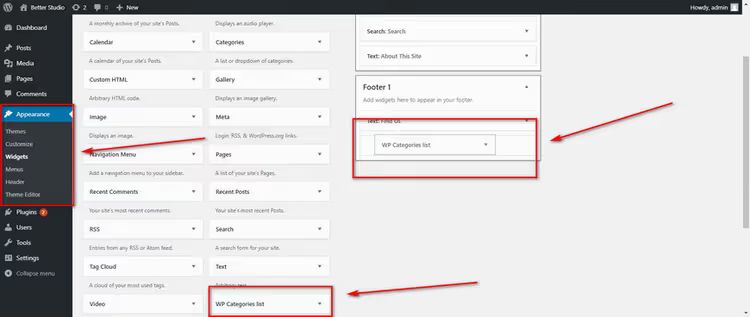
- In the widget settings, set a title and hide it if desired. In the "Show" dropdown, select All Categories or specify specific categories that should be displayed.
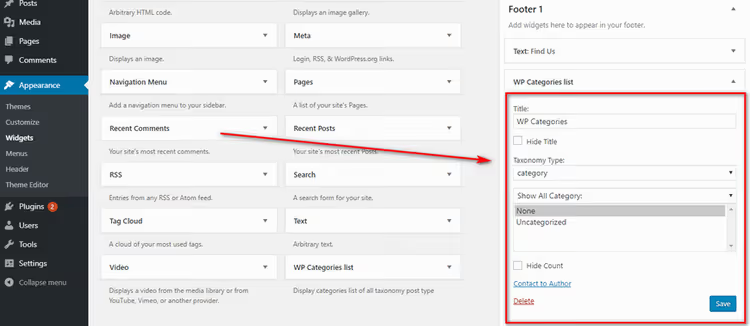
- Save your changes.
Everything not included in the "displayed" list is automatically hidden from this widget. Note: the plugin controls visibility only within its own widget. It doesn't affect the home feed and archives, for that go back to method 1.
Method 3. pre_get_posts hook, hide a category through code
If you don't want to install an extra plugin for one function, you can get by with a couple of lines in functions.php. This method modifies the main WordPress loop before executing the query, the category is excluded at the database level, not masked.
Important: before editing functions.php, make a full site backup. An error in this file will crash the entire site, and restoring it without a backup will be difficult.
Here's a working snippet. It uses the pre_get_posts hook and specifies which category to exclude from the home page:
1 /** 2 * Excludes the specified category from the home page. 3 * Replace -5 with your category ID (with a minus sign). 4 */ 5 function sdstudio_exclude_category_from_home( $query ) { 6 if ( ! is_admin() && $query->is_home() && $query->is_main_query() ) { 7 $query->set( 'cat', '-5' ); 8 } 9 return $query; 10 } 11 add_action( 'pre_get_posts', 'sdstudio_exclude_category_from_home' );
In the line 'cat', '-5', the number 5 is the identifier of the category you need to hide. The minus sign means "exclude". How to find the ID of the needed category:
- In the WordPress panel, open Posts → Categories.
- Hover over the category name.
- At the bottom of the screen (in the browser status bar), a URL will appear like
...taxonomy=category&tag_ID=6, the number aftertag_ID=is the ID.

In the screenshot, the ID of the "Countries" category is 6. Substitute your own number, save the file, and posts from this category will disappear from the home page.
Where to place the code:
- Via FTP: connect to the server, go to
/wp-content/themes/your-theme/, downloadfunctions.php, add the code at the end of the file (before?>if present), and upload it back. - Via admin panel: open Appearance → Theme Editor, select the active theme, find
functions.phpin the right column, insert the code, and click "Update File".

Some hosting providers block access to the theme editor for security reasons. In this case, use only FTP, or go back to the plugin from method 1, it will solve the task without access to files.
What's improved compared to the original recipe from old guides: added the ! is_admin() check (so as not to break the admin panel) and $query->is_main_query() (so as not to affect secondary queries from widgets and menus). Without these checks, the code can break filtering in the admin panel or break menu output, verified in practice.
Method 4. Hiding categories by user roles
Imagine this situation: you have premium articles available only to paying subscribers. Or internal documentation for employees. Or a closed section for wholesale clients. Regular methods hide the category from everyone, but here you need the admin and privileged users to see it, while guests and basic subscribers don't.
Previously, the CaPa Protect plugin was used for this task, but it has been removed from the WordPress repository. It was replaced by a more powerful combination: the Members plugin (300,000+ installations, 4.7/5 rating, version 3.2.22 as of June 2026) and a small piece of code.

Algorithm:
- Install and activate Members via "Plugins → Add New".
- Go to Users → Roles. Create a role, for example "Premium Subscriber", or use existing ones.
- Assign this role to the needed users.
- Add a snippet to
functions.phpthat checks the current user's role and excludes the category for everyone except those allowed:
1 /** 2 * Hides category with ID 5 from everyone except administrators 3 * and users with the premium_subscriber role. 4 */ 5 function sdstudio_hide_category_by_role( $query ) { 6 if ( is_admin() || ! $query->is_main_query() ) { 7 return $query; 8 } 9 10 $restricted_cat_id = 5; // replace with your category ID 11 12 if ( current_user_can( 'administrator' ) 13 || current_user_can( 'premium_subscriber' ) ) { 14 return $query; 15 } 16 17 $query->set( 'cat', '-' . $restricted_cat_id ); 18 return $query; 19 } 20 add_action( 'pre_get_posts', 'sdstudio_hide_category_by_role' );
How this works: the function checks the current user's role via current_user_can(). Administrators and premium subscribers pass the filter, for them the category is visible. Everyone else gets a modified query with the category excluded. The same pre_get_posts hook, but tied to permissions, not to the page.
The plus of Members is that it's not just a "category workaround", but a full-fledged role and permission editor. After installation, you'll be able to control the visibility of any site elements: Gutenberg blocks, pages, menu items, all through roles.
Video tutorial
Watch a visual guide for all four methods, from installing the plugin to editing code:
⁉️🤔 Frequently asked questions
Why can't I just hide the category through CSS?
display: noneremoves the block visually, but search engine bots still read the content. Google treats such a discrepancy between visible and indexable content as an attempt at manipulation (cloaking). The penalty is manual demotion or exclusion of pages from the index. The correct solution is exclusion at theWP_Querylevel, not CSS.
How do I hide a category not only from the home page, but also from the RSS feed?
Ultimate Category Excluder (method 1) can do this out of the box. In the plugin settings on the "Category Exclusion" tab, mark the needed categories and check the box next to "RSS Feeds". If you're working through code (method 3), replace the condition
$query->is_home()with$query->is_home() || $query->is_feed(), and the category will disappear from the feed as well.
What happens to SEO after hiding a category?
If you hid the category correctly (via plugin or
pre_get_posts), the category pages themselves and their posts remain accessible by direct URLs and get indexed. Only the home page and archives change, duplicates go away, and useful content stays in the index. To be sure, after making changes, submit the sitemap in Google Search Console for recrawling.
Can I hide a category from a specific user, not from a role?
WordPress has no built-in tools for this. Method 4 is designed specifically for roles, this is an architectural limitation of the permission system. As a workaround, you can create a separate role for a specific user via Members and apply the code from method 4. Technically, this is two clicks in the plugin interface.
Plugin or code, what to choose for long-term site maintenance?
Depends on the number of edits. Hiding one category once, code in
functions.php(method 3) is lighter and doesn't add extra load. Several categories with different conditions (home, RSS, search), Ultimate Category Excluder (method 1) is easier to manage. The main rule: don't install a plugin for one checkbox that can be solved with three lines of code.
What to choose for your task
The four methods cover all real scenarios. A simple matrix will help you navigate:
- Need it fast and without code → Ultimate Category Excluder. A couple of clicks, instant result, suitable for most typical sites.
- Category only gets in the way in the sidebar → WP Categories Widget. A targeted solution with no side effects.
- The site already has a minimum of plugins, want to keep it light →
pre_get_postshook infunctions.php. Three lines of PHP, zero extra code. - Content with access restrictions by roles → Members + snippet from method 4. A flexible permission system that will be useful for other tasks too.
Try the method that's closer to your situation. If something goes wrong, go back to the backup (you made one, right?) and try the next one. And in the comments, tell us which method worked for you and what kind of project you were hiding categories for.

A professional team of writers and editors specializing in creating quality content.