














📦 12 best Gutenberg plugins and extensions in 2026
The Gutenberg block editor has come a long way from a controversial experiment to the foundation of WordPress. But the standard set of paragraph, heading, image, list covers only the simplest scenarios. Accordions, dynamic grids, testimonial sliders, custom layouts without CSS, all of this requires extension plugins.
The problem is that the Gutenberg addon ecosystem is patchy and uneven. Dozens of plugins promise "revolution," but a third duplicate each other, another portion is abandoned, and some break layouts when WordPress updates. Over five years the landscape has completely changed: Atomic Blocks is closed, Qodeblock removed from the repository, EditorsKit stopped updating. Choosing a working tool on the first try is not easy.
We tested current plugins on WordPress 6.7 and selected 12 working solutions: from lightweight helper blocks to full-fledged layout builders and dynamic content. Among them are free tools, freemium combos and one premium exclusive.
💡 Quick overview:
- First define the task: individual blocks (buttons, testimonials, accordions) or full layouts (grids, containers, dynamic content).
- For layouts without extra code start with Kadence Blocks, Stackable or GenerateBlocks.
- Need dynamics, custom fields, archives, post lists, look at Toolset Blocks.
- For marketing pages and conversion Otter Blocks and Ultimate Addons will work.
- Want a grid builder with faceted search, Gridbuilder WP.
- For a blog with reviews and content marketing, Ultimate Blocks.
Plugin comparison table
Plugin | Blocks (free) | Layouts | Dynamic | Freemium | Active |
|---|---|---|---|---|---|
Getwid | 30+ | ✅ | ❌ | ❌ | ✅ |
GenerateBlocks | 9 | ✅ | ⚠️ Pro | ✅ | ✅ |
Toolset Blocks | ~15 | ✅ | ✅ | ❌ | ✅ |
Genesis Blocks | 22 | ✅ | ❌ | ✅ Pro | ✅ |
CoBlocks | 25+ | ✅ | ❌ | ❌ | ✅ |
Ultimate Addons | 25+ | ✅ | ❌ | ❌ | ✅ |
Kadence Blocks | 20+ | ✅ | ⚠️ Pro | ✅ | ✅ |
Otter Blocks | 20+ | ✅ | ❌ | ✅ Pro | ✅ |
Stackable | 25+ | ✅ | ❌ | ✅ Pro | ✅ |
PublishPress Blocks | 20+ | ✅ | ✅ | ✅ Pro | ✅ |
Ultimate Blocks | 18+ | ❌ | ❌ | ❌ | ✅ |
Gridbuilder WP | 1 | ✅ | ✅ | ❌ | ✅ |
1. Getwid

Free plugin from MotoPress with a collection of 30+ blocks, one of the oldest in the niche and still actively supported. No pro version: all blocks are available immediately after installation.
What's inside: image and text sliders, container sections, banners, galleries with stack effect, pricing tables, custom post types, integration with Instagram and MailChimp, layout building blocks. For a beginner this is a ready-made set to assemble a landing page without modifications.
Pros: full free access, regular updates, dozens of ready-made section templates. Cons: some blocks duplicate with other plugins from the list; no dynamic content.
Price: free. Pro version does not exist, everything is included.
Ideal scenario: first blocks plugin on a fresh site when you need to quickly assemble a page with rich content and not figure out freemium limitations.
2. GenerateBlocks

🔗 GenerateBlocks on WordPress.org
Lightweight builder from Tom Usborne, creator of GeneratePress. Philosophy: "few blocks, maximum flexibility." Only 9 blocks, Container, Grid, Text, Button, Query, Image, Shape and helpers. But through CSS property settings right in the editor (flex, grid, spacing, shadows, typography) practically any layout can be assembled from them.
Key feature, Dynamic Tags in Pro version: inserting post title, excerpt, date, featured image, custom fields and site options directly into blocks. For bloggers and content sites this means post list templates without PHP.
Pros: minimal CSS (generated only for used blocks), clean HTML structure, excellent documentation. Cons: complex layouts need basic CSS knowledge; few "ready" blocks, no sliders, accordions.
Price: free. Pro, by subscription (additional Dynamic Tags, styles, patterns).
Ideal scenario: developer or experienced user who wants to control every pixel of layout without extra bloat.
3. Toolset Blocks
🔗 Toolset Blocks, official site
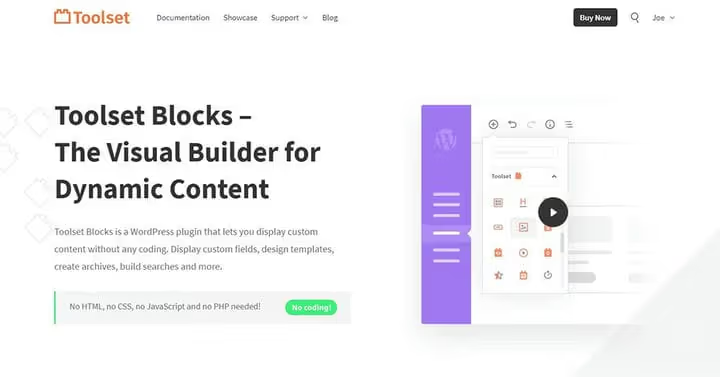
If other plugins add static blocks, Toolset solves a fundamentally different task: dynamic content. The plugin ties any block to custom fields, taxonomies and post types. Want to display real estate property cards, course lists or employee catalog with filtering, Toolset was created for this.
Capabilities: content templates with custom fields, archives, post lists with filters, site search, dynamic sliders and galleries. Separate blocks for WooCommerce.
Pros: deep integration with custom post types; blocks work with any WordPress data. Cons: learning curve is higher than other plugins; overkill for a simple blog.
Price: free (basic blocks). Toolset packages, by subscription.
Ideal scenario: catalog site, membership portal, classifieds board, everything where content is stored in custom fields and should be displayed dynamically.
4. Genesis Blocks

🔗 Genesis Blocks on WordPress.org
Direct successor of the closed Atomic Blocks from StudioPress (WP Engine). After migration the plugin continued development: 22 blocks, library of sections and full page layouts, AMP support.
In the arsenal: sections and layouts, advanced columns, newsletter block, pricing tables, post grids, containers, testimonials, accordions, notices, CTA, author profiles, drop cap. Familiar Atomic Blocks elements are in place plus several new ones.
Pros: library of 56+ pre-built sections and 26 full page layouts (with Pro subscription); active WP Engine support. Cons: some negative reviews related to migration from Atomic Blocks; Pro functionality requires Genesis Pro subscription.
Price: free (22 blocks). Genesis Pro, by subscription (additional blocks, layouts, access to Genesis Framework theme).
Ideal scenario: users migrating from Atomic Blocks; sites on StudioPress themes; those who need pre-built sections for quick page assembly.
5. CoBlocks

Product from GoDaddy, powerful but light. CoBlocks provides 25+ blocks: accordions, author profiles, click-to-tweet, hero sections, logos and icons, maps, media cards, services, separators, forms.
Each block goes through GoDaddy design review, so styles are cleaner and more consistent than many competitors. The plugin does not overload the editor and does not conflict with themes.
Pros: polished UI, light weight, stable updates. Cons: no dynamic content; fewer blocks "for marketing" than Ultimate Addons.
Price: free.
6. Ultimate Addons for Gutenberg

🔗 Ultimate Addons on WordPress.org
Brainchild of Brainstorm Force, authors of Astra theme. 25+ creative blocks, sharpened for conversion and marketing pages: advanced headings, extended columns, Contact Form 7 styler, content timeline, Google Maps, CTA, quotes.
Feature: 20+ pre-built starter sites created on Gutenberg + Ultimate Addons + Astra combo. Installed starter site, got ready design with block settings without hassle.
Pros: deep integration with Astra theme (one ecosystem), starter sites, regular updates. Cons: some blocks duplicate with Kadence Blocks; no dynamics.
Price: free.
7. Kadence Blocks

🔗 Kadence Blocks on WordPress.org
One of the leaders by number of active installations. Kadence Blocks gives 20+ blocks with deep customization: row layouts, advanced galleries, buttons, icons, dividers, testimonials, accordions, info boxes, tabs.
Strong side: each block has dozens of styling options. Row Layout Block allows building complex grids without CSS, with control of spacing, backgrounds and gradients on each breakpoint. Pro version adds dynamic content, custom hooks and additional blocks.
Pros: best-in-class row and column customization, responsive settings for each device size. Cons: Pro functionality is paid; with active use of all options the admin can slow down on weak hosts.
Price: free (20+ blocks). Kadence Blocks Pro, by subscription.
8. Otter Blocks
🔗 Otter Blocks on WordPress.org
From Themeisle, the team behind Neve and Hestia themes. Otter Blocks combines creative blocks and a library of ready templates. In the arsenal: sections, services, pricing tables, post grids, Google Maps, testimonials, Font Awesome icons, share buttons.
Blocks are visually cleaner and more minimalist than competitors, you can feel the hand of Themeisle design team. Integration with Neve theme gives additional styles "out of the box."
Pros: polished design, templates for import, active development. Cons: some functionality in Pro (additional blocks, custom CSS).
Price: free. Otter Pro, by subscription.
9. Stackable

Another "Swiss knife" from Gambit Technologies. 25+ blocks: containers, dividers, post grids, accordions, image cards, icon lists, CTA, headings, video popups, counters, testimonials, pricing tables, team blocks.
Main advantage of Stackable, flexible style settings on each block: gradient overlays, shape dividers, parallax effect, animations, responsive spacing. Design can be "tuned" more precisely than average in class.
Pros: rich visual settings without code, live preview in editor. Cons: Pro functionality (additional blocks, dynamic content) is paid.
Price: free. Stackable Premium, by subscription.
10. PublishPress Blocks

🔗 PublishPress Blocks on WordPress.org
Previously known as Advanced Gutenberg, the plugin moved under the wing of PublishPress, a team specializing in publishing tools for WordPress. More than 20 content blocks plus a unique feature: access rights control to blocks by user roles.
No other plugin from the list allows forbidding editors to use the "Classic editor" block or allowing only administrators to work with custom blocks. Plus block visibility management by conditions: role, date, device, screen resolution, day of week.
Pros: block-level permissions, visibility scheduling, conditional logic. Cons: management interface is more overloaded than competitors; overkill for a simple blog.
Price: free (20+ blocks + management). PublishPress Blocks Pro, by subscription.
11. Ultimate Blocks

🔗 Ultimate Blocks on WordPress.org
The most "blogger" plugin in the selection. 18+ blocks, sharpened for content marketing: content filter, "Review" block with stars and pros/cons, tabs, table of contents, CTA, content switcher, styled lists and boxes, expandable content.
For a blog that earns on affiliate reviews, the Review block is a ready tool with rating, pros/cons and buy button.
Pros: ideal for content sites and blogs with reviews; simple interface. Cons: no layout blocks (columns, containers); not enough for building complex pages.
Price: free.
12. Gridbuilder WP
🔗 Gridbuilder WP, official site
The only premium exclusive in the list. Gridbuilder WP is a custom grid builder with faceted search. Grids are built in four modes: masonry, height alignment, metro and carousel. Compatible with Gutenberg, ACF, Polylang/WPML, WooCommerce.
Typical scenario: product catalog or portfolio with dynamic filtering by categories, tags, price and custom fields, without a line of code.
Pros: faceted search "out of the box," ACF compatibility, visual grid builder. Cons: premium model only, no free version on WordPress.org.
Price: by subscription (single site license).
Before moving to conclusions, a short video on the topic. This tutorial shows a complete breakdown of the WordPress block editor and working with extension plugins in real time:
⁉️🤔 Frequently asked questions
Do I even need a blocks plugin for Gutenberg in 2026?
If you run a simple blog, probably not. WordPress basic blocks are enough for text with images. But as soon as a task appears to assemble a landing page, services page, portfolio or catalog, a blocks plugin saves hours. Accordions, tabs, post grids, pricing tables and CTA through the standard editor cannot be implemented without code.
How does GenerateBlocks differ from Kadence Blocks?
GenerateBlocks bets on minimalism: only 9 blocks, but each is customized to the pixel through CSS properties in the editor. Kadence Blocks gives more ready blocks (20+) with visual settings for each. Conclusion: GenerateBlocks for those who know CSS and want a light site; Kadence Blocks for those who want results "out of the box" without diving into styles.
What is better for an online store on WooCommerce?
Toolset Blocks or Gridbuilder WP. Toolset if you need custom product templates with dynamic fields. Gridbuilder if the main task is a catalog with faceted search and filtering. For a simple store Kadence Blocks with its WooCommerce blocks in Pro version is enough.
Can I use multiple block plugins simultaneously?
Technically yes. But in practice: blocks duplicate (accordion exists in Kadence, Stackable and Otter), page weight grows, design consistency complicates. Better to choose one main plugin for layouts and, possibly, one specialized, for example, Ultimate Blocks for a blog with reviews.
Atomic Blocks closed, what to do with existing pages?
Install Genesis Blocks, this is the direct successor from StudioPress/WP Engine. Blocks are recognized and continue to work. However migration is not always smooth: some users complain about button style resets, so test on staging.
Is it safe to use plugins removed due to security issues?
No. Qodeblock was removed from the WordPress.org repository precisely for this reason (July 2024). If the plugin is still active on your site, remove immediately and replace with a current analog. Genesis Blocks and Stackable completely cover its functionality.
Which Gutenberg plugin to choose in 2026?
There is no universal answer, everything depends on the scenario. If you are assembling landing pages and complex pages without code, take Kadence Blocks or Stackable. For a blog with reviews and content marketing, Ultimate Blocks plus Otter. For custom catalogs, Toolset Blocks. For maximum control and clean code, GenerateBlocks. If you need faceted search with filtering, Gridbuilder WP.
A rule that will save you hours: on one site keep one main blocks plugin plus maximum one specialized. Fewer conflicts, easier admin, faster frontend. Before installing any plugin go to WordPress.org and check the last update date: tools that have not updated for more than a year should not be put in production.

A professional team of writers and editors specializing in creating quality content.