













 AIIllustrative image: AI-generated
🚀 How to change the order of WordPress posts and pages: complete 2026 guide
The default WordPress sorting is strictly by date: newest at the top, everything else sinking into the depths of the admin panel. For a news blog, this makes sense. But what if you have a portfolio where project order matters more than chronology? Or a business card site with key pages that should always be at hand?
There are no built-in tools for reordering in WordPress. Search and date filters help find a post but don't permanently change its position in the list. And constantly hunting for the right page through the search bar is a time waste that becomes annoying after the second week.
Fortunately, the task can be solved in two ways: manually editing the publication date or installing a plugin with a drag-and-drop interface. We'll walk through both methods step by step, from built-in capabilities to fine-tuning.
💡 Quick overview:
- WordPress sorts posts and pages by publication date by default, with the latest on top and older ones below.
- To change the order manually, edit the publication date through "Quick Edit" or the full post editor.
- Plugins like Post Types Order provide visual drag-and-drop: drag, save, done.
Why change the order of posts and pages at all
Not everyone needs reordering. But if you actively maintain a site, sooner or later you'll encounter one of these scenarios:
Portfolio and case studies. A new project should be first in the list; the client looks at recent work, not what was done three years ago. Without reordering, portfolio pages are sorted by creation date rather than importance.
Frequently edited pages. Home, "About Us," "Services": these get edited regularly. Keeping these pages at the top of the list is a matter of convenience, not aesthetics. It saves dozens of clicks per week.
SEO updates for old posts. You've added fresh data to a 2019 article; it makes sense to update the publication date to today. Search engines see current content, and the post rises in the admin panel and on the blog's main page.
Non-standard display logic. Alphabetical sorting of custom post types (products, employees, branches) or manual grouping by category. WordPress's default sorting is helpless here.
In all these cases, manually changing the date of each post is tedious. But sometimes the manual method is justified. Let's examine both approaches.
Manual method: changing the publication date
WordPress displays posts in descending order by publication date. This applies to both the admin panel and the front end (unless the theme overrides sorting). Therefore, the most direct way to "raise" a post is to assign it a more recent date.

WordPress's built-in tools (search and date filter) don't solve the problem. Search finds a post by keyword, but after navigating to another page, the sorting resets. The publication month filter narrows the list but doesn't change the order within it.

There's a similar filter by date; you can select posts for a specific month or year.

The date filter is convenient for retrospective searches (finding all posts for a specific month). But it doesn't establish a permanent order. It's a situational tool, not an organization system.
How to change the publication date: two paths
The first method is "Quick Edit." In the post list, hover over the desired post, click "Quick Edit," and a compact form opens. Change the date, click "Update." Done.

In the form that opens, there's a set of fields including the publication date. Change it, click "Update."

The second method is through the full post editor. Open the post for editing, find the "Publish" block in the sidebar, click on the date, and it becomes editable. Change it, click "Update."

The manual method is simple, but it has a drawback. When there are more than five posts and their exact order relative to each other matters, you start calculating which date to assign to whom. Post A should be after B but before C, and there's also D, which... By the fourth iteration, you want to give up. Plugins were invented precisely for such cases.
Plugins for drag-and-drop sorting
WordPress has no built-in mechanism for reordering posts. But plugins fill this gap: lightweight, free, with an intuitive drag-and-drop interface.
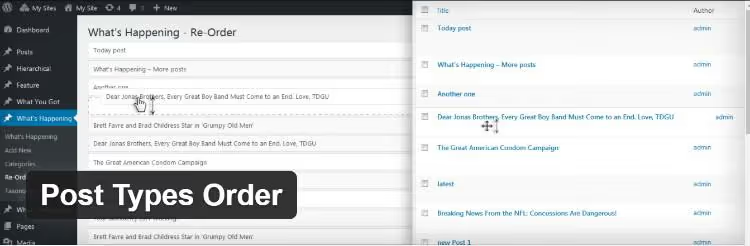
Here are four proven solutions from the official WordPress directory.org:
Post Types Order: the most popular and feature-rich. Drag-and-drop for posts, pages, custom types, and even media files. Minimal settings, ready to work immediately. Actively updated and compatible with current WordPress versions.
Intuitive Custom Post Order: a minimalist option. Just drag-and-drop, no extra settings. Suitable for those who simply need to reorder posts and forget about the plugin.
Re-order Posts: from the Metronet team. Simple interface, works with posts and custom types. A good alternative if the main plugin doesn't suit you for some reason.
Simple Page Ordering: specializes in pages. Developed by 10up (one of the leading WordPress studios). If your task is limited to page hierarchy, this is the optimal choice.
All four are free and available directly from the WordPress admin panel through "Plugins → Add New." Below, we'll examine the most feature-rich: Post Types Order.
Setting up and using Post Types Order
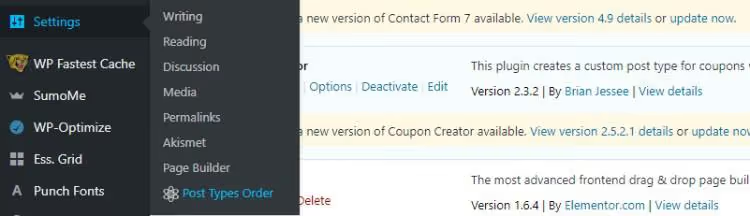
Install the plugin through the admin panel: "Plugins → Add New," type "Post Types Order" in the search, click "Install" and "Activate." After activation, a "Post Types Order" item appears in the "Settings" menu.
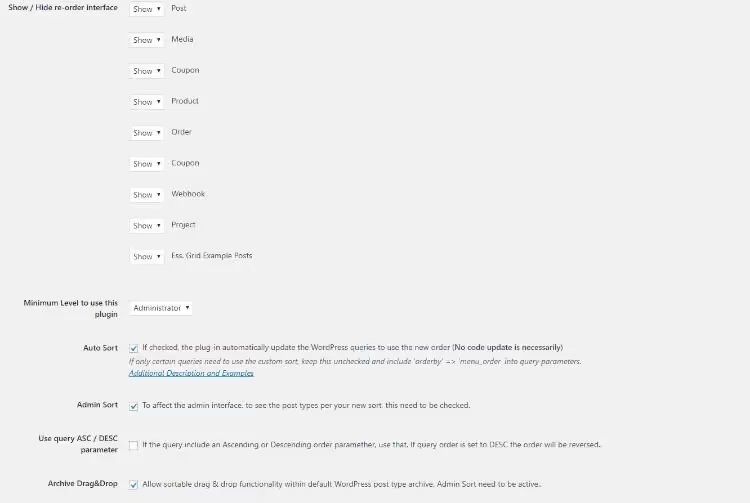
On the settings page, you select which post types should have reordering enabled. Posts and pages are checked by default. You can add WooCommerce products, media files, coupons, webhooks, or any post type registered in the system. Uncheck unnecessary ones to avoid cluttering the interface.
Below are several useful options:
- Auto-sort: sets the default criterion (date, title, author) for types where manual order isn't needed.
- Minimum access level: restricts which users can change the order. Useful on sites with multiple editors.
- Drag-and-drop for archives: enables sorting not only in the admin panel but also on the front end.
Changing the order of posts
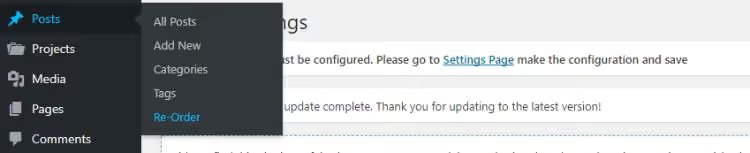
After configuration, go to the post list; a "Reorder" button appears at the bottom. It's displayed in all sections for which you enabled reordering in the settings.
Click it, and a page with drag-and-drop opens. Posts are presented as rows with titles, without extra information. Hold the desired one with the left mouse button, drag it higher or lower, release. Click "Save Order."
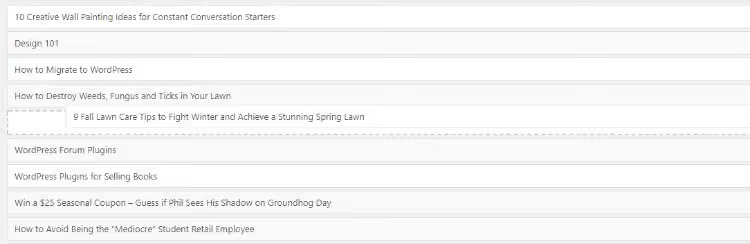
That's it. The order is fixed and will remain until the next change. No date calculations, no confusion about which post should follow which.
The "Reorder" button appears everywhere you've enabled it: posts, pages, custom types. For example, in the "Projects" section of a portfolio:

⁉️🤔 Frequently asked questions
Is the order set by the plugin visible only in the admin panel or on the site as well?
By default, Post Types Order changes the order both in the admin panel and on the front end. But this depends on how the theme displays posts. If the theme strictly uses
orderby => 'date', you need to either enable the "Drag-and-drop for archives" option in the plugin settings or replace the parameter in the query withorderby => 'menu_order'. In most modern themes, the plugin works "out of the box."
What happens to existing posts after installing the plugin? Do they stay in place?
Yes, installing the plugin doesn't change the current order. Posts remain sorted by date until you manually drag them in the new interface. The plugin adds the ability to manage order manually but doesn't impose it.
Can I reorder posts without a plugin if I'm a developer?
Yes, through the
pre_get_postshook in the theme'sfunctions.php. You change theorderbyparameter tomenu_orderorpost__inwith an explicit array of IDs. But for each order change, you'll have to edit the code, which is inconvenient. The plugin solves the task visually in seconds.
Does Post Types Order slow down the site?
The plugin adds exactly one database query to retrieve order values for the current post type. In practice, this takes microseconds. All tests on wp.org show minimal overhead; the plugin doesn't affect page load speed.
What if the order resets after removing the plugin?
Post Types Order stores the order in the
menu_ordermeta field, which is standard for WordPress. After removing the plugin, posts are sorted by date (core behavior). If you decide to reinstall the plugin later, the saved order will be restored. To permanently fix the order, set publication dates according to the established order before removing the plugin.
Which reordering method to choose
If you need to update the date on two or three posts as a one-time task, the manual method through "Quick Edit" takes a minute and doesn't require installing additional software. This is justified for SEO updates of old articles: you've expanded the material, changed the date to today, and search engines and readers see current content.
For sites with portfolios, frequent content rotation, or non-standard sorting logic, install Post Types Order. The drag-and-drop interface saves hours and eliminates the headache of calculating dates. The plugin is free, weighs kilobytes, and doesn't affect site speed.
Try both methods: start with manually changing the date for one post, and if reordering tasks become regular, install the plugin. Five minutes of setup is enough to forget about the problem forever.

A professional team of writers and editors specializing in creating quality content.