













 AIIllustrative image: AI-generated
🔧 How to fix the ERR_TOO_MANY_REDIRECTS error in WordPress: 6 solutions
You visit your website, and instead of the familiar page the browser shows "ERR_TOO_MANY_REDIRECTS." The site won't load, the admin panel is inaccessible, and visitors see an error. Panic? No, this is fixable.
Technically, the error means the browser got stuck in an infinite redirect loop: page A sends you to page B, which sends you back to A, and so on until the browser gives up. In WordPress this situation occurs more often than you'd like, and almost always the culprit isn't hackers but an innocent settings change.
Below are six proven ways to get your site back online. From the quickest (clearing browser cache) to server-level (checking HTTPS redirects). Go through them in order, and one will solve the problem.
💡 Quick overview:
- Clear your browser cache and cookies: rule out a local cause
- Check the site URL in WordPress settings and
wp-config.php: mismatchedWP_HOME/WP_SITEURLbreaks redirects - Clear the cache of WP plugins (WP Super Cache, WP Rocket, W3 Total Cache) and CDN: cache stores old rules
- Recreate
.htaccess: a corrupted file often generates extra redirects - Disable plugins and find the conflicting one: especially those managing redirects or SSL
- Check HTTPS settings: an incorrectly configured forced HTTP-to-HTTPS redirect loops traffic
1. Clear your browser cache and cookies

Start with the basics. Browsers store cached redirects, and if your site was temporarily glitching, old cache can keep sending you in circles even after the server-side problem has been fixed.
In Chrome: three dots in the upper right corner → "Settings" → "Privacy and security" → "Clear browsing data." Check "Cookies" and "Cached images," set the time range to "All time," and click "Delete data."
In Firefox: three lines → "Settings" → "Privacy & Security" → "Cookies and Site Data" section → "Clear Data." Check both boxes and confirm.
After clearing, open the site in incognito mode (Ctrl+Shift+N in Chrome). Did it work? Then the problem was local. If not, move on. By the way, if you need to completely reset cache in different browsers, we have a separate guide on clearing browser cache; look for it on the site.
2. Check the site URL in WordPress settings

A mismatch between the site address and the WordPress address is one of the most common causes of redirect loops. Go to the admin panel: "Settings" → "General." The "WordPress Address (URL)" and "Site Address (URL)" fields should match (or differ intentionally if WordPress is in a subfolder).
Make sure that:
- The protocol is the same everywhere: either
https://everywhere orhttp://everywhere wwwis either present in both fields or absent in both- The domain is spelled correctly without typos or trailing slashes
Clicked "Save" but the error persists? Or the admin panel won't even open because of redirects? Then edit via wp-config.php.
Connect to the server via FTP/SFTP or through your hosting file manager. Find the wp-config.php file in the site root and add two lines (right after <?php or before /* That's all, stop editing! */):
1 define('WP_HOME', 'https://your-site.com'); 2 define('WP_SITEURL', 'https://your-site.com');
Replace your-site.com with your actual domain, with the correct protocol and without www if your site opens without it. Save, upload back to the server, and check the site. Redirects often disappear right after this step.
3. Clear WordPress and CDN cache

If your site has a caching plugin, it may have memorized "broken" redirects and keeps serving them even after the source has been fixed.
Go to the admin panel and find the cache management page:
- WP Super Cache: "Settings" → "WP Super Cache" → "Delete Cache"
- W3 Total Cache: "Performance" → "Purge All Caches"
- WP Rocket: "Settings" → "WP Rocket" → "Clear Cache"
Using Cloudflare or another CDN? Go to the CDN panel and clear the cache there. After clearing, temporarily pause the CDN (in "Development Mode" or "Bypass Cache") and check the site. Sometimes the CDN itself causes redirect loops due to HTTP/HTTPS mismatch at the proxy level.
4. Recreate the.htaccess file
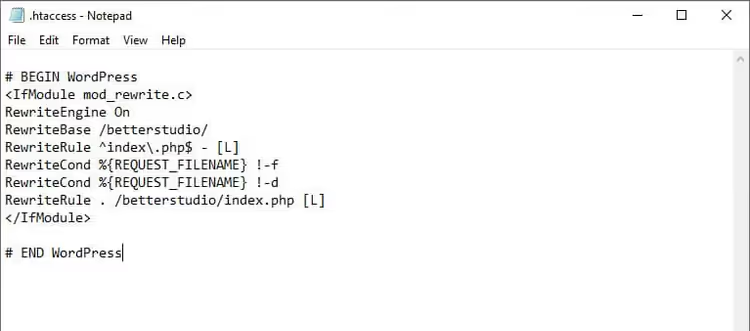
.htaccess is a text file in the site root through which Apache manages redirects. One extra line, a buggy plugin, or manual editing, and the site starts looping.
Connect to the server via FTP/SFTP, find .htaccess, and rename it to .htaccess_old. This disables all custom rules but keeps a copy in case there was something important inside.
Now you need to create a new, clean .htaccess with default WordPress rules. If the admin panel is accessible: "Settings" → "Permalinks" → just click "Save Changes" (without changing anything). WordPress will recreate .htaccess automatically.
Admin panel inaccessible? Create the file manually and copy this into it:
1 <IfModule mod_rewrite.c> 2 RewriteEngine On 3 RewriteBase / 4 RewriteRule ^index\.php$ - [L] 5 RewriteCond %{REQUEST_FILENAME} !-f 6 RewriteCond %{REQUEST_FILENAME} !-d 7 RewriteRule . /index.php [L] 8 </IfModule>
Save, upload to the site root, and check. If you're using Nginx, the rules go in the server config, and .htaccess has no effect; to edit the Nginx config you need access to /etc/nginx/sites-available/.
5. Find the conflicting plugin

Redirect plugins, SSL plugins (Really Simple SSL, WP Force SSL), and even some caching plugins are frequent culprits behind ERR_TOO_MANY_REDIRECTS. Especially after a WordPress or plugin update.
If the admin panel works: disable ALL plugins at once ("Plugins" → select all → "Deactivate" → "Apply"). Check the site. Did the error disappear? Enable plugins one by one and check after each one to find the culprit.
Admin panel won't load because of redirects? Connect to the server via FTP, navigate to wp-content/, and rename the plugins folder to plugins_disabled. WordPress will see that the plugins folder is missing and automatically deactivate all plugins.
Did the site open without the error? Restore plugins one by one: rename a specific plugin folder back (for example, plugins_disabled/wordpress-seo → plugins/wordpress-seo), check the site, repeat. The plugin after which the error reappears is the source of the problem. Delete it or find an alternative.
6. Fix HTTPS redirect settings

The error often appears after installing an SSL certificate, when the site starts forcibly redirecting HTTP to HTTPS but the configuration is incorrect.
If you have Apache, open .htaccess and check for duplicate or conflicting redirect rules. A correct HTTP-to-HTTPS redirect for Apache looks like this:
1 RewriteEngine On 2 RewriteCond %{HTTPS} off 3 RewriteRule ^(.*)$ https://%{HTTP_HOST}%{REQUEST_URI} [L,R=301]
For Nginx, the rule goes in the server config:
1 server { 2 listen 80; 3 server_name your-site.com www.your-site.com; 4 return 301 https://your-site.com$request_uri; 5 }
A common trap: the site is behind Cloudflare or another proxy service, SSL is configured at the proxy level, but WordPress is trying to redirect to HTTPS on its own. This creates a double redirect and causes a loop. The solution: in Cloudflare, enable "Full (strict)" mode in the SSL/TLS section, and configure a certificate on the server (you can use a Cloudflare origin certificate). On the WordPress side, remove forced HTTPS plugins; the proxy settings are enough.
⁉️🤔 Frequently asked questions
Why does the error appear suddenly if I didn't change anything?
Most often because of auto-updates. WordPress updated itself, a plugin pulled a new version, or the hosting changed PHP settings or enabled forced HTTPS. On the surface, "I didn't touch anything," but under the hood there are changes. Check the update history in the admin panel; the culprit is usually obvious.
Can I solve the problem without access to the WordPress admin panel?
Yes, most steps in this guide are performed without the admin panel: you edit
wp-config.phpand.htaccessvia FTP/SFTP and rename thepluginsfolder. Only clearing plugin cache requires logging into the admin panel, but even without it you can simply rename the caching plugin folder, which deactivates it.
Will switching browsers or devices help?
Temporarily, yes, but it won't fix the server-side problem. The error appears regardless of the browser if the root cause is on the server. Switching browsers only confirms that the issue isn't local cache, and then you need to proceed through steps 2-6.
What should I do if none of the six methods worked?
Check the redirect chain with a tool like Redirect-Checker.org; it will show which URLs are looping. Contact your hosting support: sometimes the problem is in server settings (nginx config, load balancer) that you don't have access to. Also, enable
WP_DEBUGinwp-config.phpjust in case; the logs may reveal the specific plugin or theme causing the error.
Can a WordPress theme cause this error?
It can, though less often than plugins. Some themes add their own redirect rules in
functions.php, for example, for forced HTTPS or post-login redirects. If disabling plugins didn't help, temporarily switch to a default theme (Twenty Twenty-Five) by renaming your theme folder inwp-content/themes/.
Error fixed. What's next?
ERR_TOO_MANY_REDIRECTS looks scary but can be fixed in 10-15 minutes if you follow the steps. In nine out of ten cases the culprit is either URL settings (step 2), a broken .htaccess (step 4), or an SSL redirect (step 6). Start with those, and you probably won't need to go further.
And when your site is working again, make a backup right now. Seriously. wp-config.php, .htaccess, and the entire wp-content folder: save them somewhere safe. The next error (and there will be one, WordPress is WordPress) will find you fully prepared.
And if you haven't watched the video at the beginning of the article yet, go back to it. It visually demonstrates the entire fix process on a live site. Works every time.

A professional team of writers and editors specializing in creating quality content.