













 AIIllustrative image: AI-generated
🔧 How to fix the "Another update in progress" error in WordPress
You head to the admin panel to update WordPress to the latest version, and there it is: a brick wall. "Another update is currently in progress." The update buttons are locked, no timer is ticking, and you have no idea whether to wait or fix it yourself.
This problem is widespread. The built-in WordPress mechanism sets a core_updater.lock during background core updates to prevent two updates from overlapping. The lock is supposed to clear automatically after 15 minutes. But that does not always happen: the database "remembers" the lock and holds it for hours or even days.
Below are three ways to remove the lock: from the simplest (one click) to the fastest (one terminal command). Choose whichever suits your level of access to the site.
💡 Quick overview:
- Install the free Fix Another Update In Progress plugin and press one button; this works if you have admin access.
- Find and delete the
core_updater.lockrow in thewp_optionstable via phpMyAdmin; this method is for those who cannot reach the admin panel. - Run
wp option delete core_updater.lockvia WP-CLI; an instant option for developers and anyone comfortable with the terminal.
Why the "Another update is currently in progress" error appears
WordPress protects itself from parallel core updates. When an auto-update starts, the system creates a temporary record with the key core_updater.lock in the wp_options table. As long as this key exists, starting another update is impossible, and you see the message "Another update is currently in progress."
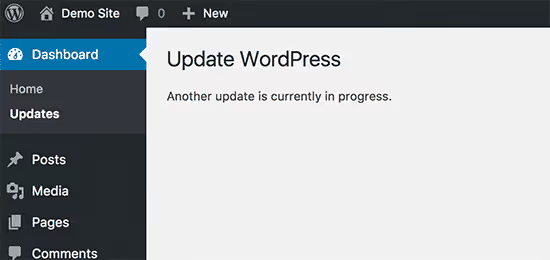
By design, the lock clears automatically after 15 minutes. In practice, this often fails to happen. Common causes include the background update process crashing due to insufficient memory on the hosting, a conflict with a caching plugin, or the browser tab being closed prematurely during the update.
The result: the lock persists, the updates panel is blocked. You can force-reset it in three ways.
Method 1: Fix Another Update In Progress plugin
The safest route is to avoid touching the database manually and let a trusted plugin do all the work for you.
Install Fix Another Update In Progress from the WordPress.org directory. The plugin is free and does exactly one thing: it looks for the core_updater.lock key in wp_options and deletes it at the click of a button.
After activation, go to Settings → Fix Another Update In Progress. If the lock is active, you will see a warning and a button:
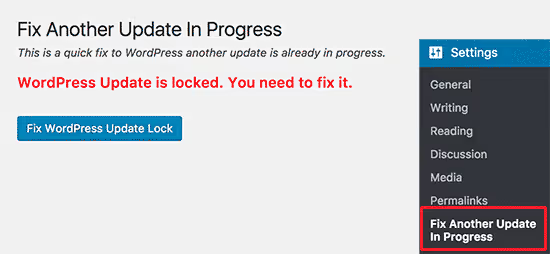
Click "Fix WordPress Update Lock". The plugin instantly removes the record from the database, and you will see a confirmation:
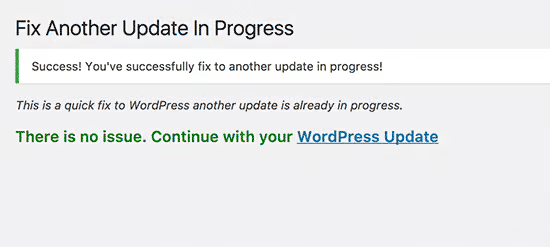
Now return to Dashboard → Updates; the page is active again, and WordPress is ready for the update. You can keep the plugin (it does not burden the site) or remove it until next time.
A couple of notes. The plugin has not been updated since 2023 and is not officially tested with WordPress versions newer than 6.2. In practice, however, it works correctly up to WordPress 6.7 because the structure of the wp_options table has not changed and the core_updater.lock entry is still a plain record that can be removed with a standard delete_option call. If you would rather not install a plugin "with history," proceed to methods 2 and 3.
Method 2: manually removing the lock via phpMyAdmin
When the admin panel is unavailable (white screen, critical error) or you simply do not want to install an extra plugin, you can reset the lock directly in the database. You will need access to phpMyAdmin, which is available in any hosting control panel (cPanel, ISPmanager, Plesk).
Log in to your hosting panel, find the "Databases" section, and open phpMyAdmin:
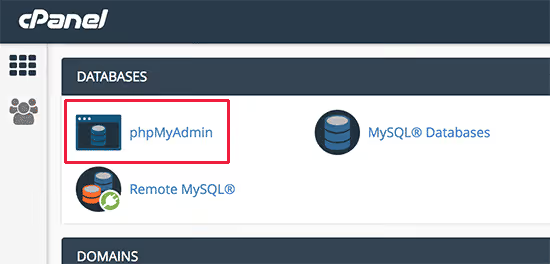
In the left column, select your WordPress site's database. Find the wp_options table (the prefix may differ if you changed it during installation) and click the "Browse" button:
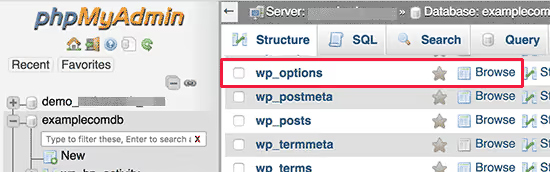
A list of rows will appear. Find the row with the option name core_updater.lock and click the red "Delete" button next to it:
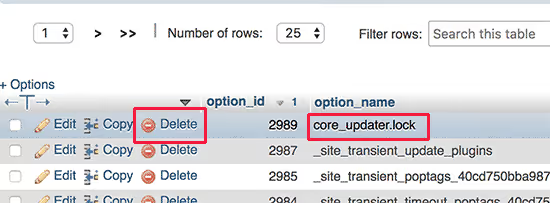
phpMyAdmin will delete the row. Now return to the WordPress admin panel; the updates page is unlocked.
If the table contains too many rows to find core_updater.lock visually, use the search feature: click the "Search" tab in phpMyAdmin, enter core_updater.lock in the option_name field, click "OK," and the row in question will appear.
⚠️ Before deleting anything in phpMyAdmin, make sure the background update has actually finished or stopped. If the process is still running, forcibly removing the lock can result in incomplete replacement of core files. Give the site 5-10 minutes after the error appears, then proceed.
Method 3: instant reset via WP-CLI
For those who work with the site via the terminal, the fastest method is a single WP-CLI command. Open an SSH console to the server, navigate to the WordPress root folder, and run:
1 wp option delete core_updater.lock
If the lock was active, you will see the message Success: Deleted 'core_updater.lock' option.. Done; you can now start the core update:
1 wp core update
Incidentally, the wp core update command will warn you about a stale lock itself and suggest that you first delete core_updater.lock. This is officially documented WP-CLI behavior, not a workaround.
This method is also convenient because it can be automated: add lock cleanup to your deployment script or a Cron job for regular maintenance. But if you have never worked with WP-CLI before, methods 1 and 2 are sufficient; they fully solve the problem.
Video: three methods in 3 minutes
A short video demonstrates all three methods on a real site, from discovering the error to clicking the "Update" button:
⁉️🤔 Frequently asked questions
Why doesn't the error disappear after 15 minutes as promised?
Automatic lock reset is designed for the normal completion of the background process. If the update was interrupted (PHP ran out of memory, the hosting process crashed, you closed the tab), WordPress never receives the "done" signal and leaves
core_updater.lockin the database. The 15-minute timer relies onWP_Upgradercallingwp_schedule_single_event, but if Cron on your hosting runs through a system scheduler, the event may never execute, and the lock persists for days. Manual removal is the only guaranteed solution.
Do I need to remove the Fix Another Update In Progress plugin after fixing the error?
Not necessarily. The plugin weighs kilobytes, adds no load on the frontend, and registers no extra hooks. You can leave it in place; the next time a lock hangs, the fix will take one click. But if your site has a "no unnecessary plugins" policy, feel free to delete it: resetting the lock via phpMyAdmin or WP-CLI takes 30 seconds.
Can I prevent this error from occurring in the future?
You cannot eliminate it entirely; it is a standard WordPress mechanism. But three things reduce the likelihood. Do not initiate a manual update if you see a notification about a background auto-update. Set up Cron through the server's system scheduler instead of
wp-cron.php; this removes the dependency on visitors. Increase the PHP memory limit (memory_limit) to at least 256M: insufficient memory is the most common cause of background update interruptions.
What is the danger of forcibly removing the lock during an active update?
If you delete
core_updater.lockwhile WordPress is replacing core files, you end up with a partially updated installation, half the files from the new version and half from the old one. In the best case, you get an error when logging into the admin panel; in the worst case, a white screen. Before using any of these methods, wait 5-10 minutes after the error appears. You can check for a background process through the hosting's process manager or by runningtop/htopover SSH.
Should you be afraid of this error
"Another update is currently in progress" looks alarming, but technically it is just one row in the database. WordPress is not broken, your data is intact, the site is running; the core simply set up a temporary barrier.
For quick situations, grab the Fix Another Update In Progress plugin: one button, five seconds, done. No admin access? phpMyAdmin solves it in a minute. Working via the console? wp option delete core_updater.lock and move on. Any of the three methods restores full control over your site's updates.

A professional team of writers and editors specializing in creating quality content.