














🚀 20 best WordPress drag and drop page builder plugins in 2026
Build a landing page in an hour without writing a single line of code. Design a sales page faster than a designer can create a mockup. Drag a block and see the result instantly, without refreshing the browser.
Sound like a dream? In 2026, it's reality. Drag-and-drop page builders have long outgrown their "toy for beginners" status and become the primary working tool for freelancers, agencies, and business owners. According to W3Techs, WordPress powers 43% of all websites, and a good half of them use a visual page builder.
The problem is there are dozens of plugins. Over 15 years of market existence, some products have become history (RIP old-school Visual Composer), others changed their name (Thrive Content Builder → Thrive Architect), and still others skyrocketed to millions of installations (Elementor). Figuring out which tool to choose for a specific task without a guide is nearly impossible.
We tested a dozen and a half current solutions, filtered out form builders (FormCraft, not a page builder, no matter how much the authors want it) and frankly abandoned projects that haven't been updated in years. Below is an honest guide to living tools: prices, pros, cons, screenshots, and links to official pages.
💡 Quick overview:
- Compare plugins by table: prices, editor type (frontend/backend), number of ready-made templates
- Choose 2-3 candidates for your scenario, universal (Elementor/Beaver Builder), designer-oriented (Divi/Brizy), or lightweight (Gutenberg/Nimble)
- Check compatibility with your theme and plugins before installation, CSS/JS conflicts are rare but happen
- Master one tool deeply: switching between builders wastes time and creates content chaos
Comparison table: prices, editor, templates
Plugin | Price (starting) | Editor type | Ready templates | Free version |
|---|---|---|---|---|
Elementor | Free / $59/year | Frontend | 300+ | Yes |
WPBakery | $69 | Backend + frontend | 100+ | No (sometimes bundled) |
Beaver Builder | $99 | Frontend | 50+ | Lite version |
Divi Builder | $89/year | Frontend + backend | 2000+ | No |
Brizy | Free / $49/year | Frontend | 150+ blocks | Yes |
Thrive Architect | $99/year | Frontend | 350+ | No |
SiteOrigin Page Builder | Free | Backend | Limited | Yes |
Themify Builder | Free / $39 | Frontend + backend | 60+ | Yes |
Gutenberg | Free | Backend | Through patterns | Yes |
King Composer | Free / $29 | Backend (Pro: frontend) | Limited | Yes |
Prices in the table and descriptions are based on official plugin website data as of June 2026.
1. Elementor
🔗 Elementor on WordPress.org | 🔗 Live demo
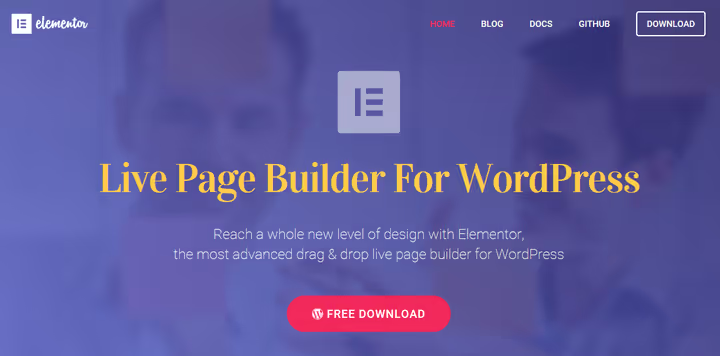
Elementor is the most popular page builder for WordPress with 16+ million active installations. Frontend editor with instant response: drag a widget, change a color, move a column, and the result is right before your eyes without a single "Refresh" click. No switching back and forth between admin panel and preview.
Elementor core is open source. The free version provides a full visual editor, responsive mobile layout, and 40 basic widgets (headings, images, buttons, Google Maps, icons). The Pro version at $59/year adds Theme Builder, popup builder, dynamic content (ACF, Pods, Toolset), forms with integrations, and WooCommerce page builder.
A separate plus is the ecosystem. Hundreds of third-party addons (Essential Addons, Crocoblock, Dynamic.ooo) extend capabilities to the level of a web application builder. The template library is updated weekly: landing pages, portfolios, stores, blogs.
The downside: on weak hosting, Elementor can lag, the editor pulls DOM and scripts. Optimization through caching and lazy loading is mandatory.
2. WPBakery Page Builder
🔗 WPBakery on CodeCanyon | 🔗 WPBakery website
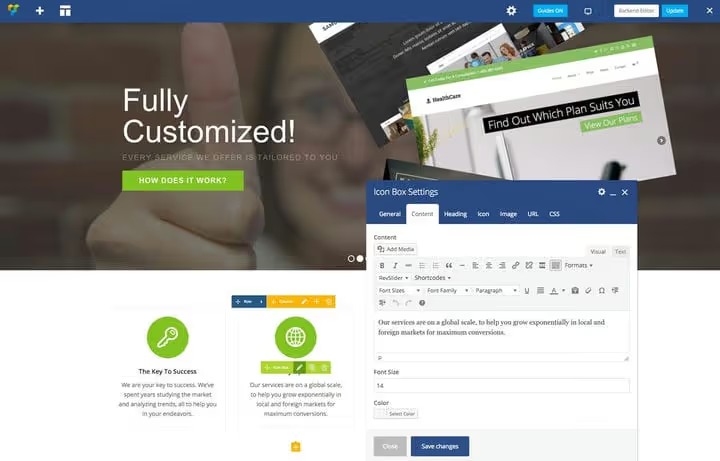
WPBakery (formerly Visual Composer) is a market veteran. Once a monopolist, today it's a solid tool with tens of thousands of sales on CodeCanyon. Main feature: two editing modes. Backend editor assembles the page from blocks in WordPress admin (familiar, like building blocks), while frontend editor provides visual building "on the fly".
It includes 40+ content elements: text blocks, images, galleries, buttons, maps, dividers, video. The plugin works with any theme and doesn't bind content to itself, when WPBakery is deactivated the text remains (although shortcodes turn into a mess, a standard problem of any shortcode-based builder).
Price: $69 one-time on CodeCanyon, but more often WPBakery comes bundled with premium themes (Total, The7, Jupiter X). In our Total WordPress theme it's included for free.
The downside: shortcode architecture. When switching builders, pages require manual cleanup of [vc_row][vc_column].... And the backend editor looks archaic compared to modern frontend tools, lots of buttons, small interface, you have to squint.
3. Beaver Builder
🔗 Beaver Builder on WordPress.org | 🔗 Beaver Builder website
Beaver Builder is a frontend builder chosen for stability. The plugin doesn't conflict with themes, doesn't break layout when WordPress updates, and cleanly removes its content when disabled. This is the gold standard for agencies handing off sites to clients: the client won't accidentally break the page, and the developer won't get a ticket Saturday evening.
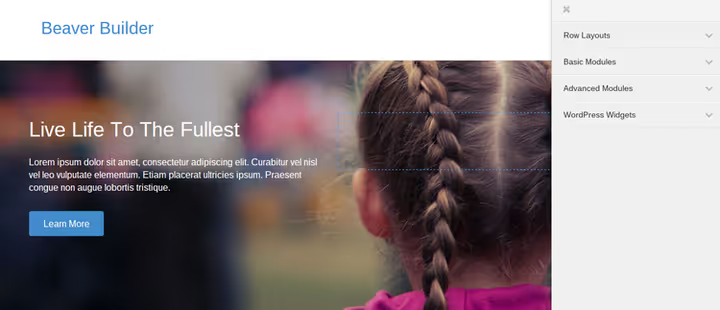
It includes 20+ modules: text, headings, images, video, galleries, sliders, contact forms, CTA buttons, maps, WooCommerce widgets. Each module is configured in the sidebar, and changes are visible instantly.
The Lite version on WordPress.org is free and includes basic modules. The Pro version from $99 (one-time) adds page templates, theme builder Beaver Themer, and White Label. More details in our Beaver Builder plugin review.
The downside: the price is steep for a freelancer taking their first order. And the number of ready-made templates is less than Elementor and Divi, you'll have to assemble the design mostly manually.
4. Divi Builder
🔗 Divi Builder at Elegant Themes | 🔗 Live demo
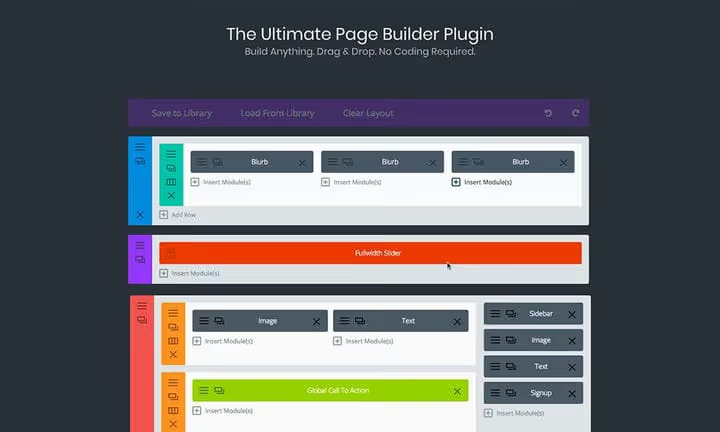
Divi Builder from Elegant Themes is a designer-oriented builder with the largest library of ready-made layouts: over 2000 templates for any occasion. Seriously, from a dental clinic to a crypto startup landing page, everything is already designed. The system of folding sections, rows, and modules is intuitive, and customization goes down to a CSS tab for each element.
The package includes 40+ modules: sliders, counters, pricing tables, blur effects, image filters, video backgrounds. The main feature is Divi AI: a built-in text and image generator right in the editor. Write a prompt, get a paragraph or image without switching tabs.
Price: $89/year for Elegant Themes membership (see pricing on official website), which includes Divi Builder + Divi theme + a dozen other products (Bloom, Monarch, Extra). The subscription allows unlimited use on unlimited sites.
The downside: shortcode architecture, like WPBakery. When switching themes or disabling the builder, content turns into a mess of [et_pb_section]. And backend editor speed on large pages leaves much to be desired.
5. Brizy
🔗 Brizy on WordPress.org | 🔗 Live demo
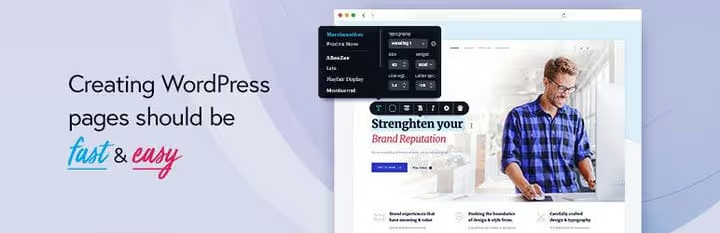
Brizy is a new-generation frontend builder focused on minimalism. The interface isn't cluttered with buttons: hover over a block, an action panel appears, edit, duplicate, delete. Brizy places content in draft, not on the live page: changes aren't published until you click "Publish". This saves you from "oops, I accidentally broke the landing page on production" situations.
The free version of Brizy includes ready-made blocks and powerful elements: text, images, buttons, video, counters, forms, icons, lines, tabs, accordions. The Pro version at $49/year (see Brizy page) adds theme builder, popups, dynamic content, White Label, and Brizy Cloud for hosting landing pages.
The downside: fewer third-party addons than Elementor. The ecosystem is young, the selection of extensions is more modest. And some features (marketing integrations, user roles) are only in the Agency plan.
6. Thrive Architect
🔗 Thrive Architect | 🔗 Live demo
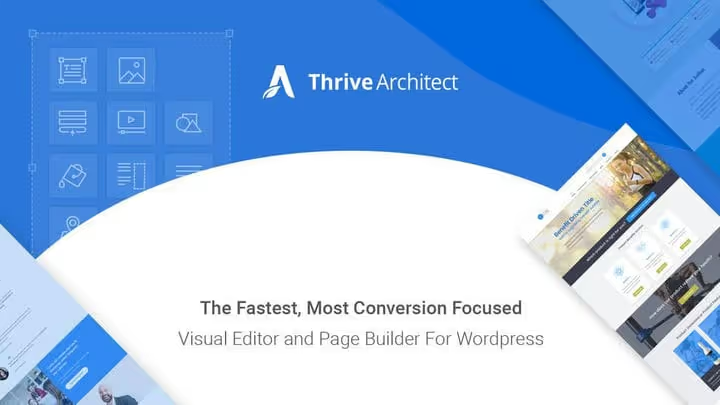
Thrive Architect (formerly Thrive Content Builder) is a builder focused on conversion and marketing. Every element, CTA button, subscription form, pricing table, testimonial block, countdown timer, is designed with the sales funnel in mind. Not "beautiful layout" but "profitable page" is Thrive Themes' philosophy.
The plugin is part of the Thrive Suite package at $99/year (or $299/year for Agency). The package includes: page + theme + form + online course + quiz builder + A/B tests. For blogs and ed-tech projects, one of the best toolkits on the market (pricing on official website).
The editor is frontend, with a click-and-edit paradigm: click on text, type, click on a button, change color and link. No need to dig into sidebars for small things.
The downside: Thrive Architect is tied to the Thrive Themes ecosystem. Using it separately from X Theme is possible but pointless, all the power is revealed in combination. And shortcode architecture inherits the migration problem.
7. SiteOrigin Page Builder
🔗 SiteOrigin on WordPress.org | 🔗 Screenshots
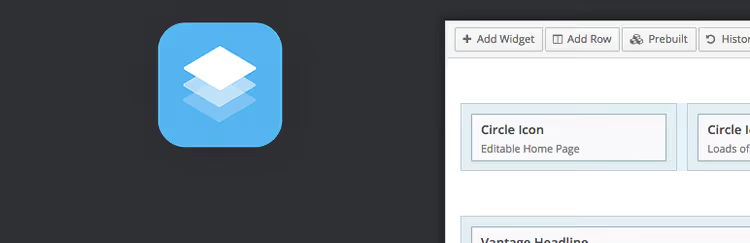
SiteOrigin Page Builder is one of the oldest free builders (working since 2013), based on standard WordPress widgets. No proprietary formats: pages are assembled from widgets familiar to every WordPress user. This means zero entry barrier for those already working with the admin panel.
The editor is backend, with live preview. Change history (Undo/Redo) allows you to roll back any number of steps, if you made a mistake with column layout, revert it with one click. The plugin doesn't impose its own theme: works with any design, from standard Twenty-* to custom frameworks.
Built-in CSS editor for each row and widget gives developers full control over styling without editing theme files.
The downside: modern visual editors (Elementor, Brizy) have gone far ahead in UX. Editing in backend without live frontend is the 2015 norm, but today it's perceived as anachronistic. And the library of ready-made layouts is modest, mainly through third-party SiteOrigin Widgets Bundle.
8. Themify Builder

🔗 Themify Builder Lite on WordPress.org | 🔗 Screenshots
Themify Builder is a frontend and backend editor from the Themify team, known for their themes. The "feature" is one-click duplication of rows and modules plus import/export of layouts between sites. Design a section once, spread it across all projects.
The free version (Themify Builder Lite) on WordPress.org provides a basic set of modules. The Pro version adds 60+ ready-made layouts, animation effects, theme builder, and addon library (pricing tables, sliders, maps, WooCommerce modules).
The downside: the ecosystem is closed to Themify products. Want extended functionality, buy Themify addons separately. And the free version is quite limited compared to Elementor Free, more a demonstration of capabilities than a full tool.
9. Gutenberg (block editor)
🔗 Gutenberg on WordPress.org | 🔗 Documentation
Gutenberg is the built-in WordPress block editor, which since version 5.0 has been the standard content creation interface. Strictly speaking, this isn't a "page builder" in the classic sense, rather a content editor with block architecture. But for simple pages and posts, its capabilities are sufficient.
Blocks cover basic needs: paragraphs, headings, lists, code, media (images, galleries, video, audio), embeds (Twitter, YouTube, Spotify), widgets and columns. With the release of Full Site Editing (FSE) and block themes, Gutenberg is learning to edit headers, footers, and sidebars.
Huge plus: zero price, zero conflict with WordPress core (it is the core), and no shortcodes to clean up. Third-party blocks (Spectra, Kadence Blocks, Stackable) extend functionality to the level of a full-fledged Page Builder.
The downside: for complex layouts with overlapping elements, animations, and micro-interactions, Gutenberg is not yet a rival to Elementor or Divi. Full Site Editing is still raw, compatibility with classic themes is through workarounds.
10. MotoPress Content Editor

🔗 MotoPress Content Editor | 🔗 Live demo
MotoPress Content Editor is a premium plugin replacing the standard WordPress editor with a full visual builder. Editing is frontend: you open a page and edit content, seeing the result as it is. The plugin integrates with most themes and requires no special preparation.
Built-in elements: buttons, tables, text blocks, images, video, dividers, columns. Each element is configured by width, alignment, color, margins, and even custom CSS class (note to developers).
Important nuance: MotoPress only edits content created through it. Text added before plugin installation will remain under the standard WordPress editor's responsibility. When migrating to MotoPress, this creates a two-format headache.
The downside: the price for functionality that Elementor gives away for free is a difficult value proposition in 2026. And it's niche: the community is small, almost no addons, very little educational material.
11. Live Composer
🔗 Live Composer | 🔗 Documentation
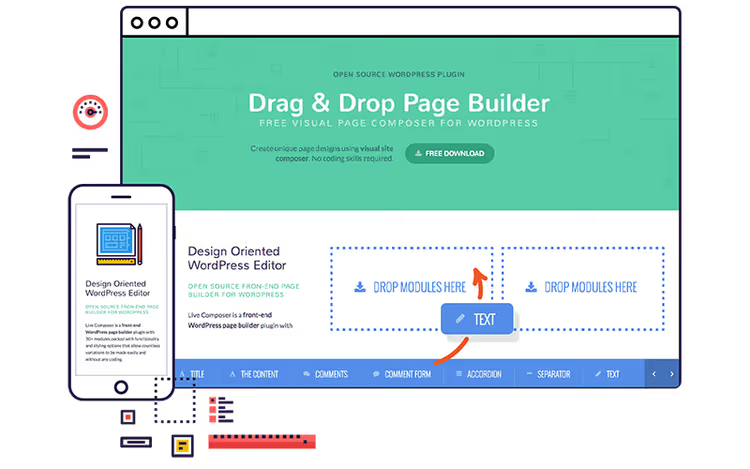
Live Composer is a former premium plugin that switched to a free model. Fully frontend editor: you create a page looking at it through a visitor's eyes, not through the admin panel. Over 30 modules, from text and images to WooCommerce products, portfolio, and sliders.
Each module is configured by colors, fonts, borders, and background. Template support and access control (you can allow editing only to administrators or specific roles) make Live Composer convenient for team work. Built-in interactive tutorials help you get oriented in half an hour.
The downside: plugin development has slowed. The site looks abandoned, no news about major updates, the community has gone quiet. Using it on a new project is risky, no guarantees of compatibility with future PHP and WordPress versions.
12. Cornerstone Page Builder
🔗 Cornerstone from Theme.co | 🔗 Documentation
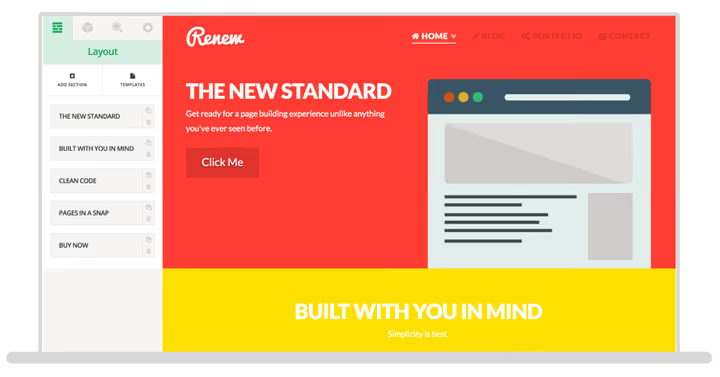
Cornerstone is the proprietary builder of X Theme from Theme.co, also available as a standalone plugin ($39, see Theme.co). Fully frontend editor with "skeleton" mode: with one click the page structure is highlighted, rows, columns, elements. Helps quickly navigate complex layouts where a dozen layers are stacked.
Built-in elements: buttons, quotes, maps, skill bars, sliders, tabs, pricing tables. The library of templates and elements is constantly updated. The Cornerstone + X Theme combination provides one of the most flexible design tools in the WordPress market.
Ultimate Elements Bundle is a Cornerstone extension adding carousels, Instagram image grids, interactive promo videos, and a dozen more modules.

The downside: Cornerstone is tied to the Theme.co ecosystem. Using it separately from X Theme is possible, but there's little point, all the power is revealed in combination. And shortcode architecture inherits the migration problem.
13. Nimble Page Builder

🔗 Nimble Builder on WordPress.org | 🔗 Screenshots
Nimble Builder is a lightweight free frontend builder. Doesn't overload the admin panel, doesn't add a dozen menu items, doesn't conflict with themes. Ideal for situations "I just need to add columns to a couple pages and forget about it".
Elements: text, images, contact forms, parallax effects, Twitter widgets, icons. Responsive design out of the box, pages display correctly on mobile without additional settings. You can drag standard WordPress widgets directly into the editor.
The downside: functionality is minimal. For complex landing pages, Nimble isn't enough, no theme builder, no dynamic content, no popups. A niche tool for a niche task.
14. Bold Page Builder

🔗 Bold Page Builder on WordPress.org | 🔗 Screenshots
Bold Page Builder is a once-popular lightweight builder, tailored to standard WordPress themes Twenty Sixteen and Twenty Seventeen. Fast, simple, free. Supported video, masonry grids, images, formatted text, and Font Awesome icons.
But: the last update was several years ago. Development has ceased, compatibility with modern versions of PHP and WordPress is not guaranteed. We don't recommend installing Bold Page Builder on new projects, and on existing ones, prepare a migration path.
15. SeedProd

🔗 SeedProd on WordPress.org | 🔗 SeedProd website
SeedProd is a special beast. Technically, this isn't a classic page builder, but a landing page builder with "Coming Soon" and "Maintenance Mode" modes. But in recent versions, the SeedProd team (acquired by Awesome Motive, creators of OptinMonster and WPForms) turned the plugin into a full visual editor.
The interface is frontend, drag-and-drop. A library of 300+ templates covers landing pages, thank you pages, login pages, 404, "Coming Soon". Built-in subscription system (email marketing), integrations with Mailchimp, ConvertKit, ActiveCampaign, the tool solves not only the "design" task but also "collect leads".
The Pro version from $79/year adds WooCommerce blocks, dynamic content, theme builder, and White Label (pricing on SeedProd website).
The downside: focus on landing pages and marketing. For building a full multi-page site, SeedProd falls short of Elementor or Beaver Builder in content customization depth.
⁉️🤔 Frequently asked questions
What's the difference between a page builder and WordPress block editor?
A page builder (Elementor, WPBakery, Divi) is a third-party plugin with a visual interface, building pages through shortcodes or its own rendering. The block editor (Gutenberg) is a tool built into WordPress core, storing content in HTML comment blocks. Main difference: a page builder gives full control over layout (columns, overlays, animations), while the block editor focuses on content with basic layout. When switching page builders, content remains in the old plugin's shortcodes, pages need to be re-designed. Gutenberg blocks will remain readable even after disabling all plugins, it's the "native" WordPress format.
Which page builder is the fastest?
According to load speed tests (Google PageSpeed Insights, GTmetrix), Elementor with optimization (lazy loading, caching) and Beaver Builder consistently lead. Gutenberg is the lightest by definition, since it doesn't pull extra scripts and styles. Page speed depends not so much on the builder as on hosting, caching, and image optimization. Fast hosting + good cache (WP Rocket, FlyingPress) + converting images to AVIF/WebP give more gain than replacing one page builder with another.
Can you use two page builders on one site?
Technically yes, practically no. Different builders create conflicting shortcodes, duplicate styles and scripts, slow down the admin panel, and confuse editors. Content created in one can't be edited in another, you get a patchwork-quilt site. Choose one tool and stick with it. Exception: Gutenberg + one page builder. Gutenberg is part of the core, and its blocks don't conflict with third-party builders. Part of the site can be managed on Gutenberg (blog), and key pages on Elementor.
Do I need a page builder if I know how to code?
Depends on what you're optimizing. If project profit directly depends on launch speed, a page builder saves dozens of hours on layout, debugging, and mobile adaptation. If the project is long-term, with unique design and non-standard interactions, custom layout gives more control and less overhead. In agencies, standard practice is: designer draws a unique layout, developer codes key pages manually, and content manager assembles typical landing pages through a page builder. Hybrid approach.
What should I do if I want to switch page builders?
Prepare for manual work. Content needs to be copied from the old builder (open page in HTML/text mode), cleaned of shortcodes (
[vc_row],[et_pb_section], etc.), pasted into the new builder or Gutenberg, and reformatted. Automatic migrators exist, but work with varying success, always check the result on a staging copy. Prevention: at project start, choose a builder that doesn't pollute content with shortcodes when disabled. Beaver Builder and Elementor in recent versions leave readable text.
Which page builder to choose in 2026
Choosing a page builder is choosing an ecosystem you'll spend the next years in. Switching tools mid-project is painful and manual work. So try each option for your scenario:
- Universal choice: Elementor. The free version covers most typical needs, Pro adds professional features, and the addon ecosystem covers niche scenarios. Largest community, most tutorials, best compatibility.
- Design without limits: Divi Builder. 2000+ ready-made layouts, visual CSS editor, Divi AI. If it's important for the site to look "expensive" without hiring a designer, Divi.
- Agency and client handoff: Beaver Builder. Stability, predictability, clean content when disabled. The client won't break the site, and you won't get a call at 11 PM.
- Budget alternative: Brizy (free version). 150+ ready-made blocks, clean interface, no ads or watermarks.
- Blog and content marketing: Gutenberg + Kadence Blocks. Free, fast, native. For articles and simple pages, more than enough.
- Marketing** and lead generation:** Thrive Architect or SeedProd. Conversion elements, A/B tests, integrations with email services.
Spend an hour on a demo of each candidate from your shortlist. Open live preview, try inserting a block, changing a color, moving a column. Your hands will tell you more than any review. And remember: the best page builder is the one you'll actually open the editor in, not close after 5 minutes thinking "I'll figure it out later".

A professional team of writers and editors specializing in creating quality content.