














🚀 WPBakery Page Builder: a guide to drag and drop page building
Custom page layout without a single line of code sounds like a dream. Especially when the default WordPress theme doesn't provide the structure you need and you don't have time to code it by hand. Page builders solve this problem: install a plugin, drag and drop blocks with your mouse, and get a landing page, portfolio, or homepage in an hour.
WPBakery Page Builder is one of the oldest and most widely used builders of this type. According to the CodeCanyon catalog, the plugin has over 2 million active users and more than 5,000 reviews. It's bundled with hundreds of premium themes on ThemeForest and is still actively updated, with the current version 8.7.3 released in May 2026.
💡 Quick overview:
- Install WPBakery from the CodeCanyon catalog or from your theme bundle, activate it, and get builder mode on any page
- Build the structure: add a row, split it into columns, and fill with elements (text, buttons, galleries, sliders)
- Edit visually: drag blocks into the desired order, adjust padding and backgrounds through the row panel
- Save the layout as a template and reuse it on other pages with one click
What is WPBakery Page Builder
WPBakery (formerly known as Visual Composer) is a page builder plugin for WordPress developed by the WP Bakery team. It's sold on CodeCanyon and comes bundled with many popular themes. Important note: don't confuse it with the separate Visual Composer product at visualcomposer.com, as these are two different plugins with similar names.
The builder works in two modes: a backend editor right in the admin panel and a frontend editor where you see the page as a visitor and modify elements on the fly. No code required, just drag-and-drop and configuration through option panels.
Installation and first steps
The plugin installs in the standard way: download the ZIP archive from your CodeCanyon account or from your theme bundle, upload it via Plugins → Add New → Upload Plugin, and activate. A Regular license costs $59 for one site with lifetime updates.
After activation, new buttons appear on the page editing screen: toggle between the classic editor and builder mode, plus a frontend editor button.

From there, the only limit is your imagination. Add rows, columns, buttons, text, and images through the elements panel. You can save the finished layout as a template for reuse.
Building a page: rows, columns, and elements
Rows and columns
Page building starts with a row. A row is a horizontal container that splits into columns. Hover over the yellow tab in the top-left corner of the row and select a column layout. The builder will automatically divide the space into the required number of columns.

Basic layouts include 1/2+1/2, 1/3+2/3, 1/4+3/4, and their mirrored variants. By combining rows with different layouts, you can build a complete page grid without CSS.
Page elements
Click the "Add Element" button to open a popup menu with all available modules. WPBakery's standard package includes text blocks, headings, buttons, images, galleries, accordions, tabs, toggles, recent posts blocks, and sidebar widgets.
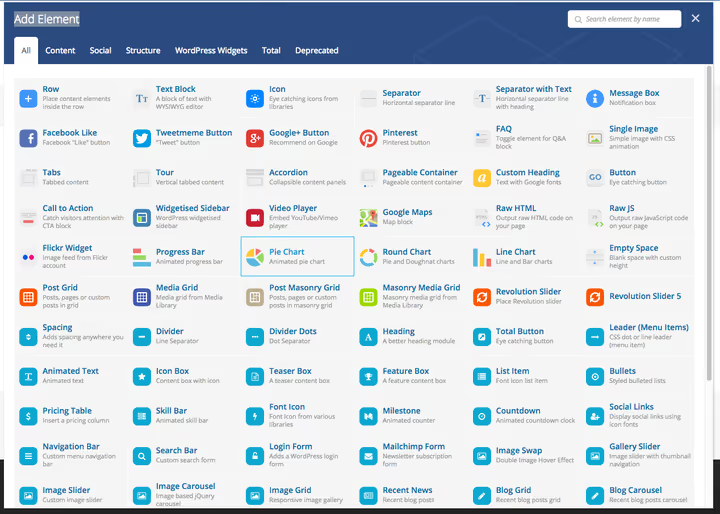
The number of elements depends on your theme and active plugins. Many premium themes add their own modules tailored to their design: carousels, separators, icon boxes, milestones, and timelines.
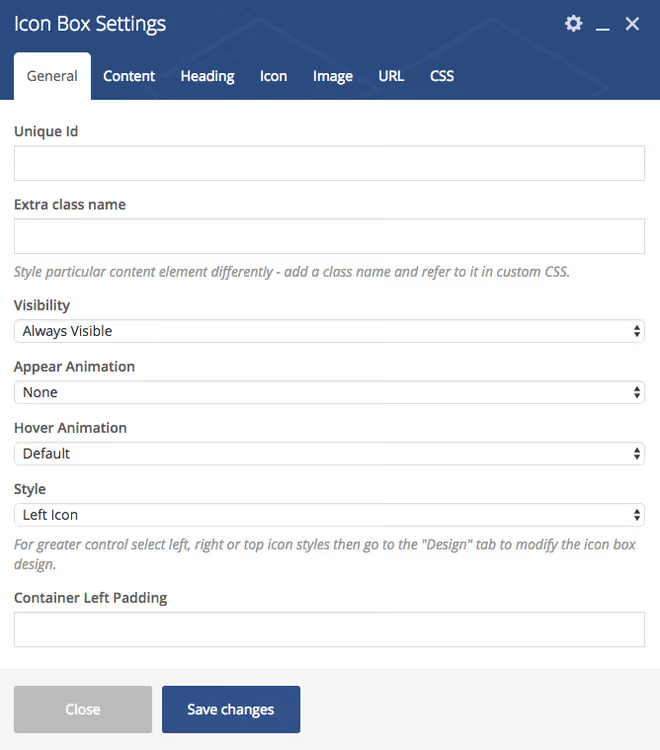
When you select an element, its settings panel opens (sometimes with multiple tabs). Below is an example of the options window for the Icon Box module (available in themes that support it):
Out of the box, the builder supports four popular third-party plugins: Layer Slider, Revolution Slider, Gravity Forms, and Contact Form 7. If any of these are installed, a page element automatically appears for the theme. When inserting, WPBakery shows a dropdown list of sliders or forms you've previously created. No need to copy shortcodes manually.
Drag-and-drop and templates
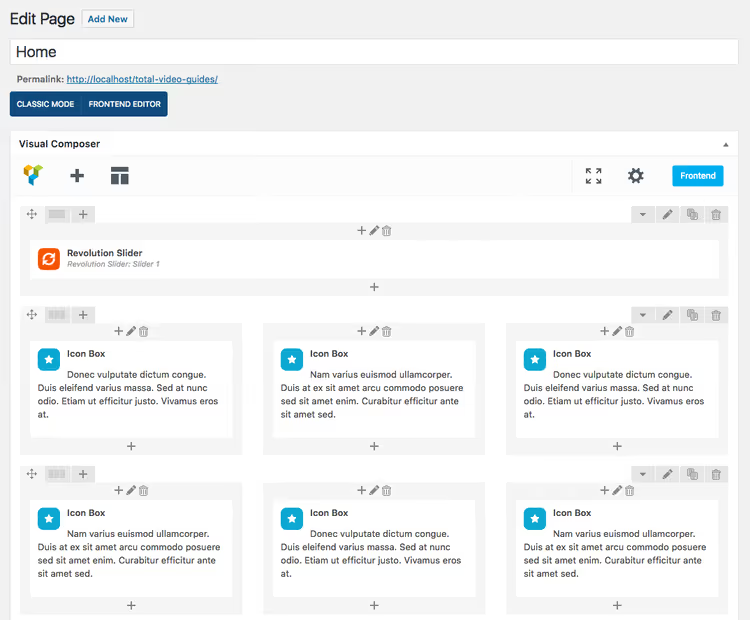
Any row or element can be dragged to a new location at any time. Row and element duplication is available, which is useful for repeating content: identical columns, toggles, or FAQ blocks.
When the layout is ready, save it as a template: click the "Templates" button, enter a name, and confirm. When creating a new page, the template deploys with all saved elements and settings.
Row options
In the left corner of each row, three icons control management: clone the entire row with its contents, add new modules, and edit columns.

The available formatting options depend on the theme. Some developers leave WPBakery as is, while others extend the panel to match their theme's design. Before purchasing a theme, check which builder settings have been added to it.
Frontend editor
WPBakery includes a live frontend editor: you see the page through a visitor's eyes and edit text, images, and spacing right on the spot. Click an element, the settings panel opens, and you see the result immediately.
Not all themes support the frontend editor. Check the theme's feature list or contact the developer to learn about compatibility. Themes built with WPBakery in mind usually include full support for both modes (backend and frontend).
Extensions and shortcodes

WPBakery supports third-party shortcode integration. On the plugin settings page, go to the "My Shortcodes" tab and click "Map Shortcodes." The system will pull all registered shortcodes from the site and add them to the builder's element menu.
If you're a developer, the plugin's API lets you add custom modules to the builder interface. For regular users, CodeCanyon offers dozens of addons that extend the standard element set: post grids, product cards, advanced galleries, and sliders.
Plugin settings
WPBakery works not only with pages but also with posts and custom post types. Go to Settings → WPBakery Page Builder and check the content types where you need the builder.

The plugin automatically displays all content types registered in the theme: pages, posts, portfolios, testimonials, WooCommerce products, and bbPress forums. Check the ones you need and save.
Where to get WPBakery
WPBakery Page Builder is sold on CodeCanyon for $59, a Regular license for one site with lifetime updates. The Extended license for bundling with a theme or plugin costs more.
Many premium themes include WPBakery in the price, so when you purchase, you get a license for the builder at no additional cost. If you're choosing a theme for a new project, having WPBakery bundled saves $59 and hours of compatibility testing.
⁉️🤔 Frequently asked questions
Are Visual Composer and WPBakery the same thing?
Yes. In 2017, the Visual Composer plugin was renamed to WPBakery Page Builder to avoid confusion with the Visual Composer Website Builder product (visualcomposer.com). The code and functionality remained the same; only the name changed.
Do I need to know how to code?
No. The builder is designed for a completely code-free experience. You assemble pages from ready-made blocks via drag-and-drop. You only need basic WordPress admin skills: installing a plugin, creating a page, and clicking "Save."
Does WPBakery work with any theme?
With most, yes. But the depth of integration varies. Some themes simply don't interfere with the builder, while others add their own modules, styles, and grids. Before purchasing a theme, check the description for "Compatible with WPBakery Page Builder."
Can I use WPBakery on multiple sites?
The standard Regular license is $59 for one project. For two or more projects, purchase separate licenses or consider the Extended license if you plan to bundle the plugin with your own product.
How is WPBakery different from Elementor?
Elementor is a newer builder with an extensive free version and a modern interface. WPBakery is a proven veteran, deeply integrated into the ThemeForest ecosystem: hundreds of themes ship with it. Choosing between them comes down to interface preferences and your specific theme.
Is WPBakery worth it in 2026
If your theme already includes WPBakery, use it. It's a mature tool with regular updates and a huge addon library. If you're choosing a theme from scratch, look at the builder that feels more comfortable for your daily work rather than flashy comparisons. Both WPBakery and Elementor can build a professional site. The deciding factor is which interface feels more comfortable to work in, because you'll be the one editing those pages.

A professional team of writers and editors specializing in creating quality content.