














🔄 How to reinstall WordPress without losing content: 4 working methods 2026
Your WordPress site crashed after the latest update. White screen, database error, or redirect loop. You disabled plugins via FTP, reset .htaccess, cleared the cache. Nothing worked.
Then there's only one path left: reinstall WordPress. Using the built-in tools, this takes two minutes without losing content. Below are four working methods: from the built-in button to a full reset via cPanel.
💡 Quick overview:
- Make a full backup of the database and files before any reinstallation, this is your insurance against unpredictable failures
- Method 1: the button in Dashboard → Updates, the simplest way to replace core files while preserving content
- Method 2: the WP-CLI command
wp core download --skip-content --forcefor servers with SSH access - Method 3: manual replacement via FTP when the admin panel is inaccessible and the hosting lacks WP-CLI
- Method 4: full deletion via cPanel or a plugin to reset the site to a clean slate
- Bonus method using the WP Reset plugin for selective reset with protective snapshots
When reinstalling WordPress is justified
Reinstallation is not a cure-all for every error. In nine cases out of ten, the problem can be solved with targeted fixes: resetting .htaccess, disabling a conflicting plugin, or recovering after a hack. But there are situations where replacing the core is a reasonable step:
- You've exhausted all other diagnostic methods, yet the error persists. The core may have been corrupted during a failed auto-update or after an attack.
- You need a clean testing environment. Theme and plugin developers reinstall WordPress constantly to reset to the original state.
- The site is being repurposed for a new topic. It's easier to deploy a fresh WordPress and migrate the necessary content than to clean out the legacy of the old site.
The main rule for any method: make a full backup. Database separately, files separately. Even if the method is "safe and doesn't touch content," a backup is your insurance.
Method 1: reinstallation from the admin panel
The quickest way that many don't know about: WordPress can reinstall itself directly from the admin panel. No FTP clients or terminals needed.
Go to Dashboard → Updates. At the top of the page, before the list of plugins and themes, you'll see a Re-install version X.X button:

Click it. WordPress will download a fresh distribution of the current version and replace all core files. After a few seconds, you'll see the welcome screen:

Important: this method only touches the core files. Themes, plugins, media library, content, and database settings remain untouched. Essentially, it's an automated replacement of wp-admin and wp-includes with protection against accidentally overwriting wp-content.
If the button is missing, WordPress likely cannot detect available updates because the hosting is blocking outgoing connections. Proceed to methods 2 or 3.
Method 2: reinstallation via WP-CLI
WP-CLI is the command-line interface for managing WordPress sites without a browser. It's built into most modern hosting providers (SiteGround, Kinsta, Cloudways, WP Engine) and accessible via SSH.
If you're familiar with the terminal, core reinstallation comes down to a single command:
1 wp core download --skip-content --force
The --skip-content flag skips downloading default themes and plugins (Twenty Twenty-Five, Akismet), and --force overwrites existing core files. After execution, all WordPress system files will be replaced with fresh ones, while your wp-content folder remains untouched.
This is a file replacement. If you need to reinstall WordPress with database table recreation (a rare case for factory reset while preserving content), use this command:
1 wp core install --skip-content --force
The difference: core download only updates files on disk. core install additionally creates database tables, but with the --skip-content flag it doesn't touch existing posts and pages.
Before running, make sure WP-CLI is installed and can see your site:
1 wp --info
The command will display the PHP version, WP-CLI version, and configuration path. If you see command not found, WP-CLI isn't configured on the server. Proceed to the FTP method.
Method 3: manual reinstallation via FTP
The classic approach. Works on any hosting, requires only FTP access and 10 minutes of time. The essence: replace all WordPress core files with a fresh copy without touching the wp-content folder.
Step 1: download fresh WordPress
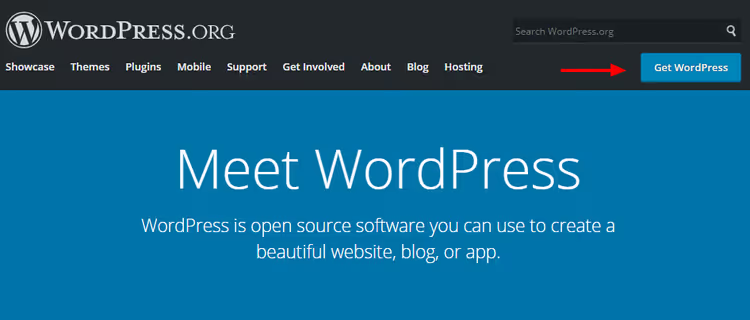
Go to wordpress.org/download and download the latest version. At the time of writing, this is WordPress 6.5+, approximately 25 MB archive:
Step 2: delete the wp-content folder from the archive
Extract the ZIP on your computer. Find the wp-content folder inside and delete it:
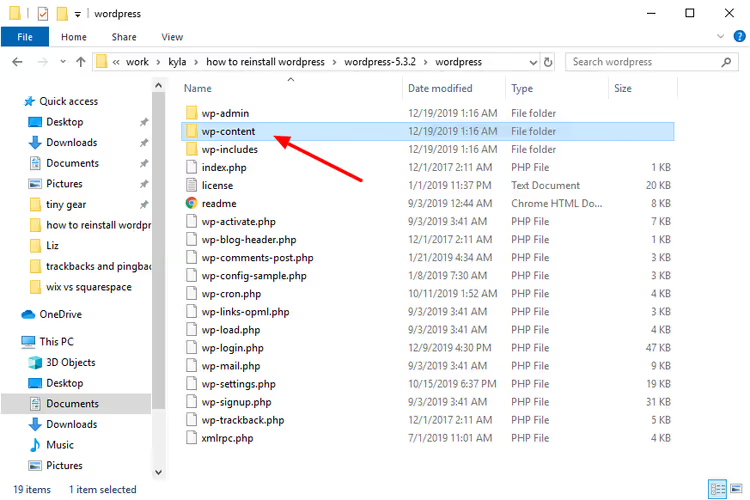
This is the key step. If you upload the wp-content from the distribution, it will overwrite your working folder with themes, plugins, and uploads. You'll lose all design settings and some content. Deleting wp-content ensures only core files reach the server.
Step 3: connect to the server via FTP
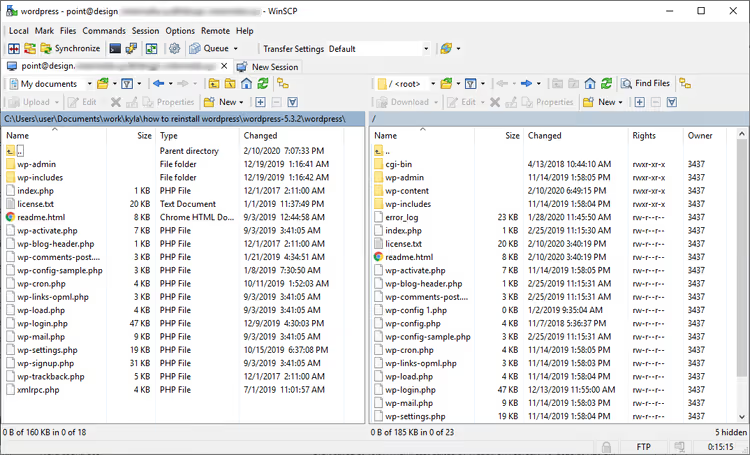
Use any FTP client: WinSCP (free, Windows), FileZilla (cross-platform), or Cyberduck (macOS). Connection details (host, login, password) usually arrive in an email from your hosting provider upon registration:
Step 4: upload files to the server
In the FTP client, navigate to the site's root folder (usually public_html, www, or htdocs). Select all files from the extracted WordPress archive (except the deleted wp-content) and drag them to the server:
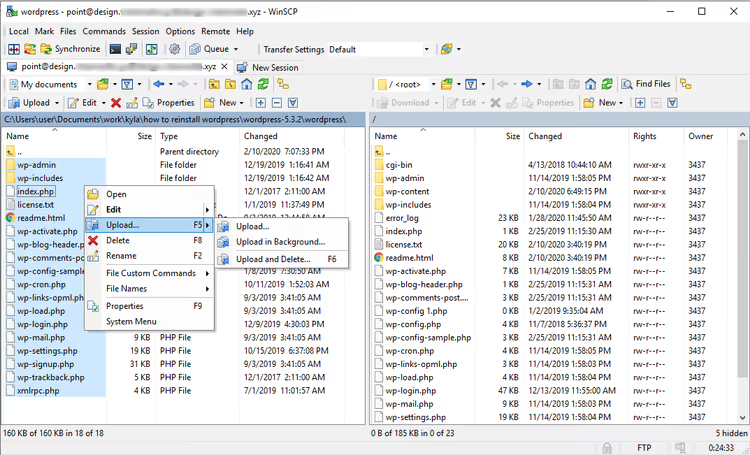
The FTP client will ask whether to overwrite existing files. Confirm, as you're replacing the current core files with a fresh version:

Wait for the upload to complete. Once finished, open the site in a browser. If the WordPress welcome screen doesn't appear, it means the core was successfully reinstalled and the content remained in place.
Method 4: full WordPress reset
Sometimes reinstalling the core doesn't solve the problem. You need a completely clean site: no old posts, no broken database settings, no legacy from ten plugins. This is a radical scenario.
Warning: this method deletes everything. If you need any part of the content, export the data to XML first.
Exporting content before reset
In the WordPress admin panel, go to Tools → Export:

Select All content and click Download Export File:

Save the resulting XML file on your computer. After reinstallation, you can import it via Tools → Import.
Deleting the site via cPanel
Most hosting providers offer a WordPress auto-installer (Softaculous, Fantastico, Installatron). Through the same tool, you can also delete the site.
In cPanel, find the Softaculous Apps Installer section and click the WordPress icon:

On the next screen, scroll down to the list of installed sites, find the one you need, and click the red X (Remove):

Confirm the deletion by clicking the Remove Installation button at the bottom of the page:

After deletion, the old site is completely gone: database, files, settings. You can immediately install a fresh WordPress through the same auto-installer and import the saved XML.
Bonus: reset via the WP Reset plugin
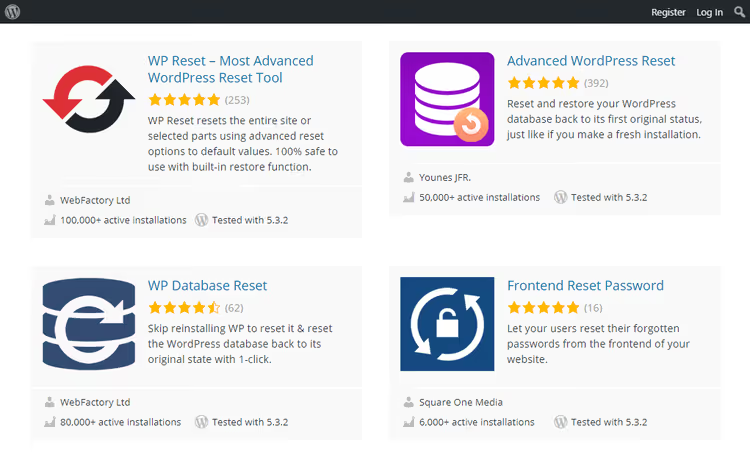
If you don't want to deal with FTP and cPanel, and the admin panel is still accessible, WP Reset on WordPress.org handles the task. It's a free plugin with 300,000+ active installations and a 4.8 out of 5 rating.
WP Reset can selectively reset the site: you can reset only theme settings, only database tables, only transients, or everything at once. It has a built-in snapshot function: before reset, the plugin automatically creates a restore point you can roll back to.
WP Reset doesn't delete plugins, themes, or media library files. It deactivates them and clears the database. After reset, you get a clean WordPress with the same plugins and themes, but without content, user settings, and accumulated database clutter.
An alternative, Advanced WordPress Reset on WordPress.org, is a more granular tool for those who need to reset only specific elements: for example, delete all posts of a certain type or clear the media library.
Comparing methods: which one to choose
| Method | Preserves content | Requires admin access | Complexity | Time | |---|---|---|---| | Admin panel (Dashboard → Updates) | Yes | Yes | Minimal | 30 seconds | | WP-CLI | Yes | No (requires SSH) | Medium | 1 minute | | FTP (manual replacement) | Yes | No | Medium | 5-10 minutes | | cPanel (full deletion) | No | No | Medium | 3-5 minutes | | WP Reset (plugin) | No | Yes | Minimal | 1 minute |
A short visual video: the author demonstrates the main WordPress reinstallation methods on a real site, from the admin button to a full reset. A good supplement for those who prefer watching over reading.
⁉️🤔 Frequently asked questions
Will I lose content when reinstalling through the admin panel?
No. The method via Dashboard → Updates → Reinstall now replaces only WordPress core files: the
wp-adminandwp-includesfolders, root files likeindex.php. All posts, pages, media files, and settings are stored in the database and thewp-contentfolder, and they are not affected. Make a backup before reinstalling anyway: automated processes sometimes behave unpredictably.
What should I do if the admin panel is inaccessible and there's no SSH?
The only option: method 3 via FTP. Download fresh WordPress from wordpress.org, delete the
wp-contentfolder from the archive, and upload the remaining files to the server with overwrite. This replaces the damaged core and will most likely restore admin access. Every hosting provider offers FTP access; you can find connection details in the control panel.
Can I reinstall WordPress without losing SEO rankings?
When using methods 1, 2, or 3, yes. URLs, permalink structure, meta themes, and content don't change. Search engines won't notice the reinstallation: core files aren't visible to them. A full reset (method 4) deletes everything, including posts and pages. After that, you'll need to rebuild SEO from scratch. If you exported content to XML and imported it back, URLs might change. Set up 301 redirects from old addresses.
How often should I reinstall WordPress as preventive maintenance?
Never. Reinstallation is not a preventive measure. For site health, it's enough to regularly update the core, themes, and plugins, maintain backups, and use a minimal set of trusted plugins. Reinstallation is a tool for solving a specific problem, not a maintenance ritual.
How does WP Reset differ from Advanced WordPress Reset?
WP Reset is designed for a full or near-full site reset with protective snapshots and rollback capability. It has 300,000+ active installations. Advanced WordPress Reset is a more niche tool for granular deletion: you can remove only posts of a certain type, only revisions, only transients. Choose WP Reset for a complete site reset and Advanced WordPress Reset for surgical cleanup of specific entities.
What to do next if nothing helped
You've gone through all four methods, and the site is still down. It happens. The problem is deeper than damaged core files: a corrupted database, a server-level conflict (PHP modules, mod_security), or a deep hacking attack with backdoors outside the WordPress directory.
Here's the order of actions. First, contact your hosting support with a specific description of symptoms and what you've already tried. Good support (SiteGround, Kinsta, WP Engine) often resolves such issues on their end in 15-20 minutes. If hosting doesn't help, bring in a developer to audit the server and database.
And most importantly: when the site is working again, set up automatic backups. Once a day, with storage for at least the last 7 days. This turns any fatal error from a catastrophe into an annoying 30-minute delay. Plugins like UpdraftPlus on WordPress.org or BlogVault do this without your involvement.
Choose the method that fits your situation, make a backup, and take action. WordPress forgives almost everything, except neglecting backups.

A professional team of writers and editors specializing in creating quality content.