














🛡️ WordPress comment moderation guide
Comments transform a static blog into a living community. Readers ask questions, debate the author, and add details you missed. But along with the first thoughtful comment comes the first spam bot, which helpfully drops a link to an online casino under your serious cybersecurity article.
Without moderation, the comments section quickly becomes a junkyard: dozens of automated messages with dubious links, insults, and ads for suspiciously strange products. The good news is that WordPress gives site owners full control over this process. Built-in tools are sufficient for most scenarios, and with a couple of properly configured plugins, spam can be stopped almost entirely.
This guide is a step-by-step breakdown of all WordPress comment moderation tools: from basic checkboxes in settings to delegating rights to trusted users. Each step is backed by screenshots of the actual interface, so you can replicate the setup on your site in the next 15 minutes.
💡 Quick overview:
- Open "Settings → Discussion" and disable email notifications; the WordPress dashboard counter works better.
- Enable auto-approval for authors with a previously approved comment; this will cut manual moderation in half.
- Disable trackbacks and pingbacks: they don't affect SEO and serve as the main channel for spam.
- Set up moderation keys: any word from the list will send a comment to review or to trash.
- Install Akismet and Antispam Bee; this combination stops virtually all spam without human involvement.
What is comment moderation and why do you need it
Comment moderation is the process of reviewing messages before they are published on the site. WordPress by default places each new comment in an approval queue unless you have changed the settings. The administrator sees the comment, evaluates its content, and makes a decision: publish, delete, or mark as spam.
Moderation has obvious advantages. You don't let through messages with malicious links, insults, and clearly useless content. A quality comment thread increases the value of an article: knowledgeable readers share their experience, ask pointed questions, and turn the page into an authoritative source. Search engines consider comment activity as a signal of content freshness.
There are downsides too. Manually reviewing dozens of messages takes time, especially on a busy site. An honest reader who left a comment at night sees the "awaiting review" message and leaves disappointed. Fortunately, WordPress offers a middle ground: automatic filtering with targeted manual control.
Moderation settings in WordPress: a step-by-step guide
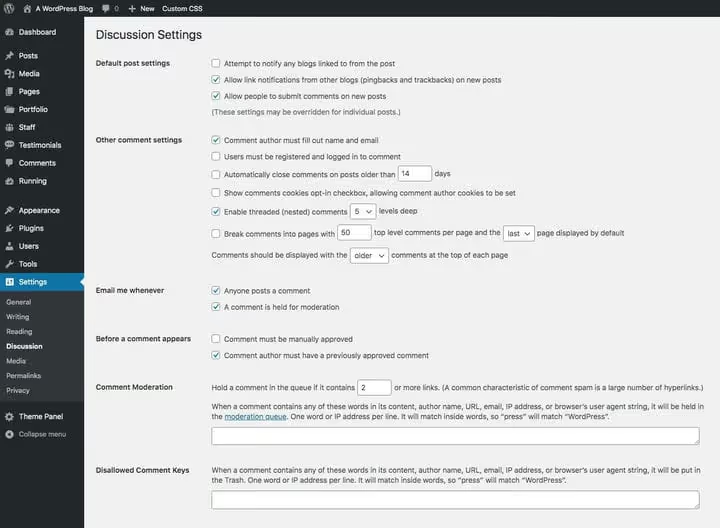
All moderation tools are gathered in one section. Navigate in the WordPress dashboard to: Settings → Discussion. You will see a screen with three blocks of options; let's go through each one.
Email notifications
By default, WordPress sends an email to the administrator for every new comment and when a comment enters the moderation queue. If you log into the admin panel daily, these notifications are unnecessary: the counter on the top bar and in the sidebar shows the number of messages awaiting moderation at a glance.

Uncheck both boxes in the "Email me whenever" block and save your changes. Now you will review comments at your own pace, without nagging emails for every message.
Auto-approval for regular authors
One checkbox can cut manual moderation in half. In the "Before a comment appears" block, check the option "Comment author must have a previously approved comment." The user's first comment goes through review, and all subsequent ones are published instantly.

Do not check the top box "Comment must be manually approved"; it overrides auto-approval. If an author changes their name or email, their first message will await moderation again, so the system is protected against data substitution.
Trackbacks and pingbacks
A trackback is a notification that another site has linked to your page. A pingback works similarly but automatically. In practice, both mechanisms are exploited by spammers: they send fake link notifications so their site appears in your comments. Trackbacks and pingbacks have no SEO value.

Uncheck "Allow link notifications from other blogs." You can track real mentions of your site through backlink analysis tools such as Moz, Ahrefs, or Google Search Console.
Spam filtering by keywords
The most flexible built-in moderation tool is comment keys. WordPress checks every message against three lists: content, author, URL, email, and IP.
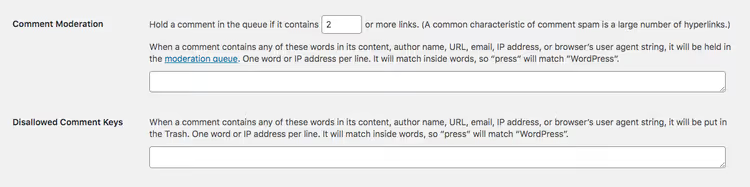
In the "Comment Moderation" field, enter words that will send a comment to review when detected (one per line). In the "Disallowed Comment Keys" field, enter words for automatic deletion to trash. By default, a comment with two or more links goes to moderation. If you don't want to see any links in comments, replace 2 with 0.
Add typical spam words from your niche to the moderation list. For a WordPress blog, these might be names of irrelevant CMS platforms, keywords from other topics, and typical spam patterns like "buy now" or "free download."
Requirements for commenters and cookies
At the bottom of the settings page is a block of additional options: required fields, site login, cookies, and closing old discussions.
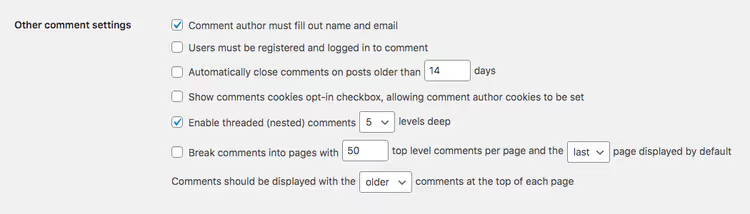
The "Show comments cookies opt-in checkbox" adds a consent checkbox for saving data in the visitor's browser. This GDPR requirement is mandatory for sites with a European audience. The "Users must be registered and logged in to comment" option closes comments to unregistered visitors; enable it only if you have a closed community or membership site.
The order of comments on the page is set by the last option: oldest to newest (default) or the reverse. For most blogs, the standard order is more convenient; the discussion unfolds naturally, like a conversation. Closing comments after N days makes sense only for posts with a limited relevance period: contests, promotions, and event announcements.
Plugins for automatic spam filtering
WordPress's built-in filters block obvious spam, but they're not enough against automated bots. Thousands of spam requests per day require a specialized solution. Three plugins cover the entire range of tasks, from basic protection to full automation.
Akismet
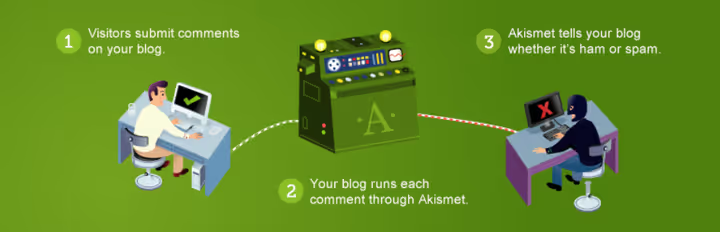
Akismet ships with WordPress core and processes millions of spam requests daily through Automattic's cloud service. After activating the plugin, you receive an API key (free for personal blogs) and protection that analyzes every message against a global spam pattern database.
Pros: zero configuration after getting the key, constant signature database updates, support for multisite networks. Con: a legitimate comment may occasionally end up in spam, so check the Spam folder once a week.
Zero Spam for WordPress

Zero Spam works without CAPTCHA and without API keys. The plugin uses a JavaScript check on the browser side: bots that don't execute JS simply cannot submit the comment form. Install, activate, and protection works immediately, without additional configuration.
Pros: instant start, no keys or registration, invisible to users. Cons: if a visitor has disabled JavaScript, they won't be able to leave a comment; protection is less deep than Akismet (no cloud signature database).
The best strategy for most sites is to use both plugins simultaneously. Akismet filters content spam through its cloud database, while Zero Spam blocks bots at the form submission level.
Delegating moderation: roles and helpers
When a blog grows to hundreds of comments per day, moderating alone becomes impossible. WordPress allows you to flexibly distribute rights among trusted community members.

The User Role Editor plugin creates a custom "Comment Moderator" role with a single permission: approving and deleting messages. You assign this role to two or three active readers who have already proven themselves with thoughtful comments, and you get round-the-clock moderation without expanding access to other site functions.
To motivate moderators, you can add them to the team page or allow a link to their own blog in their profile. The main rule: moderation rights go only to those you know personally or whose contribution to the community has been beyond doubt for at least several months.
Video: setting up moderation in 5 minutes
Watch a short video that shows the entire process on a live WordPress site, from navigating to settings to the first approved comment thread.
⁉️🤔 Frequently asked questions
Is it necessary to moderate comments on a new blog?
On a new blog with 5-10 visitors per day, manual moderation takes a couple of minutes per week. That's not much, but it gives you full control over the first comments that will set the tone for the entire community. Enable auto-approval for verified authors and install Akismet; by the time your traffic grows, the system will already be working without your involvement.
Can I completely disable comments across the entire WordPress site?
Yes. Go to "Settings → Discussion" and uncheck "Allow people to submit comments on new posts." For already published posts, comments are disabled in bulk: on the "All Posts" screen, select the desired articles, choose "Edit" from the "Bulk actions" dropdown menu, click "Apply," and in the panel that appears, select "Do not allow" for the "Comments" option.
Which plugin is better: Akismet or Zero Spam?
They solve different tasks. Akismet analyzes comment content through a global spam pattern database; this is a deep check that catches even cleverly written spam. Zero Spam blocks bots at the form submission stage through a JavaScript test. For maximum protection, use both: Zero Spam will stop bots, and Akismet will check the content of messages from real people. The combination works without conflicts.
What should I do if Akismet marked a normal comment as spam?
Go to the "Comments" section and switch to the "Spam" tab. Find the comment you need, hover over it, and click "Not Spam." The comment is published instantly. Check the spam folder once a week: for every 500-1000 filtered messages, there are 1-2 false positives.
Can I moderate comments from my mobile phone?
Yes, the WordPress app for iOS and Android includes full access to the comments section. You see the moderation queue and can approve, delete, and reply to comments right from your phone. Notifications about new comments arrive in real time (if you left the corresponding checkbox enabled in settings).
Should you enable moderation on your site
Short answer: yes, and do it right after launching your blog. The cost of disabled moderation is spam in every other thread and the reputation of an abandoned site. The cost of enabled and properly configured moderation is those same 15 minutes mentioned at the beginning of this guide.
If you have a personal blog with a dozen readers, the Akismet plus auto-approval for regular authors combination is enough. If your site is gaining momentum and comments exceed fifty per day, add Zero Spam as a second line of defense and consider delegating rights to a couple of trusted readers. The main thing is not to leave comments unattended. A lively discussion under an article is worth every minute spent protecting it.

A professional team of writers and editors specializing in creating quality content.