













🔗 Changing WordPress permalinks without losing rankings: a complete guide
Changing your permalink structure on a live site is like replacing the foundation of a finished house. One wrong move and your search traffic drops to zero while external links lead to 404 errors.
At the same time, an old structure like ?p=123 or /2021/01/post-name drags your site down: search engines struggle to understand the content, users see no meaning in the URL, and sharing such links is inconvenient.
We will show you how to change permalinks in WordPress without losing search rankings, breaking internal navigation, or sacrificing any external link equity. No panic, just a clear sequence of steps.
💡 Quick overview:
- Understanding what permalinks are and when to change them
- Choosing a new structure for your site type
- Setting up 301 redirects through the Redirection plugin without editing .htaccess
- Speeding up search engine reindexing after changing URLs
What permalinks are and why you should change them
A permalink is the part of the URL after the domain name. For example, in the address techblog.sdstudio.top/kak-vybrat-hosting/ the permalink is kak-vybrat-hosting. It is unique for each page and post.

WordPress uses the ?p=123 format by default, the so-called "plain" permalinks. They carry no semantic value for either readers or search engines. Most sites switch to one of the "pretty" formats right at launch, typically "Post name" or "Day and name."
But there are situations when you need to change the structure on an already running site:
- You purchased or inherited a site with an outdated link format (for example, with a post ID instead of a name).
- You are relaunching the project in a new direction: a blog is becoming a news portal, and the date in the URL becomes meaningful.
- You initially chose an unsuitable format and now see that it hurts SEO.
If the current structure works and suits your needs, leave it alone. Changing permalinks is justified only when the old format objectively harms your site.
Preparing for the structure change

Before clicking "Save Changes" in the permalink settings, do three things.
First, a full backup. Create a copy of your files and database. Without this, any failure during the structure change will leave you with a broken site and no way to roll back. Use a plugin like Duplicator or a hosting tool; the key is that the backup is fresh and verified.
Second, a test site. If the content volume is significant (hundreds of posts), test the structure change on staging. This is a copy of the site where you can work through all the steps without risk to the main version. You will discover problems with redirects or plugin conflicts and fix them before deploying to production.
Third, check your SEO plugins. If you use Yoast SEO, Rank Math, or a similar plugin, they will regenerate the sitemap and canonical URLs after the permalink structure change. Make sure the plugin is active and updated to the latest version to avoid conflicts during mass address changes.
Step 1. Choosing a new permalink structure
WordPress offers five built-in formats plus the ability to create your own using structure tags:
Format | Example URL | Who it suits |
|---|---|---|
Plain |
| Do not use: zero benefit for SEO |
Day and name |
| News sites, date-sensitive content |
Month and name |
| A compromise: date is present, but URL is shorter |
Numeric |
| Rarely used, poorly readable |
Post name |
| Optimal for most sites |
For the vast majority of projects, the best choice is "Post name." A short, readable URL without unnecessary elements. Search engines see keywords in the address, users understand the page content before clicking, and the link remains relevant regardless of publication date.
Include the date in the URL only if the publication time is fundamentally important to the content, for example, on a news portal or a site with daily analytics.

Step 2. Changing the structure in WordPress settings
Go to Settings → Permalinks in the WordPress admin panel. Select the desired format or build a custom one using tags in the "Custom Structure" field. Click "Save Changes."
From this moment, all internal site URLs are rebuilt to the new format. WordPress automatically updates links in menus, widgets, and navigation. But there is a catch: hardcoded links in post text (manual insertions) will remain old; you will need to fix them separately.
And most importantly: external links from other sites, user bookmarks, and search engine indexed pages now point to nonexistent addresses. Every such visit ends with a 404 error. The solution is the next step.
Step 3. Setting up 301 redirects
A 301 redirect tells the browser and search engine: "This page has permanently moved; here is the new address." Search engines transfer the old link's weight to the new one, and users seamlessly reach their destination. Without redirects, you lose rankings and link equity.
In the past, redirects were manually written in .htaccess: dozens and hundreds of lines for each post. Today, plugins handle this work.
Redirection: the main tool
Redirection is a free plugin with over 2 million active installations. It tracks permalink changes and automatically creates redirects from old URLs to new ones. The plugin also maintains a 404 error log: you can see which nonexistent addresses visitors are trying to access and manually set up redirects for them.

Install the plugin via Plugins → Add New, activate it, and go to Tools → Redirection. The interface has two fields: Source URL (old link) and Target URL (new link). For mass structure changes, use regular expressions; Redirection supports them out of the box:
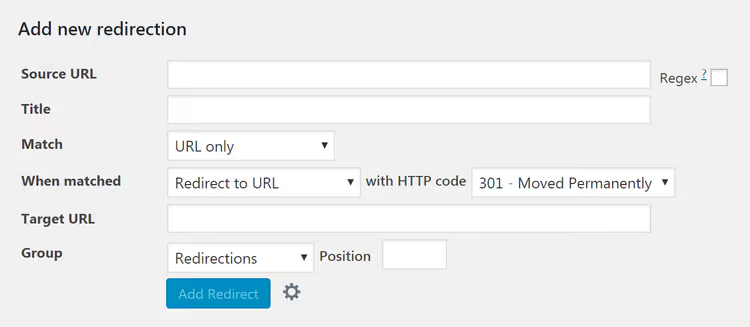
Example: if you switched from "Day and name" to "Post name," the regular expression /\d{4}/\d{2}/\d{2}/(.*) → /$1 will redirect all posts at once. For more on regular expressions in redirects, see the Redirection documentation.
Simple 301 Redirects: a lightweight alternative
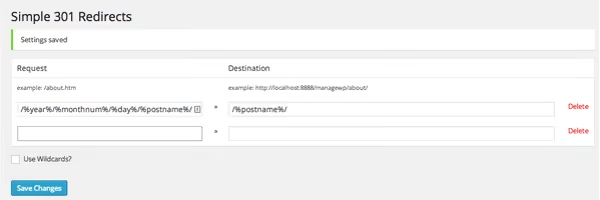
Simple 301 Redirects is a minimalist plugin for those who need only a few redirects. The interface comes down to two fields: Request and Destination. You specify the part of the URL after the domain, and you are done. The plugin is regularly updated, but for complex scenarios with hundreds of redirects, it falls short of Redirection in capabilities.
Step 4. Reindexing in search engines
After changing the structure and setting up redirects, search engines will not learn about the changes instantly. They will reindex the site during their next crawl, which can take anywhere from a few days to a couple of weeks.
Two actions help speed up the process:
- XML sitemap. Install the Google XML Sitemaps plugin or a similar one; it will automatically generate a map with new URLs and notify search engines about the changes.
- Manual reindexing. In Google Search Console, submit the updated sitemap and request a recrawl. For large sites, this is especially important: the search engine will see the new structure faster and transfer the indexes.
Note: search engines do not replace old URLs with new ones in search results instantly. During the transition period, both old and new addresses may appear in search results simultaneously. This is normal; redirects will ensure users correctly reach the current pages.
The most important thing during this period: do not delete the old redirects. Keep them for at least 6-12 months while search engines fully reindex the site and update links in search results.
⁉️🤔 Frequently asked questions
Can I change permalinks without losing Google rankings?
Yes, if you set up 301 redirects from old URLs to new ones. The search engine sees the permanent redirect and transfers the page weight to the new address. In the short term, minor ranking fluctuations are possible; this is normal. After 2-4 weeks following reindexation, rankings recover. The key condition: redirects must work without errors throughout the entire period.
What should I do if the site shows 404 after changing the structure?
Check whether you saved the permalink settings and cleared the cache. Then make sure the redirect plugin is active and the redirect rules are configured correctly. It helps to go to Tools → Redirection and look at the 404 log: it will show which specific addresses visitors are trying to reach, and you can add redirects selectively.
Do I need to manually change internal links in post text?
WordPress automatically updates links inserted through the editor (the "Insert link" button). However, hardcoded URLs in the text, for example, a link like
https://yoursite.com/2021/01/old-post/, will remain unchanged. You will need to find and replace them manually or through a search and replace plugin. Redirects will save you from broken links, but for cleanliness, it is better to update them as well.
What permalink format is best for SEO in 2026?
"Post name" (
/post-name/). A short URL with keywords ranks better than a long one with dates and categories. The exception is large news portals where the date in the URL is justified by Google News requirements. For blogs, commercial sites, and most WordPress projects, the "Post name" format remains the industry standard.
Can I revert to the old permalink structure?
Technically, yes, but each structure change creates a new wave of broken links and requires a new cycle of redirects and reindexation. Frequent URL changes harm SEO more than a suboptimal format. This is exactly why we emphasize: choose a structure once and stick with it.
How long should I keep redirects after changing the structure?
The minimum period is six months. During this time, search engines completely recrawl the site and replace old URLs in the index with new ones. If authoritative external resources link to your site, keep redirects for a year or more: external links update slowly, and losing them will directly affect your rankings.
Does changing permalinks affect site loading speed?
The URL structure itself does not affect page loading speed. However, after changing the structure, server load increases due to mass redirects, especially in the first few days. If your site is on weak hosting, temporarily enable page caching through a plugin like WP Super Cache to smooth out peak load.
Can I change permalinks only for specific post types?
Yes, using WordPress filters or plugins like Permalink Manager Lite, you can set different structures for posts, pages, and custom post types. This is useful if a blog and a news section live on the same site and require different URL formats.
What to set in 2026: the final breakdown
Changing permalinks is not an operation worth repeating. Choose a format once, set up redirects, and forget about URLs for years to come.
If you are launching a new site, set "Post name" and do not think twice. If your site already runs on "Day and name" or "Month and name" and the content is not tied to dates, migrate to "Post name" using the described method. And if your format is already /post-name/ and everything works, the best upgrade you can make to your permalinks is not to touch them at all.
Install Redirection, set up a rule for old URLs, submit the sitemap to Search Console, and in a couple of weeks search engines will pick up the new structure without any losses.

A professional team of writers and editors specializing in creating quality content.