













🌍 How to change geolocation in Chrome and Firefox: complete guide
When you open Chrome or Firefox, the browser already knows where you are. Not your city, street, or house number. It looks at your IP address, scans nearby Wi-Fi networks, and feeds this data to every site that requests geolocation.
Some sites use this harmlessly, filling in your city for a weather forecast. Others show prices in "your" currency (often inflated). Still others simply block content: "This video is unavailable in your region."
But location can be spoofed. The browser doesn't check your passport, it trusts the numbers you feed it. In this guide, four methods: from simple VPN to surgical edits of about:config and extensions like Location Guard. Plus, what to do about WebRTC leaks and why free VPNs are more dangerous than they seem.
💡 Quick overview:
- Install a VPN and connect to a server in the desired country, your IP will change, but HTML5 geolocation can "break through" via Wi-Fi
- Open
about:configin Firefox, disablegeo.enabledand set coordinates throughgeo.wifi.uri - Press Ctrl+Shift+I in Chrome, go to Sensors, select Other and enter latitude and longitude
- Install Location Guard, enable Fixed Location and place a pin on the map
- Disable WebRTC through
about:config(Firefox) or an extension (Chrome) to prevent your real IP from leaking
How browsers know where you are
The mechanism is three-tiered. The first and simplest is IP address. Each device on the internet is assigned a unique set of numbers, and part of that address is tied to a geographic region. Spoof the IP, spoof the country. That's exactly how VPNs work.
But browsers don't stop at IP. The second tier is network points around you. Chrome and Firefox scan MAC addresses of nearby routers and Wi-Fi access points and cross-reference them with Google's geolocation database. Even if you've disabled Wi-Fi, there's Bluetooth, cell towers, and on desktops without Wi-Fi adapters, wired IP.
The third tier is HTML5 Geolocation API. A site requests coordinates through JavaScript, the browser aggregates all available sources (GPS module, Wi-Fi data, IP) and returns latitude and longitude with accuracy of 10-30 meters. You can refuse, but then you also refuse the site's geo-services.
That's why VPN alone isn't enough: it masks your IP, but the Wi-Fi networks around you remain the same, and the browser can "correct" the location based on them.
Method 1: Change geolocation through VPN
VPN creates an encrypted tunnel between your device and an intermediate server. From the site's perspective, you're sitting wherever the server is located. Plus, traffic is encrypted, your ISP sees only the fact of VPN connection, not the content.
Important: a browser VPN extension without the main application does not encrypt traffic, it only spoofs geolocation in the browser. Full protection requires installing the desktop VPN application, with the extension working as a remote control.
Which VPN to choose
After testing a dozen services for speed, stability, and ability to bypass geo-blocks, we settled on three:
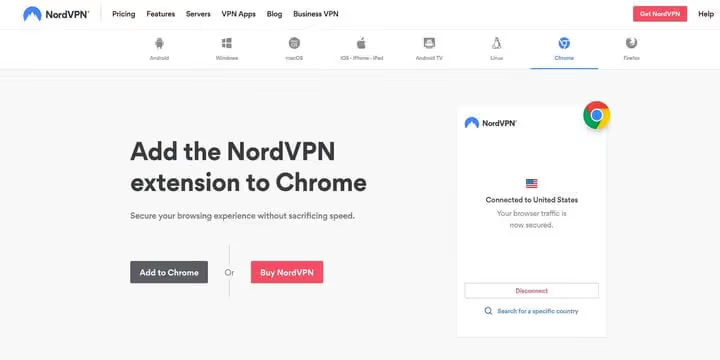
NordVPN, 7,400+ servers in 118 countries, handles Netflix US, BBC iPlayer, Hulu. Application for Windows/macOS/Linux/iOS/Android. Extensions for Chrome and Firefox automatically sync browser geolocation with the server, no manual setup needed. 256-bit encryption, leak protection, kill switch. Price, from $3.39/month on annual plan.
ExpressVPN, fewer servers (3,000+ in 105 countries), but more stable on congested channels. Chrome/Firefox extensions pick up server geolocation automatically.
Surfshark, budget option with unlimited devices on one account. 3,200+ servers in 100 countries, handles major streaming services.
Step-by-step setup
- Choose a provider, plan, and register.
- Download the application for your OS (Windows, macOS, Linux, iOS, Android).
- Log in, select a server in the desired country, and connect.
- For automatic browser geolocation sync, install the VPN extension for Chrome or Firefox.
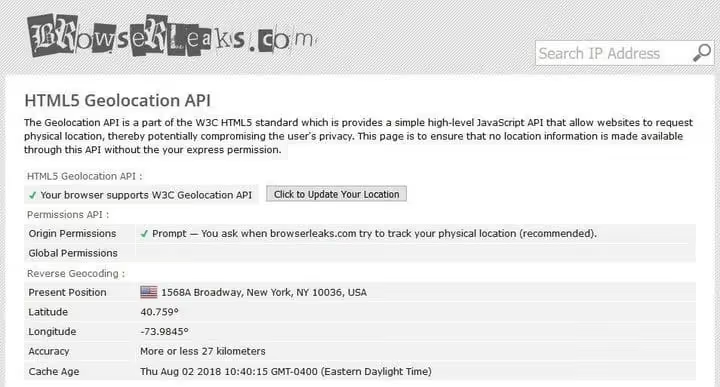
After connecting to a server in the US, your IP becomes American. You can verify the location change through BrowserLeaks Geo, which shows what coordinates the site "sees."
Method 2: Manual geolocation spoofing in Firefox
Firefox allows granular geolocation control through hidden settings. The method works globally, configure once and all sites see the specified location.
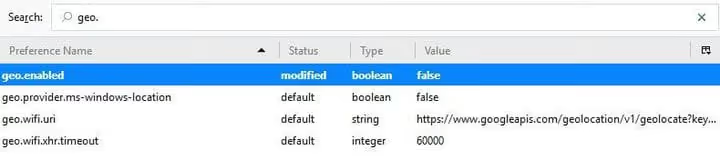
- In the address bar, type
about:configand press Enter. - On the warning, click "I accept the risk!"
- In the search bar, enter
geo.enabled. - Double-click the line to change the value from
truetofalse. This disables real geolocation tracking.
Now, set a new location:
- In the same
about:config, find the parametergeo.wifi.uri. - Replace its value with a string containing the desired coordinates. Format:
1 data:application/json,{"location": {"lat": 40.7590, "lng": -73.9845}, "accuracy": 27000.0}

lat and lng are latitude and longitude (in the example, Times Square, New York). Change to any. Accuracy (accuracy) is best left around 20-30 km, overly precise coordinates without surrounding Wi-Fi networks look suspicious.
Check the result through BrowserLeaks geolocation test. Unlike Chrome, Firefox preserves the spoof in all windows and tabs, no need to keep DevTools open.
Method 3: Geolocation spoofing in Chrome
Chrome doesn't offer permanent configuration through flags, but DevTools has a Sensors panel that spoofs geolocation on the fly. Downside, the DevTools window must stay open.
- Press Ctrl + Shift + I (Windows) or Cmd + Option + I (Mac).
- Press Esc, the bottom panel will open.
- In the left menu of the bottom panel, select the Sensors tab.
- In the Geolocation dropdown, select Other.
- Enter latitude and longitude.
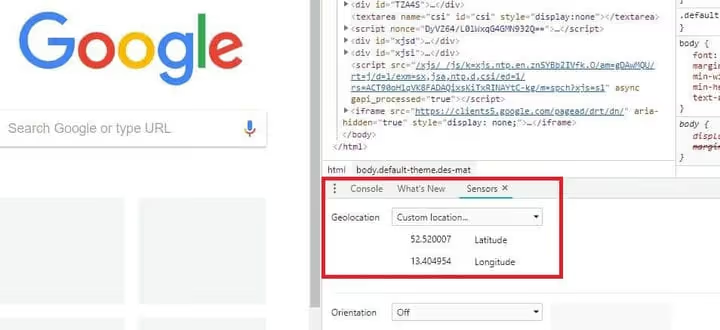
You can also select preset cities: Berlin, Mumbai, San Francisco.
Important: geolocation is spoofed only in the current window. Open a new one and the real location returns. And DevTools must remain open. For permanent spoofing, look toward Location Guard or Firefox.
Method 4: Location Guard extension and alternatives
If manual about:config and Sensors setup seems cumbersome, there are extensions that do the same in two clicks.
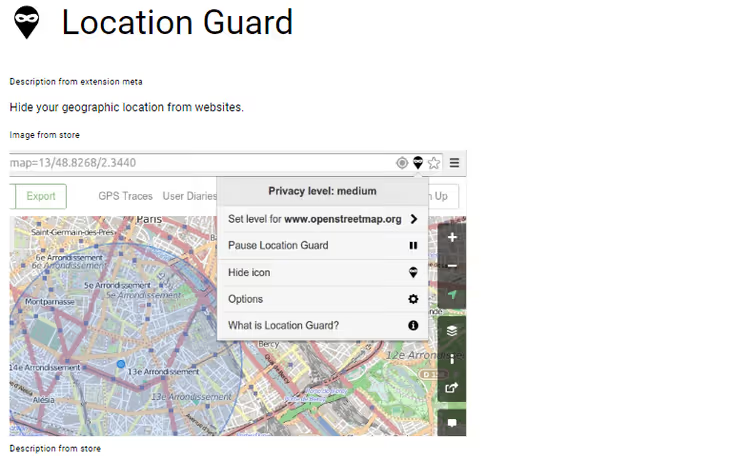
Location Guard, free open-source extension for Chrome, Firefox, and Edge. Two operating modes:
Noise mode (Privacy Level). The extension adds random offset to real coordinates. You're still "in your city," but not at a specific house. Suitable if you need geolocation for local search or maps, but don't want to reveal your exact address.
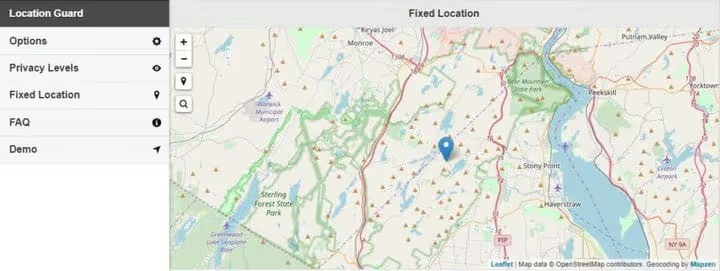
Fixed location (Fixed Location). You place a pin on the map, and the browser reports to sites that you're there. Complete analog of manual spoofing, just with a visual interface.
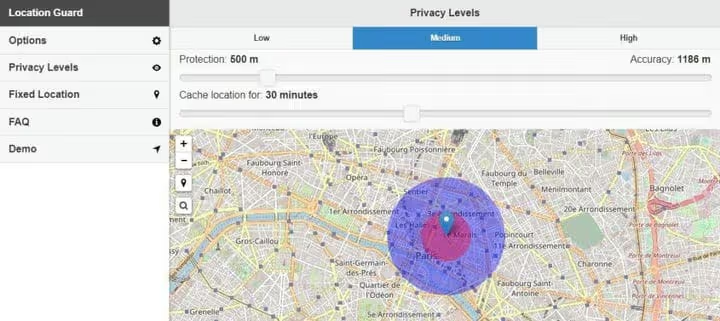
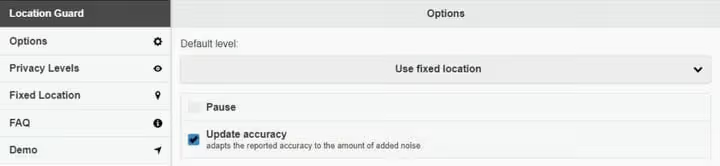
The main options screen, here you switch modes and configure noise level. And below, the map interface for fixed location:
Setup in a minute
- Install Location Guard from Chrome Web Store or Firefox Add-ons.
- In options, switch Default Level to Use Fixed Location.
- On the Fixed Location tab, click on the map or enter an address in search.
- Make sure the marker is set, it locks in place after clicking.
Alternatives. If Location Guard doesn't work on a particular site: GeoSpoof (spoofs geolocation, timezone, and WebRTC all at once, Chrome/Firefox/Safari) and Spoof Geolocation (Chrome, minimalist, latitude and longitude only).
WebRTC leaks: why location can leak even with VPN
WebRTC (Web Real-Time Communication) is a protocol for audio and video calls directly in the browser. Built into Chrome, Firefox, Edge, and Safari. The problem is that WebRTC can reveal your real IP address even with an active VPN, through STUN/TURN requests that bypass the tunnel.
Most desktop VPN applications block WebRTC leaks at the system level. But browser VPN extensions (without the main application) don't provide this protection.
How to disable WebRTC in Firefox
- Open
about:config. - Find the parameter
media.peerconnection.enabled. - Double-click to change
truetofalse.
Chrome has no setting to disable WebRTC. Extensions help: WebRTC Leak Prevent and WebRTC Leak Control. After installation, check through BrowserLeaks WebRTC, the report should not contain your real IP.
DNS proxy: why it's not a VPN replacement
DNS proxy (Smart DNS) changes only DNS requests, those that convert a domain to an IP address. For sites with DNS-based geo-blocking, this is sometimes enough. But:
- DNS proxy does not encrypt traffic. Your ISP sees everything you transmit.
- Geolocation is spoofed only for specific sites from the service's supported list. Any other site gets your real IP.
- Strict proxy detectors like Netflix and BBC iPlayer bypass most DNS proxies poorly.
If you need one-time streaming unblocking, DNS proxy is cheaper than VPN. If you need confidentiality and stability, VPN only.
Free VPNs: why they're dangerous
Free VPNs pop up in search by the dozens, but you pay not with money but with data. A The Verge study showed: out of 283 tested free Android VPNs, 38% contained malicious code, and 84% didn't encrypt traffic properly.
Three main problems with free VPNs:
- Data selling. The scheme is simple: you use the VPN, the provider collects browsing history and resells it to advertising networks. You are the product.
- Limits. 500 MB, 2 GB per month, after which speed is cut to dial-up. Streaming video, 15-20 minutes.
- Few servers, they're overloaded. Such services don't bypass streaming geo-blocks.
Exception, free tiers from paid providers: Proton VPN (unlimited traffic, but 1 device and 3 countries) and Windscribe (10 GB/month). They don't sell data, the model is to get you to upgrade to a paid tier.
⁉️🤔 Frequently asked questions
Can I get by with just VPN without manual geolocation setup?
In most cases, yes. If a site determines location only by IP (online stores, news portals, search engines), VPN is sufficient. But if the site uses HTML5 Geolocation API (maps, weather services, delivery), real geolocation can "break through" via Wi-Fi networks even with a spoofed IP. With geo-services, you need either manual spoofing through
about:config/Location Guard, or a VPN extension with geolocation auto-sync (NordVPN and ExpressVPN can do this).
Location Guard stopped working in Chrome, what to do?
In Chrome, since June 2024, support for Manifest V2 for new extensions has ended, and from 2025, old MV2 extensions are completely disabled, according to Google's roadmap. Location Guard has been updated to version V3 with Manifest V3 and works in current Chrome. If the extension doesn't work, check that you have Location Guard V3 installed, not the old 2.x. Alternative, GeoSpoof, also on Manifest V3, with bonus timezone spoofing.
Can sites detect geolocation spoofing?
Depends on the method. Browser spoofing (DevTools, about:config, Location Guard) honestly reports coordinates to the site, the site sees no difference between spoofing and real geolocation. VPN detection is harder: major streaming services (Netflix, BBC iPlayer) ban known IP ranges of VPN providers. One NordVPN server might open Netflix for five people and not for the sixth, Netflix constantly updates blacklists. Manual geolocation spoofing is indistinguishable from real.
Is it safe to change about:config in Firefox?
Yes, if you only touch
geo.enabledandgeo.wifi.uri.about:configis Firefox's analog of Windows registry: hundreds of settings, some critical for browser stability. The two specified parameters control exclusively geolocation and are fully reversible: right-click → Reset returns the default value. Better not to touch other parameters without understanding.
What to do if a site still sees my city through Wi-Fi?
This happens on laptops with active Wi-Fi module: even with spoofed IP and geolocation, the browser "sees" MAC addresses of routers around and can correct the location. Solution, disable Wi-Fi and switch to Ethernet. On desktops without a Wi-Fi adapter, this problem doesn't exist in the first place. Alternative, enable "Airplane mode" and keep only wired connection.
What to use for your task
There's no single "best" method, it all depends on the scenario.
If you need to watch a blocked YouTube video once, a free extension like Location Guard with a fixed location in the desired country is enough. Ten seconds to set up, and the video is open.
If you regularly use streaming services (Netflix, Hulu, BBC iPlayer), get NordVPN or ExpressVPN. The extension syncs geolocation automatically, and the speed allows watching in 4K without buffering. A month of testing through the 30-day money-back guarantee, zero risk.
If you need complete anonymity, use a combo: VPN (desktop application) + Firefox with disabled WebRTC (media.peerconnection.enabled = false) + Location Guard with a fixed location in the VPN server's country. Both the browser doesn't know your real geolocation, and traffic is in an encrypted tunnel.
Choose based on your task, and verify the result through BrowserLeaks geolocation check service. Should take three minutes, and geo-blocks will cease to exist.

A professional team of writers and editors specializing in creating quality content.