














🔍 How to customize the search results page in WordPress: 5 steps
A visitor types a query into your site's search bar and... nothing. A blank page. Or a wall of links that make no sense: truncated titles, jumbled dates, zero relevance. The person leaves. Yet they already showed interest, came on their own, and entered a query themselves.
The standard WordPress search works on a bare-minimum principle: it looks for matches in post titles and content, dumps a wall of results, and calls it a day. Typo? Blank screen. Two-word query? "AND" logic instead of flexible partial matching. No term highlighting, no suggestions, no live search.
The problem can be fixed in an hour or so. Five targeted improvements turn search from a technical relic into an audience retention tool. We'll walk through it step by step: specific plugins, code, settings, and scenarios for different needs.
💡 Quick overview:
- Display the search query on the results page
- Add highlighting for searched terms in the results
- Enable typo suggestions with "Did you mean"
- Show a block of recommended pages and a search form
- Implement live AJAX search with dropdown suggestions
What is a search results page and why customize it

When a reader enters a word or phrase into your site's built-in search, WordPress generates a page listing content that matches the query. This is the Search Results Page.
Unlike Google, internal search indexes only your site's content. But user expectations remain the same: relevant results, clear navigation, and instant feedback. Without these, they leave. Statistics from wpbeginner.com show that visitors who use internal search convert into subscribers and buyers 2-3 times more often than those who just browse pages. But only if search actually works.
WordPress lets you improve search without deep programming. Five steps below, five specific enhancements. Each can be implemented separately or combined into a full stack in one go.
5 steps to smart WordPress search
Before making any changes, back up your site. Working with search.php and functions.php isn't complicated, but caution never hurts.
1. Displaying the search query on the results page

🔗 Search & Filter on WordPress.org
The first thing a Google user sees after searching is a confirmation line: "About X results for '...'". This isn't decoration; it's a signal that the system understood the input and processed it. If results are empty, it's clear the issue is the wording, not a broken site.
Copy this approach. Display a line above results like "Found 15 results for: your search query". Two implementation paths:
Via the Search & Filter plugin. Free, works on top of standard WordPress search. In settings, enable search query display above results. The plugin also gives visitors result sorting: by date and title in the free version, by custom fields and taxonomies in Pro.
Manually via search.php. Create a child theme (detailed guide in our article on creating a WordPress child theme). Copy search.php from the parent theme to the child. Replace the heading with:
1 <h1 class="search-title"> 2 <?php echo $wp_query->found_posts; ?> <?php _e( 'Search Results Found For', 'locale' ); ?>: "<?php the_search_query(); ?>" 3 </h1> 4
After saving, the results page opens with "Found X results for:...". The user immediately understands the context, reducing the chance they'll leave frustrated.
2. Adding search term highlighting

🔗 Highlight Search Terms on WordPress.org
When someone scans search results, they need to determine in a split second whether a result is relevant. Highlighting searched words with a yellow marker (like Google does) solves this instantly. The eye catches the color, decision made.
The Highlight Search Terms plugin does exactly this. No configuration needed: install, activate, done. Under the hood, it wraps found terms in <mark class="hilte term-N">. It supports click-through highlighting (highlight persists when navigating into a post) and is compatible with WooCommerce, bbPress, BuddyPress, and Search & Filter Pro.
One caveat: CSS. For highlighting to display in all browsers, add this rule in Customizer (Appearance → Customize → Custom CSS):
1 .hilte { background-color: #FFF176; }
For advanced users: each word in the search phrase gets a separate class: term-0, term-1, and term-2. You can style different words with different colors if your design requires it.
3. Enabling typo protection with "Did you mean"

A typo in a search query, and standard WordPress search throws up its hands: zero results. The visitor doesn't know what went wrong. Most likely, they leave.
Relevanssi is one of the oldest and most reliable search plugins for WordPress, with over 100,000 active installations. It completely replaces the default search mechanism and adds partial matching: the query "cacheing" finds pages with "caching", "cache", "cached". Most importantly, it displays a "Did you mean..." block suggesting corrected spelling when there are no exact matches.
What else the free version can do:
- Indexes comments, shortcodes, custom fields, and taxonomies
- Sorts results by relevance, not date
- Supports search by tags and categories
The premium version has more fine-tuned indexing settings, but the free version is sufficient for typical sites. Installation is standard: Plugins → Add New → "Relevanssi" → Install → Activate. After activation, go to Settings → Relevanssi and click "Build Index" for initial content indexing.
4. Rescuing visitors from empty results

🔗 Better Search on WordPress.org
The most frustrating scenario: a visitor enters a query, gets empty results, and... that's it. Dead end. No hint about what to do next, no search bar to try a different wording. Tab closed, you've lost them.
Better Search solves the empty results problem. It's a lightweight plugin that replaces default search with two useful features:
- Popular query heat map: a widget or shortcode showing what people search for most on your site. Works as a navigation hub.
- AJAX Live Search: results appear as you type (optionally configurable).
The plugin uses MySQL FULLTEXT indexes for fast searching, works well with caching plugins, and requires no code editing. The free version covers titles, content, excerpt fields, meta fields, authors, tags, taxonomies, and comments.
🔗 Ivory Search on WordPress.org
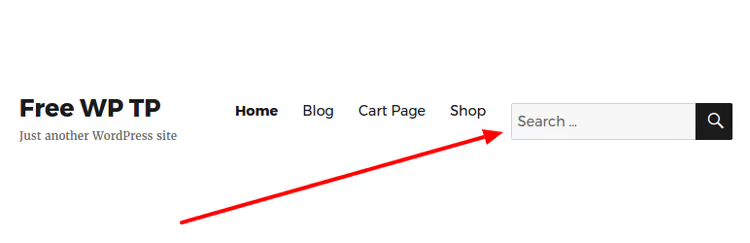
If your theme lacks a search form on the results page, add one explicitly. Ivory Search (formerly Add Search To Menu) does this in a couple of clicks: install → Ivory Search → Menu → check "Add to Navigation Menu". The search bar appears in the menu and on the results page.
The free version of Ivory Search includes: AJAX search, WooCommerce product search, custom post types and media files, excluding specific pages from results, appearance customization via Customizer, and search analytics.
Two plugins (Better Search for result quality plus Ivory Search for the form) completely cover the "empty results" scenario: visitors see popular queries and can immediately enter a new one.
5. Implementing live AJAX search

🔗 Ajax Search Lite on WordPress.org
Live search means results appear as a dropdown list right below the search bar as you type. No page transitions, no "Enter → wait → look → back". The user types "cach" and already sees "WordPress Caching with W3 Total Cache", "How to Fix Cache Error", and 5 more relevant pages.
Ajax Search Lite is a popular free plugin for live WordPress search with a 4.5★ rating based on hundreds of reviews. Features:
- Search across titles, content, excerpt fields, categories, tags, and custom fields
- Category and post type filters right in the dropdown
- 10+ built-in themes with color customization
- Result caching for faster repeat queries
- Google Analytics integration and search events
- Mobile adaptation
Installation: Plugins → Add New → "Ajax Search Lite" → Install → Activate. After activation, replace default search via Ajax Search Lite → Compatibility Settings → "Replace default search". Choose a theme matching your site design, and live search works.

🔗 Toolset Search on developer website
If your site is built on Toolset and you use custom post types with non-trivial field structures, consider Toolset Search. This is a commercial solution tailored to the Toolset ecosystem: search with custom field filters, results displayed as grid, list, or map, pagination, AJAX result updates, and geolocation filters.
For most sites, Ajax Search Lite fully covers live search needs for free. Toolset Search makes sense when search is the core function of your site: catalogs, knowledge bases, classified listings.
⁉️🤔 Frequently asked questions
Should I edit search.php manually or use plugins?
Plugins in most cases. Manual editing of
search.phpis justified when you need something highly specific: custom results layout or integration with a non-standard theme, and you have access to a developer. For typical improvements, plugins achieve the same result without the risk of breaking your theme on the next update. Search & Filter, Highlight Search Terms, and Better Search don't conflict with each other; each solves its own task.
How do I know if search actually improved?
Enable search analytics. Ajax Search Lite and Ivory Search have built-in query counters. Better Search shows popular query statistics in the admin panel. Compare two metrics before and after implementing improvements: the percentage of visitors who used search and the percentage who left from an empty results page. If the first rises and the second falls, you're on the right track.
Do search plugins slow down the site?
Quality ones don't. Ajax Search Lite caches results, Better Search uses MySQL FULLTEXT indexes, Relevanssi builds its own index upon activation and updates it incrementally. Noticeable slowdown is possible only on very large sites (100,000+ posts) during initial index building, and even then it's a one-time event. On standard hosting with 5,000-10,000 posts, the difference in page load time with and without the plugin falls within measurement error.
Can I use just one plugin for everything?
The closest to an "all-in-one" solution is Ivory Search: form, AJAX, custom filters, exclusions, analytics. But no free plugin simultaneously covers term highlighting, "Did you mean," and live results. Practice shows that combining Ivory Search (form + basic results) + Highlight Search Terms (highlighting) + Relevanssi (smart search with suggestions) delivers results close to Google search, completely free.
Do I need to configure search if my site has fewer than 50 pages?
Yes. On small sites, fewer people use search, but those who do are your most motivated visitors. They're looking for specifics: "contacts," "price," "shipping." If search can't find the "Contacts" page for the query "contacts," that's not a technical glitch; it's a lost lead. Basic setup with a single plugin like Better Search takes 10 minutes and pays off with the first rescued visitor.
What to install for your use case: three scenarios
Don't try to implement everything at once. Here are three scenarios for different needs and time budgets:
Minimum: 10 minutes. Better Search replaces default search with relevant results and adds a popular query heat map. Suitable for blogs and small sites where search isn't the main function, but you want it to work decently.
Optimal: one hour. Better Search + Highlight Search Terms + Ajax Search Lite. Quality results, term highlighting, and live search all in one. The sweet spot for content projects and medium-sized sites.
Maximum: 2-3 hours. Relevanssi (instead of Better Search) + Ivory Search (form + analytics) + Highlight Search Terms + Ajax Search Lite. Commercial site or online store level, where search directly impacts sales.
Don't delay. Bad search means silent losses every day. Good search means visitors who find what they're looking for and stay.

A professional team of writers and editors specializing in creating quality content.