














🔄 How to create a dynamic slider in WordPress: a complete guide
Static pages work well for landing pages: you arrive, see a headline, click a button. But once a site has more than a dozen posts, products, or locations, static content breaks down. Editing each page manually is a dead end. And changing a slider's structure across fifty posts at once? Without dynamic content, it's impossible.
The problem isn't that you lack time. The problem is that WordPress out of the box works with static blocks: one slider equals one set of images. If a gym chain has ten locations, you need ten sliders. The solution is a dynamic slider that pulls content from the database itself and displays relevant images, prices, and titles for each post automatically.
Below is a complete guide: from the concept of dynamic content to setting up two types of sliders using Toolset combined with Gutenberg. Minimal code, maximum automation.
💡 Quick overview:
- Understand how dynamic content differs from static and where it's actually needed.
- Choose the right slider type: images or post content (different tasks, different logic).
- Pick a plugin: Toolset for full control over structure, Slider Revolution for visual power, Smart Slider 3 for a quick start.
- Follow step-by-step setup for a dynamic images slider (CPT, fields, template, slider block).
- Configure a dynamic post content slider using Views and Toolset containers.
What is dynamic content and why does your WordPress site need it
Dynamic content is information on a page that changes depending on which post, product, or database record you're viewing. The opposite is static content: the same page shows the same thing regardless of context.
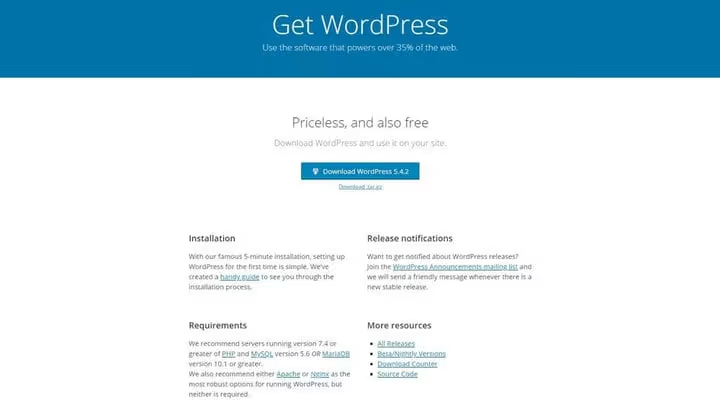
Static content is justified on landing pages. The WordPress.org download page is a classic example: the headline, description, and button don't change no matter who clicks.
But if you have a blog, static doesn't work. A new post should automatically appear at the top of the feed. If content is static, the top position is occupied by the same post forever. A dynamic feed, however, rearranges itself after each publication.

Another scenario: a travel site with a custom post type for tours. Each tour is a separate post with its own price, dates, and photos. You could design each tour individually, but what happens when you decide to change the card structure? You'll have to edit all posts manually.
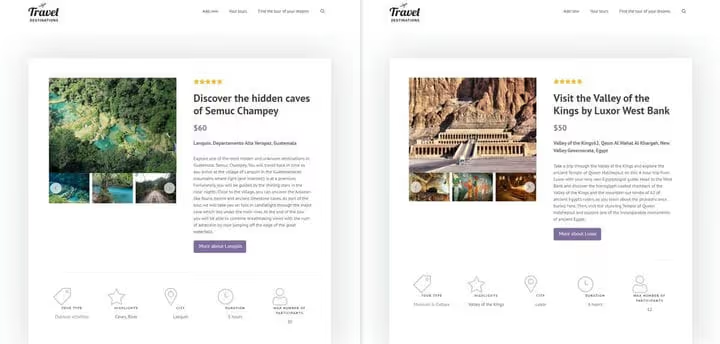
The right solution is to create a template with dynamic content: the title, images, and price are pulled from the post's fields automatically. Click on "Semuc Champey" and you see information about it. Click on "Valley of the Kings" and the content changes. One template for all posts.
Types of dynamic sliders
1. Dynamic images slider
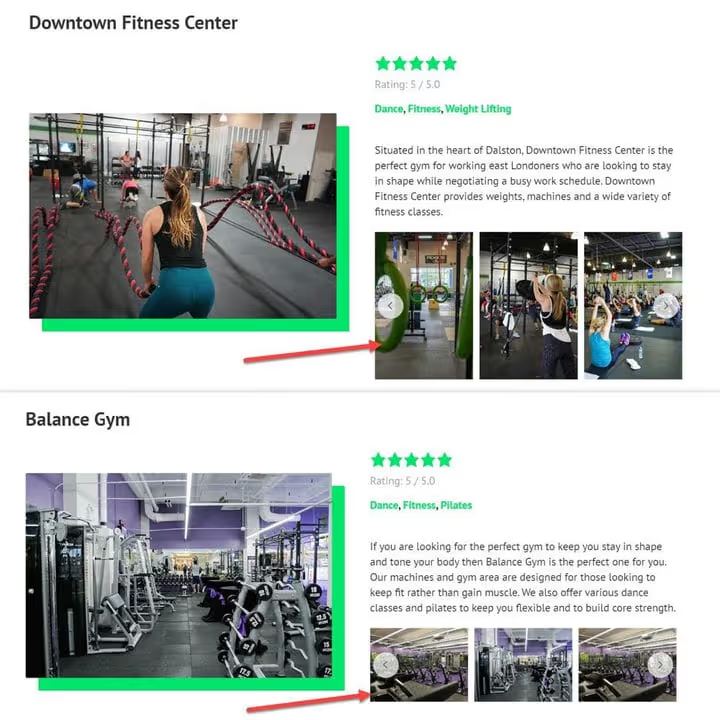
A dynamic images slider is a block you place once in a template, and it pulls images from the database depending on which post is being viewed. One slider serves all posts of that type.
A typical example is a fitness chain website. You have a custom post type called "Gym" and ten locations. Each location's page needs a slider with photos of that specific gym. Instead of ten sliders, you create one template slider, and it automatically displays images from the "Photo Gallery" field of the current post.
A static slider won't work here: it would show the same images for the downtown location and the suburban one.
2. Dynamic post content slider
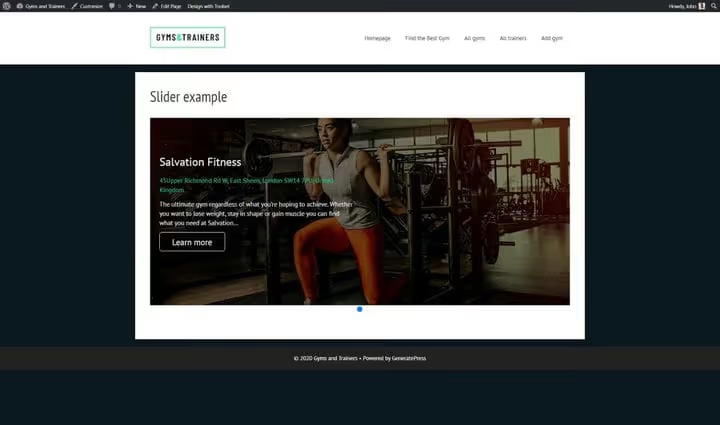
Many sliders need more than just images. Sliders on home pages often contain titles, descriptions, prices, and buttons, and all this information needs to change from slide to slide.
Let's return to the fitness chain: three slides, each representing a gym. If you only show a background image, visitors won't learn the gym's name, membership cost, or available amenities. The solution is a dynamic content slider built on custom fields: image, name, price, address, and CTA button are pulled from each gym post's meta fields.
Each slide here is like a separate page. Swipe, and the content completely changes to information about a different location. Static content can't achieve this effect.
Plugins for creating dynamic sliders
Three tools cover virtually any task, from quick launch to deep structure customization.
1. Toolset

Toolset is one of the most versatile tools for building WordPress sites with dynamic content. Its flagship product, Toolset Blocks, is a Gutenberg extension that lets you display custom content without coding: sliders, custom fields, design templates, archives, search, and maps.
Toolset's key advantage is integration: you create custom post types, add custom fields (including repeating fields like image galleries), build a template with dynamic blocks, and get a fully automated structure. Beyond sliders, Toolset provides site search, front-end forms, and map integration, all in one package.
2. Slider Revolution

🔗 Slider Revolution official website
Slider Revolution is the choice when you need maximum visual flexibility. Version 7 offers a visual editor, 200+ templates, and built-in dynamic content modules that let you pull WordPress posts directly into slides.
An important note: Slider Revolution creates dynamic sliders but doesn't create the custom fields you'll pull data from. You'll need either a theme with built-in custom field support, a separate plugin (ACF, Meta Box, Pods), or fields written in code. More than 9 million sites use the plugin, making it the most popular slider builder for WordPress.
3. Smart Slider 3
🔗 Smart Slider 3 on WordPress.org
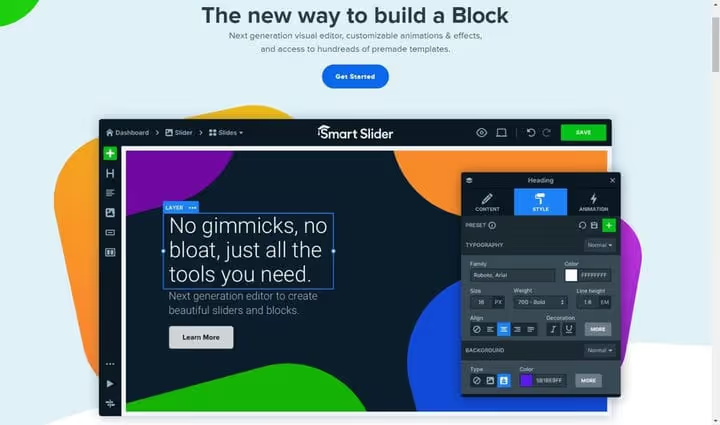
Smart Slider 3 stands out with its intuitive live slide editor: you see results in real time. The free version can build dynamic slides from WordPress posts (filtering by categories and tags). The Pro version expands sources to custom post types, WooCommerce products, social media feeds (Facebook, Twitter, YouTube, Flickr), and events from calendar plugins.
Another plus is compatibility with all popular page builders: Elementor, Divi, Beaver Builder, Gutenberg, and others. For a quick launch without deep structure configuration, this is one of the most balanced options.
How to create a dynamic images slider
Now for the practical part. I'll demonstrate the setup using Toolset and its Gutenberg blocks. Toolset was chosen because it covers the entire cycle: custom fields → template → slider, without switching between different plugins.
For reference, here's the official Toolset video guide on dynamic galleries and sliders for templates.
I'm using Toolset's fitness chain demo site based on the free gym layout. The goal: add a slider to each "Gym" post type that shows photos of that specific gym.
Step 1. Create a custom post type and custom fields
Before adding a slider, you need to prepare the structure: create a custom post type (CPT) and define what data will be displayed.
Creating a post type in Toolset takes one action; just assign a name.

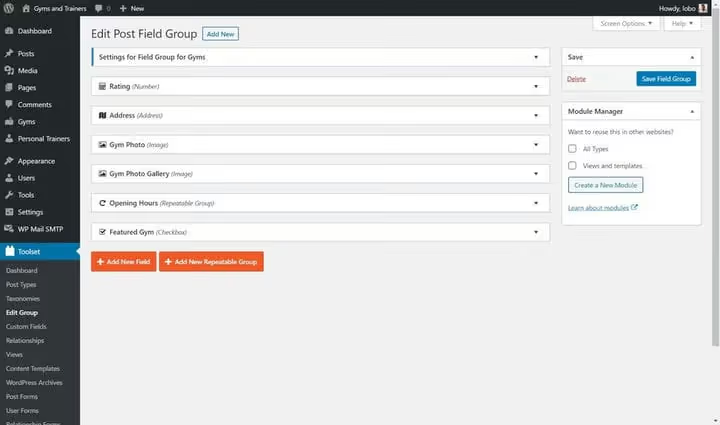
Once the "Gym" post type is ready, configure its content through custom fields. For an image slider, you need a gallery field. But a regular custom field stores one value, while a slider needs multiple images.
The solution is a repeating custom field. Toolset lets you make a field repeating with a single checkbox during creation.

Besides the gallery, I added fields for rating, address, and hours of operation, which will be useful for the post content slider in the second part of this guide.
Step 2. Add images to posts
The field is created; now fill it with content. Go to each "Gym" post type and add images to the "Photo Gallery" field the same way you add a featured image: click the "+" button → upload.

These images now serve as the source for the dynamic slider. Each gym post displays all images added to its "Photo Gallery" on the front end.
Step 3. Add the slider to the template
With the custom field populated, create the dynamic slider. You should already have a template for posts (Toolset → Templates).
I insert the Image Slider block from Toolset into the template. Since images are already uploaded to the "Photo Gallery" field, I select a dynamic source and specify this field.

The slider displays images uploaded to the selected custom field.

You can verify the slider is truly dynamic through the dropdown at the top of the editor: switch to a different post, and the slider loads images from that post. It works.
Although this example uses Toolset, most WordPress sliders with dynamic functionality work on similar logic: first you create content, then you select a "dynamic" data source when adding the slider to a post, page, or template.
How to create a dynamic post content slider
If your slider needs to display not just images but also titles, prices, ratings, and buttons, build it using Toolset Views. The Toolset video tutorial covers this scenario in detail.
Step 1. Create a custom post type with fields
The foundation is the same as for the images slider: a custom "Gym" type with fields for name, price, rating, address, and gallery. I'm reusing the structure already created in the first part.
Step 2. Configure dynamic sources through Views
Unlike the images slider, here I work with the Views block. It loads posts from the database and displays them in various formats, including a slider.

After inserting the Views block, I launch the setup wizard. I set pagination so visitors can switch between slides and leave the style unformatted (I'll handle styling later with containers).

I select the source post type, "Gym." The View is created.
Now in the slider's right sidebar, I configure its behavior. First, I select the Views block through the block navigation in the upper left corner.

Once the slider structure is ready, I insert a container block and fill it with dynamic content: background image, title, price, rating, address, button. When adding each element, I choose "Dynamic Sources" → the appropriate custom field → configure display settings (colors, fonts, positioning).
Step 3. Check the result on the front end
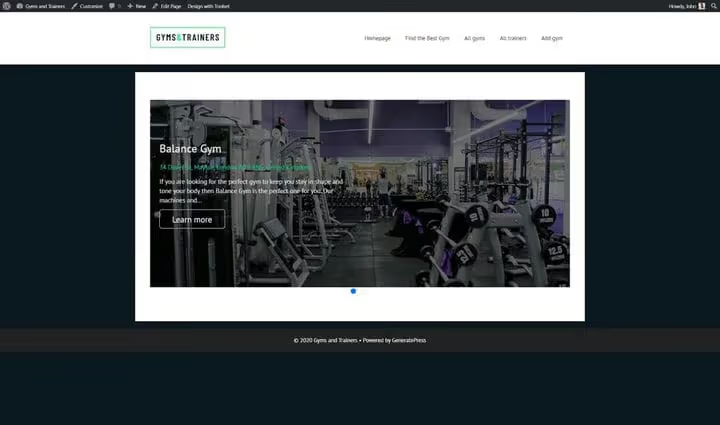
I save the slider and check it on the front end. Depending on the fields added, you should see a fully functional dynamic content slider: each slide displays data from a specific gym.
The principle is universal: Toolset offers dynamic data source selection for each block, Slider Revolution includes built-in dynamic content modules, and Smart Slider 3 uses generators. The logic is the same everywhere: insert a content module, assign a dynamic source, configure styles.
⁉️🤔 Frequently asked questions
Do I need to know how to code to create dynamic sliders?
With the plugins listed, no. Toolset works entirely through the Gutenberg visual editor, Slider Revolution through its own visual builder, and Smart Slider 3 through a live editor. A basic understanding of WordPress structure (post types, custom fields) is enough. If you're writing a slider from scratch in PHP, you'll need knowledge of
WP_Query, loops, and meta fields.
Which plugin should I choose for my first dynamic slider?
If you need full control over structure (CPT, fields, templates), choose Toolset. If visual results and animations matter more, choose Slider Revolution. If you need a quick start with minimal setup, choose Smart Slider 3 (the free version is enough for a slider from regular posts). All three plugins are actively maintained and updated in 2026.
Can I create a dynamic slider with WooCommerce products?
Yes, all three plugins support this. Smart Slider 3 Pro works directly with WooCommerce products as a dynamic slide source. Slider Revolution uses its dynamic content module to pull any custom fields, including WooCommerce fields. Toolset can load products as a custom post type through Views and display them in a slider.
What should I do if the slider doesn't appear on the page?
First, open the browser console (F12) and check for JavaScript errors. A common cause is a theme or another plugin loading an outdated version of jQuery, blocking the slider script. Second, verify that the slider shortcode or block is inserted in the correct place in the template. Third, make sure the dynamic source actually points to an existing custom field with content.
Do I need to create a custom post type for a dynamic slider?
No. Smart Slider 3 and Slider Revolution can build dynamic slides from standard WordPress posts (blog posts) and pages. A custom type is needed when you're working with a specific type of content (gyms, tours, portfolio) that has its own field structure.
Is implementing a dynamic slider worth it in 2026
Dynamic sliders are no longer a niche tool for developers. Modern plugins like Toolset, Slider Revolution 7, and Smart Slider 3 have made the technology accessible to anyone who can work with Gutenberg blocks. A template set up once serves dozens or hundreds of posts automatically: add a new location, tour, or product, and the slider on its page is already working.
If your site has more than five similar entities that need their own slider, the dynamic approach pays back the setup time after the first three. Static content here means manually editing each page with every change, and in 2026, that's an unjustified waste of resources.

A professional team of writers and editors specializing in creating quality content.