














📁 How to view SVG thumbnails in Windows Explorer
You open a folder of icons for your website. Instead of thumbnails, you see three dozen identical browser icons. Finding the right file means opening each one at random. Sound familiar? Windows Explorer doesn't show SVG previews by default, and for designers with hundreds of vector files, this turns navigation into a guessing game.
The problem is nearly two decades old, yet Microsoft still hasn't added built-in SVG thumbnail support. Fortunately, solutions exist: from the official PowerToys utility to a tried-and-tested shell extension. You can set up previews in five minutes and never have to open each file just to see what's inside.
💡 Quick overview:
- Install Microsoft PowerToys and enable SVG thumbnails in the File Explorer add-ons section.
- As an alternative, install SVG Explorer Extension, which provides thumbnails through the Explorer shell.
- Switch the folder view to large icons (Ctrl+Shift+2) to see previews of all SVG files.
What is SVG and why doesn't Explorer display it
SVG (Scalable Vector Graphics) is a vector image format based on XML markup. Unlike raster images such as JPEG and PNG, which consist of a pixel grid, vector graphics are described using mathematical curves, points, and shapes. This means SVG can be scaled to any size without losing quality.
Windows was historically designed for raster graphics. Photos and Paint understand pixels but cannot interpret the XML markup of a vector file. Even Paint 3D, introduced in Windows 10, doesn't support most vector formats. As a result, Explorer shows you not the image itself but the icon of the browser or application assigned to open SVG files by default.
Method 1: Microsoft PowerToys, the best option
PowerToys is a free set of utilities from Microsoft for power users of Windows. One of its modules, File Explorer add-ons, adds thumbnail rendering and a preview pane for SVG, PDF, Markdown, source code (over 150 extensions), and various technical formats to Explorer. No third-party libraries, no "shell extensions" from questionable sources: everything works natively.
Installation takes a couple of minutes. Open the Microsoft Store and search for PowerToys, or download the installer from the GitHub release. After installation:
- Launch PowerToys from the Start menu. The application will minimize to the system tray; click the icon and select "Settings".
- In the left menu, go to the File Explorer add-ons section.
- In the "Thumbnail previews" block, enable the Enable SVG (.svg) thumbnails toggle.
- In the same section, under "Preview Pane previewers", enable Enable SVG (.svg) preview to activate the preview pane (Alt+P in Explorer).
- Restart your computer, as thumbnails may not appear immediately without a reboot.
Additional note: if the preview pane doesn't work after enabling it, open "Folder Options" (Win+R, control folders), go to the "View" tab → "Advanced settings", and verify that "Show preview handlers in preview pane" is checked. In Windows 11, the pane is enabled through the "View" menu in the Explorer ribbon → "Preview pane".
PowerToys can also display SVG files with transparent backgrounds using a checkerboard pattern (configurable in the same section), highlight source code, and render PDF. For web developers or designers, this is essentially a must-have tool that solves several Explorer problems at once.
Method 2: SVG Explorer Extension
If you want a minimalist option without installing the entire PowerToys package, the classic SVG Explorer Extension shell extension will work. It has existed since 2012, survived the closure of Google Code and CodePlex, and still works on Windows 10 and 11.
The extension adds SVG thumbnail rendering at the Explorer shell level, with no separate application and no settings. Download the installer for your architecture: 32-bit version or 64-bit version. If you're unsure about your system type, press Win+Pause and check the "System type" line. The extension's source code is open on GitHub.
After downloading:
- Run the installer. Windows will warn about an unknown publisher; click "Run" and "Yes".
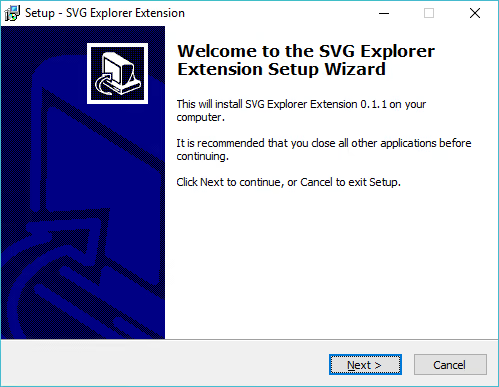
- On the welcome screen, click "Next".
- Read the license agreement, select "I accept the agreement", and click "Next".
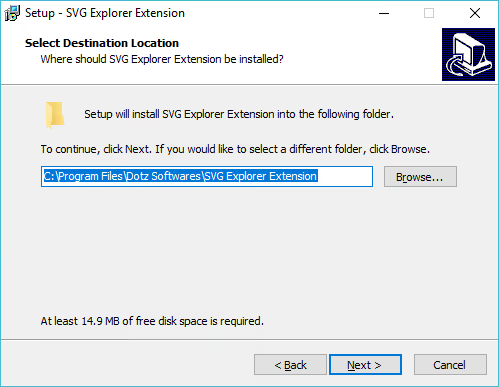
- Leave the destination folder unchanged and click "Next" again.
- On the final screen, click "Install". Installation takes a few seconds.
Done. No desktop shortcuts or Start menu entries will appear; the extension works silently at the shell level.
How to verify that thumbnails are working
Open a folder containing SVG files and switch the view to large or extra large icons (Ctrl+Shift+2). If thumbnails are displayed, the extension is working.

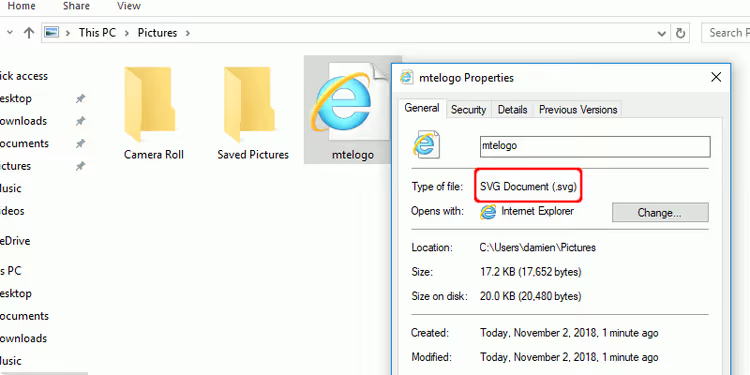
A fun quirk of SVG Explorer Extension: each thumbnail has a "nested" icon of the application assigned to open SVG by default. This lets you see at a glance which program will open the file when you double-click it.
If thumbnails don't appear immediately, restart Explorer through Task Manager (Ctrl+Shift+Esc → "Windows Explorer" → "Restart") or simply restart your computer.
Method 3: SVG Explorer Preview from Microsoft Store
The third and simplest option is the SVG Explorer Preview app from the Microsoft Store. It adds both thumbnails and a preview pane for SVG without requiring any configuration: install it, open a folder with vector files, and previews just work.
Compared to PowerToys, the functionality is more limited (SVG only, no PDF, Markdown, or source code), but if you need specifically and only vector previews, this is the easiest path. The app is paid but costs very little.
This video demonstrates the process of enabling SVG thumbnails using all three methods on Windows 11, from installing PowerToys to configuring the classic shell extension.
⁉️🤔 Frequently asked questions
Why hasn't Microsoft added SVG thumbnails to Windows by default?
There's no official answer from Microsoft, but the reason is likely that the Windows team focuses on formats that average users encounter daily: JPEG, PNG, HEIC, PDF. SVG remains a niche format for designers and developers. That said, Internet Explorer supported SVG as far back as version 9 (2011), and Edge renders it excellently, so the rendering engine exists in the system; it just hasn't been connected to the Explorer shell.
PowerToys or SVG Explorer Extension: which should I choose?
PowerToys, without question. It's actively developed by Microsoft, receives updates every few weeks, doesn't require manually downloading EXE files from third-party sites, and provides bonus previews for PDF, Markdown, and source code. SVG Explorer Extension should be considered a fallback option for systems where PowerToys won't install for some reason (for example, older Windows 10 LTSC builds).
Do these methods work on Windows 11?
Yes, all three work on Windows 11 without issues. PowerToys natively supports Windows 11 and even uses the new Explorer design. SVG Explorer Extension is compatible with Windows 11 despite its age. SVG Explorer Preview from the Microsoft Store is certified for Windows 11.
Thumbnails aren't displaying for all SVG files. What's wrong?
If a file is corrupted, contains an XML syntax error, or references external resources that are unavailable, the rendering engine may fail. Also, thumbnails aren't generated for files in OneDrive cloud folders if they're marked as "online-only"; download the file locally. Finally, very large SVG files (tens of megabytes) may render slowly or not at all.
Can I view SVG without installing anything?
Yes, any browser (Chrome, Edge, Firefox) opens SVG as a regular image: just drag the file into the browser window. But this is inconvenient when working with a folder containing dozens of files. For quickly viewing one or two files, the browser is the simplest method that requires no installation.
Which method should you choose? Final summary
If you have Windows 10 or 11 and want to solve this in five minutes with minimal risk, install PowerToys. It's an official Microsoft tool that, in addition to SVG previews, provides a dozen other useful utilities: FancyZones for window management, Color Picker, Image Resizer, and more. Even if you only need SVG thumbnails once a month, PowerToys will come in handy sooner or later.
SVG Explorer Extension remains a working and time-tested method for those who need specifically and only SVG thumbnail rendering, without additional utilities. And SVG Explorer Preview from the Microsoft Store is ideal for those who prefer one-click installation.
Try PowerToys today, and your folder of icons and vector assets will finally stop being a wall of identical browser icons.

A professional team of writers and editors specializing in creating quality content.