













 AIIllustrative image: AI-generated
📸 How to sell photos online with WordPress
Stock platforms take the lion's share in fees, and gallery rules are dictated by everyone but you. Your own website on WordPress solves both problems at once: your prices, your design, every $ from sales is yours.
The stock photo market continues to grow at double-digit rates, but instead of sharing profits with a platform, photographers are increasingly moving to their own hosting. But instead of sharing profits with a platform, photographers are increasingly moving to their own hosting. WordPress provides ready-made infrastructure for this: portfolio themes, e-commerce plugins, and payment processing through Stripe or PayPal, all assembled in a couple of hours.
Below is a practical guide: from choosing a theme to your first sold photo. No general talk, only what has been tested on real websites.
💡 Quick overview:
- Choose a theme with WooCommerce or Easy Digital Downloads support: Total, Photograph, or similar.
- Install an e-commerce plugin, WooCommerce for digital and physical prints, Easy Digital Downloads for digital files only.
- Create products with pricing, set up payment processing, and add a gallery to your page.
- The first sale takes anywhere from half an hour to an evening, depending on your catalog size.
Which theme works for a photo store
A WordPress theme for selling photos must accomplish three tasks: display images without compression or distortion, support WooCommerce or Easy Digital Downloads, and load quickly. An additional plus is built-in templates for the cart and checkout page: the designer has already adjusted the layout for a store, so you won't need to spend time on CSS.
Don't chase themes labeled "all-in-one" because they're often overloaded with sliders and animations that kill speed. Practice shows: a lightweight theme plus a separate e-commerce plugin works faster and more reliably.
Total, a universal workhorse with portfolio

Total is a paid theme from WPExplorer ($59), installed on more than 50,000 websites. The package includes WPBakery and integration with Elementor, over 50 ready demos including the Nouveau template for photographers. Under the hood you get optimized CSS for stretched rows, slim mode for WPBakery (disables unnecessary scripts), and built-in WooCommerce support with ready product card templates.
On the downside: the theme is paid, and the Nouveau demo is not a full-fledged photo store out of the box, so it needs additional configuration.
For getting started, Total is one of the most reliable options: the developer has been updating the theme since 2015, documentation is detailed, and the support forum is active.
Photograph, a free photo framework
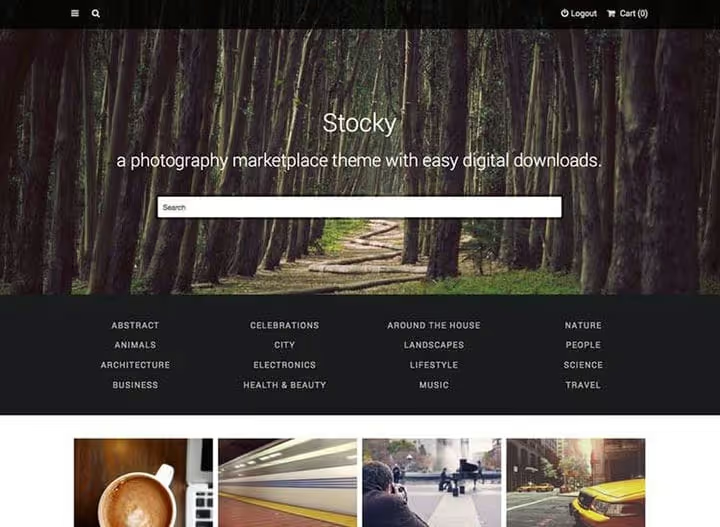
Photograph from Theme Freesia is a free theme with 3,000+ active installations and a 4.7 rating on WordPress.org. It features a clean grid for photo galleries, customizable logo and menu, and responsive layout. It supports WooCommerce, so you can attach a store to an existing portfolio in half an hour.
The downside: functionality is more modest than premium themes. The gallery is basic, without lightbox or watermarks out of the box. But for starting out, it's a worthy option, especially if your budget is limited.
E-commerce plugins: what to install for photos
Theme is sorted. Now the main question: which plugin to use for accepting payments and delivering files. There are two options, and the choice depends on whether you're selling physical prints.
Easy Digital Downloads, special forces for digital goods

EDD was created specifically for selling digital files: photographs, presets, PDF guides, ZIP archives. The plugin has 50,000+ active installations and over 30 million processed orders. The free version provides a fully functional cart, payment processing through Stripe and PayPal, and protected download links with time and download count limits.
The Pro version adds subscriptions, licensing, and (important for photographers) Frontend Submissions: third-party authors can upload their photos through a personal dashboard, and you receive a commission. This is how you build a full-fledged photo marketplace.
- Pros: tailored for digital (no unnecessary burden of physical goods), simple setup, built-in file protection, marketplace mode.
- Cons: physical goods only through third-party addons, reporting interface not as sophisticated as WooCommerce.
- Price: Free; Pro from $149 per year.
🔗 Easy Digital Downloads on WordPress.org
WooCommerce, when you need prints alongside digital

WooCommerce is the most popular e-commerce plugin for WordPress (5+ million installations, developed by Automattic). Unlike EDD, WooCommerce works out of the box with both digital and physical products. For a photographer this means: one store for JPEG files, canvas prints, photo books, and frames.
Setup is simple: create a product, check "Downloadable" for digital, specify the price, and the store is ready. Payments: Stripe, PayPal, and 100+ other gateways. Physical order shipping is configured through WooCommerce Shipping (print USPS labels directly from the admin panel).
- Pros: digital + physical in one plugin, the largest extension library, compatibility with any theme, mobile app with sales notifications.
- Cons: heavier than EDD (more scripts on page), for a purely digital store the functionality is excessive.
- Price: Free; extensions from $29.
🔗 WooCommerce on WordPress.org
Feature | Easy Digital Downloads | WooCommerce |
|---|---|---|
Digital downloads | ✅ Native specialization | ✅ Via Downloadable checkbox |
Physical prints | ❌ Only through addons | ✅ Out of the box |
Marketplace (other authors) | ✅ Frontend Submissions (Pro) | ✅ Via Dokan/WCFM |
Watermarks | ❌ No | ❌ No (through third-party plugins) |
File protection | ✅ Encrypted links | ✅ Encrypted links |
Price | Free / Pro $149/year | Free / extensions from $29 |
Step-by-step setup: launching a photo store on WooCommerce
This method is the fastest for getting started if you already have a WordPress site with any theme. From plugin installation to first sale: 30 minutes.
Step 1. Install WooCommerce. In admin: Plugins → Add New → search "WooCommerce" → Install → Activate. The setup wizard will guide you through basic steps: country, currency, shipping methods, payments.
Step 2. Create a photo product. Products → Add New. Title, brief description of the shot. In the "Product data" block, check "Downloadable" and a file upload field will appear. Upload the full-size JPEG (WooCommerce will protect the link automatically). Enter the price in the "Price" field.
If selling prints, add variations with separate pricing for each size.
Step 3. Set up payment processing. WooCommerce → Settings → Payments. Enable Stripe (cards + Apple Pay + Google Pay) and PayPal. Both gateways connect in a couple of clicks: authorize with your account, and you're done.
Step 4. Add a gallery. Create a page called "Shop" or "Buy Photos." Use the shortcode [products] to display a product grid, or create a storefront using the "Products" block in Gutenberg. Each product will automatically get a card with preview, price, and "Add to Cart" button.
Step 5. Test a purchase. Open your site in incognito mode, add a photo to cart, go through checkout. Make sure the download link arrives in the email and works.
Done. You're selling photos directly, without intermediaries or someone else's commission.
Here's a video demonstration of the complete photo store setup cycle on WordPress, from plugin installation to first order:
⁉️🤔 Frequently asked questions
Do I need to pay taxes on photo sales through my own site?
Depends on jurisdiction. If you're a sole proprietor or self-employed in Russia, income from website sales is declared as professional income (through the "My Tax" app). Payment systems don't act as tax agents, so reporting is on you.
Can I combine a blog, portfolio, and store on one site?
You can. WordPress was created for this: install a theme with blog and WooCommerce support, publish posts in the "Blog" section, and add photos for sale as products. There are no technical limitations, all sections work within a single engine.
How do I protect photos from copying?
Absolute protection doesn't exist because a screenshot bypasses any restrictions. Three lines of defense work: watermarks through a plugin, disabling right-click, and delivering files through WooCommerce's protected links. Visitors see a preview with watermark, and after payment they receive a clean JPEG.
What's better for starting: WooCommerce or Easy Digital Downloads?
If you're selling only digital, go with EDD. It's lighter, simpler, and doesn't distract with unnecessary shipping settings. If you're planning prints, photo books, and merch, WooCommerce only: migrating from EDD to it later is painful.
Can I sell photos without Stripe and PayPal?
Yes. WooCommerce supports offline payment (bank transfer, cash on delivery). But conversion will drop: buyers want to pay by card and receive the file immediately, not wait for transfer confirmation.
How many plugins do I need for a full-fledged photo store?
Minimum two: a theme with WooCommerce support and WooCommerce itself. For watermarks, add a third (for example, Watermark WordPress Files). Everything else is optional: caching, SEO, backups, the standard essentials for any WordPress site.
Your own store or stock: what should a photographer choose in 2026
Stocks solve the traffic problem because buyers are already there. But for this you give away most of the photo's price and lose contact with the client. Your own site is the opposite story: you need to generate traffic yourself (SEO, social media, newsletter), but the margin is complete, and the buyer's email stays in your CRM for repeat sales.
In short: start with stocks to test demand for your shots. Once you have steady sales, launch a WordPress site with WooCommerce. Stocks then work as a showcase to attract attention, while main revenue comes through your own store.
If you need an engine purely for digital files, install Easy Digital Downloads. If you're planning prints and merch, WooCommerce. Both options work for years without failures, proven by tens of thousands of stores.

A professional team of writers and editors specializing in creating quality content.