














How to create a contact page with WordPress
A visitor lands on your site, finds your phone number, and is ready to pick up the phone. But there's no contact page. Or worse, there is one, but it has no form, a broken email address, and an office address you changed three years ago.
The contact page in WordPress often ends up being "nothing special": the site owner drops in a standard widget, copies an email address, and forgets about it. Yet this is the page that closes the deal. The customer has already made their decision; all that's left is to get in touch. If something breaks at this step, the money goes to a competitor.
Below is a step-by-step guide on how to turn your contact page from a formality into a working channel for inquiries. From copy and trust to choosing a form plugin and spam protection.
💡 Quick overview:
- Define the page's goal in one sentence and remove everything that doesn't lead to contact
- Add a physical address, links to your FAQ and privacy policy; this builds trust
- Choose a form plugin that fits your needs: from a simple CF7 to a premium builder like Gravity Forms
- Be sure to set up spam protection and test the submission before publishing
1. Define the goal and remove the clutter
A customer on the contact page has already sold themselves. They don't need a lecture on why reaching out to you is the best thing they'll ever do. They need a way to contact you, fast and clear.
In practice, one principle works: one page, one goal. If you're a web designer, the contact page should lead to filling out a brief. If you run an online store, it should lead to a support request. Everything else takes the visitor off track.
Here's how to phrase it:
- "Get in touch for a free consultation"
- "Write to us to get a project estimate"
- "Fill out the form, we'll respond within an hour"
At WPExplorer, we use exactly this approach: the contact page clearly states what it's for (and what it's not for). This filters out irrelevant requests and saves time for both sides.
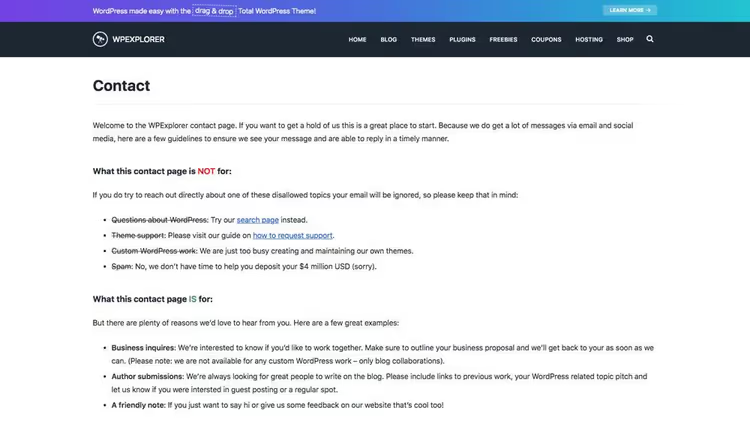
Add contact information immediately, visible without scrolling. Phone number, email, messengers. Highlight them with color or bold text so the eye catches them instantly.
2. Add trust elements
The contact page should feel like an invitation, not a marketing brochure. A visitor decides in seconds whether they can trust you or not. Your job is to give them three points of support.
Include a physical address
A postal address, zip code, city, even if the business is entirely online. Having a physical location dramatically increases trust: you look like a real company, not an anonymous website. Local customers also get a reason to stop by.
Link to your FAQ and privacy policy pages
A visitor might hesitate on one or two points and hold back from filling out the form. A link to the FAQ removes that barrier in a minute, with no email exchange needed. A link to the privacy policy addresses the fear of "where will my data go."
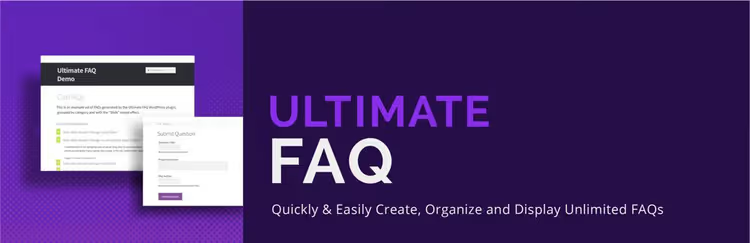
The Ultimate FAQ plugin handles this in five minutes: create your questions, choose an accordion or toggle layout, style it to match your site design. The FAQ block appears on the page via shortcode, no coding or page builder required.
Add social links
Social media serves two purposes: social proof and an additional contact channel. Even a visitor who isn't ready to buy might subscribe, and the next sale often comes from there.

Don't overload the page with a dozen icons. Facebook, Twitter, LinkedIn, and YouTube cover 90% of needs. The Add to Any plugin adds any set of profiles via shortcode with basic styling options. If your theme includes a social block, use that; no plugin needed.
3. Choose and set up a contact form
The form is the central element of the contact page. Without it, everything else loses meaning: the visitor copies the email, opens a mail client, gets distracted, and is lost. The form keeps them on the page.

In the WordPress ecosystem, there are dozens of plugins for contact forms. We've selected five that cover scenarios from "just a field and a button" to a full-featured builder with conditional logic and integrations.
Plugin | Free | Drag-and-drop | Anti-spam | Best for |
|---|---|---|---|---|
Contact Form 7 | Yes | No | Via Akismet | Minimalists and developers |
WPForms | Yes | Yes | reCAPTCHA + honeypot | Beginners and small businesses |
Gravity Forms | No, from $59/year | Yes | reCAPTCHA + Akismet | Complex scenarios and integrations |
Ninja Forms | Yes | Yes | Akismet + reCAPTCHA | Those who need a middle ground |
Jetpack Forms | Yes | Basic | Akismet | Site owners with Jetpack installed |

Contact Form 7 is a veteran installed on millions of sites. Simple, free, no visual builder. The form is assembled in the plugin's text editor using HTML-like markup. It supports multiple forms simultaneously, Ajax submission, Akismet, and CAPTCHA. A good choice if you need one form for life and aren't afraid of a couple of markup lines.
🔗 Contact Form 7 on WordPress.org | 🔗 Screenshots

Gravity Forms is the premium standard. Visual editor, multi-page forms, conditional logic, pricing, order forms, scheduling, entry limits. Over 40 add-ons cover everything: from payments (Stripe, PayPal) to integrations with Mailchimp, Zapier, and Salesforce. There's no free version, but for complex business scenarios, the plugin pays for itself.
🔗 Gravity Forms | 🔗 Feature demo
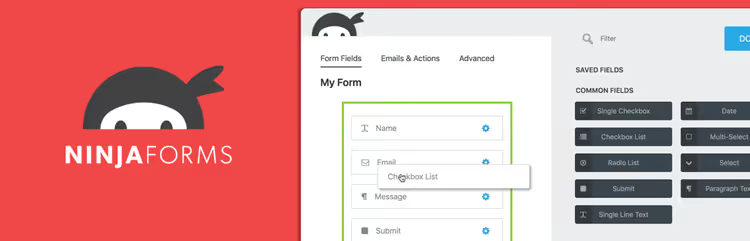
Ninja Forms is the happy medium. Drag-and-drop interface, free core with essential fields and spam protection. Extensible through add-ons: conditional logic, CSV export, Zapier, PayPal, each connected separately. Pay only for what you actually need.
🔗 Ninja Forms on WordPress.org | 🔗 Live demo
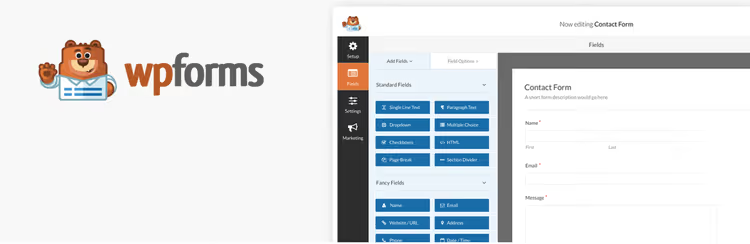
WPForms is the most beginner-friendly option. Drag-and-drop interface, ready-made templates for different scenarios (contacts, applications, surveys), reCAPTCHA and honeypot protection out of the box. The free version covers small business needs. The Pro version adds payments, conditional logic, marketing integrations, and saving submitted data in the admin panel.
🔗 WPForms on WordPress.org | 🔗 Screenshots

Jetpack Forms is an option for those who already have Jetpack installed. No separate plugin needed: activate the contact form module, and the icon appears in the post editor. Click, edit the fields, insert into a post or page. Quick, but without a visual builder or advanced settings.
🔗 Jetpack on WordPress.org | 🔗 Jetpack Forms documentation
Spam protection
A form without anti-spam is a magnet for bots. You open the admin panel in the morning and find three hundred "submissions" about sneakers and online casinos.

The minimum: connect reCAPTCHA through the Google Captcha (reCAPTCHA) by BestWebSoft plugin. It adds captcha to login forms, comments, contact forms, and registration forms; a single shortcode works everywhere. Free, no third-party service registrations required.
If you're dealing with a serious spam problem, check out anti-spam plugins for WordPress. There we reviewed 12+ solutions: from cloud-based Akismet to local Anti-Spam Bee, which is fully GDPR-compliant.
What to do after creating the form
The finished contact page should live in the main menu or footer, where visitors look for it. Add a print option in case the customer needs details offline. Most WordPress themes include built-in print styles via @media print; configure them in the customizer or add a separate CSS directive.
And most importantly, test the submission. Fill out the form yourself, check whether emails arrive, what the auto-reply looks like, and whether notifications go to spam. Half of all contact page problems are solved at this step.
Video: creating a contact form in WordPress in 10 minutes
It's better to see the process once, from installing WPForms to a finished form on the page. A short video from WPBeginner, one of the most authoritative WordPress resources, shows all the steps:
⁉️🤔 Frequently asked questions
Do I need a contact form if I can just provide an email?
A form reduces friction: the visitor doesn't leave the site, doesn't copy an address, and doesn't open a mail client. This is especially important on mobile devices, where every app switch cuts off some users. Practice shows that a page with a form collects 2-3 times more inquiries than a bare email address.
Which plugin should a beginner choose?
From our list, the easiest way to start is with WPForms Lite: two-click installation, a ready-made "Simple Contact Form" template, drag-and-drop fields, and reCAPTCHA out of the box. When you need conditional logic or payment acceptance, upgrade to Pro. The free version is enough for a landing page, blog, or small online store.
What should I do if the form submits but emails don't arrive?
Nine times out of ten, the problem is with server email settings. WordPress by default uses the
wp_mail()function, which works through PHP mail; hosts often block such sends. The solution: install the WP Mail SMTP plugin or set up SMTP through SendGrid / Mailgun. The plugin will run a test send and show where the process breaks.
Can I get by without a contact form plugin?
Technically yes, through an HTML form and PHP handler built into the theme. But you're left without anti-spam, without convenient field management, and without saving submitted data in the admin panel. For a typical WordPress site, a plugin saves hours, not complicates things.
Is adding a captcha mandatory?
Yes, at least a honeypot trap (a hidden field that bots fill out but humans don't). A bare form without protection attracts spam bots within the first week after publishing. reCAPTCHA v3 works invisibly for the visitor and doesn't annoy people, unlike the classic version with "select the traffic lights."
What to put on a contact page: the final breakdown
There's no universal recipe; it all depends on the type of site and audience. But if you want a ready-to-use checklist, here's what should be on a contact page in 2026:
- If you're a freelancer or agency, use a brief-style form with a "Budget" field plus messengers. Go with WPForms or Gravity Forms.
- If you run an online store, use a form with topic selection (support / returns / wholesale) and a link to the FAQ. Go with Ninja Forms.
- If you have a blog or content project, use email + social media + a simple form from Jetpack Forms or Contact Form 7. Don't overload it.
Start with a free plugin and a test submission. Then go through the page with a visitor's eyes: is everything clear within three seconds? Is there an address and a privacy link? Does the form work? Set it up once, and inquiries come in without your involvement.
What contact form plugin do you use? Let us know in the comments.

A professional team of writers and editors specializing in creating quality content.