













 AIIllustrative image: AI-generated
🛠 How to open an Elementor popup via anchor link from any page of your site
You need a button anywhere on your site to open an Elementor popup, but the standard "on click" trigger only works within a single page? This task can be solved in five minutes without third-party plugins and without code modifications.
The built-in Elementor Pro mechanism, an anchor link combined with the Open By Selector CSS selector. Once you configure it, you get a popup that opens from any page on your site: from a menu item, text link, or button in the footer. Below is a step-by-step guide from creating the popup to testing it on a live site. Each step is illustrated with a screenshot from an actual setup.
💡 Quick overview:
- Create a popup in Elementor Templates → Popups and publish it
- In the display conditions, select "Entire Site", this is the key point of the method
- In the popup's global settings, enable "Disable Page Scroll" and "Prevent Multiple Popups"
- In the Advanced tab, enter the selector
a[href="#your-anchor"]in the Open By Selector field - Place links with the anchor
#your-anchoracross your site, the popup will open from anywhere
Step 1: Create a popup in Elementor
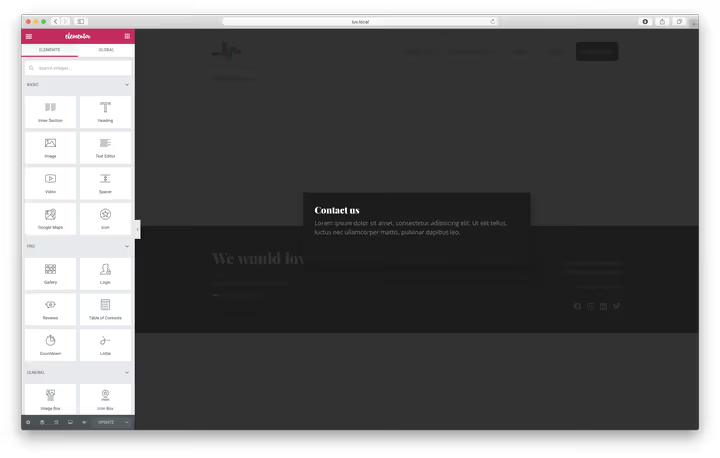
Open Templates → Popups in the WordPress sidebar menu and click "Add New". Choose a ready-made template from the Elementor library or start with a blank canvas. Name the popup meaningfully, for example, "Contact Popup" or "Request Form", so you can easily find it in the list later. The design can be anything: a contact form, newsletter subscription, feedback form, or promo banner.
Assemble the content in the Elementor builder like a regular page: add a heading, form, text, and close button. When ready, click Publish.
After publishing, Elementor will open the conditions, triggers, and additional rules screen. Here we'll make the only critical setting.
Step 2: Condition, "Entire Site"

On the conditions screen, find the dropdown list and select Entire Site. This is the only condition you need to set.
Note: even if you plan to show the popup only on specific pages, choosing "Entire Site" is the simplest path. The display itself will be controlled not by the page condition, but by the presence of the anchor link #contact in the URL. No anchor in the address bar, no popup.
The triggers screen and additional rules can be skipped: click Next, then Save & Close. The anchor link method works independently of these settings.
Step 3: Global popup settings
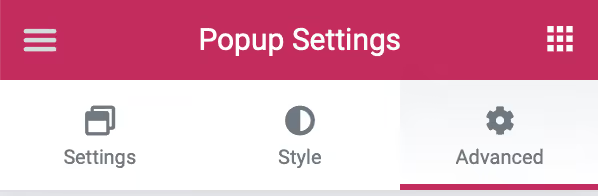
Click the gear icon in the lower left corner of the popup editing screen, the Popup Settings panel will open. Go to the Advanced tab.
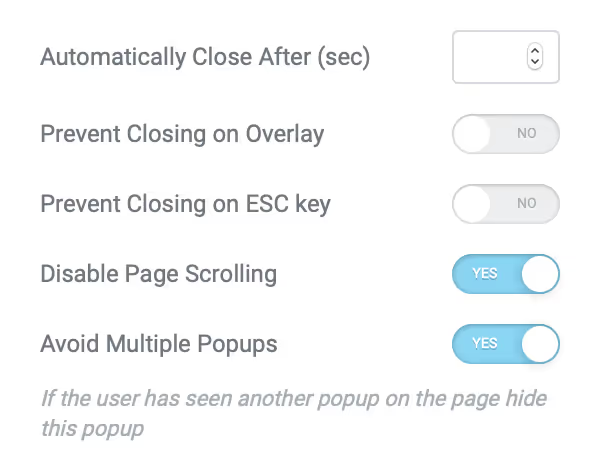
Here, configure the behavior for your task. We recommend enabling:
- Disable Page Scroll, so the background page doesn't scroll while the popup is open;
- Prevent Multiple Popups, to prevent multiple popups from overlapping each other.
Leave the other parameters at their defaults. The main thing is the field at the very bottom of the tab, for which all this was started.
Step 4: Open by selector, anchor magic
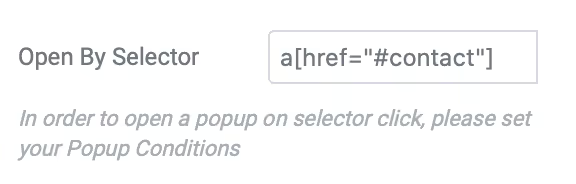
In the Open By Selector field, enter a CSS selector that "listens" for the anchor link. The format is strict:
1 a[href="#contact"]
Instead of #contact, substitute your own anchor: #popup / #callback / #sale or any other unique identifier. The selector responds to a click on any <a> element whose href attribute equals your anchor.
Save the popup. Now it waits for a visitor to follow a link with the required anchor.
Step 5: Place anchor links across your site
All that's left is to add links from where the visitor will open the popup. Any Elementor widget with a link field will work: Button, Text Editor, Image, Icon Box.
In the link field, instead of a regular URL, enter #contact (or your anchor). On the frontend, this works as follows: when clicked, the browser appends #contact to the address bar, the selector a[href="#contact"] triggers, and the popup opens.
In practice, we use three typical scenarios:
- Button in the hero section, "Request a call" with href
#callback; - Menu item, in Appearance → Menus add a custom link with anchor
#contact; - Text link in the post body, select text and enter the anchor in the link panel.
Test it: open any page on your site, append #contact to the address bar and press Enter, the popup should appear. If not, go back to step 4 and check the selector.
Video: setup in 3 minutes
The official Elementor video shows the process from start to finish, from creating the popup to testing it on a live site.
⁉️🤔 Frequently asked questions
Does the method work without Elementor Pro?
No. The Popup Builder module is only included in Elementor Pro. In the free version of the builder, popups are unavailable. If you're using the Free version, look into the Elementor combination with a separate popup plugin (for example, Popup Maker), but the setup will be different there, through jQuery selectors rather than through the standard Open By Selector.
Is the "Entire Site" condition mandatory?
Yes, this is a key requirement of the method. If you leave the condition as "On Specific Pages", the popup will only be shown on selected pages, and only when the page loads, not on a click to the anchor. The "Entire Site" mode hands control over to the Open By Selector selector.
Can you create multiple different popups with different anchors?
Yes. Create a separate popup for each anchor. For example, a "Contacts" popup with selector
a[href="#contact"]and a "Sale" popup witha[href="#sale"]. Both hang on "Entire Site" and trigger independently on their own anchor.
Why doesn't the popup open by anchor?
Check three things. First:
#your-anchormust appear in the address bar, the browser only appends it when clicking on an<a>with the corresponding href, direct keyboard input may not work. Second: the Open By Selector field must contain exactlya[href="#contact"], without extra spaces and with the correct quote type. Third: open the browser console (F12) and look for JavaScript errors, a conflict with another plugin may be blocking the trigger.
Does this affect SEO?
No. Anchor links with a hash are not indexed by search engines as separate pages. For Google, this is a technical navigation element, not duplicate content.
What to do if standard triggers are not enough
The anchor link through Open By Selector is the most universal way to open an Elementor popup from anywhere on your site. It doesn't depend on which page the visitor is on and doesn't require editing functions.php.
If the task becomes more complex, for example, the popup should open when scrolling to a specific block or 10 seconds after entering the site, use the standard Elementor triggers: On Scroll, On Page Load, On Exit Intent. They're configured on the same screen where we selected "Entire Site", and they combine perfectly with the anchor method.
Try it on a test site: create a popup, enter a[href="#test"], place a button with this anchor on the homepage. The entire process takes less than five minutes.

A professional team of writers and editors specializing in creating quality content.