














💡 Useful Notepad++ tips: regex, hotkeys and automatic text cleanup in 2026
You opened a five-thousand-line log and spent an hour removing duplicates by hand. Or you pasted text from Word into WordPress and ended up with double line breaks throughout the document. Notepad++ eliminates both scenarios in a single pass, but only if you know three or four specific techniques.
Most users stop at basic Ctrl + F. Meanwhile, the built-in regular expressions engine from Boost turns the editor into a batch text processing tool. Below you will find a regex cheat sheet, more than thirty keyboard shortcuts, and step-by-step instructions you can apply right now.
Applicable to Notepad++ version 8.9.6.4, June 2026.
💡 Quick overview:
Three search modes compared in a table: normal, extended, and regular expressions
Four regex symbol tables: basic, character classes, quantifiers, and grouping
Three real-world find-and-replace scenarios: HTML tags, markdown links, URL extraction
More than thirty keyboard shortcuts in four groups plus step-by-step instructions for cleaning text from Word
Three search modes: what to use and when
Notepad++ has three search modes. You switch between them at the bottom of the Ctrl + F and Ctrl + H dialogs in the "Search Mode" group. Confusing the modes means getting zero matches where there should be a hundred.
Mode | What it supports | When to use |
|---|---|---|
Normal | Exact text | Searching for a word or phrase without special characters |
Extended |
| Replacing line breaks, tabs, null characters |
Regular expressions | Full Boost syntax | Patterns, character classes, quantifiers, grouping |
Extended mode is a quick way to replace line breaks with spaces without regex. If you need grouping or character classes, switch to full mode.
Regular expressions: an everyday cheat sheet
Regular expression mode is enabled in the search (Ctrl + F) or replace (Ctrl + H) dialog: at the bottom of the window, toggle "Search Mode" to "Regular expressions." After that, special characters work as operators rather than plain text.
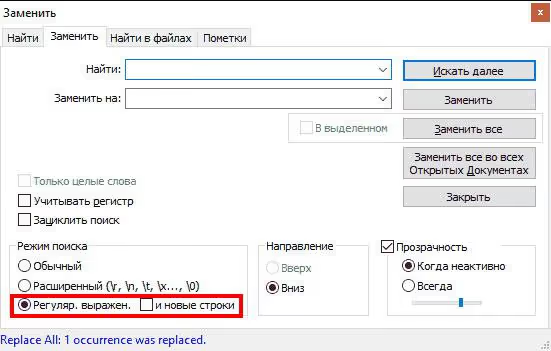
The Boost engine is compatible with VS Code, Sublime, and Vim syntax. Learn a pattern here and use it everywhere.
Basic symbols:
Symbol | What it matches |
|---|---|
| Any single character except a line break |
| Start of line |
| End of line |
| Any digit (equivalent to |
| Any character except a digit |
| Letter, digit, or underscore (equivalent to |
| Any character except |
| Whitespace character: space, tab, line break |
| Non-whitespace character |
| Newline character (LF) |
| Carriage return (CR) |
Character classes:
Construct | What it matches |
|---|---|
| Any of the listed characters |
| Any lowercase Latin letter |
| Any uppercase Latin letter |
| Latin letter in any case |
| Any digit (equivalent to |
| Any character except a, b, c |
Quantifiers:
Symbol | How many times |
|---|---|
| Zero or more repetitions |
| One or more repetitions |
| Any set of characters within a line |
| Any non-empty string |
Boundaries and grouping:
Construct | What it does |
|---|---|
| Word boundary |
| Not a word boundary |
| Grouping: contents available in replacement as |
| Logical "or" |
Four patterns worth keeping in memory:
^$, an empty line (start followed immediately by end)^\s*$, a line containing only whitespace characters^.*$, the entire contents of a line from start to end\r\n, an empty line in Windows format (CRLF)
Find and replace: three real-world scenarios
Theory without practice does not stick. Here are three tasks from actual work with code and WordPress content.
Removing HTML tags while preserving text
You exported content from an old CMS and got a mess of tags. You need to strip the formatting and leave only plain text. In regular expression mode:
1 Find: <[^>]*> 2 Replace: (leave empty)
The pattern <[^>]*> finds everything between < and >: opening tags, closing tags, self-closing tags like <br/>. Leave the replacement field empty. The HTML disappears; the text remains untouched.
Removing links while preserving anchor text
You have a list in [Title](url) format and need to keep only the titles. Two passes in regex mode.
Step 1. Remove the link portion along with the opening parenthesis:
1 Find: \(https?://[^)]*\) 2 Replace: (leave empty)
Step 2. Remove the square brackets. Switch to normal mode: search for [, replace with empty; then ], also replace with empty.
A hundred links become a clean list of titles in two operations.
Extracting URLs from a markdown list
The reverse task: from [Title](https://example.com) you need to keep only the address. One pass in regex mode:
1 Find: ^[^(]*\(([^)]+)\).*$ 2 Replace: \1
The construct ([^)]+) captures the URL inside the parentheses. \1 inserts it in the replacement field; all other text in the line is discarded.
Keyboard shortcuts: working without a mouse
A set of combinations that saves time during daily work with code and content. Bookmark this page as a reference.
Working with files and tabs:
Action | Keys |
|---|---|
Open document |
|
New tab |
|
Close tab |
|
Save |
|
Save as |
|
Save all |
|
Next document |
|
Previous document |
|
Basic editing:
Action | Keys |
|---|---|
Select all |
|
Copy |
|
Cut |
|
Paste |
|
Undo |
|
Redo |
|
Duplicate line or selected text |
|
Go to beginning of document |
|
Go to end of document |
|
Go to beginning of line |
|
Go to end of line |
|
Find and replace:
Action | Keys |
|---|---|
Find in text |
|
Replace text |
|
Find in files |
|
Find next |
|
Find previous |
|
Find selected next |
|
Find selected previous |
|
Go to line |
|
Special operations:
Action | Keys |
|---|---|
Convert to lowercase |
|
Convert to UPPERCASE |
|
Comment out selection |
|
Uncomment selection |
|
Show tag or keyword list |
|
Bookmark line |
|
Jump to next bookmark |
|
Jump to previous bookmark |
|
Indent text right |
|
Indent text left |
|
Full-screen mode with tabs |
|
Full-screen mode without panels |
|
Zoom text area |
|
Moving blocks without copy-paste deserves special attention. Hold Ctrl + Shift and use the ↑ / ↓ keys to move a selected block within the document. The clipboard is not affected. The risk of accidentally overwriting an important fragment is zero.
Step-by-step instructions: removing blank lines after pasting from Word
You copied text from Microsoft Word, pasted it into WordPress, and got double and triple line breaks. Instead of manual cleanup, a built-in Notepad++ operation handles this in three steps.
Step 1. Open the problematic document. The blank lines are immediately visible.
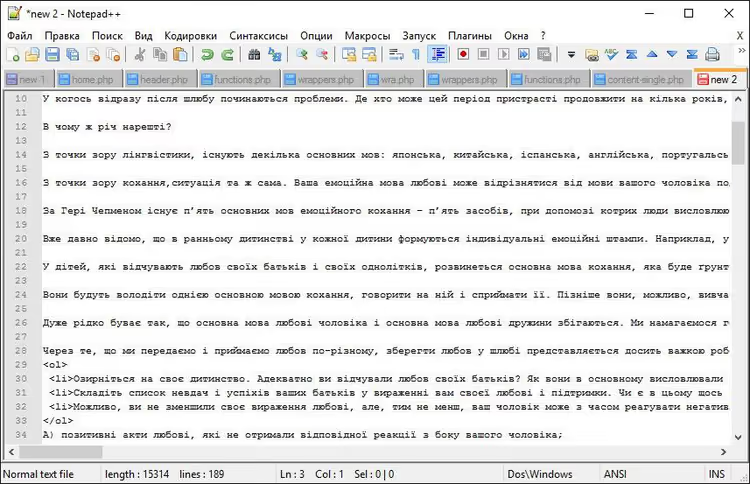
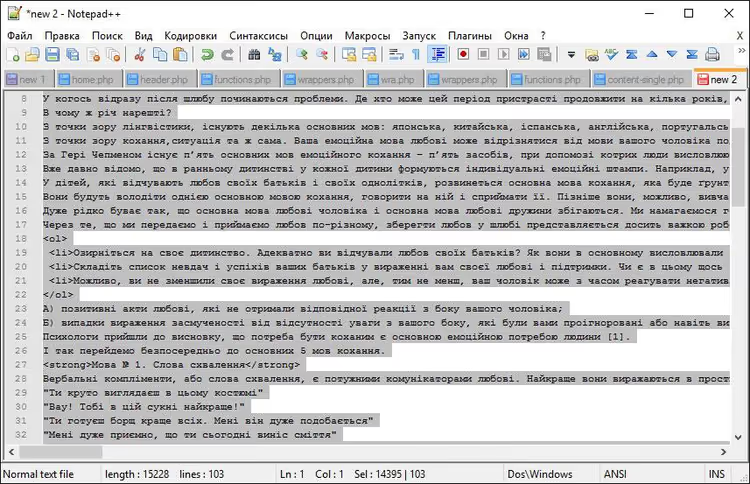
Step 2. Select all contents: Ctrl + A.
Step 3. In the main menu: Edit → Line Operations → Remove Blank Lines.
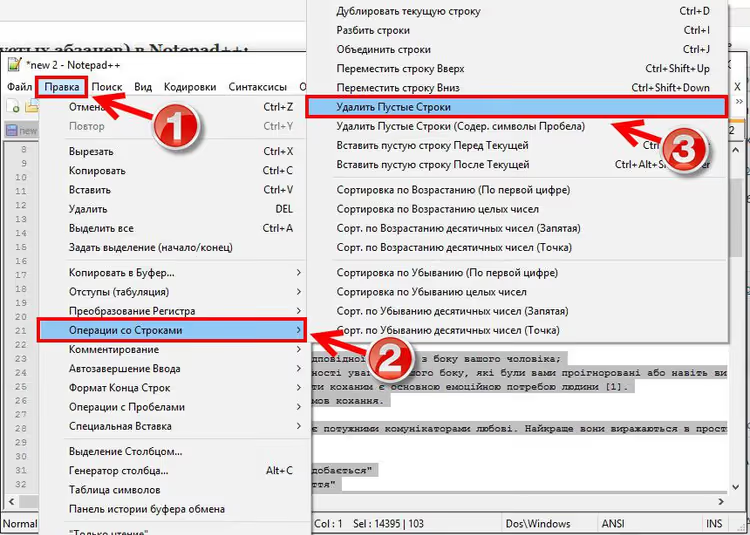
Done. The blank lines disappear, and the text is ready to paste into WordPress without extra <br> tags and empty <p></p> elements. This technique also works for pastes from Google Docs. It saves dozens of minutes when working with long documents.
Commenting code: two shortcuts for the entire cycle
For a WordPress developer who edits functions.php, CSS, or JavaScript daily, commenting code is a constant part of the workflow. Two shortcuts cover the entire cycle:
Ctrl + Shift + Q, comment out the selected block. Notepad++ automatically inserts the correct syntax based on file type://for PHP and JavaScript,/* */for CSS.Ctrl + Shift + K, uncomment a previously commented block.
Works for both single lines and multi-line blocks. The language is determined automatically by the file extension. No need to remember where to use double slashes versus asterisks.
Video: basic techniques in 5 minutes
For those who absorb visual formats better than text, here is a short introduction to key editor capabilities:
After watching, the keyboard shortcuts and regex patterns from the cheat sheet above will fit into a clear foundation.
⁉️🤔 Frequently asked questions
How do I enable regular expression mode in Notepad++?
Open the search (
Ctrl + F) or replace (Ctrl + H) dialog. At the bottom of the window, find the "Search Mode" group of radio buttons and select "Regular expressions." After that, all special characters work as Boost operators. No additional settings are required.
Why doesn't the pattern \n find line breaks?
Most likely, the file uses Windows line endings: CRLF rather than LF. Try the pattern
\r\nor the universal\R(line break in Boost). The current format is visible in the Notepad++ status bar: "Windows (CR LF)," "Unix (LF)," or "Macintosh (CR)."
What is the difference between extended search mode and regular expressions?
Extended mode understands only escape sequences: newline, tab, carriage return. Quantifiers, character classes, and grouping are available only in "Regular expressions" mode. Extended mode is enough for replacing line breaks with spaces. For removing tags or extracting data, you need full regex.
Can I search and replace across multiple files at once?
Yes:
Ctrl + Shift + Fopens the "Find in Files" dialog. Specify a folder, file mask (*.php,*.css), and search pattern. Notepad++ will go through all matching files and display results in a separate panel. For mass replacement, use the "Replace in Files" tab. Before running, always make a backup copy of the folder.
How do I delete lines containing a specific word?
In regular expression mode: in the "Find" field, enter
^.*keyword.*\R, and leave the "Replace" field empty. The\Rconstruct captures the line break along with the line text so no empty space remains where the deleted line was. Works for any text pattern.
What to bookmark and where to start
Regular expressions mastered in Notepad++ work everywhere. The same syntax applies in VS Code, in PHP code (preg_match), in JavaScript, and in SQL queries. This is not a feature of one editor. It is basic developer literacy.
- If you work with WordPress content: start with the blank line cleanup following the instructions above. You will see results in a minute.
- If you process exports from an old CMS: the pattern
<[^>]*>for removing HTML tags handles most typical tasks in a single pass. - If you are preparing data after a domain migration:
Ctrl + Hin regex mode for URL normalization replaces hours of manual work with one run.
Download Notepad++ for free from the official website and test these techniques on your first problematic file. Which scenario from this breakdown do you encounter most often? Let us know in the comments.

A professional team of writers and editors specializing in creating quality content.