














🗑 How to remove duplicate lines in Notepad++: 3 methods
Duplicate lines in logs, CSV exports, and config files: a headache familiar to anyone who has ever manually parsed a 500-megabyte database dump. You open a file and half the lines are repeated. Deleting them by hand is a lost cause when you have thousands of lines.
Notepad++ handles this in seconds. The editor offers three methods: from a built-in feature requiring two clicks to regular expressions for complex scenarios. Choose what fits your task.
💡 Quick overview:
- Method 1, built-in feature: Edit → Line Operations → Remove Duplicate Lines. Two clicks, works with v7.6+, 64-bit.
- Method 2, regular expression: removes duplicates without sorting, preserving line order. Highly customizable.
- Method 3, TextFX plugin: a classic, but only for the 32-bit version. For 64-bit there is a fork called TextFX2.
Method 1: built-in Notepad++ feature
The simplest and fastest method. It appeared in version 7.6 and works in all modern builds, including the current v8.9.6. No plugins required, everything works out of the box.
Open a file in Notepad++, select all content (Ctrl + A), and go to Edit → Line Operations → Remove Duplicate Lines. Done, all repeated lines are removed, only unique ones remain.
There is also Remove Consecutive Duplicate Lines, which removes only duplicates that appear in sequence without touching identical lines elsewhere in the file. Useful for cleaning logs where repeats accumulate in blocks.
Note: the feature removes ALL duplicates, keeping only the first occurrence of each line. If your file contains meaningful repeats (for example, identical closing brackets in JSON or XML), this method is not suitable. In that case, see method 2 with regex.
Method 2: find and replace with regular expression
A regular expression gives you full control. Unlike the built-in feature, it lets you remove duplicates without pre-sorting: lines stay in their original order while repeats disappear.
Open the search dialog (Ctrl + H), switch to the Replace tab, and fill in the fields:
Field | Value |
|---|---|
Find what |
|
Replace with | (leave empty) |
Search Mode | Regular expression |
. matches newline | Uncheck |
Click Replace All. Notepad++ will go through the entire file, find lines that repeat somewhere further down, and delete them. As a result, for each set of duplicates only the last occurrence remains.
How it works: ^(.*?)$ captures a line into the first group, \s+? jumps over whitespace between lines, and (?=.*^\1$) is a positive lookahead that checks whether this same line (\1) appears later in the file. If it does, the current occurrence is deleted.
The advantage of regex is that you can adapt the pattern. For example, add ^ at the start of the capture if you need an exact match from the beginning of the line, or replace \s+? with \r?\n to strictly anchor to line breaks.
Method 3: TextFX plugin
A classic method that has been around for years. TextFX was a standard plugin in older 32-bit Notepad++ builds. The situation has changed: the original TextFX is incompatible with the 64-bit version starting from v8.4 and has been removed from the standard distribution.
If you are using 32-bit Notepad++, install the plugin via Plugins → Plugin Manager → Show Plugin Manager → Available → TextFX → Install. After installation, a TextFX → TextFX Tools section appears in the menu.
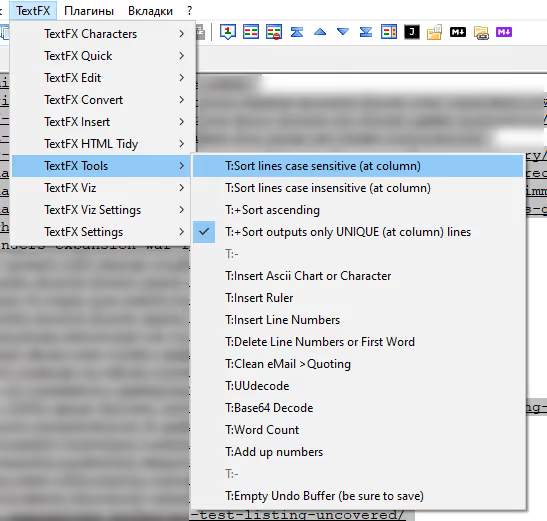
Make sure the Sort lines case sensitive checkbox is selected (or case insensitive, your choice). Select the text (Ctrl + A) and click Sort lines case sensitive. The plugin will sort the lines, placing duplicates next to each other. After that, Edit → Line Operations → Remove Consecutive Duplicate Lines will remove the repeats.
For the 64-bit version, there is a modern fork called TextFX2. It is available on GitHub (rainman74/NPPTextFX2) and installed manually: download the DLL, place it in the plugins\NPPTextFX2 folder inside the Notepad++ directory, and restart the editor. The functionality is the same: sorting, removing duplicates, case conversion.
If the task is a one-time thing and you do not want to install a plugin, method 1 is more than enough.
⁉️🤔 Frequently asked questions
Why doesn't Notepad++ remove all duplicates?
Most likely, the lines are not byte-identical. Check for invisible characters: trailing spaces, tabs instead of spaces, different letter case. Enable View → Show Symbol → Show All Characters to see what makes the lines different.
How do I remove duplicates WITHOUT case sensitivity?
The built-in Remove Duplicate Lines is case-sensitive: "WordPress" and "wordpress" are different lines. To remove duplicates without case sensitivity, first convert the text to one case via Edit → Convert Case to → Lowercase (or Uppercase), then run Remove Duplicate Lines. Alternatively, use method 2 with the regex flag
(?i)at the beginning of the pattern.
Can I remove duplicates in multiple files at once?
Notepad++ does not support multi-file search and replace with regex through its standard interface. However, you can use Find in Files (Ctrl + Shift + F) to find lines by regex across all files in a folder. For batch replacement in multiple files, a Python or PowerShell script is more convenient: read the file, apply the regex, overwrite. Alternatively, use the Python Script plugin for Notepad++ with a custom script.
What is faster on a large file, the built-in feature or regex?
The built-in Remove Duplicate Lines is noticeably faster on files over 50 MB since it is native C++ code rather than a regular expression engine. The regex method starts to slow down significantly on hundreds of thousands of lines due to lookahead checks. For comparison: on a CSV file with 200,000 lines, the built-in feature completes in 2-3 seconds, while regex takes 15-20.
I removed duplicates; how do I undo if it went wrong?
Ctrl + Z undoes the last operation. If you closed the file without saving, simply do not save changes on exit. In any case, before making bulk edits, copy the original file to an adjacent folder: takes a second, saves hours.
Which method to choose for your task
If you need to quickly clean logs or CSV from repeats, use the built-in feature (method 1). Two clicks, instant result, no plugins. This is the default choice for the vast majority of scenarios. The result is visible immediately without additional steps.
Regex (method 2) is for when the original line order matters or you need fine-tuning: removing duplicates only in a selected fragment, ignoring case, handling nested repeats. More powerful, but requires understanding the syntax.
TextFX (method 3) is only if you are on the 32-bit version and are used to this workflow. For 64-bit there is TextFX2, but with the built-in feature now available, the plugin has almost become obsolete.
Try the built-in feature right now on any text file with repeats. It will take 5 seconds.

A professional team of writers and editors specializing in creating quality content.