














⚙️ Rank Math in Elementor: SEO optimization right in the editor
You're writing text in Elementor, but your SEO plugin is sitting in another tab, in the standard WordPress editor. To check your keywords, you need to save, switch to the admin panel, refresh, and repeat after every edit. Ten edits equals twenty tab switches. A ritual familiar to anyone building sites with Elementor.
Rank Math eliminates this gap entirely. After installing the plugin, an SEO tab appears in the Elementor sidebar, and all optimization tools (meta snippets, keywords, schema markup, SEO audit) are available right on the editing screen. Zero tab switching.
Below is a breakdown of the integration from installation to fine-tuning structured data. Every step includes screenshots from the live interface so you can see exactly where to click.
💡 Quick overview:
- Install Rank Math from the WordPress directory and activate it alongside Elementor
- Edit the meta title and description in the General tab; the Google preview updates instantly
- Set up to five focus keywords and run the SEO audit using the color-coded checklist
- Choose a schema type in the Schema tab and fill in fields matching your content format
- Configure indexing, robots.txt, and canonical URL in the Advanced tab
Why SEO without Elementor integration doesn't work
Elementor lives on its own editing page, isolated from the standard WordPress screen. This is a plus for design: a clean canvas without extra menus and metaboxes. But SEO plugins have been embedding themselves in the standard editor for decades; their interfaces sat below the content input field.
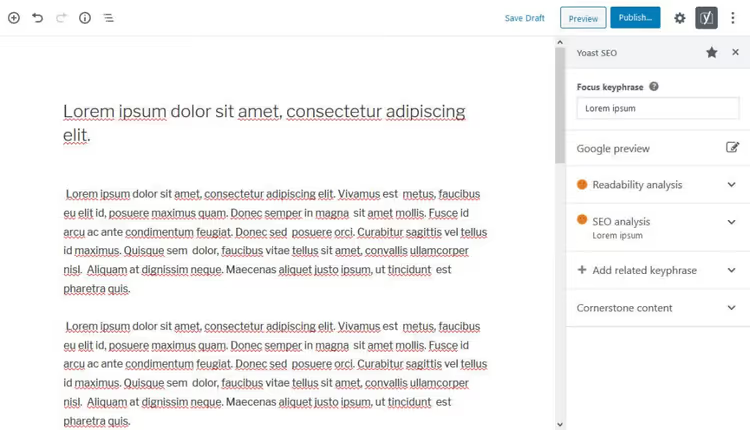
Before integration, the workflow looked like this: write a paragraph in Elementor, save the draft, go to the regular editor, refresh the page, and only then would the plugin recalculate SEO metrics. Found an error? Go back to Elementor, fix it, save, and return to the regular editor to check again. In practice, editors simply ignored SEO audits until the final review and made corrections after the fact, without live feedback.
Rank Math integration solves the problem at its root. All SEO tools move into the Elementor sidebar and work on the same screen where you write text. Change a heading, and the Google preview updates instantly. Add a keyword to a paragraph, and the occurrence counter recalculates without saving. This isn't just convenience; it's a fundamentally different workflow: SEO optimization happens in parallel with writing, not after it.
Installation: two plugins, zero configuration
Integration doesn't require a separate module or API key juggling. All you need is both programs active on the site:
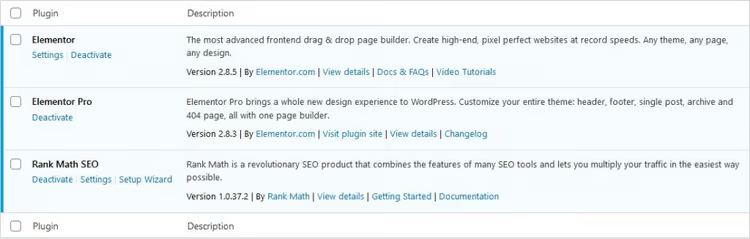
- Elementor, the free version from the WordPress.org directory or Pro from the official site.
- Rank Math, install it from the WordPress repository via Plugins → Add New.
Activate both, and the SEO tab appears in the Elementor sidebar automatically. No additional integration settings are required. Open any page via Edit with Elementor and you'll see the new tab between Global and Settings.
Some features require registration with both services. Without an Elementor account, you don't get the template library, and Rank Math disables keyword suggestions while typing. But core functionality (editing meta tags, SEO audit, schema markup) works in the free versions without limitations.
If you're migrating from Yoast SEO or SEOPress, Rank Math can import your old settings via Rank Math → Import & Export → Plugin Importers. Import is one-click and reversible: the plugin copies data rather than deleting it from the predecessor.
Five SEO tools right inside Elementor
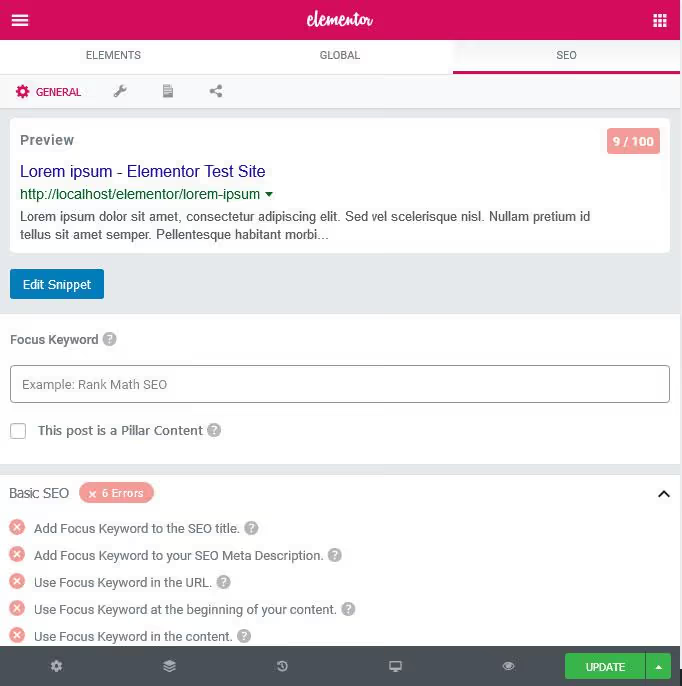
The SEO tab is divided into three sub-tabs: General (meta snippets and audit), Schema (structured data), and Advanced (indexing and canonical URLs). Let's break down each section.
1. Meta snippet and social preview editor
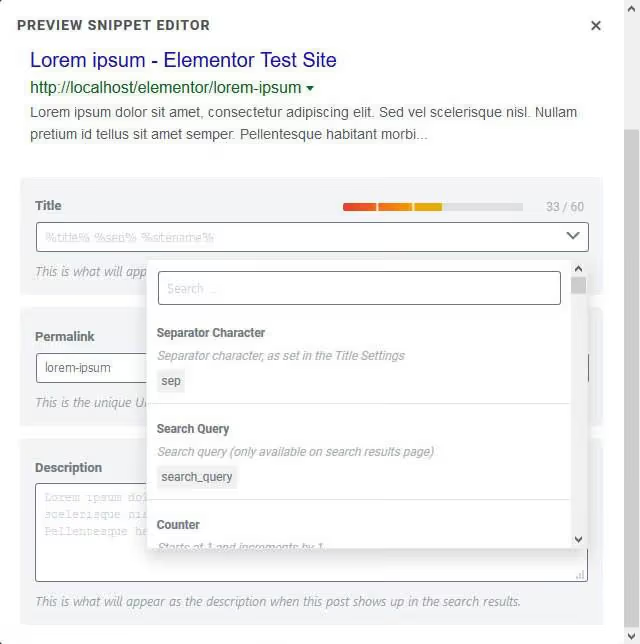
At the very top of the General tab is the snippet editing block. Click Edit Snippet, and a lightbox opens with a live preview of the Google search result for desktop and mobile.
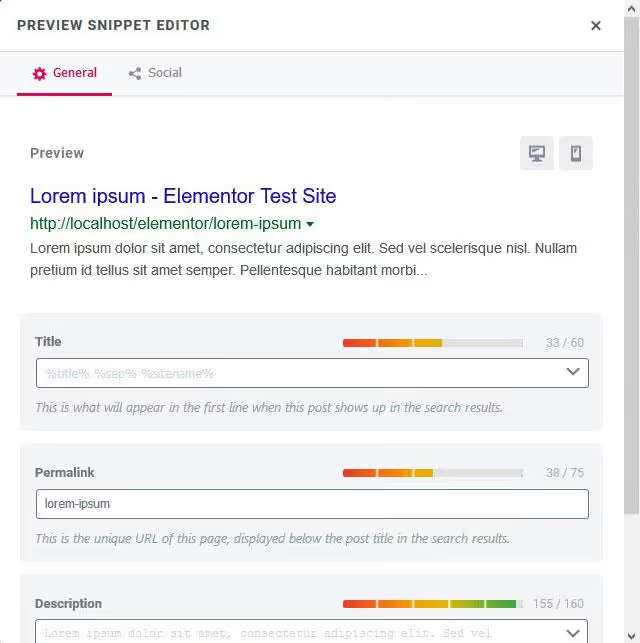
Change the title or description, and the preview updates immediately; the character counter shows remaining space before the limit. To the right of each field is an arrow for inserting dynamic variables. Dozens of templates are available: %sitename% %currentdate% %currentmonth% %page% and others. Useful for template pages like "Contact" or standard posts: set the variables once, and Rank Math automatically inserts current values.
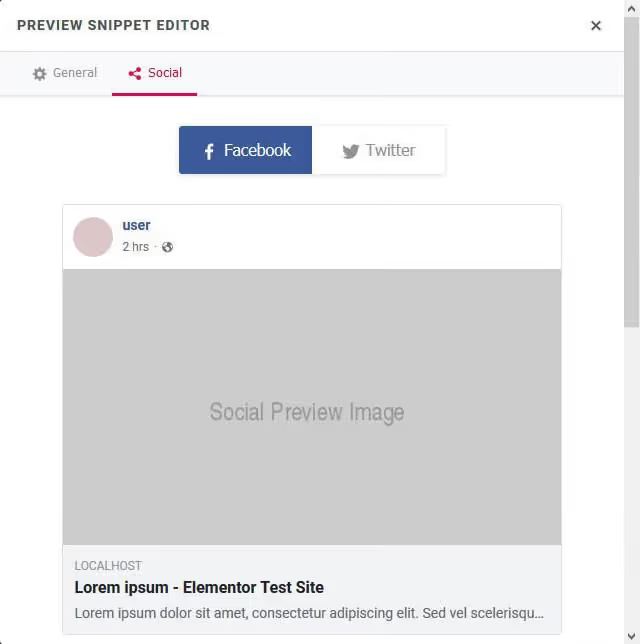
Next to it is the Social tab. Here you configure a separate title, description, and image for Facebook and Twitter. For Twitter, you can choose the card type: Summary, Summary with Large Image, App, or Player. Upload a cover image, and when shared, your post looks like a full article rather than a bare link.
2. Focus keyword
Below the snippet editor is the keyword field. Enter the main search query for the page, and Rank Math starts analyzing the text relative to this key. You can set up to five focus keywords.
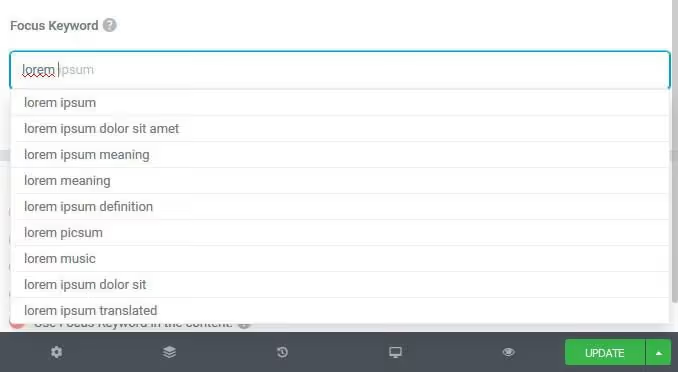
The plugin checks: Is the keyword in the title? In the first paragraph? In the URL? In image alt texts? In subheadings? Each match adds to the overall SEO score. When typing a keyword, Rank Math suggests options from its database, functioning as a built-in keyword suggestion tool. A properly chosen focus keyword determines whether 50 or 5,000 people see your post.
Just below is the Pillar Content checkbox. Enable it for evergreen pages you want driving traffic for years. Rank Math remembers them, and when creating new posts in the same category, it automatically suggests an internal link to the pillar page. A free alternative to Link Whisper, only built-in.
3. Real-time SEO audit
The main optimization tool on the General tab. After entering a keyword, Rank Math runs the content through four groups of checks:
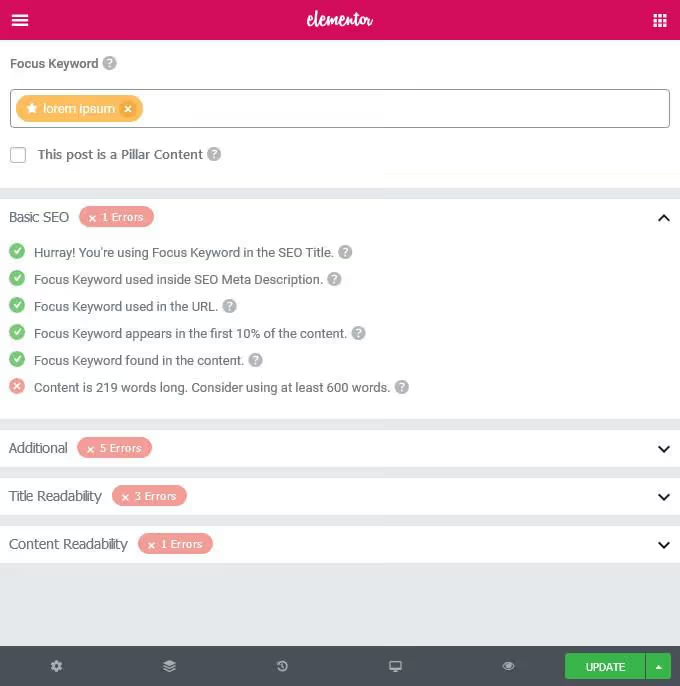
- Basic SEO: the foundation. Keyword in the title, in the first paragraph, in the URL, in the meta description. Without these, search engines simply won't understand what the page is about.
- Additional: subtle factors. Keyword density, number of internal and external links, URL length. Not critical individually, but together they move rankings.
- Title Readability: emotional words in the headline, readability. Checks whether the title will hook a person in the search results or get scrolled past.
- Content Readability: paragraph breaks, presence of images and video, sentence length. The algorithm looks at content through the eyes of a live reader, not a crawler.
Each check shows red, yellow, or green. Work through it like a checklist: fix an error, and the indicator changes color. Next to each item is a question mark: click it to get a description of what's wrong and how to fix it.
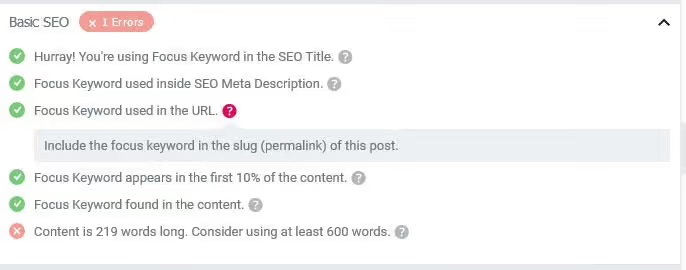
In practice, five to seven minutes is enough to run a post through all checks and bring the SEO score to 85-95 out of 100. This isn't magic; it's methodically addressing required ranking factors that Google actually considers.
4. Schema markup: rich snippets
The third icon on the SEO tab configures structured data. This is the markup that makes star ratings, images, product prices, recipe cooking times, or event dates appear in search results.

The free version of Rank Math offers more than 20 schema types: Article, Book, Course, Event, FAQ, HowTo, Job Posting, Music, Person, Product, Recipe, Restaurant, Service, Software Application, Video, and others. The Pro version adds Dataset, FactCheck, Movie, Podcast Episode, and ItemList.
Choose the appropriate type, and fields for that format open up. For a product: price, availability, brand. For a recipe: ingredients, cooking time, calories. For a job posting: salary, location, organization name. Fill them in, and Google will pick up the markup on its next crawl and may display a rich snippet.
Important note: Google decides whether to show a rich result or not. You cannot guarantee stars under every post. But without markup, the chance of a rich snippet is zero. With it (especially for recipes, products, and courses), click-through rates in search results grow significantly.
Each page is assigned one schema type. For a review post, use Article; for a product page in WooCommerce, use Product.
5. Advanced settings: indexing and canonical URLs
The Advanced tab is for those who know what they're doing. Here you'll find indexing toggles at the individual page level.
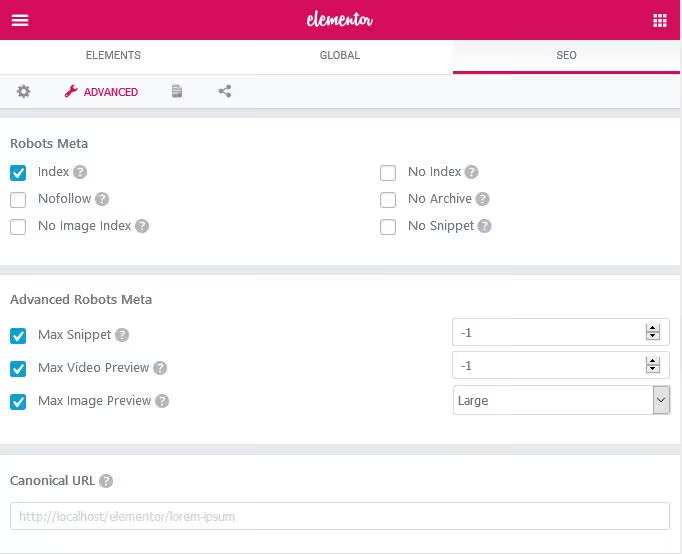
What you can configure:
- Index / No Index: allow the page in search or hide it. Use No Index for cart pages, account pages, and service sections with no search value.
- No Follow: prevent Google from following links on the page. Useful for user profiles and pages with UGC where spam links might appear.
- No Archive: disable the cached copy in search results. Relevant for product pages where price and availability change daily.
- No Image Index: hide the page's images from Google Images.
- No Snippet: remove the text snippet below the title in search results, leaving only the title and URL.
- Max Snippet / Max Video Preview / Max Image Preview: character limit for the snippet, seconds for video preview, and size for image preview. No limits by default.
The canonical URL field is also here. If you have multiple pages with identical or very similar content (for example, a product in multiple categories), specify the canonical address, and Google will rank that one while crawling duplicates less frequently. Without a canonical URL, the search engine chooses the "main" version itself, and it doesn't always guess correctly.
Video: Rank Math integration with Elementor in five minutes
If you prefer watching over reading, here's a visual demonstration of all the tools described, in the live interface:
The author walks through installation, shows the SEO tab in Elementor, sets a focus keyword, runs the SEO audit, and configures schema markup: exactly what we covered above, only in motion.
⁉️🤔 Frequently asked questions
Does the integration work with the free version of Elementor?
Yes, fully. The SEO tab appears in the free version of Elementor without any limitations. The only catch: without registering with Rank Math, keyword suggestions while typing are disabled. But manual keyword entry, SEO audit, and schema markup work in the free version at full capacity.
What should I do if the SEO tab doesn't appear after installation?
Make sure both plugins are active. Open any page via Edit with Elementor; the SEO tab should be between Global and Settings. If you don't see it, clear your browser cache and re-enter the editor. On some themes and setups, the tab may be hidden by sidebar overflow: check if there's horizontal scrolling in the widget panel.
Can I use two SEO plugins at the same time?
Technically yes, but practically no. Two SEO plugins create meta tag conflicts: the page outputs two titles, two descriptions, two sets of schema. Google sees garbage and ignores both. If you're migrating from Yoast, SEOPress, or All in One SEO, first import old settings into Rank Math, then deactivate the previous plugin.
Which schema should I choose for a regular blog post?
Article: the default choice for informational posts, news, and reviews. If the article contains step-by-step instructions or a recipe, use HowTo or Recipe. The main rule: one page, one schema type. Don't try to stack multiple types on a single URL.
Will my old SEO settings transfer from Yoast?
Yes, via Rank Math → Import & Export → Plugin Importers. The plugin picks up meta titles, descriptions, keywords, canonical URLs, and social previews from Yoast, SEOPress, All in One SEO, The SEO Framework, and about a dozen other plugins. Import is one-click and reversible: Rank Math copies data without deleting it from the old plugin.
What you get from the Rank Math + Elementor integration
If you're building sites on Elementor and still handling SEO through the standard editor, the answer is clear: switching is worth it. Five minutes to install two plugins saves dozens of tab switches on every post.
The main advantage isn't speed; it's a change in approach. SEO stops being a separate "later" task. You edit the meta description as soon as you write a paragraph, add keywords during the process rather than afterward, and see the result of every edit instantly. This enforces discipline and keeps you from drifting away from search intent.
Three scenarios where integration delivers maximum value:
- Blog content calendar: set focus keywords via the General tab before writing and keep them in view while you write.
- **Landing page on **Elementor: configure Schema as Product or Service, add price and rating. A rich snippet in search results sets you apart from competitors with plain text.
- Old site migration: import SEO data from your previous plugin with one click and immediately work in the new interface without losing settings.
SEO built into the editor isn't a feature; it's the standard for modern content work. Rank Math has refined it to the point where tab switching becomes an anachronism.

A professional team of writers and editors specializing in creating quality content.