














📋 Schema markup for WordPress: complete guide from plugins to manual JSON-LD
Updated your site, but Google shows bare links without images, ratings, and descriptions? Most likely, your WordPress lacks Schema markup. Without it, search engines don't understand what exactly is on the page: an article, product, recipe, or event.
Schema doesn't directly boost rankings, but it's what transforms a line in search results into a rich snippet with stars, prices, and breadcrumbs. Rich snippets get on average 20-30% more clicks than regular links, confirmed by Search Engine Land data from 2025. Below is a complete guide: from understanding what Schema types exist to specific plugins and manual JSON-LD.
💡 Quick overview:
- Identify the Schema type for your content: Article, Product, FAQ, LocalBusiness, over 30 types total.
- Install a plugin: Yoast SEO for blogs, Schema & Structured Data for mixed content, Schema Pro for stores.
- Check the result in Google Rich Results Test before indexing.
- If the plugin doesn't cover the needed type, add JSON-LD manually through the wp_head hook.
What is Schema markup and how it works
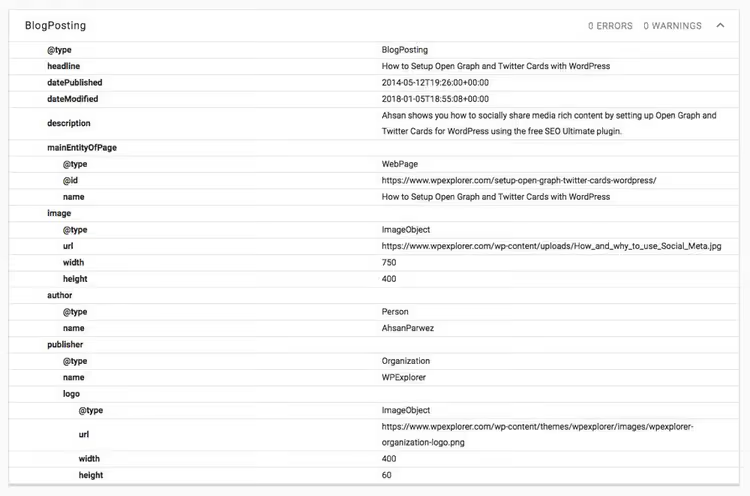
Schema.org is a unified microdata vocabulary developed jointly by Google, Bing, Yahoo, and Yandex. Markup based on it tells search engines not just "here's text," but "here's a product with a price of $29 and a rating of 4.7" or "this is a 30-minute recipe with a photo of the finished dish."
WP Engine formulates this extremely precisely: schema works as a business card for search robots. It doesn't affect position in search results, but provides context. The robot understands that the page is not just a set of words, but a structured entity: an article with an author and publication date, a product with price and availability, an event with date and location.
In practice, this means four things:
- Search engines correctly classify the page and show it for relevant queries.
- Your link stands out visually: star ratings, price, author photo, breadcrumbs.
- Users see what's being offered before clicking, which filters random visits and boosts conversion.
- Voice search technologies and AI assistants rely precisely on structured data for direct answers.
Mobile search is especially dependent on Schema: most traffic today comes from smartphones, and rich snippets on a small screen occupy up to a third of the visible results area.
How Schema differs from SEO
Common confusion: "I'll add Schema and rise in search results." That's not how it works.
SEO works with ranking: keywords, loading speed, backlinks, behavioral factors. Schema works with presentation: it doesn't move the page up, but makes it more noticeable at the position where it already is. A page in seventh place with a rich snippet can get more clicks than a page in fifth without one.
The difference in mechanism: SEO optimization convinces the algorithm that the page is relevant to the query. Schema markup tells the algorithm what exactly the content is, so it can display it in the right format: a recipe carousel, a Q&A block, a product card.
They don't replace but complement each other. Good SEO without Schema generates traffic. Schema without SEO generates nothing, a rich snippet won't appear if the page doesn't rank in the top for the query.
Main types of Schema markup
The Schema.org specification contains hundreds of types (full list here), but on a WordPress site, only about a dozen and a half are actually used. Here are those that bring measurable results:
- Article / BlogPosting, the foundation for any blog: title, author, publication date, image. Without this type, search engines won't build an article card in search results.
- Product, price, currency, stock availability, rating. Critical for online stores: without Product markup, Google Shopping won't pick up the item.
- Review, stars and review text attached to a product or article. Those very ratings under the link.
- Recipe, ingredients, cooking time, calories, photo. Brings the site into Google's recipe carousel.
- Event, date, time, location. Works for both offline events and webinars.
- LocalBusiness, address, phone, opening hours. Without it, a company won't appear in the local Google Maps block.
- FAQ, question and answer right in search results. For content sites, one of the most clickable formats.
- HowTo, step-by-step instructions with photos. Works well for technical tutorials.
- VideoObject, thumbnail, duration, description. Without this, a YouTube embed on the page won't generate a rich video snippet.
- BreadcrumbList, breadcrumbs in the URL line of search results instead of a bare address.
- Organization / Person, logo, social networks, contacts. Affects the Knowledge Graph, the information block about the brand to the right of search results.
How to add Schema to WordPress: 5 working plugins
Plugins are the most practical method for a site owner without a development team. Each of the five described below covers its own scenario: from "set it and forget it" to manual control of each markup type.
Plugin | For whom | Price | Main feature |
|---|---|---|---|
Yoast SEO | Bloggers, content sites | Free / Premium €99/year | Automatic JSON-LD out of the box |
Schema & Structured Data | Mid-sized business, custom types | Free / Pro from $99/year | 35+ Schema types, Elementor compatibility |
Schema Pro | Stores, marketplaces | Pro from $69/year | 20+ Schema types with fine-tuned fields |
All in one Schema | Beginners, Schema testing | Free / Pro from $69/year | Simplest interface: choose type, fill fields |
Schema App | Enterprise, large-scale projects | Free / Enterprise from $500/month | Auto-markup of entire site + content knowledge graph |
Yoast SEO

The most popular WordPress SEO plugin with 5 million active installations. After activation, it automatically adds JSON-LD with site structure: name, logo, social profiles, breadcrumbs. For each post, it determines the type Article or BlogPosting, pulls in the author, date, and featured image.
Main advantage: you don't need to configure anything at all. Install Yoast, basic Schema is already working. The obvious downside: fine-tuning types for specific pages is unavailable in the free version. If you have a standard blog or content site, this is more than enough. If it's an online store with products and reviews, you need an additional plugin.
- Pros: automatic markup without configuration, WooCommerce compatibility (Premium), built-in validation through Google Search Console.
- Cons: no custom Schema types without Premium, can't edit JSON-LD manually for a specific page.
- Price: Free version on WordPress.org, Premium €99 per year.
- Download: 🔗 Yoast SEO on WordPress.org
Schema & Structured Data for WP & AMP
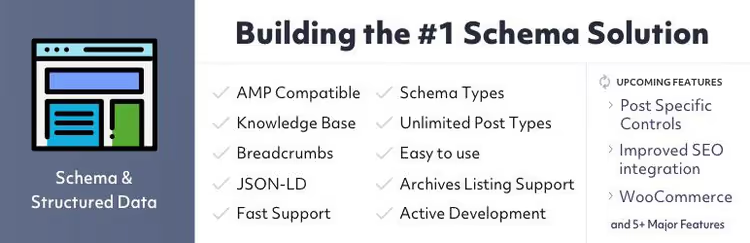
The most functional free Schema plugin in the WordPress catalog. Supports over 35 markup types: from standard Article and Product to niche ones like SoftwareApplication, JobPosting, Course, Trip, Vehicle. There's a visual Schema builder in Gutenberg blocks and a setup wizard on activation.
In practice, this is the best choice if Yoast isn't enough, but you're not ready to pay for Schema Pro yet. Compatible with Elementor, Divi, AMP plugins, WPML and Polylang. Out of the box, it works with kk Star Ratings, bbPress, Easy Liveblogs, EventPrime. Updates aggressively: version 1.60 was released in May 2026.
- Pros: 35+ Schema types for free, visual Gutenberg blocks, compatibility with popular builders, active support (252 reviews on WordPress.org).
- Cons: settings interface is overloaded (many tabs and options), generates noticeable load on weak hosting when JSON-LD defragmenter is enabled.
- Price: Free on WordPress.org, Pro from $99 per year.
- Download: 🔗 Schema & Structured Data on WordPress.org
Schema Pro
Paid plugin from Brainstorm Force, the team behind the popular Astra theme and All in one Schema plugin. If the free All in one Schema is an introduction to markup, then Schema Pro is a professional tool: 20+ types with automatic field population from post content and one-click setup.
For WooCommerce, there are ready-made product schemas with dynamic pricing, for blogs, automatic author and rating binding. A separate plus: schema doesn't break when changing themes or updating other plugins, JSON-LD is generated at the core level, not through theme hooks.
- Pros: 20+ Schema types with auto-filled fields, deep WooCommerce integration, theme-independent, white label (no Brainstorm Force advertising in code).
- Cons: paid version only (no free tier), excessive for beginners, easy to misconfigure without understanding Schema types.
- Price: from $69 per year for one site.
- Download: 🔗 Schema Pro on developer's site
All in one Schema rich snippets

Free plugin from Brainstorm Force, the simplest way to try Schema markup without diving into documentation. Works through a metabox in the post editor: you choose the content type from a dropdown list, fill in fields (rating, price, author, event date) and publish.
Supports 8 types: Review, Event, Person, Product, Recipe, Software Application, Video, Article. For testing Schema capabilities, this is enough. For a site with dozens of pages of different types, it's not: each post needs to be marked up manually, no automation. The plugin is actively updated (version 1.7.7, tested with WordPress 7.0).
- Pros: minimal barrier to entry, intuitive interface (fill fields, get JSON-LD), actively updated (163 reviews).
- Cons: only 8 Schema types for free, manual markup of each post, no automatic application to archives and taxonomies.
- Price: Free on WordPress.org. Extended version, Schema Pro from $69 per year.
- Download: 🔗 All in one Schema on WordPress.org
Schema App Structured Data

Plugin focused on the enterprise segment. The free version automatically adds basic Schema to all pages: Article for entries, BlogPosting for posts, BreadcrumbList, WebSite, ProfilePage for authors. VideoObject is generated automatically for all embedded YouTube videos on the page.
The paid version is not just a plugin, but an end-to-end solution: access to the Schema App editor for manual custom markup creation, Highlighter for mass JSON-LD deployment, and a personal Customer Success Manager. The plugin is tested up to WordPress 7.0 (April 2026), which speaks to its long-term stability.
- Pros: completely automatic markup out of the box, auto VideoObject for YouTube, enterprise tooling for large-scale projects.
- Cons: free version doesn't provide access to custom markup, paid tiers from $500 per month, tied to Schema App infrastructure (not fully self-hosted).
- Price: Free on WordPress.org, Enterprise from $500 per month.
- Download: 🔗 Schema App on WordPress.org
Manual markup: JSON-LD, Microdata and RDFa
Most typical scenarios are covered by plugins, but sometimes you need direct control over JSON-LD. For example, when you have a custom post type that isn't supported by any plugin, or when a plugin generates markup with an error and there's no time to wait for a fix.
There are three formats for adding structured data: JSON-LD, Microdata, and RDFa. Google officially recommends JSON-LD, it's a JavaScript object that's inserted into the <head> or <body> of the page and doesn't touch the HTML layout. Microdata and RDFa are embedded directly into HTML tag attributes, making them cumbersome to maintain.
Example JSON-LD for a WordPress article:
1 { 2 "@context": "https://schema.org", 3 "@type": "Article", 4 "headline": "Как выбрать кэширующий плагин для WordPress", 5 "author": { 6 "@type": "Person", 7 "name": "Иван Петров" 8 }, 9 "datePublished": "2026-01-15", 10 "dateModified": "2026-06-01", 11 "image": "https://example.com/image.jpg" 12 }
Such a block is added through the wp_head hook in the child theme's functions.php or through the Code Snippets plugin. The upside: you control every field and don't depend on plugin updates. The downside: every error in JSON (extra comma, typo in field) breaks the entire markup. Before deployment, check the code in Google Rich Results Test and in Schema.org validator.
Microdata only makes sense if you're maintaining an old site built on this format. For new projects, always choose JSON-LD.
A short but useful video on the topic, demonstrating three ways to add Schema to WordPress in 8 minutes:
⁉️🤔 Frequently asked questions
Does Schema actually boost positions in Google?
No, Schema markup is not a direct ranking factor, Google confirms this in official documentation. But rich snippets increase CTR by 20-30%, and higher CTR with stable user behavior indirectly improves positions. The chain works: Schema → rich snippet → more clicks → better behavioral signals → position growth.
Which plugin should I install if I don't understand Schema at all?
Yoast SEO. After activation, it automatically adds JSON-LD with basic markup for all pages and posts, no configuration needed. When you feel that basic markup isn't enough, switch to Schema & Structured Data for WP & AMP: it's free and provides 35+ types through a visual interface.
Can I use two Schema plugins at the same time?
Not recommended. Two plugins will generate two JSON-LD blocks on one page with potentially conflicting data, Google may ignore both. If changing plugins, completely remove the old one, check the page through Rich Results Test for absence of duplicates, and only then activate the new one.
How do I check that Schema is working correctly?
Open Google Rich Results Test, paste the page URL and click "Test." The tool will show all detected Schema types, warnings, and errors. For deeper diagnostics, use Schema.org validator, it checks JSON-LD syntax and specification compliance, even for types that Google doesn't yet support in rich snippets.
What to do if a plugin generates JSON-LD with an error?
Check if the plugin version is current (if outdated, update). If the error persists on the latest version, open an issue on the plugin's page on WordPress.org or GitHub, active developers (Magazine3 for Schema & Structured Data, Brainstorm Force for Schema Pro) usually fix within a few weeks. Temporary solution: deactivate the problematic Schema type in plugin settings and add correct JSON-LD manually through the wp_head hook.
What to choose: final breakdown by Schema for WordPress
There's no universal "set it and forget it" plugin for all sites. The choice depends on what exactly you publish and how much time you're willing to spend on configuration:
- Blog or content site without products, Yoast SEO. Basic Schema out of the box, nothing to configure.
- Site with heterogeneous content: articles, events, recipes, FAQ, Schema & Structured Data for WP & AMP. 35+ types for free, compatibility with major builders.
- Online store on WooCommerce, Schema Pro. Automatic Product markup with dynamic price and availability fields.
- Large project with a team and budget, Schema App. Enterprise approach with a personal manager and content knowledge graph.
Start with the free option. Install the plugin, wait for indexing (from 3 days to 2 weeks) and check for rich snippets in Google Search Console. No snippets after 2 weeks, dig into the settings of the specific Schema type. And share your experience in the comments: which plugin worked on your project, and which one did you have to remove?

A professional team of writers and editors specializing in creating quality content.