













 AIIllustrative image: AI-generated
🚚 The ultimate guide to WooCommerce shipping 2026
A customer fills their cart, reaches checkout, and leaves. A familiar situation for any WooCommerce store owner. The reason is almost always the same: something is wrong with the shipping.
According to Baymard Institute data from 2025, shipping costs that are too high are the second most common reason for abandoned carts, right after unexpected extra charges. And unclear or inflexible shipping options add several more percentage points to this churn. In other words, setting up shipping in WooCommerce is not a minor technical detail but a direct lever for conversion.
By the end of this guide, you will know exactly which shipping method suits your store, which plugins cover non-standard scenarios, and how to set it all up without calling a developer.
💡 Quick overview:
- Open the basic shipping settings: zones, classes, and calculation parameters right in the WooCommerce core.
- Choose one of the three main methods (flat rate, table rate, or free shipping) that fits your business model.
- If needed, extend the standard method with a plugin: install Advanced Flat Rate for flexible flat rate rules, Flexible Shipping for table rates, or Hide Shipping Method for conditional hiding of shipping options.
- Test checkout on a staging site and go live.
Basic shipping settings in WooCommerce
Before choosing a shipping method, it is worth setting up zones and classes properly once. These parameters work in the WooCommerce core and do not require additional plugins.

Go to WooCommerce → Settings → General. There are two key sections here: "Selling locations" and "Shipping locations." The first determines which countries you sell to. The second determines which countries you physically ship to. Each section has four options: all countries, all except specified, only specified, and shipping completely disabled. If you operate locally, select a specific country. If you ship worldwide, leave it at "All countries."

Next is the WooCommerce → Settings → Shipping tab. Three key elements:
- Shipping zones are geographic regions where you ship orders. For each zone, you can set your own combination of methods and rates. For example, courier delivery for Moscow, Post Russia for regions.
- Options include enabling the shipping calculator on the cart page and choosing the default shipping address. We recommend enabling both: the customer sees the shipping cost before checkout, which reduces the cart abandonment rate.
- Shipping classes are labels you assign to products (say, "Heavy" or "Fragile") and then link different rates to them. One product might fall into "Standard" with $300 shipping, another into "Oversized" with $1200 shipping.
Once zones and classes are set up, you can choose the cost calculation method within each zone.
Three main shipping methods: comparison table
WooCommerce offers three basic methods out of the box. Here is how they compare:
Method | How it works | When to use | Setup complexity |
|---|---|---|---|
Flat rate | One price for product, order, or class | Similar products, simple store | Low |
Table rates | Price varies by weight, cart total, quantity | Products of varying sizes, complex logistics | Medium |
Free shipping | Free under conditions (threshold amount, coupon, pickup) | Average order from $3000, promotional periods | Low |
Below is a detailed breakdown of each method and the plugins that remove the limitations of standard functionality.
1. Flat rate
The basic method that comes in the WooCommerce core: you set one shipping cost for a product, entire order, or shipping class. Suitable for stores with a uniform assortment, for example, selling digital licenses or books of the same format.
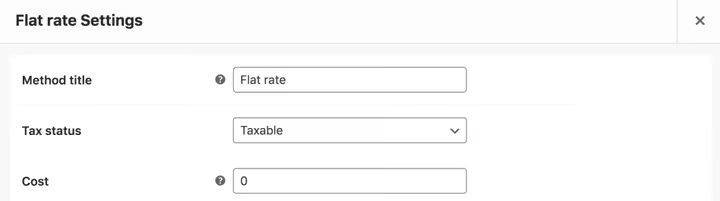
The standard flat rate is configured through WooCommerce → Settings → Shipping → Shipping zones → Add method → Flat rate. You can specify a cost for each shipping class and add a surcharge for each additional item. WooCommerce documentation describes all parameters, including the [qty] * cost calculation formula.
Limitation of the standard method: one rate per zone. If you have five product categories with different logistics, the built-in functionality will not be enough.
Advanced Flat Rate Shipping: flexible flat rate rules
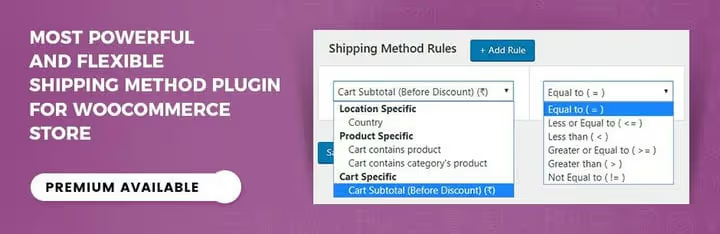
Advanced Flat Rate Shipping for WooCommerce removes the "one rate per zone" limitation. You create multiple shipping rules, each triggered under its own conditions: user role, cart total, weight, product category, location.
In practice, it looks like this: rule 1, "for orders under $2000, shipping is $350," rule 2, "for orders over $2000, shipping is free," rule 3, "for the 'Fragile' category, add $500 to the base rate." Rules can be scheduled by date, for example, enabling free shipping during a New Year promotion.
The plugin has a free version on WordPress.org with a basic set of rules. The Premium version adds shipping by user roles, scheduling, and rule import/export.
- Pros: multiple rules in one zone, date scheduling, user role support
- Cons: premium functionality is paid, the rule interface is not the most intuitive with many conditions
- Price: Free / Premium from $99 per year
- Download: 🔗 Advanced Flat Rate Shipping | 🔗 Free version
2. Table rates
The table rate method suits stores where shipping cost depends on several variables simultaneously: cart weight, total amount, number of items, recipient country. Unlike flat rate, table rates describe not one rule but an entire matrix of conditions.
WooCommerce Advanced Shipping: table rates with a premium focus
WooCommerce Advanced Shipping provides a simple interface for setting up table rates. In the free version, you set conditions by weight, number of items, and total order amount. Plus, you can add a fixed handling fee on top of the calculated rate.
The Premium version expands the logic: rates by user roles, by shipping zones, by individual products in the cart. Minimum and maximum shipping amount limits are available, useful so that shipping a heavy order does not cost the customer more than the product itself.
- Pros: intuitive interface, weight and amount support in the free version, min/max limits
- Cons: main power is in Premium, no built-in date scheduling
- Price: Free / Premium from €29
- Download: 🔗 WooCommerce Advanced Shipping | 🔗 Live demo
Flexible Shipping: the most popular table rate plugin
Flexible Shipping from the WP Desk team is one of the most installed table rate plugins for WooCommerce, with over 100,000 active installations and a 4.7 rating on WordPress.org. The reason for its popularity: the free version covers 80% of scenarios.
The plugin allows you to create an unlimited number of calculation rules based on weight and cart total. Each rule is a separate row in the table where you set the value range and corresponding cost. Additionally, you can enable cash on delivery (COD) with a separate surcharge.
The Premium version adds rules by number of items, categories, user roles, and shipping classes. But the main advantage of Flexible Shipping is that even the free version covers most scenarios for small and medium stores.
- Pros: powerful free version, 100,000+ installations, COD support, intuitive rule table
- Cons: advanced filters (categories, roles) only in Premium
- Price: Free / Premium from €89 per year
- Download: 🔗 Flexible Shipping | 🔗 Live demo
3. Free shipping and local pickup
Free shipping is not the absence of a method but a full-fledged tool for increasing average order value. Customers expect free shipping on orders above a certain amount; this is the standard in e-commerce in 2026.
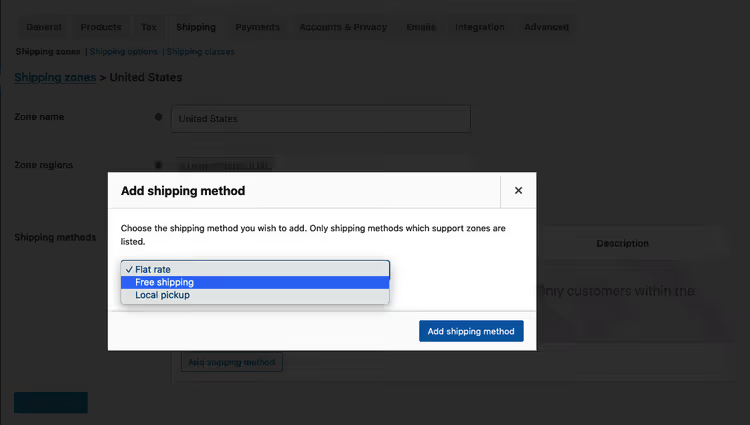
Basic setup is through WooCommerce → Settings → Shipping → Shipping zones → Add method → Free shipping. Trigger conditions: free shipping coupon, minimum order amount, "coupon + minimum amount" combination, or simply "always free." The last option is often used for local pickup: a "Pickup" zone is created with zero cost. WooCommerce documentation describes each option in detail.
Hide Shipping Method: conditional hiding of shipping options
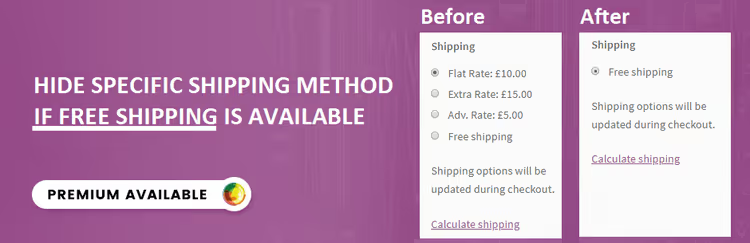
When multiple shipping methods are configured in one zone, the customer can choose any of them, even one that is illogical for their order. Hide Shipping Method for WooCommerce solves this problem: you set rules under which certain methods are hidden.
Example: when the cart total exceeds $5000, all paid methods are hidden, leaving only free shipping. Or the opposite: for orders under $1000, courier delivery for $500 is hidden because it is not beneficial for either you or the customer. Conditions can be set by amount, weight, number of items, country, and user role.
The free version of the plugin is available on WordPress.org and covers the basic scenario "hide paid methods when free shipping is available."
- Pros: solves the conflict of multiple methods in one zone, flexible hiding conditions, free version available
- Cons: does not calculate cost, only hides existing methods
- Price: Free / Premium from $99 per year
- Download: 🔗 Hide Shipping Method | 🔗 Free version
In practice, basic shipping setup takes 15-20 minutes. The video above is a step-by-step tutorial on all three methods from setting up zones to test checkout.
⁉️🤔 Frequently asked questions
How do I set different shipping costs for different countries?
Create a separate shipping zone for each country or group of countries in WooCommerce → Settings → Shipping → Shipping zones. For each zone, add your own method: flat rate or table rates. If you have more than ten countries, it is more convenient to use Flexible Shipping with country conditions in one rule.
Can I combine flat rate and table rate in one store?
Yes, in fact, this is standard practice. In the "Moscow" zone, you set a flat rate of $350 with free shipping from $3000. In the "Russia" zone, you set a table rate where the price increases with order weight. The plugins do not interfere with each other.
How do I add cash on delivery to shipping cost?
Flexible Shipping supports cash on delivery (COD) out of the box; enable the "Cash on delivery cost" option in the method settings. For other plugins, you can use a separate WooCommerce COD Advanced plugin.
Is it mandatory to use plugins, or are the built-in methods enough?
If you have up to ten products, one country, and two or three shipping methods, the built-in options are more than enough. Plugins are needed when multiple conditions appear (weight + amount + role), promotional scheduling, or method conflicts in one zone.
The customer sees too many shipping options at checkout. How do I remove the extras?
Hide Shipping Method with the rule "hide method X under condition Y." Or reconsider your zone structure: only relevant methods for each region. Two clicks in zone settings, and the second problem is solved without a plugin.
How do I test shipping before launch?
Enable the shipping calculator on the cart page (WooCommerce → Settings → Shipping → Options) and go through checkout from different accounts and addresses. To check different countries, use a VPN or test addresses. Be sure to check boundary values: an amount just below the free shipping threshold and just above.
What to install in 2026: the final breakdown
Choosing a shipping method is not about finding the "best plugin" but about matching your business model. Here is the decision matrix:
- Similar products, local market: the built-in flat rate is enough. Setup is elementary; plugins are not needed.
- Varying weight and dimensions, multiple countries: Flexible Shipping (free version). The highest popularity among table rate plugins is not accidental: the vast majority of scenarios are covered without payment.
- Many product categories, rules by roles and scheduling needed: Advanced Flat Rate Shipping. The only one of the three that can schedule shipping rules by date.
- Free shipping from a certain amount + hiding paid methods: built-in free shipping plus Hide Shipping Method. The free version of the latter covers the basic scenario.
Check your shipping zones right now: open WooCommerce → Settings → Shipping and make sure each zone has at least one method with an adequate rate. A quick check can save you a percentage of abandoned carts today.

A professional team of writers and editors specializing in creating quality content.