













⚙️ Setting up PHP CodeSniffer in PhpStorm with WordPress coding standards
Writing code for WordPress and your teammate keeps asking you to "clean up spaces and indentation" on every code review? Or your site crashes after a plugin update, and you can't find the error in the logs because the code was written without any consistent standard?
This is a familiar scenario for anyone developing WordPress in a team. Different formatting habits, some people use Yoda conditions while others don't, and output escaping is missing in places.
PHP CodeSniffer solves this automatically: it checks your code against WordPress coding standards right in your editor, highlights violations, and can fix them with a single command. Below is a from-scratch setup guide for PhpStorm 2026.
💡 Quick overview:
- Install PHP CodeSniffer and WordPress Coding Standards via Composer, either in your project or globally
- Set the path to phpcs in the configuration and add the WordPress standard
- Configure a remote PHP interpreter if you're working through Vagrant, Docker, or SSH
- Enable the PHP CodeSniffer Validation inspection in PhpStorm, and errors will be highlighted on the fly
- Set up autoformatting through PHP Code Beautifier and Fixer to fix code with a single command
Step-by-step video in English (same steps as in the text):
Step 1: configure a remote PHP interpreter
If you're developing with local PHP (XAMPP, MAMP, Local, built-in server), skip this step. For Vagrant, Docker, or a remote server via SSH, you need to specify the interpreter explicitly.
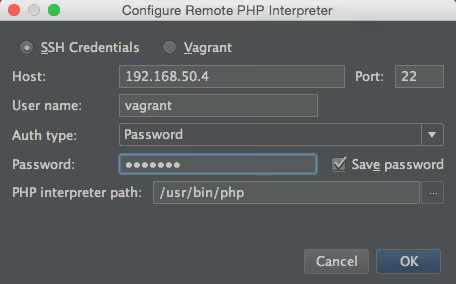
Open Settings → PHP (Ctrl+Alt+S), click […] next to CLI Interpreter and select SSH Credentials or Docker Compose.
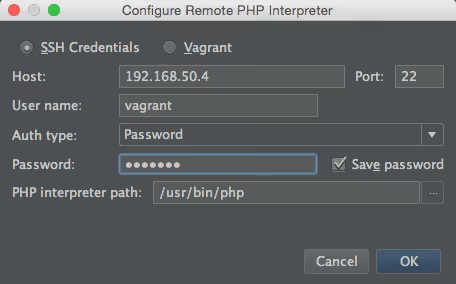
Fill in:
- Host IP address, the same one used for the site (
ping example.devwill help) vagrantfor username and password (if using Vagrant)/usr/bin/php, path to the PHP executable on the server
Save and select the created interpreter from the list:
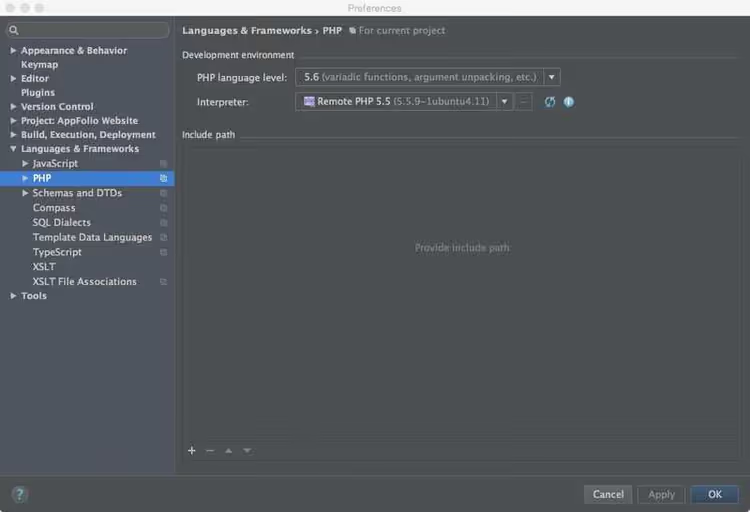
PhpStorm will use this specific PHP to run CodeSniffer and other code quality tools.
Step 2: install PHP CodeSniffer via Composer
The most reliable approach is to install PHPCS as a project dependency. Add to your composer.json:
1 { 2 "require-dev": { 3 "squizlabs/php_codesniffer": "^3.10" 4 } 5 }
Then run composer install. PhpStorm will automatically detect phpcs and phpcbf in vendor/bin, so you won't need to set paths manually.
For global installation (if you need it across all projects):
1 composer global require "squizlabs/php_codesniffer=*"
Verify: the phpcs executable should be in ~/.composer/vendor/bin/ (Linux/Mac) or %APPDATA%/Composer/vendor/bin/ (Windows).
Step 3: install WordPress Coding Standards
WPCS is a set of rules (sniffs) for PHPCS that checks compliance specifically with WordPress standards: output escaping, Yoda conditions, function prefixes, and everything else from the WordPress Coding Standards Handbook.
Via Composer in your project:
1 composer require --dev wp-coding-standards/wpcs:"^3.0"
Or globally (the old tried-and-true method):
1 composer create-project wp-coding-standards/wpcs:dev-master --no-dev
Make sure the standard appears in ~/.composer/wpcs/ or vendor/wp-coding-standards/wpcs/.
Step 4: set the path to the standard in PHPCS configuration
Navigate to the phpcs folder and specify where the installed standards are located:
1 cd ~/.composer/vendor/bin 2 phpcs --config-set installed_paths ~/.composer/wpcs
Verify that WordPress appears in the list of available standards:
1 phpcs -i
The output should show four standards: WordPress, WordPress-Core, WordPress-Docs, and WordPress-Extra.
Step 5: add phpcs to PATH
Open ~/.bash_profile (or ~/.zshrc for ZSH) and add the line:
1 PATH=$PATH:~/.composer/vendor/bin
Restart your terminal or run source ~/.bash_profile. Now the phpcs command is available from any folder.
Test it on any theme or plugin file:
1 cd wp-content/themes/your-theme 2 phpcs --standard=WordPress functions.php
Successful output looks like this:
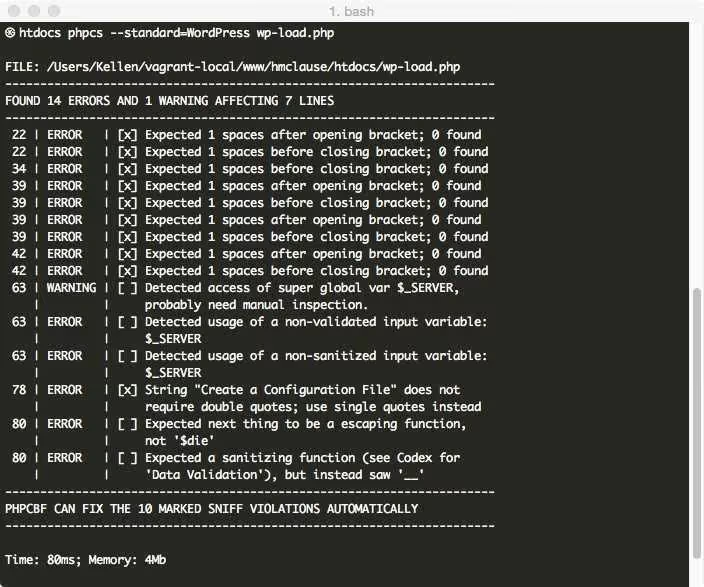
Errors are divided into two levels: ERROR for hard violations and WARNING for recommendations. Each line contains the rule number and a description of the problem.
Step 6: configure PHP CodeSniffer in PhpStorm
Open Settings → PHP → Quality Tools → PHP_CodeSniffer (Ctrl+Alt+S).
If you installed via Composer in your project, PhpStorm will pick up phpcs from vendor/bin automatically. If installed globally, click […] next to Configuration and specify the path to the executable: ~/.composer/vendor/bin/phpcs.
Select the PHP interpreter from the list, the same one you configured in step 1.
Step 7: enable PHP CodeSniffer Validation inspection
Go to Settings → Editor → Inspections, expand PHP → Quality Tools and check PHP_CodeSniffer validation.
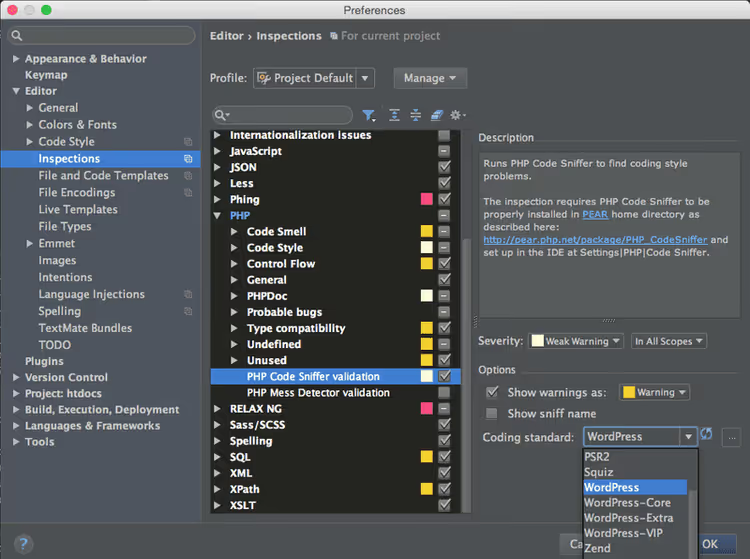
In the Coding standard dropdown, select WordPress. Save the settings.
From this point on, PhpStorm checks open PHP files on the fly. Violations are highlighted with wavy underlines, just like regular IDE errors. Hover over them and a tooltip appears with a description: what's wrong and how to fix it.
Step 8: verify it works
Create or open any theme PHP file and write intentionally non-standard code:
1 if(true){echo 'Spaces? Never heard of them';}
PhpStorm will underline the line: missing spaces after if, around curly braces, and inside the condition. Hover your cursor and you'll see the error text and WordPress rule number.
Step 9: set up auto-fixing through PHP Code Beautifier and Fixer
You don't have to fix every violation manually. PHP Code Beautifier and Fixer (phpcbf) is installed alongside PHPCS and can automatically fix code according to the selected standard.
Open Settings → PHP → Quality Tools, in the External Formatters section select PHP Code Beautifier and Fixer. Now when you invoke Code → Reformat Code (Ctrl+Alt+L / Cmd+Option+L), PhpStorm will not only align indentation with its own formatter but also apply WordPress rules via phpcbf.
Additionally, configure the WordPress code style for the built-in formatter: Settings → Editor → Code Style → PHP → Set From → Predefined Style → WordPress. This way both tools work in the same direction and don't conflict.
Step 10: what to do for new projects
For each new WordPress project, just repeat step 1 (interpreter, if remote), step 6 (set phpcs in settings), and step 7 (enable inspection). If you're using Composer in your project, steps 2-4 are covered by a single line: composer require --dev wp-coding-standards/wpcs.
⁉️🤔 Frequently asked questions
What's the difference between WordPress, WordPress-Core, WordPress-Docs, and WordPress-Extra?
WordPress is the base set of all rules except documentation. WordPress-Core contains only rules from the official coding guide (indentation, naming, Yoda conditions). WordPress-Extra adds security checks: output escaping, input data validation. WordPress-Docs checks code documentation standards (PHPDoc). In practice, use
WordPressbecause it includes Core and Extra.
PhpStorm doesn't see phpcs after installation. What should I do?
Verify that the
vendor/binfolder (or~/.composer/vendor/bin) is added to PATH and contains thephpcsexecutable. In PhpStorm, open Settings → PHP → Quality Tools → PHP_CodeSniffer, click[…]and specify the path tophpcsmanually. After changing the interpreter or reinstalling dependencies, you may need to reset the configuration using theResetbutton in the same window.
Can I use PHPCS without Composer by just downloading the phar archive?
Yes, but we don't recommend it. When installing via Composer, PhpStorm automatically picks up
phpcs,phpcbf, and all registered standards. With the phar archive, you'll have to set paths manually and track updates separately. For team collaboration, a Composer dependency incomposer.jsonlocks the version so all developers have the same set of rules.
How do I exclude specific files or folders from checking?
Create a
phpcs.xmlfile in your project root. You can exclude directories (<exclude-pattern>vendor/*</exclude-pattern>), set the standard, and change the severity of individual rules. PhpStorm will automatically pick up this file if it's in the project root and namedphpcs.xmlorphpcs.xml.dist.
Why does PHPCS complain about wp_redirect() without exit?
The WordPress standard requires
exitorwp_die()after any redirect:wp_redirect()only sets the header but doesn't stop script execution. Withoutexit, code after the redirect will continue running, which is a security hole. Correct usage:wp_redirect( home_url() ); exit;.
What to do if your codebase is already large and you're just implementing standards
Running PHPCS on a project with thousands of violations is a sure way to demotivate your team. Start small: fix critical errors (error, not warning) using phpcbf, then gradually lower the threshold. Add a phpcs.xml with exclusions for legacy code and enable new rules one at a time each month.
Here's a step-by-step plan for implementing standards on a live project:
- Run
phpcs --standard=WordPress --report=summaryto see the total number of errors. - Auto-fix everything possible:
phpcbf --standard=WordPress . - Sort remaining errors by severity, tackling critical ones first.
- Add checking to CI (GitHub Actions, GitLab CI): let the build fail on new violations in pull requests.
Start with a free composer require --dev wp-coding-standards/wpcs in one project. After a week, the team will get used to the highlighting. After a month, they'll be used to clean code. What coding standard do you use? Let us know in the comments.

A professional team of writers and editors specializing in creating quality content.