














🚀 Uploading multiple files using HTML and PHP
A user needs to upload five images, but the form only accepts one. Or a client asks for batch document uploads with a title attached to each file. This isn't fantasy: it's a standard task that PHP solves in thirty lines.
The problem is that most tutorials show single-file uploads. Multi-upload works differently: an array of files instead of one, mapping to additional fields, protection against overwriting. Below is a working implementation from scratch to a ready-to-use snippet.
💡 Quick overview:
- Create an HTML form with
enctype="multipart/form-data"and afilefield with themultipleattribute. - Process the
$_FILESarray in PHP: loop through indices and usemove_uploaded_file()for each file. - Add extension and size validation before saving to disk.
- For linking "file + title", use parallel arrays
title[]andfileUpload[].
A quick video walkthrough of the same topic, from HTML form to saving files in a database:
Step 1: HTML form for uploading multiple files
First, build the form. Key points: the enctype attribute set to multipart/form-data and an input field with multiple. Without enctype, the server simply won't receive files; this isn't a PHP error but HTTP specification.
Name the field as an array: fileUpload[]. The square brackets at the end tell PHP that the server is receiving a list, not a single file.
1 <form action="" method="post" enctype="multipart/form-data"> 2 <label>Select files:</label> 3 <input type="file" name="fileUpload[]" multiple> 4 <input type="submit" name="Submit" value="Upload"> 5 </form>
The form above allows selecting any number of files at once in the file dialog. The browser will pack them into a multipart request and send them to the server. No JavaScript is needed at this stage.
Step 2: PHP processing of the file array
When the form is submitted to the server, PHP fills the superglobal $_FILES array. But the structure differs from single-file uploads: the keys name / tmp_name / size / error become arrays where the index corresponds to the file's sequential number.
We loop through the indices and save each file using move_uploaded_file():
1 <?php 2 3 $target_dir = 'uploads/'; 4 5 if (isset($_FILES['fileUpload']['name'])) { 6 7 $total_files = count($_FILES['fileUpload']['name']); 8 9 for ($key = 0; $key < $total_files; $key++) { 10 11 // Skip empty fields (no file selected) 12 if (isset($_FILES['fileUpload']['name'][$key]) 13 && $_FILES['fileUpload']['size'][$key] > 0) { 14 15 $original_filename = $_FILES['fileUpload']['name'][$key]; 16 $target = $target_dir . basename($original_filename); 17 $tmp = $_FILES['fileUpload']['tmp_name'][$key]; 18 19 move_uploaded_file($tmp, $target); 20 } 21 } 22 }
Add this code to your child theme's functions.php or to the Code Snippets plugin, and the form from step 1 will start accepting files.
Note that basename() strips the path from the filename. This protects against path traversal attacks: an attacker could send ../../wp-config.php as the name. basename() leaves only wp-config.php, but the next layer of defense should still be extension validation.
Step 3: Checking file type and size
You can't accept "as is" everything the browser sends. Minimum protection: a whitelist of extensions and a size limit.
Extension check using pathinfo() with the PATHINFO_EXTENSION flag. Convert to lowercase and compare against allowed extensions:
1 $allowed_ext = array('jpg', 'jpeg', 'png', 'gif', 'bmp', 'pdf', 'doc', 'docx'); 2 $ext = strtolower(pathinfo($_FILES['fileUpload']['name'][$key], PATHINFO_EXTENSION)); 3 4 if (!in_array($ext, $allowed_ext)) { 5 $errors[$key] = 'Invalid file type: ' . $ext; 6 continue; 7 }
Size checking is even simpler; the size value in bytes is already in $_FILES:
1 $max_file_size = 5 * 1024 * 1024; // 5 MB 2 3 if ($_FILES['fileUpload']['size'][$key] > $max_file_size) { 4 $errors[$key] = 'File exceeds the allowed size (5 MB)'; 5 continue; 6 }
Place both checks before move_uploaded_file() in the same loop. Files that fail validation won't reach the disk. Collect errors in an array and after processing, display a list to the user showing which file failed and why. Without this, users will just see an empty result and leave, assuming the form is broken. For each rejected file, report the name and reason, like "photo.png: invalid type" or "archive.zip: size exceeded".
Step 4: Renaming files during upload
If two users upload photo.jpg, the second file will overwrite the first. The solution is to generate a unique name when saving. The simplest approach: replace spaces with underscores and add time().
1 if (isset($_FILES['fileUpload']['name'][$key]) 2 && $_FILES['fileUpload']['size'][$key] > 0) { 3 4 $original_filename = $_FILES['fileUpload']['name'][$key]; 5 6 // Extension separately 7 $ext = pathinfo($original_filename, PATHINFO_EXTENSION); 8 9 // Name without extension 10 $filename_without_ext = basename($original_filename, '.' . $ext); 11 12 // New name: no spaces + timestamp 13 $new_filename = str_replace(' ', '_', $filename_without_ext) 14 . '_' . time() . '.' . $ext; 15 16 move_uploaded_file( 17 $_FILES['fileUpload']['tmp_name'][$key], 18 $target_dir . $new_filename 19 ); 20 }
The time() stamp provides uniqueness down to the second. On high-traffic projects, replace it with uniqid() or UUID: two simultaneous requests within the same second are enough to cause a collision and lose one of the files. Also, time() reveals the upload date in the filename, which is sometimes undesirable. A UUID from ramsey/uuid completely eliminates both problems.
Step 5: Upload with additional fields for each file
Sometimes you need to attach a title, description, or category to each file. Instead of one "title + file" pair, you create several, naming the fields as arrays:
1 <form action="" method="post" enctype="multipart/form-data"> 2 3 <input type="text" name="title[]" placeholder="Title"> 4 <input type="file" name="fileUpload[]"> 5 6 <input type="text" name="title[]" placeholder="Title"> 7 <input type="file" name="fileUpload[]"> 8 9 <input type="text" name="title[]" placeholder="Title"> 10 <input type="file" name="fileUpload[]"> 11 12 <input type="submit" name="Submit" value="Upload"> 13 14 </form>
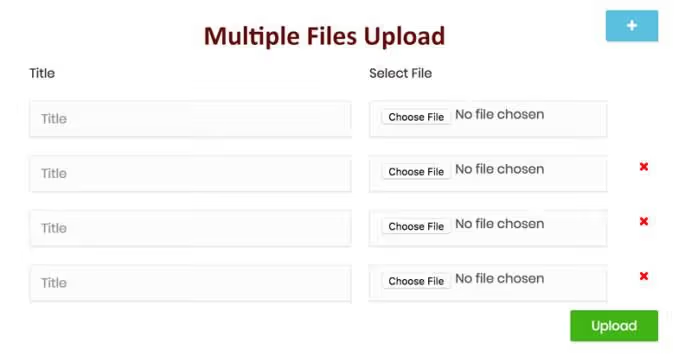
On the server side, $_POST['title'] and $_FILES['fileUpload']['name'] are parallel arrays. Index 0 in one corresponds to index 0 in the other. Processing uses the same loop, but now with title binding:
1 $total_files = count($_FILES['fileUpload']['name']); 2 3 for ($key = 0; $key < $total_files; $key++) { 4 5 if ($_FILES['fileUpload']['size'][$key] === 0) { 6 continue; // empty field — skip 7 } 8 9 $title = isset($_POST['title'][$key]) ? $_POST['title'][$key] : ''; 10 $tmp = $_FILES['fileUpload']['tmp_name'][$key]; 11 $fname = basename($_FILES['fileUpload']['name'][$key]); 12 $target = $target_dir . time() . '_' . $fname; 13 14 if (move_uploaded_file($tmp, $target)) { 15 // Save $title and $target to the database 16 // or into an array for further processing 17 } 18 }
Make sure the number of title[] fields matches the number of fileUpload[] fields in the form. If the user adds fields dynamically via JavaScript, all indices must be consecutive without gaps. PHP doesn't automatically collapse sparse arrays, so $_POST['title'][5] may exist while $_FILES['fileUpload']['name'][5] does not.
In practice, this approach covers a good half of client tasks: image galleries with captions, document uploads with tags, resume submissions with portfolios. The same principle of parallel arrays works for description, category, order, and any other fields.
⁉️🤔 Frequently asked questions
Why doesn't the file appear in $_FILES even though the form was submitted?
Nine times out of ten,
enctype="multipart/form-data"is missing from the<form>tag. Without it, the browser sends data as plain text, and PHP doesn't populate$_FILES. Also checkpost_max_sizeandupload_max_filesizeinphp.ini; exceeding either results in an empty array without visible errors.
How do I limit the total upload size for a single request?
The
post_max_sizedirective inphp.initruncates the entire POST request body, including files and text fields. The default value according to the PHP documentation is 8 MB. Set it higher thanupload_max_filesizewith some overhead for multipart encoding (roughly 20%). For bulk uploads, increase both parameters:upload_max_filesize = 20Mandpost_max_size = 25M.
Can files be uploaded asynchronously via JavaScript?
Yes. Use
FormDataandfetchwithmethod: 'POST'. AddfileUpload[]fields usingformData.append('fileUpload[]', file)for each selected file. Don't set theContent-Typeheader manually; the browser will automatically setmultipart/form-datawith the correct boundary. For visual feedback, use a progress bar viaXMLHttpRequest.upload.onprogresssincefetchdoesn't expose progress directly.
What about security: an attacker uploads a PHP script instead of an image?
Extension checking from step 3 is the first line of defense. Second: store uploaded files OUTSIDE the site's root folder or in a directory with an
.htaccessthat disables execution (php_flag engine off). Third: rename files when saving (step 4); even ifshell.phppasses the extension filter, it becomesshell_1718300000.php, which isn't dangerous without execution rights. Fourth: check the MIME type not from$_FILES['type'](sent by the browser, easily spoofed), but viafinfo(PHP's built-in Fileinfo), which reads the file signature.
What this approach provides: the complete picture
You've built an upload system that handles three scenarios out of the box: batch files with one button, single upload with validation, and "file + metadata" pairing through parallel arrays. The code is around thirty lines for each step, nothing extra.
If you're working in WordPress, place the handler in your child theme's functions.php or in the Code Snippets plugin. On plain PHP, simply put the processing script at the form's action target.
The code from this article covers most typical upload tasks. The remaining scenarios (chunked upload for large files, direct upload to S3-compatible storage, and drag-and-drop with preview) will be covered in separate articles. Write in the comments which one is relevant to your project, and we'll prioritize it.

A professional team of writers and editors specializing in creating quality content.