














🚀 How to run JavaScript on any page using Chrome DevTools Snippets
Have you noticed that you keep copying the same JavaScript into the DevTools console over and over? A debugging snippet, extracting data from a page, quick DOM modification, and every time you have to manually type it or paste from a notepad.
Chrome DevTools has had a built-in snippet editor right on the Sources tab for several years. You write the script once, give it a name, and run it on any page with a single click or shortcut. It works faster than a bookmarklet and does not require any extensions.
We will walk through the entire cycle step by step: from opening the Snippets panel to ready-to-use working examples you can take for yourself.
💡 Quick overview:
- Open the Snippets panel via the Sources tab or the command menu
- Create a new snippet and give it a meaningful name
- Write JavaScript in the code editor and save with
Ctrl+S - Run the snippet with the Run button or through the command menu with
! - Walk through practical examples: clearing a page, collecting data, modifying styles
What snippets are and why you need them
A snippet is a fragment of JavaScript saved directly in Chrome DevTools. Unlike code in the console, it does not disappear when you reload the page or close the browser; it sits in the Sources tab waiting to be run.
The main advantage over the console: a snippet executes in the context of the current page and has full access to its DOM, variables, and APIs. You can write a script to extract data from any site, modify layout, or automate routine tasks and run it whenever you want without retyping.
An alternative approach is bookmarklets (bookmarks with javascript: in the URL), but they are limited by URL length and inconvenient for multi-line code. In Firefox the equivalent was Scratchpad, but it was removed from the browser starting with version 70 and replaced with the multi-line console editor.
Watch this short video tutorial on snippets; it is in English, but all the actions are shown on screen and fully match the steps described below.
Here is what a typical snippet workflow looks like: the screenshot shows the original page on the left and the code in the editor on the right.
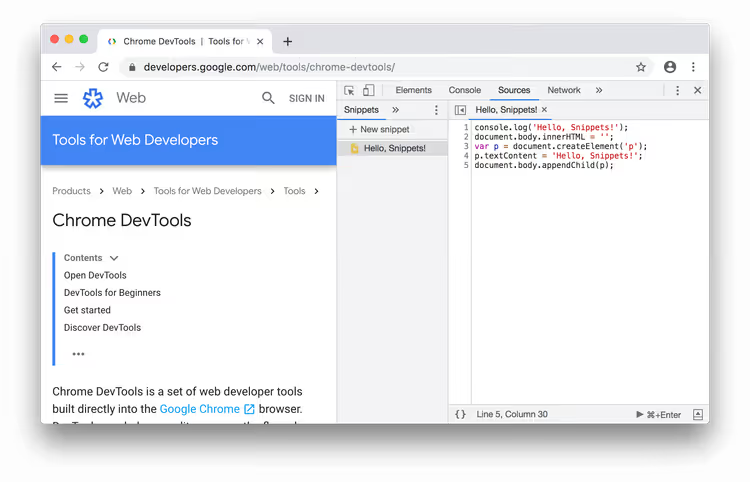
The source code from this example does three things: logs a message to the console, clears document.body, and inserts a new paragraph:
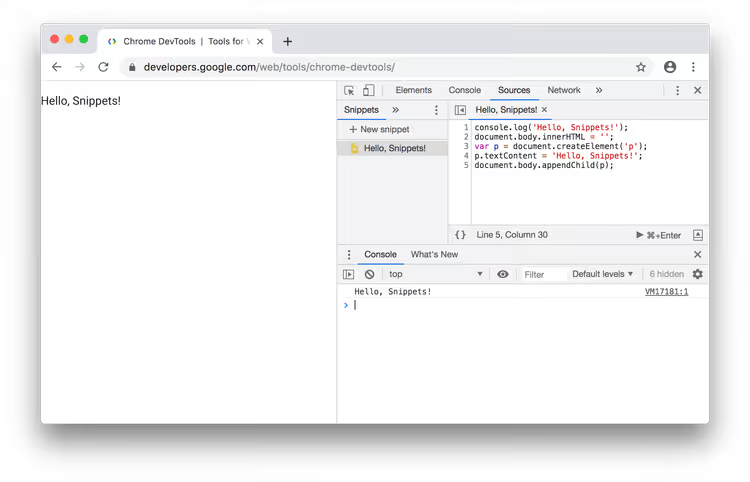
1 console.log('Hello, Snippets!'); 2 document.body.innerHTML = ''; 3 var p = document.createElement('p'); 4 p.textContent = 'Hello, Snippets!'; 5 document.body.appendChild(p);
After running, the page changes completely: Hello, Snippets! appears in the console, and the body content is replaced with a single paragraph.
How to open the snippets panel
The Snippets panel is inside the Sources tab. There are two ways to get there: with the mouse and through the command menu.
Method one: with the mouse
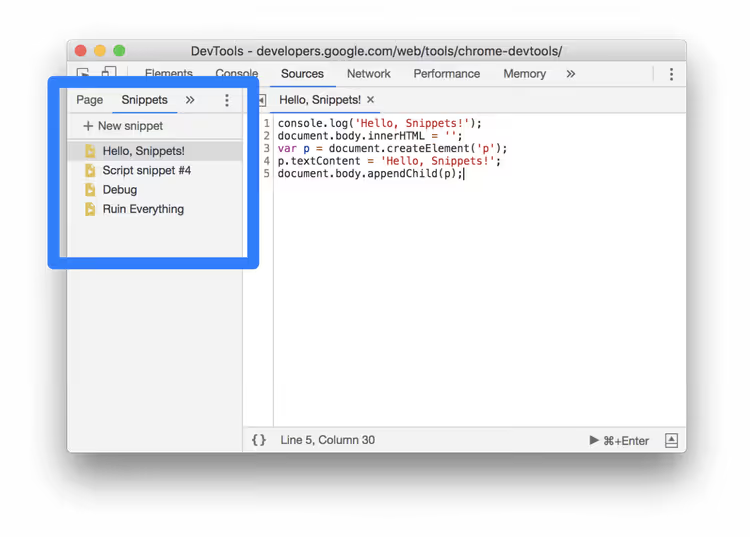
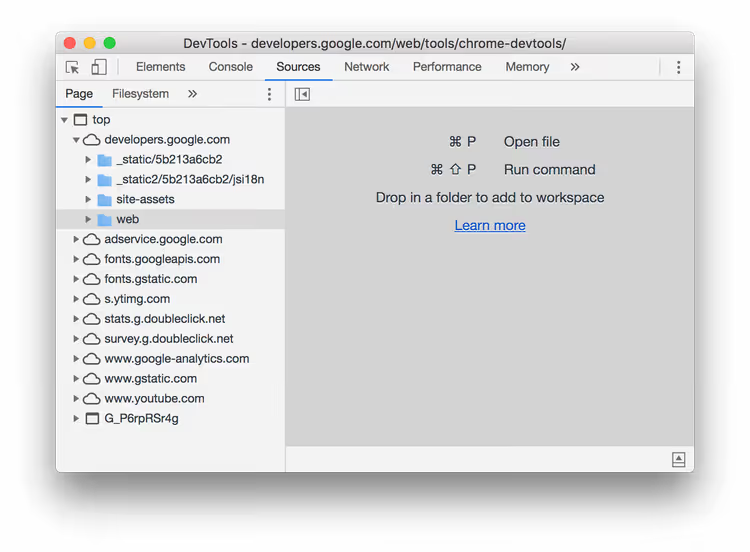
Open DevTools (F12 or Ctrl+Shift+I) and go to the Sources tab. On the left you will see the Page panel with the page's file tree; it is open by default.
Click on the Snippets tab in the same left column. If the tab is not visible, click the More tabs arrow (>>); it will open a dropdown list with hidden tabs, including Snippets.

Method two: command menu
The command menu is the fastest way to navigate DevTools if you remember the shortcut.
- Put focus anywhere inside DevTools.
- Press
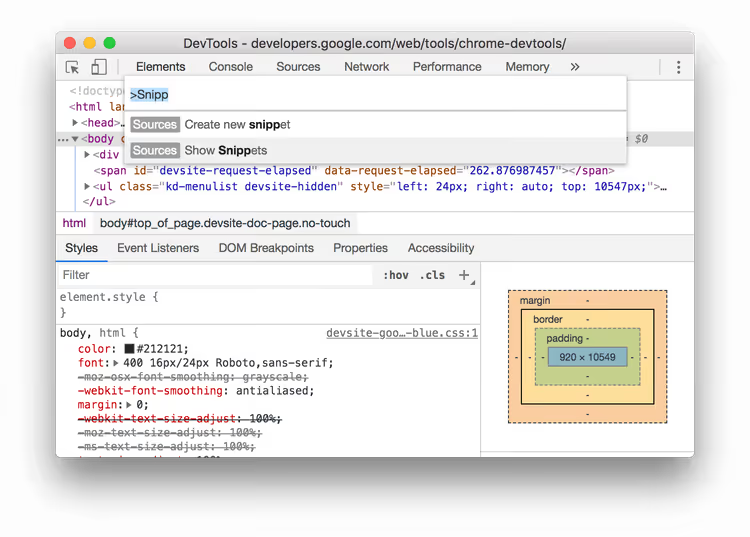
Ctrl+Shift+P(Windows/Linux) orCmd+Shift+P(Mac) to open the command menu. - Start typing
snippetsand select Show Snippets, then pressEnter.
Creating a new snippet
The Snippets panel is open; now let's add the first script.
Through the Sources panel
In the Snippets panel click the New snippet button. Enter the snippet name and press Enter; it will appear in the list on the left.
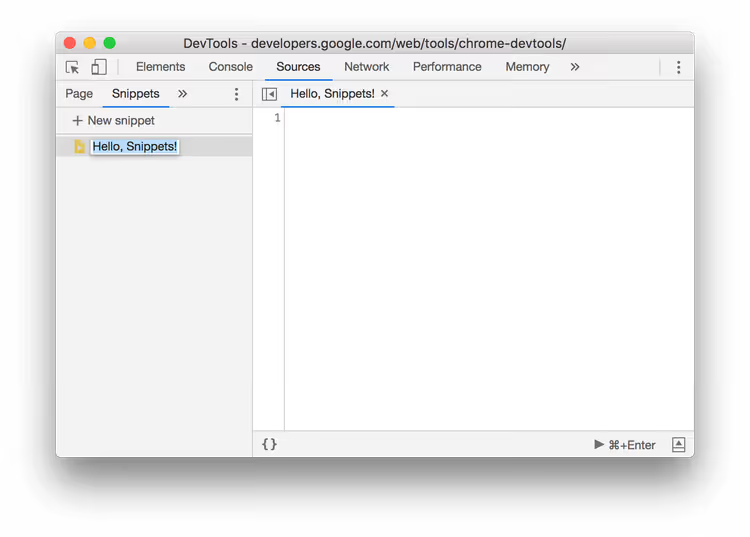
The name should be meaningful; in a month you will not remember what snippet-3 does. Write "clear-page-and-log", "extract-product-prices", or "toggle-dark-mode".
Through the command menu
The same shortcut Ctrl+Shift+P / Cmd+Shift+P, but now type snippet and select Create new snippet, then Enter.
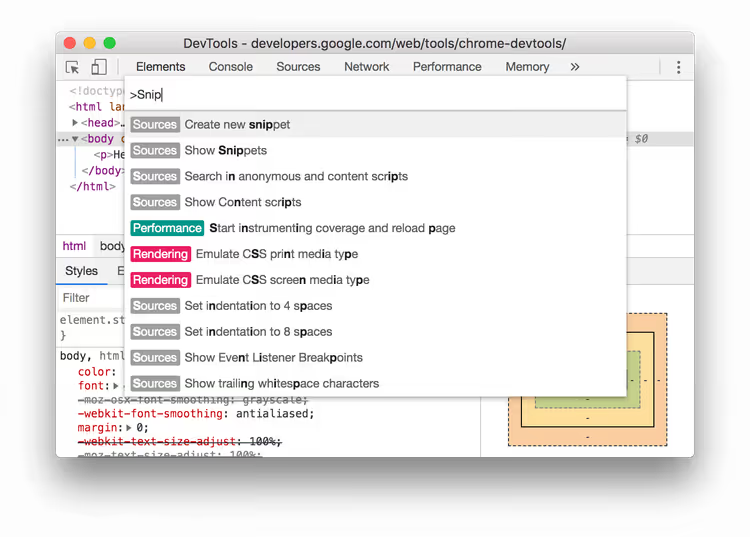
The new snippet is created with a default name; rename it by right-clicking and selecting Rename.
Editing snippet code
Click on the snippet name in the left panel; the code editor will open on the right. This is a full-featured editor with syntax highlighting, line numbers, and autocomplete for JavaScript.
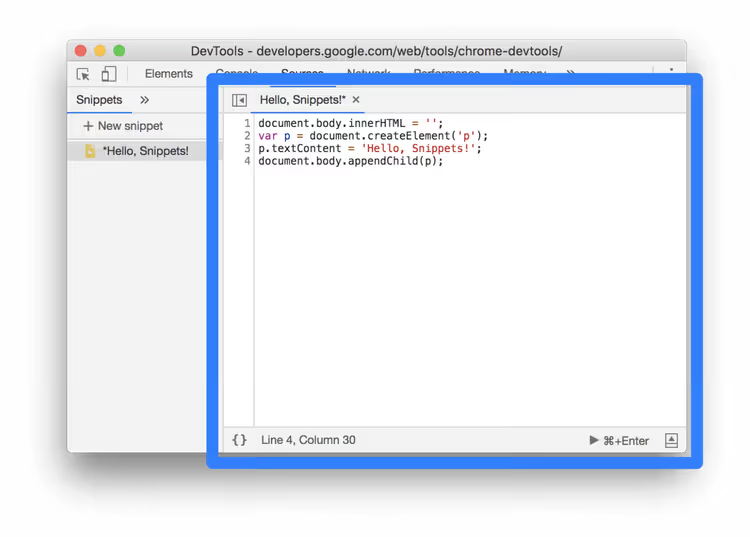
Write code as you would in any editor. All standard browser APIs are available: document and window objects, fetch and console functions, localStorage storage. The full set of what the page sees.
When the code is not saved, an asterisk appears next to the snippet name. Save: Ctrl+S (Windows/Linux) or Cmd+S (Mac).
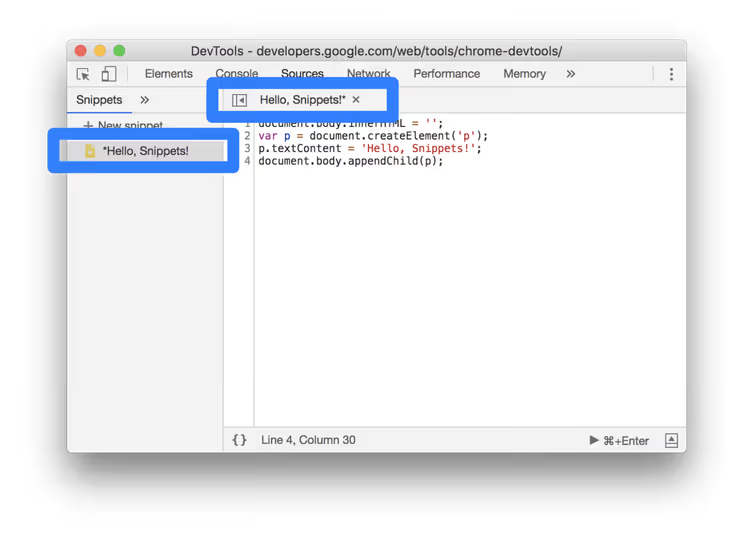
Use Ctrl+Z / Cmd+Z to undo; the change history works within the editing session.
Running a snippet
With the Run button on the Sources panel
Open the desired snippet in the editor. Click the Run button (Play icon) at the bottom of the panel:

Or press Ctrl+Enter (Windows/Linux) / Cmd+Enter (Mac). The snippet will execute in the context of the currently open page.
Through the command menu with an exclamation mark
Open the command menu (Ctrl+Shift+P / Cmd+Shift+P), delete the > symbol, type !, and start entering the snippet name. DevTools will show matching options:
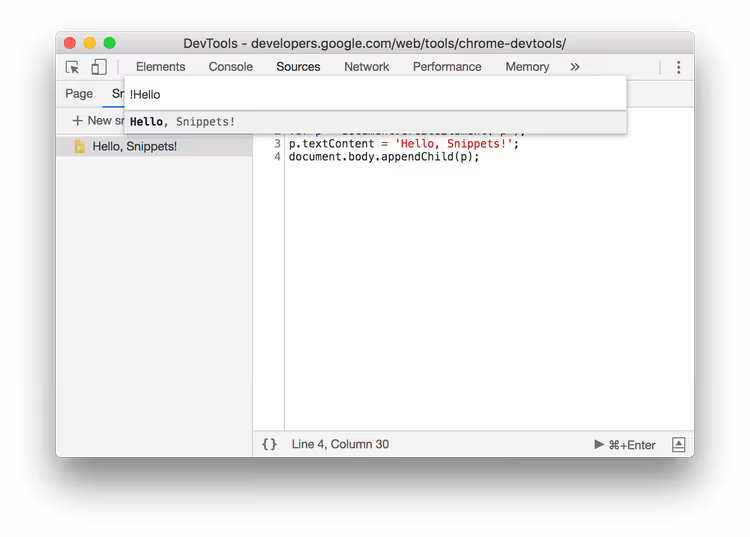
Select the one you need and press Enter. This method is convenient when you do not want to switch to the Sources tab.
Renaming and deleting
Both operations are done from the Snippets panel by right-clicking on the snippet name:
- Rename: set a new name,
- Remove: delete the snippet permanently.
Deletion does not ask for confirmation, so be careful. Before deleting a complex script, copy the code to a text file.
Practical snippet examples
We have covered the theory; now here are several ready-made scripts you can copy, save as a snippet, and use right away.
Clearing a page for a screenshot
Removes all content and inserts a clean white background, useful when taking screenshots for a portfolio or documentation:
1 document.body.innerHTML = ''; 2 document.body.style.backgroundColor = '#fff';
Collecting all links from a page
Extracts all URLs and outputs them to the console as a list. Useful for auditing a page or collecting data:
1 const links = [...document.querySelectorAll('a[href]')]; 2 links.forEach((a, i) => console.log(`${i + 1}. ${a.href} — "${a.textContent.trim()}"`)); 3 console.log(`Всего ссылок: ${links.length}`);
Dark mode on any site
Applies inversion to the entire page, works even where there is no built-in dark theme:
1 document.documentElement.style.filter = 'invert(1) hue-rotate(180deg)'; 2 const imgs = document.querySelectorAll('img, video'); 3 imgs.forEach(el => el.style.filter = 'invert(1) hue-rotate(180deg)');
Highlighting all buttons on a page
Outlines every <button> and input[type="submit"] with a red border, convenient for checking layout:
1 document.querySelectorAll('button, input[type="submit"], [role="button"]').forEach(el => { 2 el.style.outline = '3px solid red'; 3 });
All these snippets can be combined and extended for your own tasks. Save once, use for years.
⁉️🤔 Frequently asked questions
Where are Chrome DevTools snippets physically stored?
Snippets are stored in the Chrome profile in the
Preferencesfile (JSON) at the path%LocalAppData%\Google\Chrome\User Data\Default\Preferenceson Windows or~/Library/Application Support/Google/Chrome/Default/Preferenceson Mac. They are NOT synced through a Google account; when you change computers or reinstall the browser, snippets are lost. To transfer them manually, copy thedevtools.preferences.snippetssection from one Preferences file to another while the browser is closed.
How does a snippet differ from a bookmarklet?
A bookmarklet is a bookmark with a URL starting with
javascript:, limited by URL size (about 2000 characters) and inconvenient to edit. A snippet is a full-fledged editor inside DevTools with no length limits, syntax highlighting, and persistence between sessions. A snippet can also be run with theCtrl+Entershortcut without taking your hands off the keyboard.
Can you run a snippet automatically on page load?
Not directly. A snippet always requires manual execution. If you need automation on load, use a Chrome extension (content script) or Tampermonkey/Violentmonkey with userscripts; they fire on a page load trigger and do not require manual intervention.
How do I back up my snippets before reinstalling Chrome?
Open DevTools, go to Sources → Snippets, right-click each snippet and select Save as; this will save a
.jsfile to disk. Alternatively, openchrome://version/, find the profile path, close Chrome, and copy the JSON sectiondevtools.preferences.snippetsfrom the Preferences file.
Why doesn't my snippet see variables from the console?
A snippet executes in its own scope; it does not have access to variables declared in the console via
var/let/constin the global scope. To pass data, assign a value directly towindow:window.myData = {...}in the console, then readwindow.myDatain the snippet. Or the other way around: the snippet can set data onwindow, and the console can read it.
Is it worth learning snippets in 2026?
Snippets are one of those tools that do not change for years but radically speed up routine work if you do not forget about them. Five minutes spent creating a script for collecting links or clearing a page saves dozens of manual operations every month.
Start with three simple snippets: collecting data from tables on a page, quick DOM clearing for screenshots, and highlighting an element by selector. Save them, and the next time you need to extract data from a third-party site or check the layout, you will be done in seconds instead of spending half an hour copy-pasting.
Just remember to back up: snippets are not synced between devices, and without a copy of the Preferences file, they will disappear when you reinstall the system.

A professional team of writers and editors specializing in creating quality content.