













 AIIllustrative image: AI-generated
🚀 Local overrides in Chrome DevTools: how to set up and use
You edit CSS on a live site, switch to another page, and all changes disappear. Frustrating? Absolutely. The Elements panel in Chrome DevTools is great for quick edits to styles and markup, but until recently any experiments lasted exactly until the first F5. And going back to the code editor, rebuilding, and redeploying just to test a hypothesis is a waste of time nobody enjoys.
Fortunately, Chrome has a built-in mechanism that solves this problem. It's called Local Overrides and allows you to save changes locally so the browser applies them even after refreshing the page. The feature appeared back in Chrome 65, but over the years has gained new capabilities: now you can override not only files but also HTTP response headers, and mock API requests right from the browser.
In this guide, from enabling to tracking edits: everything a developer needs for productive work with local overrides.
💡 Quick overview:
- Enable Local Overrides on the Sources tab and choose a folder to store overridden files.
- Edit CSS, JS or HTML on the Sources tab, changes are automatically saved locally.
- Refresh the page or navigate to another, Chrome continues applying your edits.
- Track diff changes on the Changes tab and manage files through Overrides.
How to enable local overrides
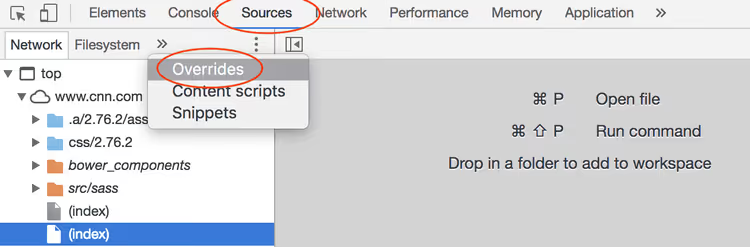
Open DevTools (F12 or Ctrl+Shift+I) and go to the Sources tab. In the left part of the panel find the Overrides tab. If it's not visible, click the >> icon to display hidden tabs.
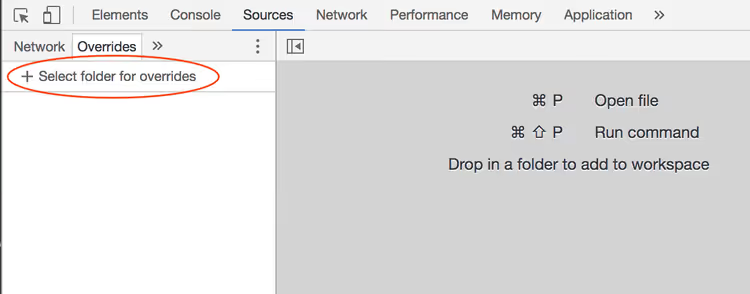
Click the Select folder for overrides button. Chrome will request permission to access the file system, choose an existing folder or create a new one. This is where all overridden files will be stored.
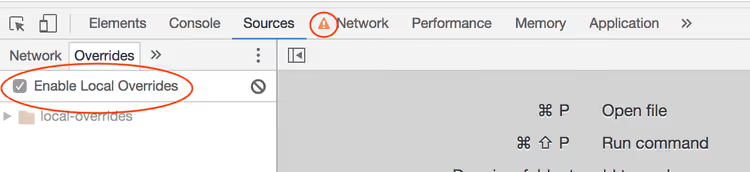
After selecting the folder, the Enable Local Overrides checkbox will turn on automatically. Notice: on the Network tab a warning icon will appear, it signals that some network requests may be intercepted and replaced with local file versions. This is normal and means overrides are active.
How to make and save changes
Now the interesting part, editing. Open any file through the Sources tab: find the needed CSS or JavaScript in the file tree on the left and double-click. Make edits and press Ctrl+S, the file will save to your local folder, and Chrome will start using the local version instead of the server one.
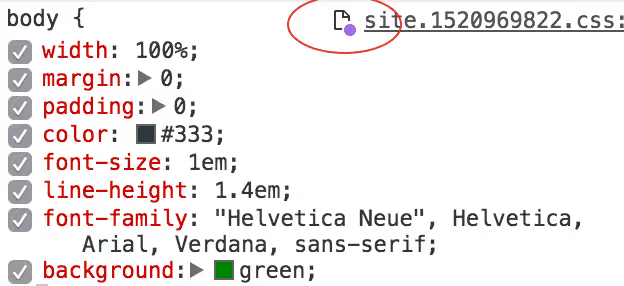
Important nuance: edit markup specifically on the Sources tab, not Elements. The Elements panel is convenient for visual work with the DOM, but HTML changes made in it are not saved as local overrides. Switch to Sources, find the needed HTML file and edit there, a purple dot next to the filename will confirm the file is overridden.
Refresh the page or navigate to another, Chrome will continue applying your edits. Want to restore the original? Delete the file from the overrides folder or uncheck Enable Local Overrides.
Worth mentioning separately is HTTP header overriding, a capability added in later Chrome versions. Go to the Network tab, right-click on a request and select Override headers. Chrome will create a .headers file in your local folder where you can set custom response headers. This is invaluable for testing CORS policies, Content-Security-Policy and caching without server edits.
How to track made edits
When you're actively overriding dozens of files, it's easy to forget what exactly was changed where. For this, DevTools has two useful tools.
The Overrides tab (on the Sources panel) shows a complete list of overridden files grouped by domains. From here you can open any file for further editing or delete an unnecessary override, right-click → Delete.
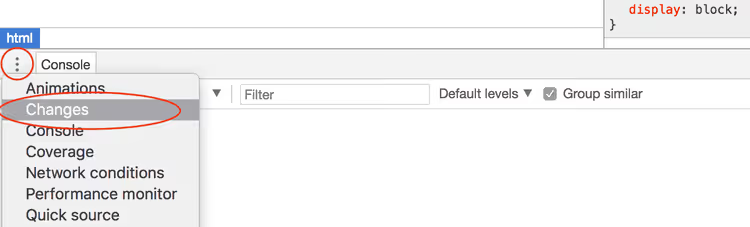
The Changes tab is located in the bottom part of DevTools, next to the Console tab. It shows the diff between the original file and your local version, line-by-line, like in Git. Convenient for quick audit: what exactly you changed in each file and how much the changes differ from the source.

Quick tip: before refactoring or experimenting on a live site, take a snapshot of changes through Changes, this is your local "commit" you can always return to.
Overrides as a performance testing tool
Besides convenient prototyping, Local Overrides open an interesting scenario for performance analysis. You have the ability to change code on a non-local site and immediately measure the impact of these edits on load speed and rendering.
For example, you suspect a third-party analytics script is slowing down first screen rendering. Override the request, replace the original script with an empty file or deferred version, and run Lighthouse. The difference in metrics will clearly show whether the optimization is justified.
Another scenario: fonts. Override the CSS file, removing @font-face for a custom font, and see how much LCP (Largest Contentful Paint) changes. Or experiment with script loading order, move critical JS from <head> to the end of <body> and compare metrics.
Harry Roberts and Umar Hansa, well-known web performance experts, released screencasts with clear examples of this approach. Their demonstrations show: Local Overrides turn the browser into a sandbox for performance hypotheses where each iteration takes seconds, not minutes.
If you work with a local development server, the value of overrides is lower, you already control the sources. But when you need to quickly test an idea on production or on someone else's site without access to the codebase, this tool is indispensable.
⁉️🤔 Frequently asked questions
Are local overrides saved after closing the browser?
Yes, all files are stored in the folder you chose on disk. After restarting Chrome, overrides are automatically picked up, provided the Enable Local Overrides checkbox stayed enabled. The files themselves don't disappear anywhere, since they're regular files in your file system.
Can I override an API response (JSON), not just static files?
Yes, starting from Chrome 117 this works. On the Network tab, right-click on a request and select Override content, Chrome will create a local file with the response body that you can edit. On the next request, the browser will return your local version instead of the server response.
Why do my changes made in the Elements panel reset after refreshing?
The Elements panel edits the DOM in memory, not the source files. For changes to survive
F5, switch to the Sources tab, find the corresponding file and edit it there. Save viaCtrl+S, and Chrome will create a local override.
How do I share local overrides with a colleague?
Just send the contents of the overrides folder. The colleague puts the files in their folder, specifies it in DevTools through Select folder for overrides, and all edits apply on their machine. For team work it's convenient to keep the overrides folder in the project's Git repository.
Can I use Local Overrides in Firefox or other browsers?
Firefox has no Local Overrides analog, saving changes between reloads is not supported. Edge, based on Chromium, has the same functionality as Chrome since it uses the common DevTools codebase. Brave and Opera also support overrides as Chromium browsers.
Why you actually need local overrides
Local Overrides in Chrome DevTools is not just a "convenient feature". It's a way to turn the browser into a full environment for rapid prototyping and hypothesis testing without touching production code. You save "edit → build → deploy → check" cycles and get results instantly.
Try it right now: open any site, enable overrides and change a heading color. Refresh the page. See that the color stayed? That's what this was all about.

A professional team of writers and editors specializing in creating quality content.