














🚀 How to add different PHP versions in Laragon: step-by-step guide
You updated PHP on the server, but locally the project rolls back to a version from five years ago, and half the code throws deprecated warnings. Or the opposite: a client sends you a site on PHP 7.4, but your Laragon only runs the latest 8.5.
Laragon can hold multiple PHP versions simultaneously and switch between them in a couple of clicks. No PATH gymnastics, no conflicts, and no separate installation of a second web server. Below we cover both methods: manual, which works in any Laragon version, and automatic Quick Add for version 8 and newer.
💡 Quick overview:
- Download the ZIP of the needed PHP version from windows.php.net, the archive marked Win32-vs16-x64 for Apache
- Extract the archive to C:\laragon\bin\php, the folder name becomes the version name in the menu
- Switch versions in the tray: right-click the icon, PHP, needed version, restart
- For Laragon 8+ open Tools, Quick Add, PHP, and the program will download and register the needed version itself
Step 1: Download the needed PHP version
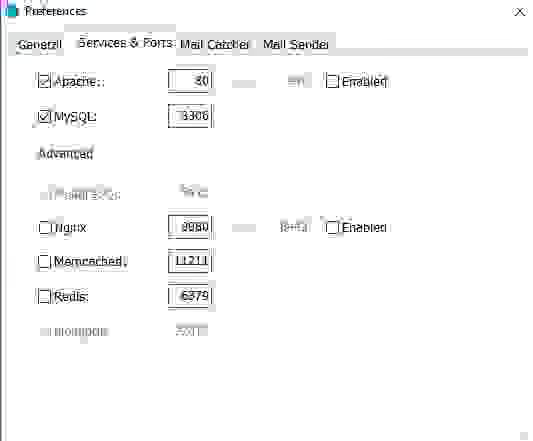
Official PHP builds for Windows are hosted on windows.php.net. Current versions (8.2-8.5) are on the main page. If the project needs PHP 7.4, 8.0 or 8.1, they're in the archive.
When choosing an archive, pay attention to two parameters:
Thread Safe (TS) or Non-Thread Safe (NTS). If PHP runs as an Apache module, get TS. For Nginx, the built-in PHP server or running from the command line, NTS. Laragon uses Apache by default, so in most cases
Win32-vs16-x64will work (orvs17for PHP 8.4+).Architecture.
x64for 64-bit Windows,x86for 32-bit. As of 2026, x64 is practically everywhere.
Example filename for PHP 8.3: php-8.3.31-Win32-vs16-x64.zip. For PHP 8.4 and 8.5 the compiler changed, look for vs17 instead of vs16.
Step 2: Extract the archive to the Laragon folder
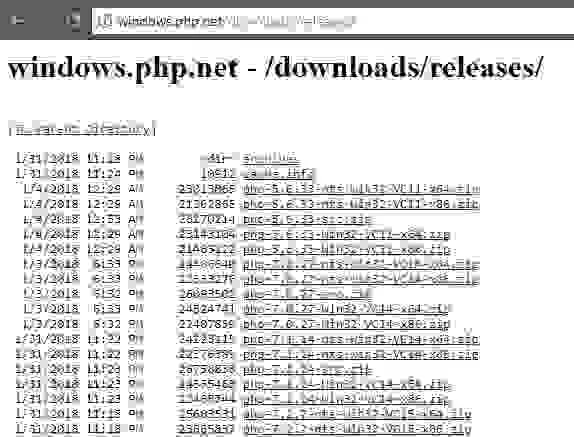
Extract the ZIP to C:\laragon\bin\php\. After extraction you'll have a folder with the version number, for example, php-8.3.31-Win32-vs16-x64. Laragon reads the folder name and shows it in the menu as an available version.
Don't rename the folder. If there's already a nested folder inside the ZIP, take it, not the archive root. The structure after extraction should look like this:
1 C:\laragon\bin\php\ 2 php-8.3.31-Win32-vs16-x64\ 3 php.exe 4 php.ini-development 5 ext\ 6 ... 7 php-8.5.7-Win32-vs17-x64\ 8 ...
Step 3: Switch versions in the tray
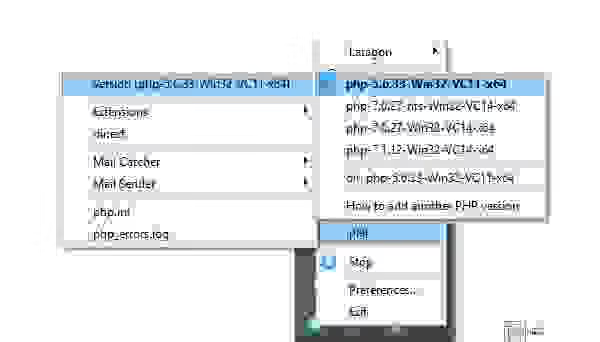
Right-click the Laragon icon in the system tray, hover over PHP and select the just-added version. Laragon will restart Apache with the new version, this takes 2-3 seconds.
Check that the switch worked: open Terminal in Laragon (or any terminal where the path to php.exe from C:\laragon\bin\php\ is set) and run:
1 php -v
In the output you'll see the version number, build date and type (TS/NTS). If the number hasn't changed, check that you selected the version in the menu and restarted Laragon.
Step 4: Quick method via Quick Add (Laragon 8+)
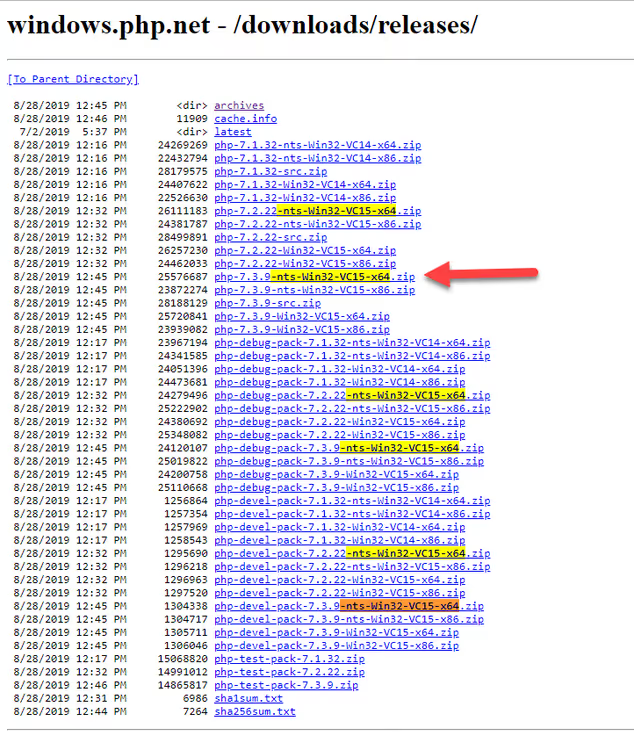
Starting with Laragon 8, Quick Add appeared, a built-in mechanism that downloads, extracts and registers new PHP versions itself. No manual downloads from the site and folder copying.
Open the Laragon menu in the tray: Tools → Quick Add → PHP. A list of available versions appears, from 7.4 to 8.5. Select the one you need, and Laragon will do the rest. In a minute the version will appear in the PHP menu and be ready to switch.
This method is preferable: it excludes errors with choosing TS/NTS and architecture. Quick Add determines the suitable variant for your system itself.
Visual process: video
A short video where the entire process is shown from start to finish, from downloading PHP to switching versions in real time:
⁉️🤔 Frequently asked questions
What's the difference between NTS and TS, which version should I download?
For Laragon with Apache, get Thread Safe (TS, in the filename without
nts). Apache loads PHP as a module, and the TS build ensures thread safety with parallel requests. Non-Thread Safe (NTS) is needed if you use Nginx or run PHP from the command line. In practice with Laragon, downloadWin32-vs16-x64for PHP 8.0-8.3 andWin32-vs17-x64for PHP 8.4+.
Can I keep PHP 7.4, 8.2 and 8.5 in Laragon simultaneously?
Yes, that's exactly what multi-versioning is for. Dozens of versions can sit in the
C:\laragon\bin\php\folder, there are no conflicts between them because Apache uses only one at any given moment. Projects on different versions don't interfere with each other if you don't run them simultaneously under one web server.
I added a version but it doesn't appear in the PHP menu. What's wrong?
First: check that
php.exeis inside the version folder (and not another nested folder). Second: restart Laragon completely, Stop, then Start All. Third: the folder name must differ from existing ones, if you already havephp-8.3.31, don't create a second identical one. And fourth: Quick Add registers the version itself, if you downloaded manually and then with the same number via Quick Add, the old folder will be overwritten.
What to do if after changing PHP version the project still sees the old one?
Open Terminal in Laragon (right-click the icon → Terminal) and run
php -v, it will show the version the console sees. If it's correct but the site shows a different one, clear the browser cache and check ifphp.iniis cached with a different value. Sometimes a complete Apache stop and restart helps.
Do I need to restart the computer after adding a version?
No. Laragon only restarts Apache, this takes 2-3 seconds. Windows reboot may be needed only in one case: if you manually added the path to
php.exeto the system PATH and Windows cached the old path. But with normal Laragon use this isn't required.
Is it worth updating Laragon for multi-versioning?
If you're still on Laragon 6 or 7, updating to version 8.6 gives more than just Quick Add. The package includes PHP 8.1-8.5 out of the box, Apache 2.4.66, MySQL 9.6 and auto-updates of components through the menu. Moving from WAMP or XAMPP is also straightforward: the official instructions describe migration in 5 minutes.
For projects tied to a specific PHP version, Laragon's multi-versioning is one of the main arguments in its favor. You switched, checked, went back, and not a single site broke.
Start with Quick Add: open Tools → Quick Add → PHP and install the missing version in a minute. And if you have a proven lifehack for working with PHP versions in Laragon, share in the comments.

A professional team of writers and editors specializing in creating quality content.