













 AIIllustrative image: AI-generated
🛡️ How to add reCAPTCHA to WordPress comments: step-by-step guide
Comment spam isn't an annoyance, it's work. Every morning you log into the admin panel and instead of discussions you see dozens of messages about "buy cheap SEO" and "crypto earnings". Manual moderation eats up half an hour daily, and disabling comments kills activity and the page's SEO signal.
The situation is getting worse: bots are getting smarter, and WordPress, the most popular CMS in the world, and spammers know this better than we do. The built-in anti-spam filter Akismet according to Automattic data blocks 7.5 million spam messages every hour, and some still gets through.
Google reCAPTCHA closes this gap in 15 minutes. A free "I'm not a robot" checkbox under the comment form, and bots are cut off, while real readers pass the check in a second without even noticing it. Let's go through the installation step by step.
💡 Quick overview:
- Register your site in Google Cloud Console and get Site Key and Secret Key
- Install the free plugin Advanced Google reCAPTCHA (200,000+ active installs, 4.8 rating)
- Insert the keys into the plugin settings and enable comment protection
What Google reCAPTCHA is and why you need it
Google reCAPTCHA is a technology that distinguishes a real person from a bot without puzzles and riddles. The abbreviation stands for "Completely Automated Public Turing test to tell Computers and Humans Apart", a fully automated Turing test to separate humans and machines.
In 2009, Google bought the technology from Carnegie Mellon University and reworked it. Today the check for the user looks like a single click on the "I'm not a robot" checkbox. Google analyzes behavioral signals, mouse movements, timings, browser history, and makes a decision instantly. If the algorithm has doubts, it shows an additional task: "select all squares with traffic lights". For a human it's trivial, for a bot, a wall.

Important point: at the end of 2025, Google migrated reCAPTCHA to the Google Cloud platform. The old google.com/recaptcha/admin console no longer works, now keys are created through Google Cloud Console. The free limit changed: up to 10,000 checks per month without payment, above the limit you need a linked card. For an average blog this is enough with a margin.
reCAPTCHA protects not only comments, login form, registration, password reset, WooCommerce, Easy Digital Downloads, BuddyPress. And it shows only to non-logged-in visitors: regular readers and authors simply don't see it.
Step 1: get API keys in Google Cloud Console
Without keys the plugin won't work, this is the first thing you need to do.
Previously keys were obtained at google.com/recaptcha/admin, but after the 2025 migration the process goes through Google Cloud Console. Go to console.cloud.google.com, log into your Google account and create a new project (or select an existing one). In the side menu find APIs & Services → Library, in the search bar enter reCAPTCHA Enterprise and enable the API.
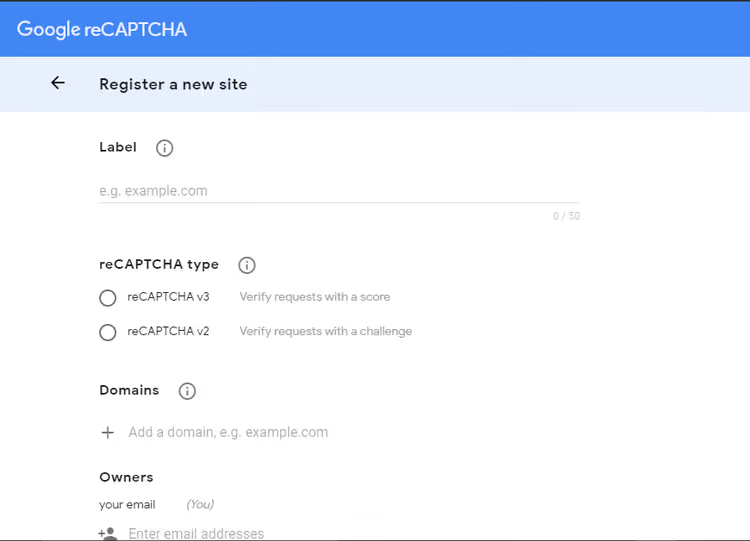
Then go to the reCAPTCHA section in the side menu and click Create key. Fill out the form:
- Label, any name for your convenience, for example "TechBlog Blog". Useful if you have multiple sites.
- reCAPTCHA type, select v2, then the "I'm not a robot" Checkbox option. This one gives the checkbox.
- Domains, enter the domain without
https://andwww, for exampletechblog.sdstudio.top. Through the+button you can add subdomains, keys will work on all of them.
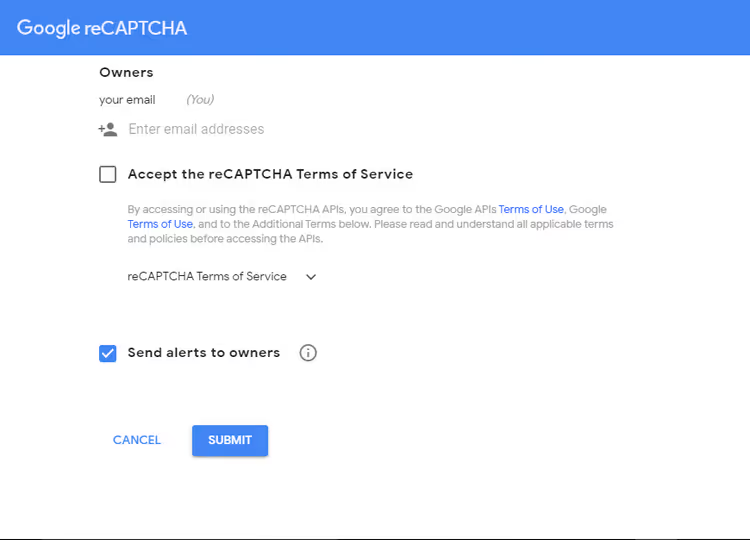
Check both boxes: "Accept the reCAPTCHA Terms of Service" and "Send alerts to owners", Google will send an email if there's suspicious activity or incorrect configuration.
Click Submit. Google will show a success message and give you two keys:
- Site Key, public, inserted into the plugin;
- Secret Key, private, don't show it to anyone.
Copy both. You'll need them in a minute.
Step 2: install and configure Advanced Google reCAPTCHA plugin
In WordPress go to Plugins → Add New, enter Advanced Google reCAPTCHA in the search and find the plugin by WebFactory Ltd. This is the most popular free reCAPTCHA plugin in the catalog: 200,000+ active installs, 4.8 out of 5 rating based on 429 reviews, version 5.39 (updated 6 days ago), tested up to WordPress 7.0.
Click Install, then Activate.
After activation, the Settings → Advanced Google reCAPTCHA item will appear in the admin side menu. Open it.

Insert Site Key and Secret Key into the corresponding fields and click "Save your Google reCAPTCHA API keys pair".
Step 3: enable reCAPTCHA for comments
On the same settings page find the "Enable for Comment Form" toggle and turn it on. The plugin allows you to independently enable protection for each form:
- login (
Login Form); - registration (
Registration Form); - password reset (
Reset Password Form); - comments (
Comment Form); - WooCommerce, Easy Digital Downloads, BuddyPress.

Enable the forms you need. You can set separate settings for each one. At the very bottom of the page click "Save Changes".
Done. The "I'm not a robot" checkbox will appear under the comment form. You can check this in incognito mode, reCAPTCHA is not shown to logged-in users.
Video: step-by-step reCAPTCHA installation on WordPress
A short 2-minute guide through all three steps, from key registration to activation on a live site:
What else to do for spam protection
reCAPTCHA is powerful, but not the only line of defense. Here are three additional measures that close the remaining spam:
- Enable comment moderation. In Settings → Discussion check the box "Comment must be manually approved". This is the final control: no comment will appear on the site without your approval.
- Use Akismet. The free anti-spam plugin from Automattic comes bundled with WordPress. Enabled with one click, filters spam at the server level, before the message gets into the moderation queue.
- Set up a blacklist. In the same discussion settings there's a "Disallowed words" field. Comments with any word from the list are automatically sent to trash.
The combination of reCAPTCHA + Akismet + moderation closes almost all spam without harming real discussion. We covered this topic deeper in the article about 18 ways to stop spam comments in WordPress, which also covers the honeypot method, disabling comments on old posts and other advanced techniques.
⁉️🤔 Frequently asked questions
Is Google reCAPTCHA free in 2026?
After the migration to Google Cloud at the end of 2025, the free limit is 10,000 checks per month. For a typical blog or small online store this is enough with a margin. Above the limit you need a linked card in your Google Cloud account, and Google starts charging for each additional thousand checks. Without a card, when exceeding the limit reCAPTCHA simply stops working until the beginning of the next month. For an average WordPress blog this covers all comment, login and registration activity. It's worth linking a card anyway: if the limit is accidentally exceeded (for example, bots attack the form), reCAPTCHA won't turn off in the middle of the month.
Is reCAPTCHA visible to logged-in users?
No. The Advanced Google reCAPTCHA plugin by default hides the captcha from authorized users: administrators, editors, authors and subscribers. You can change this behavior in the settings, but in practice it's not needed. Regular readers and authors don't see it at all. You can only check the captcha's operation in incognito mode or by logging out.
Does reCAPTCHA slow down page loading?
Practically no. The reCAPTCHA script loads asynchronously and only on pages with a protected form. The size, about 100-150 KB, is delivered through Google's global CDN network. Time to interactive (TTI) increases by 100-300 ms, the user doesn't notice this delay. The real impact on speed is unnoticeable to the visitor and insignificant for Core Web Vitals metrics.
Can you install reCAPTCHA without a plugin?
Technically yes, through manual insertion of the Google API script in
functions.phpandcomments.phpof the theme. But that's 20-30 lines of code that will have to be updated when changing the theme and WordPress version. The plugin provides a graphical interface, automatic updates and independence from the template: you updated the theme, the protection stayed in place. Manual insertion requires editing three theme files and repeating this work with each major WordPress update. 200,000+ plugin users chose not to complicate things.
Does reCAPTCHA block all spam?
The vast majority, yes. There's no absolute guarantee: there are manual captcha entry farms where people for pennies pass checks in real time. But for an average WordPress blog, reCAPTCHA in combination with Akismet cuts off almost everything. The remaining single messages are easily finished off by manual moderation. Automatic spam is cut off completely. What remains, targeted attacks on a specific site or manual spam through captcha farms. The combination of reCAPTCHA + Akismet + moderation reduces the share of spam reaching readers to almost zero.
To install reCAPTCHA or not: a short verdict
Definitely install it. It's free for the vast majority of sites, takes 15 minutes and solves the spam problem at the root, without inconvenience for readers.
If comments are important to you, and for a blog they're always important: activity in discussions is both social proof and a signal for search engines, reCAPTCHA should be installed from day one. Paired with Akismet it closes almost all spam automatically.
The combination of three tools, reCAPTCHA, Akismet and manual moderation of the first couple of comments, works like clockwork. Install it today: 15 minutes now saves hours every month. What anti-spam method helps you, write in the comments.

A professional team of writers and editors specializing in creating quality content.