













 AIIllustrative image: AI-generated
🖼 How to add different backgrounds for WordPress posts and pages
The standard WordPress theme looks clean, but after a month of use you start wanting a bit more individuality. A colored background for a key page or a background image for specific posts is a simple way to make content stand out visually without redesigning the entire site.
You can accomplish this in three ways: a couple of lines of CSS, a small PHP snippet, or a ready-made plugin. None of these methods require deep knowledge of front-end development; you just need to know where to insert the code.
Below we examine all three methods with specific code fragments, file locations, and an honest look at potential pitfalls.
💡 Quick overview:
- Open header.php and find the
body_class()function. It generates unique CSS classes for each page and post, allowing you to target backgrounds down to a single post. - Add a CSS rule with the appropriate class to style.css. The background will apply only to the target page or post without affecting the rest of the site.
- Create a custom field and add a PHP snippet to functions.php. The background will be set via an image URL directly from the WordPress admin, without manually editing CSS.
How to add a background via CSS and body_class
WordPress automatically assigns a set of CSS classes to the <body> tag through the body_class() function. Among these are unique identifiers for specific posts or pages, allowing you to target backgrounds with surgical precision.
Make sure your theme calls body_class(). Open Appearance → Theme File Editor and find the header.php file:

Inside header.php, find the opening <body> tag. Next to it should be the function:
1 <body <?php body_class(); ?>>
If you see just <body> without the function, add it. Most modern themes already include this call, but it's worth checking.
Now open any page on your site and view its source code (right-click → View Page Source in Chrome). For a single post you'll see something like this:
1 <body class="single single-post postid-1 single-format-standard logged-in">
For a page the output will be different:
1 <body class="page page-id-2 page-template-default logged-in">
Here are the key classes you can target with CSS:
.single, all single posts. Any style applied to this class will affect every blog post..postid-N, one specific post with ID = N. Ideal for pinpoint styling..page, all pages on the site..page-id-N, a specific page with ID = N..single-format-standard, posts with the standard format..logged-in, applies only to logged-in users (useful for debugging).
Now add CSS to your theme's style.css file. For example, to set a black background for all posts:
1 .single { 2 background-color: #000; 3 }
And to set a background image for a specific page with ID 2:
1 .page-id-2 { 2 background-image: url('/wp-content/uploads/2026/01/my-background.jpg'); 3 background-size: cover; 4 background-position: center; 5 }
You can find the page or post ID in the admin: open the list of pages, hover over the title, and you'll see post=2 or a similar number in the browser status bar. In the Gutenberg editor the ID appears in the URL: post.php?post=2&action=edit.
The advantage of this method is its simplicity: you don't touch PHP, you don't install plugins, and you know exactly which class does what. The downside is that when you change themes all styles from style.css will be lost unless you're using a child theme.
How to set a background via a custom field and PHP
If you need to change the background image directly from the admin without diving into CSS each time, the custom field method works well. You create a field for the image URL, and a small PHP snippet in functions.php inserts it into the background-image attribute.
Add the following code to the functions.php of your active theme. If you're using a third-party theme, be sure to use a child theme; otherwise changes will be lost on updates:
1 <?php 2 /** 3 * Adds an inline style for body background via a custom field. 4 * Replace 'myprefix' with your own unique prefix. 5 */ 6 function myprefix_custom_field_background() { 7 $background = get_post_meta( get_the_ID(), 'myprefix_background_image', true ); 8 if ( $background ) { 9 ?> 10 <style type="text/css"> 11 body { 12 background-image: url( "<?php echo esc_url( $background ); ?>" ); 13 } 14 </style> 15 <?php 16 } 17 } 18 add_action( 'wp_head', 'myprefix_custom_field_background' );
The function hooks into wp_head, and the inline style is inserted into the page's <head>. esc_url() sanitizes the URL to remove potentially dangerous characters, while get_post_meta() retrieves the field value for the current post.
Now open any post or page in the admin, find the Custom Fields block, and create a field named myprefix_background_image. Paste the full URL of the background image as the value. Save, and the background will apply only to this post.
If the custom fields block isn't visible: open the editor, click the three dots in the upper right corner → Preferences → Panels and enable "Custom Fields."
Note: the image must already be uploaded to the WordPress Media Library; use the direct link to the file, not the attachment page.
Plugins for backgrounds: when code isn't your thing
CSS and PHP cover most tasks, but if you prefer a visual approach, here's what's available on the market.
WP-Backgrounds Lite: history and takeaways

WP-Backgrounds Lite was a popular free solution for backgrounds several years ago. The plugin let you set different backgrounds for posts, pages, and custom post types, and included support for slideshows and video backgrounds. However, since June 2021 it has been closed in the WordPress.org directory with a "Security Issue" notice, and several independent reviews pointed to injected hidden links in site code.
The main lesson: for tasks that can be solved with a couple of lines of CSS, installing an unverified plugin isn't worth it. But if you do need a plugin, check the last update date and the number of active installations.
Custom Backgrounds: a commercial approach

The Custom Backgrounds plugin by RightHere on CodeCanyon gives full control: backgrounds for posts, pages, taxonomies, and archives, parallax effects, timers, and multiple backgrounds per page. The plugin is paid, with the option to preview before purchasing.
The downside: the author hasn't updated the product in several years, so compatibility with current WordPress versions is questionable. For a one-off project it's a working solution; for a long-term site you're better off looking at actively maintained alternatives.
Video and parallax backgrounds for WPBakery
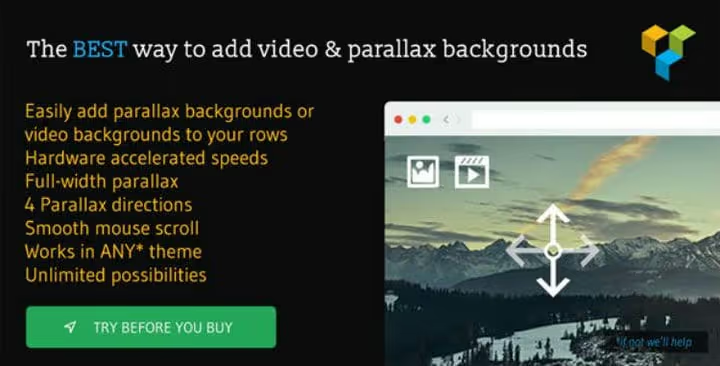
If you use WPBakery Page Builder (formerly Visual Composer), the Parallax & Video Background addon by MegaMain adds full video backgrounds and parallax scrolling directly in the builder interface. YouTube, Vimeo, and uploaded MP4/WebM are supported, along with four parallax directions and the ability to disable the effect on mobile.
Parallax scrolling is when the background image moves at a different speed relative to the foreground. It looks impressive, but on mobile devices it often stutters, so the ability to disable the effect for smartphones is critical here.
The addon works inside WPBakery: you simply add a background to a row or column through the familiar interface, without a separate menu. The price is a one-time purchase on CodeCanyon, and updates are released regularly.
A short video on the topic: adding a background image to individual pages and blocks in WordPress. It works as a supplement to the methods described above, with the entire process shown on a real site.
⁉️🤔 Frequently asked questions
Can I set different backgrounds for different post categories?
Yes, if your theme adds a category class via
post_class()in the output loop. This usually looks like.category-newsor.category-portfolio. Open the source code of the category archive page and find the class in the<article>tag. Then it's a standard CSS rule in style.css. Alternatively: the conditional taghas_category()in a PHP snippet.
What should I do if the body_class() function is missing from header.php?
Add it manually to the opening
<body>tag: replace<body>with<body <?php body_class(); ?>>. If header.php is not available for editing (the theme is locked), create a child theme, copy the parent theme's header.php, and make the edit in the copy.
The background isn't displaying after adding CSS. What's the reason?
Three common causes: (1) browser cache, open the page in incognito mode; (2) another CSS selector is overriding your background, check in Developer Tools (F12) to see if your rule is crossed out; (3) the image path is incorrect, use an absolute URL from the site root with a leading slash.
Is it mandatory to use a child theme for edits to functions.php?
Highly recommended. Direct edits to the parent theme's
functions.phpwill be lost on the first theme update. A child theme isolates your changes: create a folder, add astyle.csswith a header and afunctions.phpwith your code. It takes five minutes and saves hours during updates.
What can replace WP-Backgrounds Lite today?
For simple backgrounds the CSS method from this article fully covers the functionality of the discontinued plugin. If you need a visual interface, use the Cover block in Gutenberg: it provides a background image with text overlay for any page or post. For parallax and video backgrounds, use the WPBakery addon from the review above.
Takeaways: which method to choose for your task
Choosing a method comes down to two questions: how often you change backgrounds and how comfortable you are editing code.
- If you need to set it once and forget it, use CSS via
body_class(). Two lines in style.css, zero plugins, works on any theme. - If the background changes regularly for different posts, use a PHP snippet with a custom field. Upload an image to the Media Library, paste the URL into the field, done.
- If you work in WPBakery and need video backgrounds, use the Parallax & Video Background addon.
- If you don't want to touch code at all, the built-in Cover block in Gutenberg covers most background image tasks without a single plugin.
Start with CSS (it takes five minutes and involves no risk). And if you use a non-standard technique with backgrounds that we didn't cover, share it in the comments.

A professional team of writers and editors specializing in creating quality content.