













 AIIllustrative image: AI-generated
📺 How to view photos from a Plex server on a Samsung Smart TV: a step by step guide
💡 How to view photos from Plex on Samsung TV
- Install Plex Media Server on your computer or NAS and start it
- In the server web interface, add a library of type "Photos" and specify the folder containing your photos
- Install the Plex app from Samsung Apps on your TV and sign in to your account
- Open the photo library in the Plex app on your Samsung TV
- Select an album, year, and folder, then open a photo and start the slideshow using the Play button
Step 1. Launching the Plex app on Samsung Smart TV
First, open the platform itself. Press the "Smart TV" button (also called "Home" or "Menu" depending on your remote model) on your Samsung remote control. The main Smart Hub will open with all your installed apps.
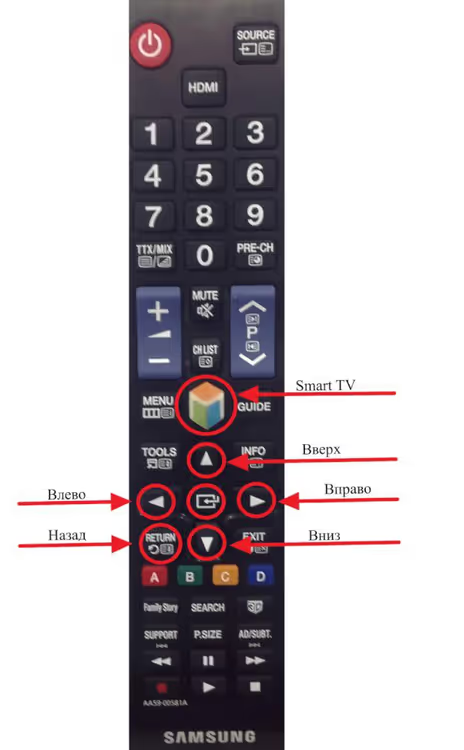
Find the Plex app icon in the list. If you haven't installed it yet, open Samsung Apps (the TV's app store), search for "Plex" and install it. The app is free, but for full functionality you'll need Plex Media Server on your computer or NAS.

After launching Plex, you'll see your media library: movies, TV shows, music, and photo albums that you've added to Plex Media Server. Navigate the menu using the remote's arrow buttons; select items with the center "Enter" button.
Step 2. Selecting a photo album in the Plex library
In the left sidebar of the Plex app, find the photos section. If you've already created a photo library on the server, it will appear here with the name you assigned. In our example, the album is called "BPS Photos"; yours will have whatever name you gave it when setting up the library on Plex Media Server.
Highlight the desired album and press the center button on your remote to enter.
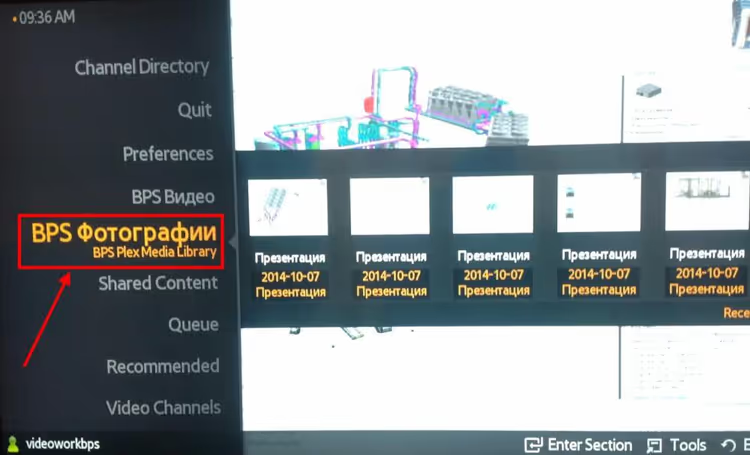
If no albums appear, verify that you've created a library of type "Photos" on your Plex Media Server and added a folder with images to it. The server automatically scans the contents and makes them available on all devices, including your TV.
Step 3. Navigating to the "All Photos" folder
Inside the photo album, you'll see several navigation options. Click "All Photos": this option opens the complete list of all photos in the library, grouped by folders and dates. This is the fastest way to reach the photo you need.
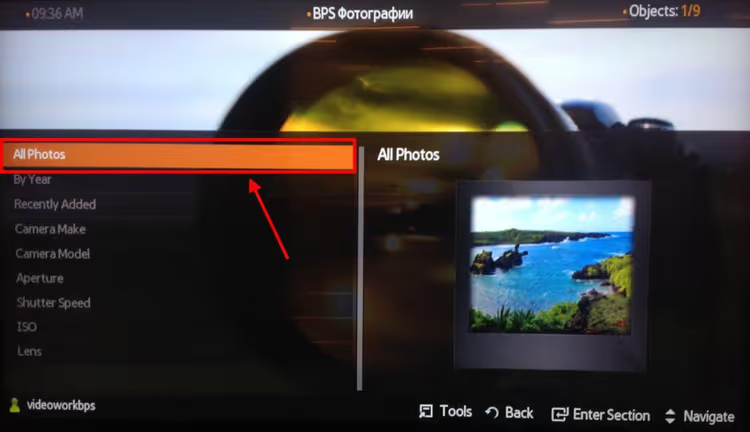
Plex automatically reads EXIF data from images: capture date, geotags, and orientation. Thanks to this, photos are sorted chronologically even when filenames are just random strings of numbers from the camera.
Step 4. Selecting the year photos were added
The next screen groups photos by year. Select the folder corresponding to the period you need. This is convenient when your library has grown over many years: you don't have to scroll through thousands of photos in one pile, as Plex organizes everything by year automatically.
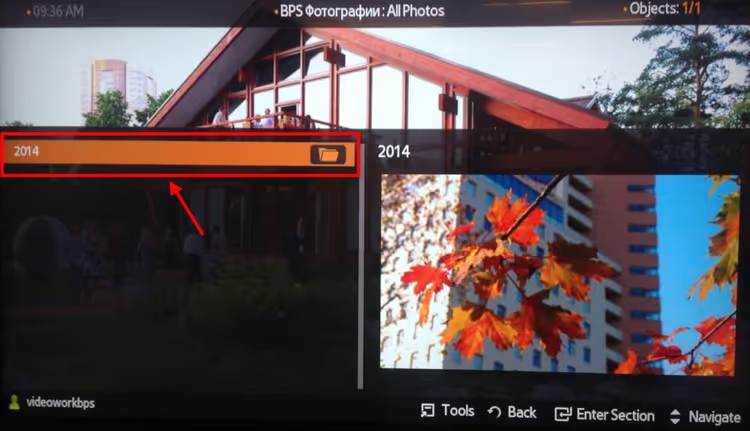
The year is determined by EXIF metadata, not by the file date on disk, so even old scanned photos end up in the correct group if they have the correct capture date embedded.
Step 5. Selecting the folder with specific photos
Inside a year, you'll see subfolders if your server had a nested structure, or a thumbnail grid immediately. Select the folder containing the photos you're looking for. Plex generates thumbnails automatically during the first library scan, so previews load quickly even for RAW files and high-resolution images.
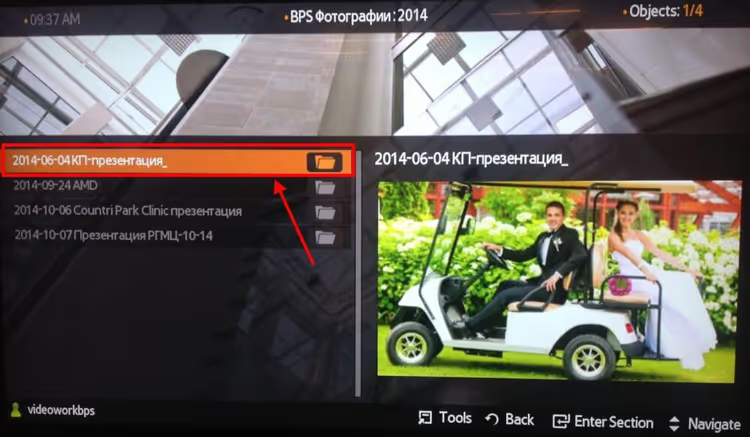
Navigate the grid using the remote's arrow buttons. When you hover over a thumbnail, it highlights, and if you pause for a couple of seconds, it opens in full screen without an additional button press (available in recent versions of the Plex app on Tizen).
Step 6. Viewing photos and starting a slideshow
Select any photo and press the center button; the image will open in full screen. The quality is original: Plex does not recompress images during streaming (unlike DLNA alternatives such as Samsung's built-in media player).
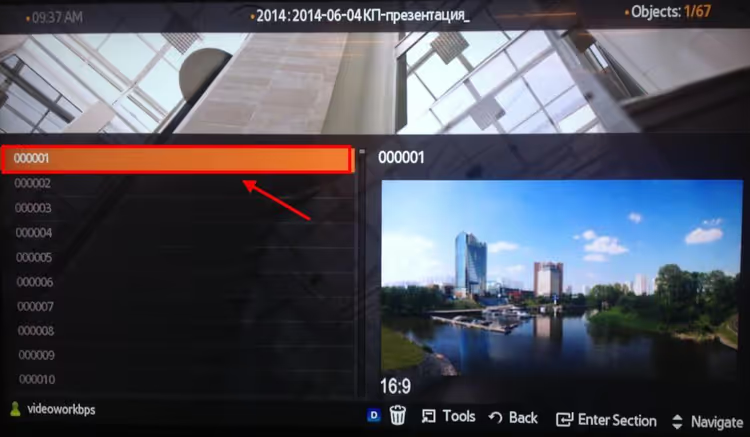
Important update: early versions of the Plex app for Samsung TV (before approximately 2021) did not support automatic photo slideshows, requiring manual scrolling. In current versions, slideshows work: press the Play (▶) button on your remote, and Plex will start sequential playback of photos in the current folder with a configurable interval. To adjust the interval, go to the Plex app settings on your TV: Settings → Experience → Photo Slideshow Speed and choose a comfortable pace (from 2 to 30 seconds per image).
Since September 2024, Plex has been developing a separate Plex Photos app (beta) for iOS and Android: a lighter, more focused client specifically for working with photo libraries, without the "heavy" media interface. Viewing on a big screen is still only available through the main Plex app, but the direction is right: photo features are becoming a first-class capability rather than an add-on to movies and music.
⁉️🤔 Frequently asked questions
Plex doesn't see my photos on the TV. What's wrong?
Verify that you've created a library with the type "Photos" on your Plex Media Server (not "Movies" or "Other Videos"). Go to the server web interface → Settings → Manage → Libraries → Add Library → select the Photos type, specify the folder with images, and click Save. The server will scan the folder, and within 1-2 minutes the photos will appear in the app on your TV.
Can I view photos from my phone directly on Samsung TV through Plex without a server?
Not directly: Plex always requires a running Plex Media Server as an intermediary. However, you can install the server on the same computer or NAS and automatically upload photos from your phone via Plex Photos (beta) or Camera Upload (a Plex Pass feature). After syncing, the photos will be available on all devices including your Samsung TV.
Why does the slideshow start but photos switch too quickly?
The default interval is 3 seconds, which is too short for viewing family photos. Go to Settings → Experience → Photo Slideshow Speed in the Plex app on your TV and set it to 8-10 seconds. This setting is saved for all future sessions.
How is Plex for photos better than Samsung's built-in media player?
Three main differences: 1) a unified library across all devices (TV, phone, tablet, browser) without copying files to a flash drive; 2) EXIF reading and sorting by capture date rather than filename; 3) no recompression: original image quality without the artifacts typical of DLNA streaming.
I have an older Samsung TV (pre-2018). Will Plex work?
Samsung models with Tizen OS (2017+) support the current version of the Plex app. For older TVs (2015-2016, Orsay OS), the app may not be available in the store. An alternative would be an external device: an Android TV box, Apple TV, or Roku with the Plex client installed.
The bottom line: is Plex for photos on Samsung TV worth the effort?
If you already have Plex Media Server running for movies and TV shows, adding a photo library takes two minutes and requires no additional software or costs. You get a convenient catalog with sorting by dates, geotags, and albums on a big screen, without flash drives, cables, or quality degradation.
Slideshows work in current versions, and Plex Photos signals that the photo direction is not a secondary feature for the platform but a full-fledged product with its own roadmap. However, if you don't have a Plex server yet, weigh the effort required to set one up: for simple photo viewing from a flash drive, Samsung's built-in media player may be sufficient. The choice is yours.

A professional team of writers and editors specializing in creating quality content.