













 AIIllustrative image: AI-generated
🔌 Plex on Samsung Smart TV: step by step setup and troubleshooting
You've built up a couple of terabytes of home media, set up Plex Media Server on a NAS or an old laptop, and now you want to watch it all from the couch on your big Samsung screen. Makes sense. That's what you bought the TV for.
But the first attempt to open Plex on Samsung often ends with a "Server unavailable" error or endless buffering. The problem isn't your server or your TV. It's just that Tizen, Samsung's operating system, doesn't play nice with Plex's secure connections out of the box, and the app defaults to transcoding even content the TV can handle directly.
Five minutes of settings tweaks, and you get your own Netflix without a monthly subscription. Here's every step with real screenshots.
💡 Quick overview:
- Press the Smart Hub button on your remote and open the Plex app
- Find your video library and navigate to the desired folder
- Select a video and press "Start from beginning"
- If the app can't see your server, enable Allow Insecure Connections in the settings
Step 1. Launching the Plex app on Samsung TV
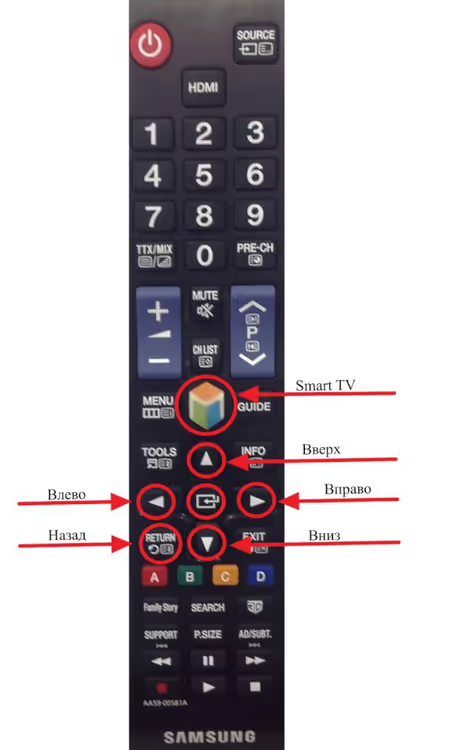
Press the "Smart Hub" button on your remote. On different Samsung models it may be labeled differently: "Smart TV," "Home," or shown as a house icon. On One Remote controllers (included with models from 2017 onward) it's the button with a colorful diamond shape.
Once the Smart Hub home screen opens, find the Plex tile. If it's not on the home screen, go to "Apps" (the icon with four dots), search for "Plex," and install it. The app itself is free. Some advanced features like hardware-accelerated transcoding, mobile sync, and intro skipping require a Plex Pass subscription ($6.99 per month or $69.99 per year).
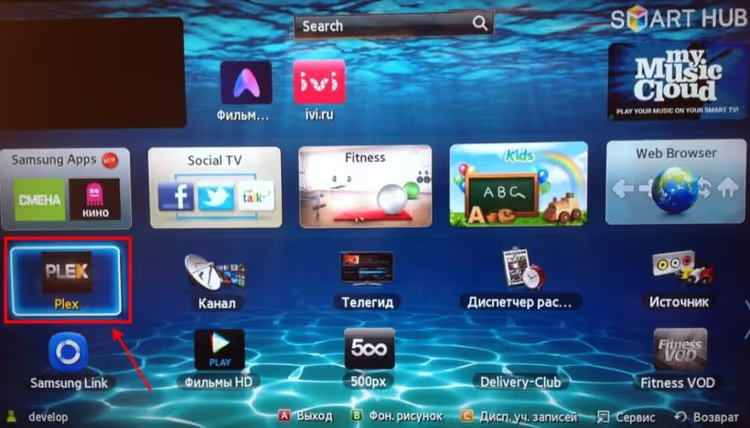
The first launch will ask you to sign in. A four-digit code will appear on screen. Open plex.tv/link on your phone or computer, log into your Plex account, and enter that code. The TV will automatically connect to your server.
Step 2. Selecting your video library
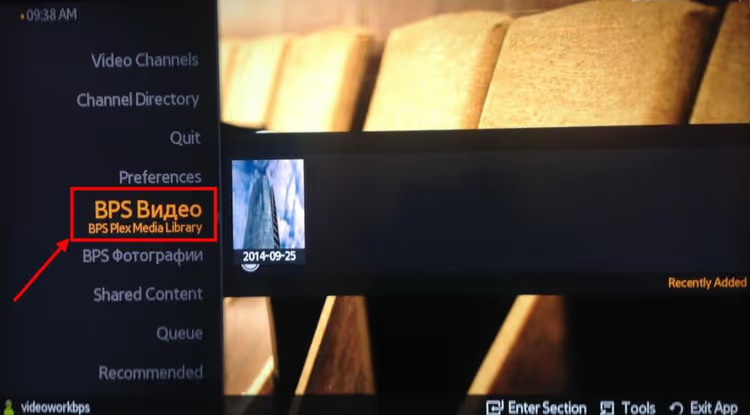
After signing in, a sidebar opens showing your server's media libraries. In the screenshot the library is called "BPS Video," but that's just an example. Yours will have whatever name you set up on the server: "Movies," "TV Shows," "Home Videos," or anything else.
Click the name of the library you want. If Plex has correctly matched your files to the online database, you'll see movie covers and TV show posters, just like a streaming service.
If you see a flat folder list instead of posters, the next step is for you.
Step 3. Navigating to your video folder
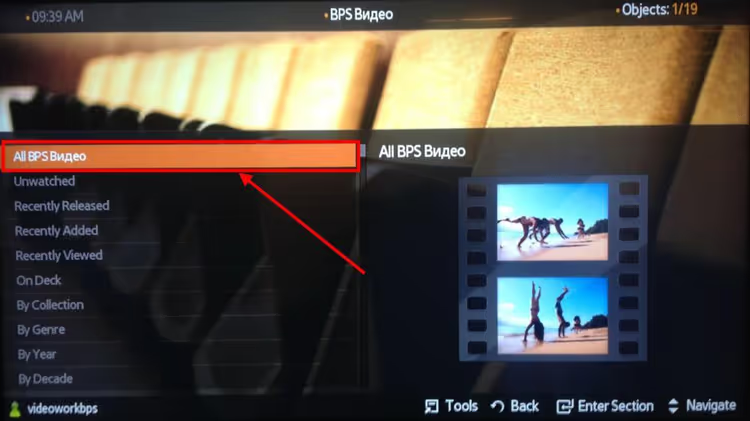
Inside your video library, click the root folder. It has the same name as the library or "All" plus the library name. Plex will display all video files added to this library.
If instead of readable titles like "Interstellar (2014)" you see video_001.mkv or download_2023_x265.mkv, the server couldn't match your files to the online catalog. Rename the files using the pattern Title (Year).ext for movies or Title S01E01.ext for TV shows, then run a library rescan in your server settings.
Step 4. Selecting a video to play
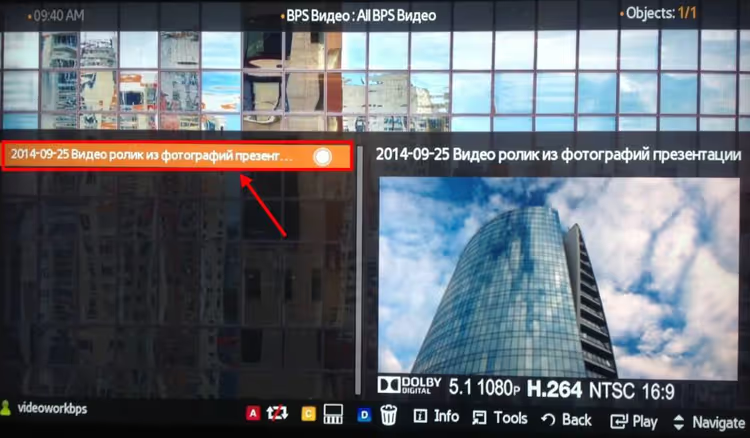
Scroll through the list using the up and down arrows on your remote and select a video. Pressing the center button (Enter/OK) opens a screen with file information: cover art, title, duration, available audio tracks, and subtitles.
You can switch audio tracks and subtitles right here without going into the player menu. Plex on Samsung supports Direct Play for H.264, AAC, and MP3 formats. If your file is in one of these formats, transcoding doesn't kick in, quality stays original, and your server's processor gets a break.
Step 5. Starting playback
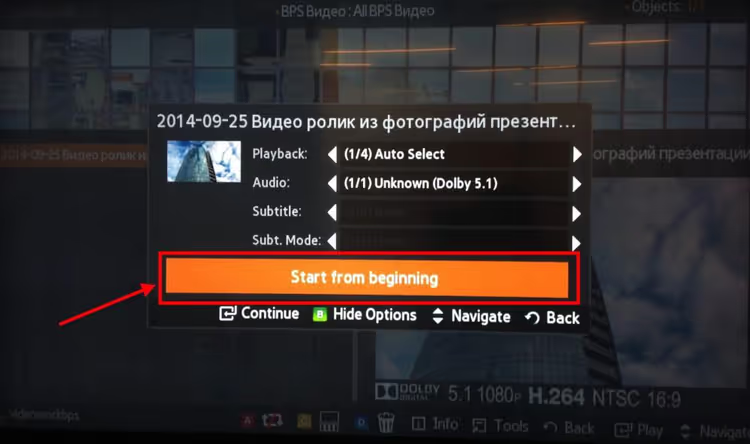
Press "Start from beginning" if you're watching the video for the first time. If you started watching earlier, Plex will offer "Resume" and continue exactly where you left off. Progress syncs across all your devices: start on the TV, finish on a tablet in the bedroom.
During playback, controls are standard for Samsung: left and right arrows to seek, up and down for volume, center button to pause, Return/Back to exit full screen and return to the list.
Common problems when using Plex on Samsung TV
The app can't see the server. This is the main pain point for Samsung users. The reason: Tizen on most models doesn't support modern HTTPS certificates. The fix takes a minute: go to Plex app settings on the TV, find the "Advanced" section, enable "Allow Insecure Connections," and set it to "Always." On the server side: Settings, Network, Secure Connections, choose "Preferred" (not "Required"). The connection will start working immediately.
Video stutters or constantly buffers. Almost always the culprit is transcoding: the server is converting video on the fly to a format the TV understands, and the processor can't keep up. Open the Plex web interface (Dashboard during playback) and check what's happening: Direct Play or Transcode. If it's Transcode, switch quality in the TV app to "Original," which forces Direct Play for compatible formats. Alternatively, convert files ahead of time to H.264 with AAC audio using HandBrake. The third option is Plex Pass with hardware-accelerated transcoding via GPU.
The app crashes or freezes. An old Plex version on old TV firmware, a classic combo. Check for updates: Smart Hub, Apps, Plex, "Update." Then update the TV firmware: Settings, Support, Software Update. If that doesn't help, delete Plex, restart the TV (hold the power button on the remote for 5 seconds), and reinstall.
Subtitles don't display. Plex on Samsung won't show PGS subtitles (Blu-ray format) without transcoding. The solution: place an external SRT file in the same folder as the video. Name it the same as the video file but with a language suffix: Inception.2010.ru.srt. Rescan the library, and subtitles will appear in the player's track selection menu.
Video guide: Plex on Samsung TV
Five steps in text is the foundation. But sometimes it's easier to watch the entire process from installation to playing a movie:
⁉️🤔 Frequently asked questions
Do I need Plex Pass for Samsung TV?
No, the basic app and playback from your server work for free. Plex Pass is needed for hardware-accelerated transcoding, mobile sync, intro skipping, and Live TV access. As of June 2026, the subscription costs $6.99 per month or $69.99 per year (current pricing on the Plex website). The lifetime license is $249.99 until July 1, 2026; after that date the price will increase to $749.99.
Can I watch Plex on an older Samsung TV from before 2016?
Not directly through the app. Plex ended support for older platforms: Opera TV, NetCast, and early webOS versions. A workaround: connect an Amazon Fire TV Stick, Roku, or Chromecast to your TV. The Plex app works fully on those devices and receives updates.
Why does Plex show "Server is not powerful enough"?
The server is trying to transcode video, but the processor can't handle it. Three solutions in increasing order: (1) switch quality in the app to "Original" to force Direct Play; (2) convert files ahead of time to H.264 with AAC audio using HandBrake; (3) buy Plex Pass, which enables GPU-accelerated transcoding.
How do I add my own subtitles in Plex on Samsung?
Place the SRT file next to the video and name it the same as the video file but with a language suffix. Example:
Inception.2010.mkv,Inception.2010.ru.srtfor Russian subtitles or.eng.srtfor English. Rescan the library, and subtitles will appear in the track selection menu.
Does Plex work on Samsung without internet?
Yes, if the server is on your local network and you've previously signed in. By default Plex tries to reach the internet for authentication. To work fully offline, add your network's local IP range to "List of IP addresses and networks that are allowed without auth" following the instructions in the official Plex documentation.
What to do right now to get Plex working on Samsung
If you already have a Plex server running, the app on Samsung works reliably when three settings are configured correctly. This takes less than five minutes.
Checklist: (1) Allow Insecure Connections set to Always on the TV, Secure Connections set to Preferred on the server; (2) video in H.264 with AAC audio for Direct Play without transcoding; (3) external SRT subtitles instead of PGS. Do these three things right away, and Plex on Samsung will work like a built-in streaming service, only with your content and no monthly fee.
Try it right now: open Smart Hub, launch Plex, and follow the steps in this guide. Your first movie will start faster than the time it took you to read this section.

A professional team of writers and editors specializing in creating quality content.