














🖥 Plex Media Server: installation, setup and management guide
Bought a NAS or repurposed an old laptop as a media library, but your movies and music are scattered across three hard drives? Plex gathers this chaos into a single library with posters, descriptions, and seamless access from your TV, phone, or tablet, both at home and over the internet.
In practice, Plex Media Server turns an ordinary computer into a home media server in 10 minutes. No wrestling with DLNA servers, no manual file renaming, and no copying movies to each device separately.
This guide covers complete Plex setup from scratch: from downloading the installer to remote access from your TV. All steps include live screenshots current as of 2026.
💡 Quick overview:
- Download and install Plex Media Server on a computer or NAS
- Complete the initial setup wizard: server name, first media library, account sign-in
- Add folders with movies, TV shows, and music; Plex will fetch posters automatically
- Configure remote access for viewing from a TV or phone outside your home
- Enable hardware transcoding for less capable devices if needed
What is Plex and why do you need it
Plex is a client-server media platform: the server application stores and catalogs your content, while client apps on TVs, smartphones, and tablets play that content. Unlike simply sharing a folder over the network, Plex automatically fetches posters, descriptions, cast information, and soundtracks, making your library look like your own Netflix built from your files.
The architecture consists of three components. Plex Media Server installs on a computer or NAS and scans designated folders containing media files. Plex clients (apps for Android, iOS, Apple TV, Smart TV, PlayStation, and Xbox) connect to the server and request the stream. Plex's central server stores your account and routes internet connections to your home server.
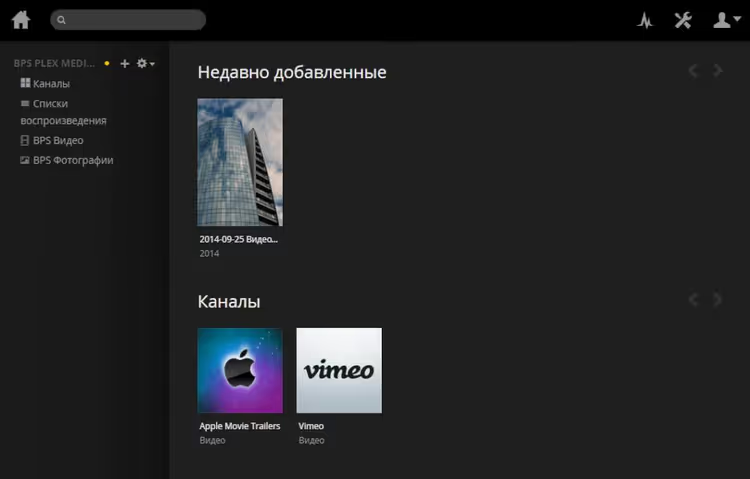
Plex can transcode video on the fly: if the client device doesn't support the original codec or resolution, the server re-encodes the stream into a compatible format in real time. For a single 1080p stream, an Intel Core i5 processor is sufficient, while 4K transcoding requires an i7 or hardware acceleration via Intel Quick Sync or NVIDIA NVENC.
The server runs on Windows, macOS, Linux, and most NAS devices from Synology and QNAP. Almost any computer with 2 GB of RAM will work for installation; the minimum requirements are surprisingly modest.
Watch a short setup video if you prefer a visual format:
Installing Plex Media Server
First, download the installer for your operating system. The official download page is available at plex.tv/downloads; select your platform and wait for the download to complete. Installation is straightforward: run the downloaded file and follow the wizard steps without changing anything.
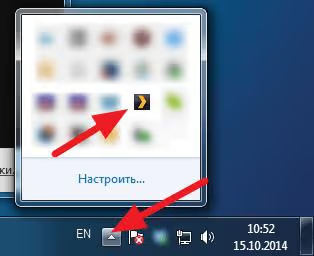
After installation, a Plex icon appears in the Windows system tray, and a setup page automatically opens in your browser. If the page doesn't open, double-click the tray icon to launch the browser manually.
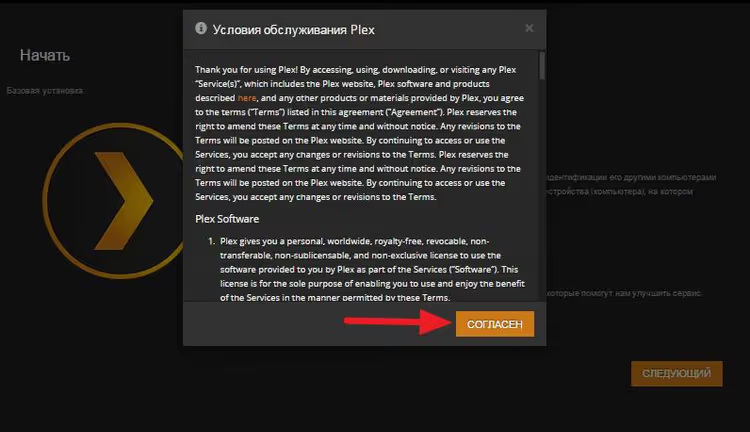
Click the "Agree" button; this is the standard license agreement. On the following screens, the wizard will prompt you to set a server name and add your first media library.
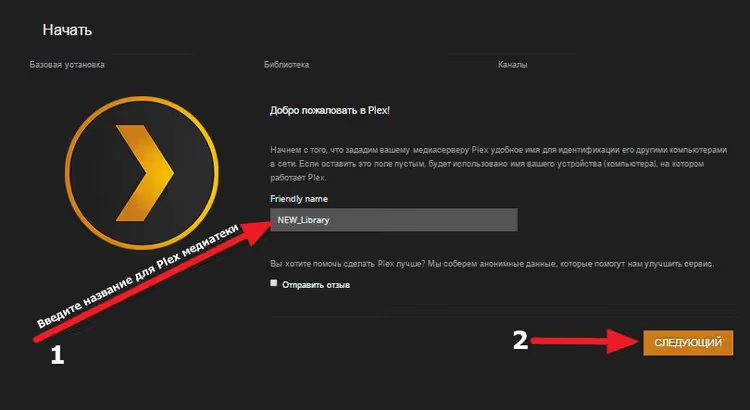
The server name is how your media library will appear to clients. You can keep the suggested name or set your own, such as "Home Server" or "Movie Library." You can always change the name later in settings.
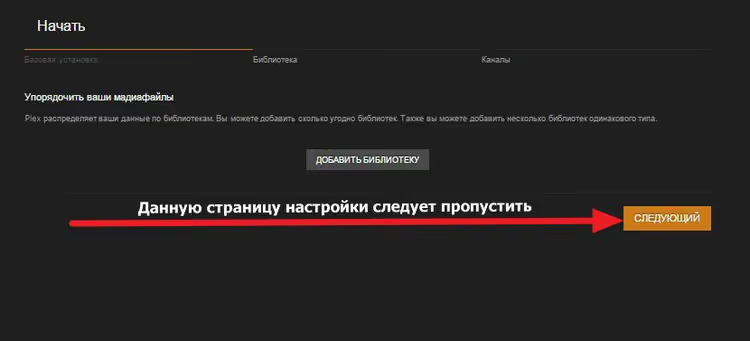
The next step is adding your first library. The wizard will prompt you to choose a content type: movies, TV shows, music, photos, or home videos. Plex uses a different metadata scanner for each type: movies get posters and cast info, TV shows get seasons and episodes, music gets album covers.
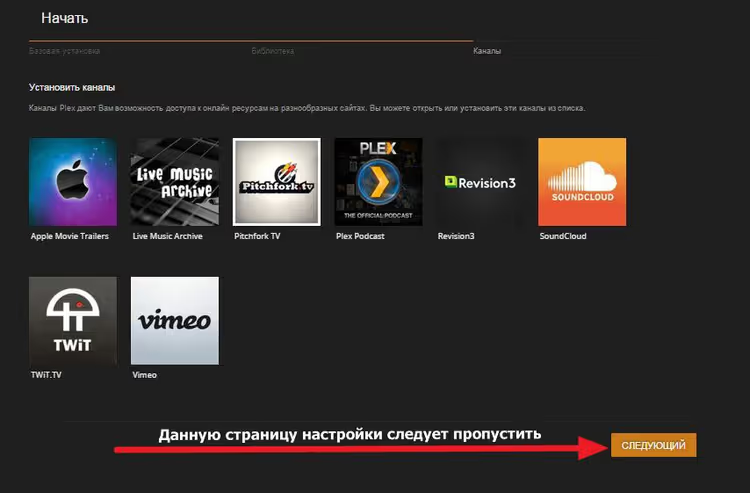
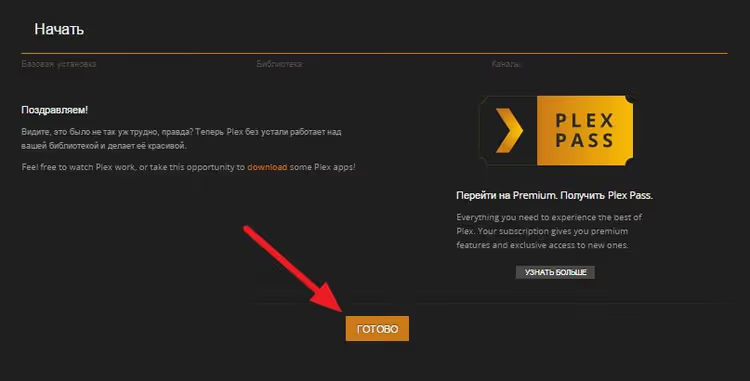
Point to the folder with your files and click "Done." The wizard will complete the initial setup and open the main library page.
From this point on, Plex will start scanning the specified folders and downloading metadata. The process may take several minutes depending on your collection size. Leave the default settings during the initial scan; fine-tuning is done later once the library is ready.
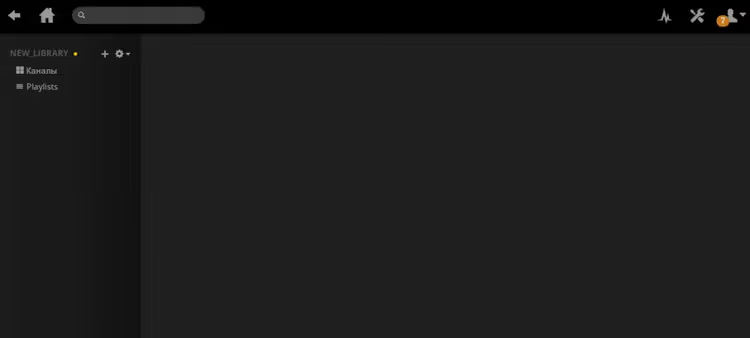
Adding media libraries in Plex
A single library is rarely enough: movies, TV shows, music, and family photos all live in different folders and require separate types. Plex lets you create an unlimited number of libraries, each with its own scanner and display settings.
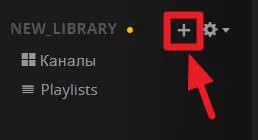
To add a new library, click the "+" button on the left side of the main screen.
A library type selection window will open. Plex offers several categories: movies, TV shows, music, photos, and other videos.
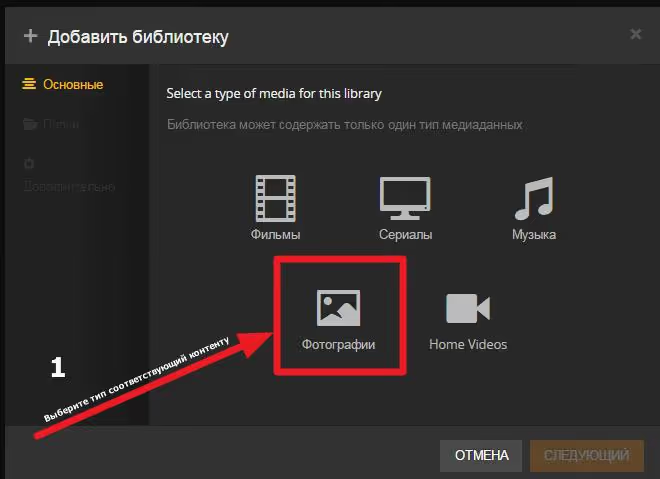
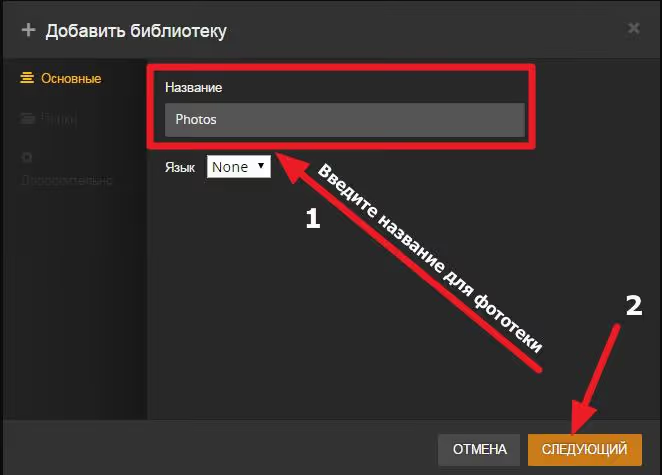
Choose the appropriate type. For photos, select "Photos"; for home videos, select "Other Videos"; for music videos, select "Music." The type determines not only the library's appearance but also which metadata gets loaded.
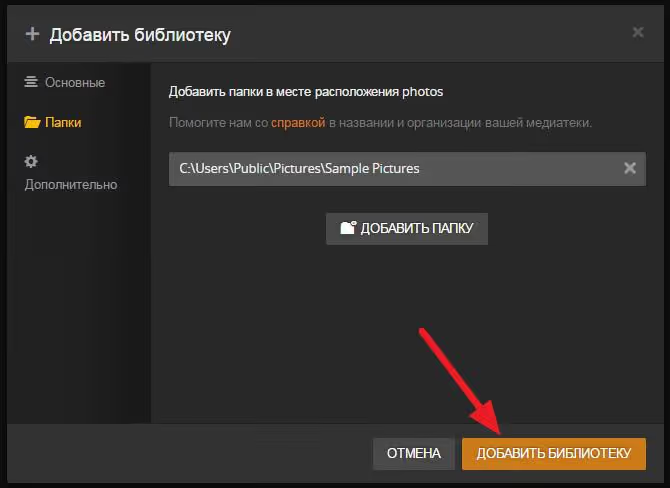
Click "Add Folder" and point to the directory with your files. Plex doesn't copy files; it only indexes them. The files themselves remain in their original location.
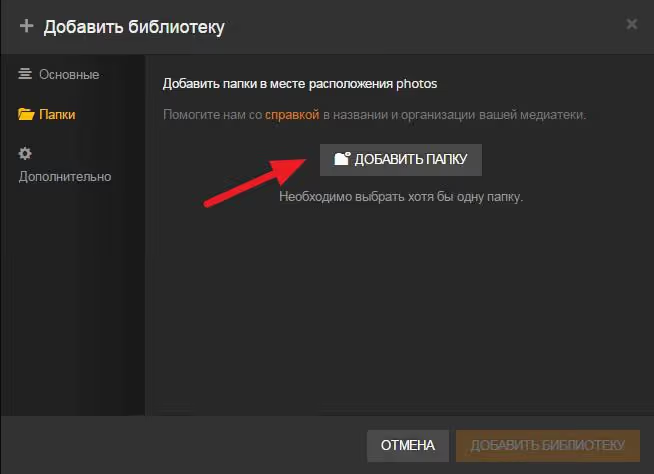
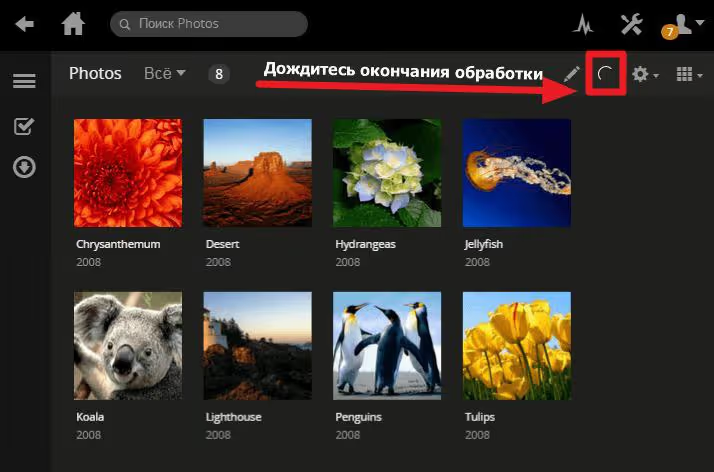
After selecting the folder, click "Add Library." Plex will start scanning, and a progress indicator will appear in the upper right corner. Wait for it to finish before opening the library.
Done: the new photo library appears in the sidebar. Other library types are added the same way; repeat these steps for TV shows, music, or home videos.
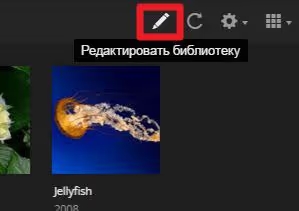
Over time, your collection grows and files appear in new folders. To avoid recreating the library, edit the existing one: hover over the library name, click "…" and select "Edit Library."
In the window that opens, add a new content folder. Plex will remember both the old and new locations, and both will be scanned simultaneously.
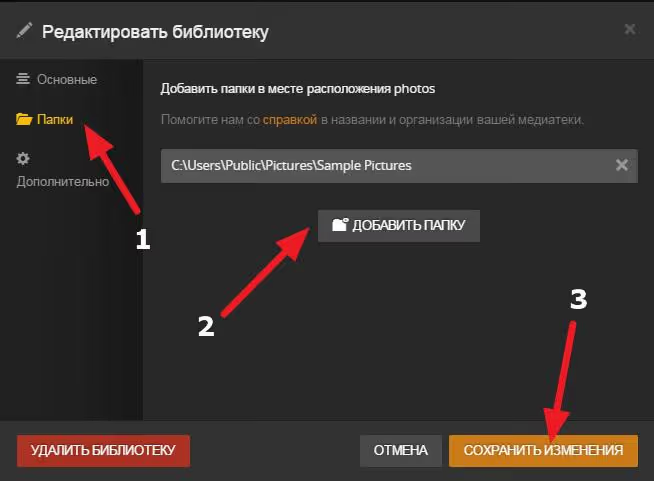
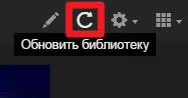
After adding the folder, you can simply copy new content into it; Plex will pick up the files during the next scan. To manually trigger a scan, click the "Refresh Library" button in the menu next to the library name.
Configuring your account and remote access
To connect a TV, smartphone, or tablet to your media library, you need a Plex account. It's free and serves as the link between server and clients: you sign in to the same account on all devices, and they automatically find the server.
Click "Sign In" in the upper right corner of the web interface.
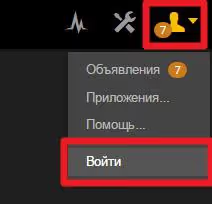
If you don't have an account yet, click "Sign Up"; the browser will redirect you to the Plex website to create one. An email and password are all you need, and the process takes a minute.

After signing in, configure remote access: go to Settings → Remote Access and enable the toggle. Plex will attempt to automatically forward the port via UPnP on your router. If the indicator turns green, internet access is working. If it's red, manually forward port 32400 in your router settings.
Important 2026 change. Plex is introducing new requirements for remote streaming to certain devices: Smart TV, Android TV, PlayStation, and Xbox may now require a Plex Pass subscription (for the server owner) or a Remote Watch Pass (for specific users). Clients on phones, tablets, and in browsers still work for free. The change is rolling out gradually; if your TV still shows content without a subscription, this is temporary.
For family use, Plex Pass at $5 per month provides not only remote access for everyone at home but also hardware transcoding, intro skipping for TV shows, offline content downloads, and parental controls.
Useful settings after installation
Once libraries are added and remote access is working, it makes sense to check a few key parameters in the server settings.
Transcoding. In the Settings → Transcoding section, enable hardware acceleration if you have an Intel processor with Quick Sync support. This dramatically reduces CPU load when multiple devices are streaming simultaneously. NVIDIA GPU hardware encoding is also available for Plex Pass subscribers.
Task scheduler. By default, Plex runs library scans and file analysis overnight. Check the Settings → Scheduled Tasks section and make sure the time window doesn't conflict with your server usage schedule. This is also where you configure auto-scan frequency; for an actively growing collection, set hourly checks.
Database backup. Once a week, Plex automatically creates a database backup. The backup path is %LOCALAPPDATA%\Plex Media Server\Plug-in Support\Databases\Backups on Windows or /var/lib/plexmediaserver/Library/Application Support/Plex Media Server/Plug-in Support/Databases/Backups on Linux. Keep the last 2-3 copies in the cloud or on an external drive so you don't lose manually curated metadata after a system reinstall.
Subtitles. In the Settings → Languages section, enable automatic subtitle downloads and set Russian and English as priority languages. Plex will fetch subtitles from opensubtitles.org whenever a new movie or episode is added.
⁉️🤔 Frequently asked questions
Plex doesn't see new files in the folder. Why?
Check folder permissions: the user running Plex Media Server must have read access to the contents. On Windows, the server runs under the current user; on Linux, make sure the directory is accessible to the
plexgroup. Also check the scheduler settings: automatic scanning on changes might be disabled. Click "Refresh Library" manually to diagnose.
Can I watch Plex on a TV without a subscription?
Yes, but with caveats. On a local network, the TV connects to the server without restrictions. For remote access from Smart TVs (Samsung, LG) or Android TV boxes, a Plex Pass for the server owner may be required as of March 2026. Viewing through browsers and mobile apps is not affected by these changes for now.
How does Plex differ from Jellyfin and Emby?
Jellyfin is a completely free, open-source alternative with no paid features whatsoever. Emby is closer to Plex in its model: some features are free, others require a subscription. Plex wins on client app quality and breadth of supported devices but loses on dependence on a central server for authentication. Jellyfin is the choice for those who need a fully autonomous server without external dependencies.
How do I move the Plex server to another computer?
Back up the database and metadata folder, install Plex Media Server on the new computer, stop both servers, and copy the contents of the old
Plex Media Serverfolder to the new one with replacement. After starting, check the media library paths; if the folder structure has changed, edit the paths in library settings. The official migration guide is available at support.plex.tv.
Why do I need Plex Pass if the basic version is free?
Hardware transcoding (HDR tone mapping, GPU encoding), offline downloads to mobile devices, intro skipping for TV shows, parental controls, advanced viewing statistics, and TV access outside your home. For one or two users within an apartment, the free version is more than sufficient.
What Plex offers the average user in 2026
Plex remains the most polished home media server: installation takes 10 minutes, clients exist for everything from Apple TV to PlayStation, and metadata loads automatically, looking like an expensive streaming service. For a family movie library or a music collection on a NAS, it's still the default choice.
If you need a completely free server independent of the cloud, consider Jellyfin. If you're willing to pay for convenience and polished clients on all devices, Plex justifies every dollar of the subscription. And for the basic scenario of gathering movies into one beautiful library to watch from a laptop or phone, the free version without Plex Pass is enough.
Try it now: download the server from the official website, add a folder with a couple of movies, and see the result in your browser. From there, you can decide whether to subscribe to Plex Pass and invest in a NAS for your full collection.

A professional team of writers and editors specializing in creating quality content.