













⚡ Chrome: how to speed up to lightning fast
Chrome was just installed, runs like a dream. A month passes, and the browser starts to lag for no reason: tabs load with delays, the interface stutters, and in the task manager a dozen Chrome processes are eating gigabytes of RAM. The problem isn't the browser itself, it remains one of the fastest on the market. The problem is the chaos that inevitably accumulates over weeks and months of active use.
The cache bloats to tens of gigabytes, extensions hang in the background and consume CPU time, background processes continue running even after closing the window. But Chrome has a powerful system of fine-tuned settings that most users don't even suspect exists, from standard performance toggles to experimental flags capable of radically changing browser behavior.
The engine itself doesn't stand still. According to official Google data, by mid-2025 Chrome gained 22% in the Speedometer 3.1 benchmark compared to August 2024, and this is only from browser optimizations. That is, Chrome's speed potential is enormous, you just need to remove what prevents it from being realized. Below is a battle-tested set of techniques: from simple cache clearing to fine-tuning rendering flags, tab management and network protocols. The material is updated for current Chrome versions of 2025-2026: some old advice from the internet no longer works, and we'll specifically note what has changed.

💡 Quick overview:
- Clear the browser cache to remove gigabytes of junk and free up disk space.
- Remove extensions you don't use: each one hangs in the background as a separate process and consumes RAM.
- Enable Memory Saver and hardware acceleration in Chrome performance settings, and collapse extra tabs into groups.
- Open experimental flags and activate the key ones: QUIC, GPU rasterization and parallel downloading.
- If nothing helps: check the system for malware through Safety Check and reset Chrome settings to factory defaults.
Clearing cache and updating Chrome
The first step, the simplest, but it's skipped most often. Over time Chrome accumulates cached images, script files and styles from visited sites. At first glance, cache speeds up loading, but when its volume exceeds several gigabytes, the browser spends more time searching in the cache than loading from scratch.
Additionally, an overflowing cache forces Windows to use virtual memory on disk more actively, and disk, even NVMe, is orders of magnitude slower than RAM.
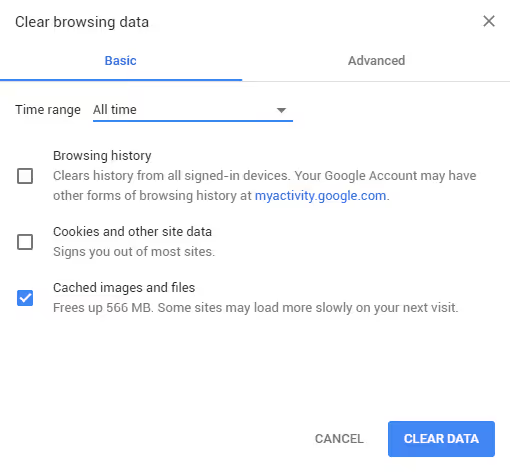
To clear, go to chrome://settings/clearBrowserData, in the pop-up window be sure to check "Cached images and files", set the time range to "All time" and click "Clear data". After that restart the browser.
Right after clearing, check for updates. Each new Chrome version brings not only security patches but also V8 engine optimizations, network stack and rendering compositor. The difference between two-year-old Chrome and the current build on the same computer can be quite noticeable in benchmarks like Speedometer 3.1, and updates arrive literally every few weeks.
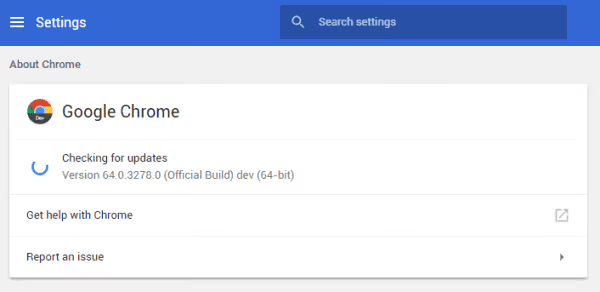
To update, go to the menu (three vertical dots) → "Help" → "About Google Chrome". The browser will automatically check for updates and install them. If you have 64-bit Windows, make sure Chrome is also installed in the 64-bit version (in the "About browser" line next to the version number it should say "64-bit").
Cache clearing also helps because modern sites get heavier year by year. According to HTTP Archive Web Almanac, the median page weight for desktop by the end of 2024 reached 2652 KB, adding 8.6% in just one year. Each such kilobyte settles in the cache, and the cleaner it is, the less the browser has to sift through when loading.
Extensions and plugins: removing excess
Chrome extensions are simultaneously the browser's superpower and the main resource consumer. Each active extension launches in its own process and stays in memory constantly, even if you're not using it in the current session.
Check who exactly is consuming your RAM: press Shift + Esc in Chrome, the built-in task manager will open. It shows memory consumption for each tab and each extension in megabytes. You'll be surprised how much is occupied by a harmless ad blocker or password manager running parallel to the built-in one.

To remove unnecessary items, go to chrome://extensions/ and go through the list. Keep only the extensions you actually use at least once a week. For the rest, either delete them (trash icon) or temporarily disable them with the slider. The extension can be enabled back at any time, data will be saved.
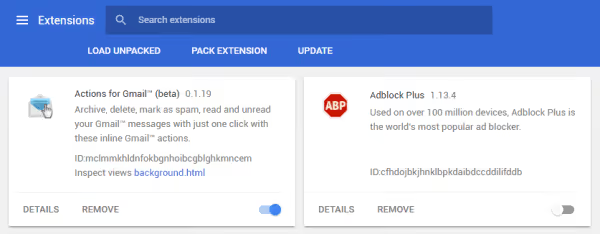
It's worth knowing separately about the transition to Manifest V3, which Chrome completed in 2024-2025. Old ad blockers and some legacy extensions on the outdated Manifest V2 stopped working, and their place was taken by versions on the new engine. If some extension suddenly failed or started to lag, check whether it's updated to Manifest V3, abandoned add-ons that no one maintains are better deleted completely. Plugins in the old sense (like Flash, finally buried back in December 2020) modern Chrome doesn't support at all, so there's no need to look for them.
System performance settings
Starting in 2023, Chrome received a dedicated performance section that's worth checking first. Open chrome://settings/performance, here live the key resource-saving toggles.
Memory Saver. Automatically unloads inactive tabs from memory if the system is short on RAM. The tab remains on the panel, but its contents reload when you switch to it. In the late 2024 update, Google added a choice of aggressiveness level: Moderate, Balanced (recommended by default) and Maximum, plus a list of site exceptions, for example, email or CRM, which should always be active. According to official Google data, Memory Saver reduces Chrome memory consumption by up to 40% (up to 10 GB in an active session), and a separate unloaded tab occupies up to 80% less memory than an active one.

Energy Saver. For laptops: limits background activity and reduces animation frame rates when battery charge level falls below a critical threshold or the laptop is unplugged from power. Enable together with Memory Saver.
Hardware acceleration. The "Use graphics acceleration when available" toggle should be enabled. It transfers web page rendering and video decoding to the GPU instead of CPU, for modern graphics cards this gives a multiple gain when working with heavy WebGL applications, maps and 4K video.
In the same section since 2024, performance notifications have appeared: Chrome itself highlights a resource-hungry tab next to the profile icon and offers to close it with a "Fix" button. And if you hover over a tab, the pop-up card shows exactly how much memory it occupies, convenient for catching the culprit without the task manager.
Additionally, disable the "Continue running background apps when Chrome is closed" toggle, otherwise the browser continues to hang in memory even after closing the window.
Tab management: groups and freezing
Forty open tabs means forty separate processes, each with its own chunk of memory. Memory Saver partially saves by unloading inactive ones, but there's a more powerful tool, tab groups.
Right-click on a tab → "Add tab to new group", set a name and color. The key thing: when you collapse a group by clicking on its name, Chrome freezes the tabs inside it, freeing up resources approximately the same way as with Memory Saver unloading. You get manual control over what to keep "alive" and what to put to sleep.

Groups can also be saved and synced between devices, so dozens of "tabs for later" no longer have to hang open and consume memory: collapse them into a saved group and open when needed. This is the most underrated technique for those who live with double-digit numbers of tabs.
Network optimizations and preloading
A significant portion of time when browsing is taken not by page rendering but by network delays: DNS resolving, connection establishment, TLS handshake, waiting for the first byte. Chrome can anticipate these delays using network predictions.

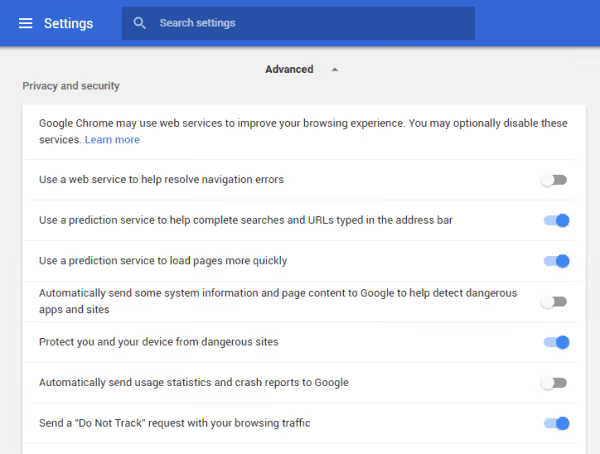
Go to "Settings" → "Privacy and security" and enable both parameters:
- "Use a prediction service to help complete searches and URLs typed in the address bar"
- "Use a prediction service to load pages more quickly"
With predictions enabled, Chrome analyzes your typical routes and resolves DNS in advance, establishes TCP connections and even prerenders pages you'll most likely navigate to. The price is transferring data about browsing patterns to Google servers, if privacy is critical, leave these settings disabled.
The "Standard preloading" parameter in chrome://settings/performance → "Speed" is another mechanism: Chrome preloads links you'll probably open. For most users, the optimal level is "Extended preloading", it loads related subresources, not just HTML.
Secure DNS: does it actually speed things up
In the same security settings there's a "Use secure DNS" toggle (DNS over HTTPS). Here it's important to immediately set the record straight: this is primarily a privacy feature, not speed. Secure DNS hides your DNS queries from your provider, but it doesn't make loading faster by itself, and sometimes adds 5-15 ms delay on each resolve.

Nevertheless, in one scenario switching actually helps: if your provider's DNS is slow or overloaded. Then switching to a fast public resolver speeds up the first response. Enable the toggle and choose a provider from the list: Cloudflare (1.1.1.1) or Google (8.8.8.8), both respond in single-digit milliseconds. Technical implementation details are described in Chromium documentation. If your internet is already fast, you won't see a noticeable speed difference, and that's normal.
Chrome experimental flags
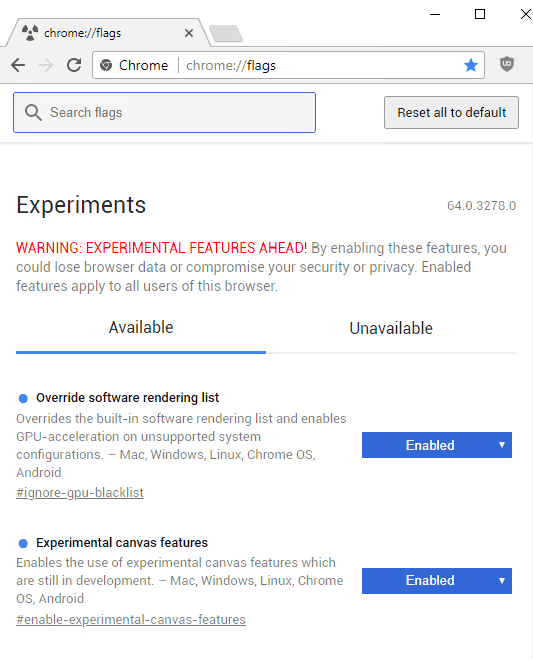
The most powerful acceleration tool is hidden at chrome://flags. This is a registry of experimental features, some of which eventually become standard, others quietly disappear. Flags should be used consciously: each feature you enable can affect browser stability. If problems arise, reset all flags with the "Reset all" button in the upper right corner of the flags page.
Go through each flag below, select Enabled from the dropdown list and restart Chrome after you configure them all (the "Relaunch" button will appear at the bottom after the first change):
Flag | Purpose | Value |
|---|---|---|
| QUIC protocol (HTTP/3), UDP transport from Google with TLS 1.3 level encryption and zero connection establishment time (0-RTT). According to W3Techs, HTTP/3 already supports more than a third of sites, including all Google services and YouTube. In fresh builds QUIC is active by default, the flag forces experimental behavior | Enabled |
| Transfers web content rasterization from CPU to GPU. On discrete graphics cards accelerates page rendering by 2-4 times. On modern hardware often already enabled by default, the flag enables it forcibly | Enabled |
| Splits files into chunks and downloads them in parallel in multiple streams. Analog of download managers, but at the browser level. Noticeably speeds up downloading large files on wide channels | Enabled |
| Forcibly enables GPU acceleration even for graphics cards from Chrome's blacklist (in the interface the flag is called "Override software rendering list"). Useful on old or rare GPUs where the driver is formally not supported but actually works | Enabled |
| Writes raster streams directly to GPU memory, bypassing extra copying in system RAM. Reduces load on the memory controller and decreases rendering latency | Enabled |
| Activates hardware-accelerated smooth scrolling. On High-DPI displays (Retina, 4K) the difference from regular scrolling is especially noticeable | Enabled |
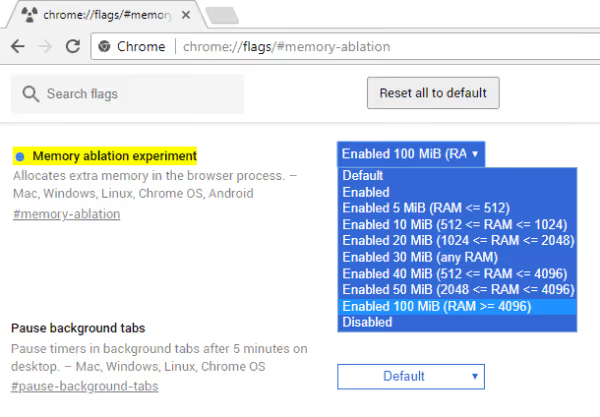
Important caveat for 2026: Chrome regularly cleans out obsolete flags. For example, old advice from the internet often recommends #num-raster-threads and #enable-font-cache-scaling, but in current versions these flags no longer exist, their functions either became standard or left together with the move to the new rendering compositor. So if search in chrome://flags doesn't find some flag from an old article, don't worry: most likely it has long been working "out of the box". After you've set all available flags, click the "Relaunch" button at the bottom of the page, the browser will restart with new settings.
Checking for malware and Safety Check
If Chrome lags suddenly and severely, without visible reason, the culprit may be not the browser itself but a hijacked extension or malware in the system. In 2024-2025 a wave of compromising popular extensions through update substitution swept through, and the affected user doesn't even notice that their add-on is now mining or leaking data in the background, simultaneously consuming resources.
Chrome used to have a built-in "Cleanup computer", but in new versions it was removed. Instead, open chrome://settings/safety-check and click "Check": the tool will check passwords for leaks, malicious site protection status and, most importantly, highlight suspicious and potentially dangerous extensions.

After Safety Check, run the system through a full-fledged antivirus (on Windows the built-in Microsoft Defender will do, full scan). A hijacked extension or malware in autorun often turn out to be the very reason why "the browser out of nowhere started to lag".
Resetting Chrome to factory settings
When you've tried everything and Chrome still acts up, there remains a nuclear but safe option: settings reset. Go to chrome://settings/reset and select "Restore settings to their original defaults".

Don't be afraid to lose important things: reset disables all extensions, clears temporary data, resets the start page, new tab page and default search engine, but saves your bookmarks, history and passwords. This is essentially a general cleanup without reinstallation. After reset, enable extensions back one by one, so you'll also identify the one that was slowing down the browser. On Google's official support page, settings reset is also listed among standard methods to restore Chrome speed.
Hardware and system factors
Sometimes it's not Chrome. If you've polished all settings and there's no acceleration, look at the system around the browser.

- RAM. Modern heavy sites plus a dozen tabs easily consume 4-6 GB. On 8 GB RAM the system starts swapping to disk and everything slows down. Upgrading to 16 GB often gives more gain than any flag.
- SSD instead of HDD. If the system and Chrome profile are on a mechanical disk, moving to SSD is the most underrated browser accelerator in real life.
- Graphics card drivers. Hardware acceleration helps only with fresh drivers. An old or buggy GPU driver, on the contrary, causes artifacts and stuttering. Update the driver from NVIDIA, AMD or Intel site.
- Power supply. On a laptop in "Power saving" mode Windows throttles both the processor and the browser. For work, set the "Balanced" or "High performance" scheme.
A separate case is bloated Chrome profile. Over years the profile accumulates corrupted and fragmented data, due to which the browser starts slowly and hangs. Quick check: create a new profile (account icon → "Add"). If Chrome flies in it, the old profile is to blame, transfer to the new one only bookmarks and passwords through sync by account, not by copying the entire folder wholesale.
Video instructions
If configuring step by step is more convenient with video, here's a visual guide for all the techniques described:
⁉️🤔 Frequently asked questions
Is it safe to enable Chrome experimental flags?
The
chrome://flagsare Google's official mechanism for testing features before their mass implementation. They are safe by themselves: any flag can be disabled back, and the "Reset all" button resets everything to factory settings. The only risk is that a particular combination of flags on a specific computer can lead to unstable operation. In practice, the flags from the list above (QUIC, GPU rasterization, parallel downloading) are used by millions of users and cause no problems. If you have any suspicions, disable the last added flag and restart the browser.
Will clearing the cache help if I have an SSD?
Yes, and on SSD cache clearing is even more important in relative terms. The point is not in disk speed as such but in search latency inside the cache. When Chrome's cache grows to 5-10 GB, the browser spends noticeable CPU time on indexing and searching for the right file in this pile. On SSD search is faster than on HDD, but the data structure itself becomes a bottleneck. Clearing to zero removes this problem, after which the cache fills up anew but only with relevant resources.
How many extensions can be kept enabled without losing speed?
The guideline is 5-7 extensions on a permanent basis. Each extension adds from 30 to 150 MB to memory consumption (depends on complexity: a simple ad blocker, about 80 MB, tab manager, 50 MB, Grammarly with its ML model, 120+ MB). Eight extensions at 100 MB each is almost a gigabyte of additional RAM just for extensions. If you have 8 GB RAM and Chrome has already occupied 3-4 GB for tabs, that gigabyte becomes critical. Disable extensions you use less than once a week.
Can you speed up Chrome without flags?
You can, and you need to start with non-flag steps: clearing cache, updating browser, Memory Saver, disabling background apps and extra extensions. These five actions give the main part of speed gain. Flags are tuning for the remaining performance reserve, and they should be enabled only when basic steps are already done and you want more.
After how many days does Chrome start to lag again after cache clearing?
Noticeable cache accumulation occurs in 3-4 weeks of active use (6-8 hours of browsing per day). In a month and a half the cache volume again approaches gigabytes, and the cycle repeats. The optimal mode is to clear cache once a month. You can automate: in Settings → "Privacy and security" → "Cookies and site data" enable auto-clearing when closing the browser (but then you'll be logged out of site accounts at each restart, which doesn't suit everyone).
Why does Chrome consume so much RAM?
Chrome launches each tab, each extension and each plugin in its own process. This is a fundamental architectural decision: if one tab hangs or crashes, the others continue working. The price of isolation is duplication of service structures in the memory of each process. Plus modern sites are heavy by themselves: according to HTTP Archive, the average web page weighs several megabytes (HTML+JS+CSS+fonts), and the JavaScript engine V8 compiles all this code into machine instructions and keeps it in memory. Memory Saver and tab groups partially solve the problem by unloading inactive ones.
Will switching DNS to 1.1.1.1 or 8.8.8.8 speed up Chrome?
Usually only slightly. DNS over HTTPS is primarily a privacy feature, and it can even add a few milliseconds per request. You'll feel real speed gain only if your provider's DNS is truly slow, then switching to a fast public resolver will speed up the first response. If the internet is already fast, set secure DNS for privacy, not for speed.
Will Chrome reset delete my bookmarks and passwords?
No. Settings reset (
chrome://settings/reset) saves bookmarks, history and saved passwords. It only disables extensions, clears temporary data and returns to default values the start page, new tab page and search engine. This is a safe procedure that's worth keeping in reserve for when the rest didn't help.
Is Chrome lagging due to a virus or malware?
That happens too. Hijacked extensions and malware in autorun are a common hidden cause of sudden slowdown. Open
chrome://settings/safety-check, run the check, remove unfamiliar extensions and run the system through a full antivirus scan. If after that the browser came alive, the cause was exactly this.
What's the result: fast Chrome checklist
The sequence of actions that takes 10-15 minutes and gives maximum speed gain on any computer:
chrome://settings/clearBrowserData→ clear cache, range "All time".- "About Google Chrome" → update to current version.
chrome://extensions/→ remove unused extensions (and check for Manifest V3).chrome://settings/performance→ enable Memory Saver, Energy Saver (for laptops) and hardware acceleration; disable background apps.- Extra tabs → into groups, irrelevant groups collapse to freeze.
- Settings → "Privacy and security" → enable network predictions.
chrome://flags→ enable QUIC, GPU rasterization and parallel downloading. Restart.- If it didn't help:
chrome://settings/safety-check+ antivirus, thenchrome://settings/reset. - Once a month, return to point 1.
A slow browser is not a verdict. It's just a browser in which junk has accumulated and which no one has configured. After the described steps you'll get Chrome that starts in a second, with tabs that switch without delay, and with a reserve of free memory for other applications.
Ready to return speed to the browser? Don't delay: open chrome://settings/performance right now, go through the checklist from top to bottom and in the comments tell which step gave you the most noticeable gain.

A professional team of writers and editors specializing in creating quality content.