













⌨️ How to assign keyboard shortcuts to Chrome extensions
Keyboard shortcuts are something that divides users into two camps. Some press Ctrl + T without looking and open tabs faster than the mouse cursor can crawl to the plus icon. Others reach for the menu each time because "it's more familiar." But while many know Chrome's system shortcuts, the ability to assign custom keys to extensions remains a blind spot.
A missed opportunity. One keystroke, and an extension does what used to take three clicks and scrolling to the toolbar icon. Screenshot a page, save to Pocket, instant translation, launch password manager, any action can be bound to a two-key combination.
In this guide, a step-by-step breakdown: where Chrome's keyboard shortcuts panel lives, how to assign a combination, what to do if an extension doesn't support hotkeys, and how global mode works.
💡 Quick overview:
- how to access the keyboard shortcuts panel through the extensions menu;
- which keys you can use (
Ctrl/Alt+ any); - difference between "In Chrome" and "Global" modes;
- what to do if an extension doesn't appear in the list;
- how to avoid conflicts with Chrome's system shortcuts.
Step 1. Open the extensions panel
Chrome consolidated keyboard shortcut management in one place, no need to enter each extension's settings separately. The path takes three clicks.
In the browser's upper right corner, click the three-dot icon. In the dropdown menu, select "More tools", then "Extensions".
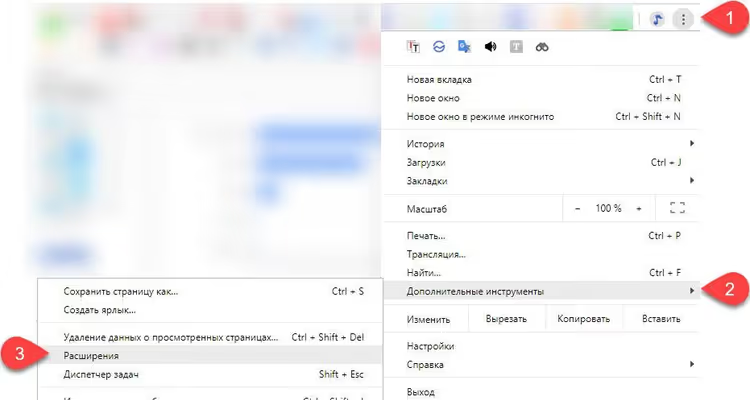
This opens a page listing all installed extensions. Here you can enable and disable them, remove them, or open detailed settings for a specific extension with the "Details" button. But the keyboard shortcuts panel is hidden further.
Step 2. Navigate to keyboard shortcuts
On the extensions page, look at the upper left corner. There's a hamburger button (three horizontal lines) next to the word "Extensions". Click it.
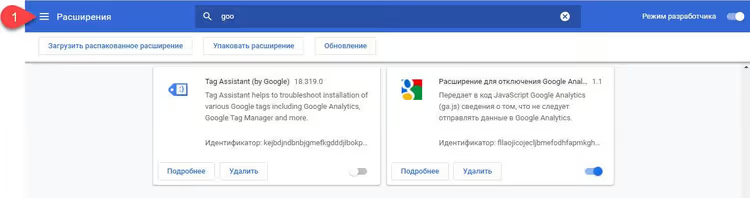
A sidebar menu slides out from the left. In it, select the "Keyboard shortcuts" item.
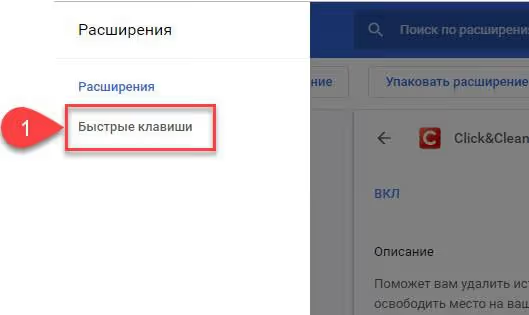
Alternative method: paste chrome://extensions/shortcuts directly into the address bar and press Enter. You'll land in the same place without navigating through menus.
Step 3. Assign a combination
Before you is a list of all extensions that support keyboard shortcuts. For each, you'll see one or more actions that can be bound to a combination.
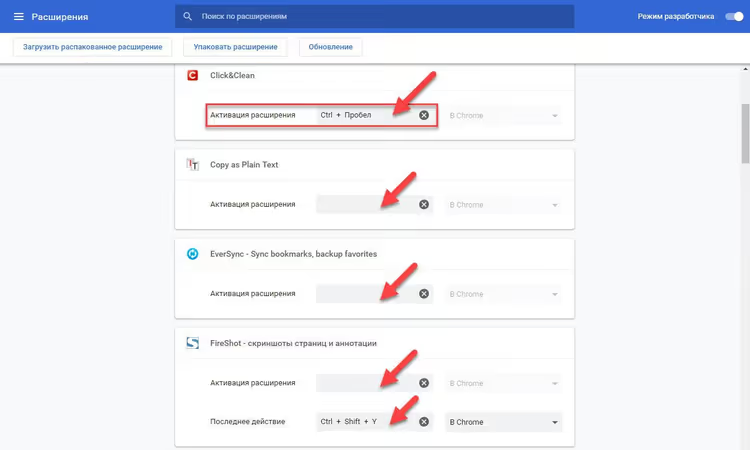
To set a combination, click the field next to the desired action (where it says "Not set" or displays the current combination) and press the keys you want to use. Don't type the key names as text, Chrome expects a physical keystroke.
As of this writing, Chrome accepts two-key combinations: first, Ctrl or Alt, second, any letter or number key. The Ctrl + Shift + key combination also works for some actions, but not all extensions support it.
Important nuance: your assigned combination overrides Chrome's built-in command if they match. For example, Ctrl + N by default opens a new window. If you assign Ctrl + N to an extension action, that combination will stop opening a new window, priority goes to the extension. Keep this in mind to avoid breaking your usual workflow.
Step 4. Choose the scope
Next to the combination input field is a dropdown list with two options: "In Chrome" and "Global".
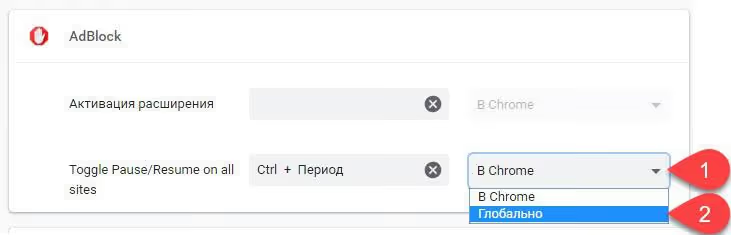
The difference is fundamental:
Mode | When it triggers |
|---|---|
In Chrome | Only when Chrome window is active |
Global | Even when Chrome is minimized or you're in another program |
Global mode is convenient for background actions: save a page to read-later, start a timer, take a screenshot, invoke a translator. No need to switch back to the browser, press the keys and get the result.
But there's a condition: Chrome must be running. If the browser is completely closed (not in the tray, not minimized, but actually terminated), the global keyboard shortcut won't work. Chrome doesn't listen to the keyboard when it's not running.
And one more pleasant detail: global extension shortcuts don't conflict with other programs' keyboard shortcuts. Chrome intercepts the keystroke before it reaches the application you're in. So Ctrl + Shift + S, assigned to an extension, won't trigger the "Save as" dialog in Photoshop.
If the extension isn't in the list
Opened the keyboard shortcuts panel and the extension you need isn't there? The reason is almost always one: the developer didn't add keyboard shortcut support to the extension's manifest.
Check the extension's own settings: right-click its icon, select "Options" (or "Settings"). Sometimes key assignment is built into the extension, bypassing Chrome's general panel.
If there's nothing there either, contact the developer. To do this, go to the extension's page in Chrome Web Store and on the "Support" tab find a contact email or feedback form. Adding keyboard shortcut support is technically a simple task for an extension developer, and many accommodate when users ask.
Video: configuring keyboard shortcuts in practice
If you prefer watching to reading, here's a short guide on managing keyboard shortcuts in Chrome.
⁉️🤔 Common questions
Can you assign a three-key combination, like Ctrl + Alt + S?
Directly, no. Chrome's keyboard shortcuts panel accepts a two-key combination: modifier plus letter or number. Some extensions support
Ctrl + Shift + key, but that's an exception built into the extension's code by the developer, not a feature of the standard panel. If a three-key combination is critical for you, look for alternatives among desktop applications or use AutoHotkey (Windows) / Karabiner (macOS) for remapping. But for browser extensions, a two-key combination is almost always sufficient.
How do you remove an assigned combination?
Open
chrome://extensions/shortcuts, find the extension, and click the trash icon or X next to the input field. The combination resets to "Not set." After that, Chrome's system command (if it was overridden) will work as before.
Why doesn't a global shortcut work in a game or fullscreen application?
Fullscreen applications (especially games) often intercept keyboard input at the driver level, and Chrome doesn't receive the keystroke signal. This is a limitation not of the browser but of the OS graphics subsystem. Solution: run the game in borderless windowed mode or use macros through specialized software.
Can you sync keyboard shortcuts between devices?
The combinations themselves, no, they're stored locally in the Chrome profile. But if you use Chrome Sync, the extensions list syncs, while assigned keys do not. You'll need to configure them again on each device. This limitation exists at the Chromium level and hasn't been fixed yet.
Is it safe to use global keyboard shortcuts?
Yes, if you trust the extension. A global shortcut doesn't give the extension new permissions, it only activates a function that's already available through clicking the icon. But the extension itself should be verified: install only from Chrome Web Store and pay attention to installation count and last update date.
Is it worth bothering with keyboard shortcuts?
If you have two or three extensions, clicking might be simpler. But when you have a dozen icons in the toolbar and use half of them several times a day, keyboard shortcuts pay off within the first week. Hands stay on the keyboard, action happens instantly, workflow doesn't break.
Start with one extension you use most often. Assign a combination, live with it for three days, then return to the keyboard shortcuts panel and add the next one. In a month you'll stop understanding how you managed before without Alt + S for screenshots or Ctrl + Shift + T for page translation.
If this guide was useful, save chrome://extensions/shortcuts as a cheat sheet. It's the fastest way to reach the keyboard shortcuts panel without navigating through menus.

A professional team of writers and editors specializing in creating quality content.