













🚀 Restoring Joomla from backup: complete guide to Akeeba Kickstart
A Joomla site crashed after a failed update. The hosting provider suddenly closed your plan. Or you're simply moving a project from a local server to production and don't want to rebuild everything manually. In any of these scenarios, panic lasts exactly until you remember your backup.
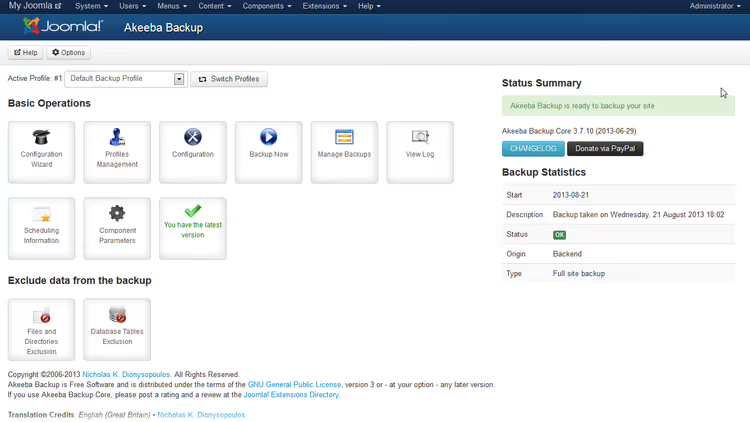
But a .jpa file won't restore itself. You need a tool that will deploy the archive with the database, files, and site settings, even if the old Joomla won't load anymore. And such a tool exists: Akeeba Kickstart, a free PHP script from the developers of Akeeba Backup, which makes restoration step-by-step and predictable.
We'll cover the full cycle: from uploading kickstart.php to the first login to the admin panel of the restored site.
💡 Quick overview:
- Pre-launch checklist: what to check before starting Kickstart
- Step 1: uploading kickstart.php and the
.jpaarchive to the site root - Step 2: running the script and the ANGIE preliminary check screen
- Step 3: database restoration with host, database name, username, and password configuration
- Step 4: site settings: paths, timezone, admin email
- Step 5: final cleanup, removing installation files and verifying the result
What is Akeeba Kickstart and when you need it
Kickstart is a single PHP file that you upload to the server along with the backup archive. When launched, it extracts a micro-application called ANGIE (Akeeba Next Generation Installer Engine) from the archive, and ANGIE then guides you through four stages: environment check, database restoration, site configuration, and cleanup.
The archive is created by the Akeeba Backup component, either free (Core) or paid (Pro, starting at €50/year). The current version, Akeeba Backup 10.x, is fully compatible with Joomla 5 and PHP 8.3. But Kickstart can restore archives created by older versions as well, including JPA files from Joomla 3 and 4.
Three typical scenarios where Kickstart is indispensable:
- Site crash. Joomla shows a white screen or database error, the admin panel is inaccessible, but the backup archive is on the hosting.
- Migration to a new server. You're changing hosting providers, Kickstart will automatically substitute the parameters of the new environment.
- Local testing. You're deploying a copy of the production site on OpenServer/XAMPP to experiment with updates.
Pre-restoration checklist
Before running kickstart.php, check these five points. Each one is a potential failure point that can turn a 5-minute restoration into an hour of debugging.
1. PHP version on the server. Joomla 5 requires PHP 8.1+, Joomla 4 requires PHP 7.4+, Joomla 3 requires PHP 7.2+. If you're restoring an old archive on modern hosting, Kickstart will warn about incompatibility, but it's better to check the PHP version in the hosting panel beforehand.
2. Database access. You'll need: database host (usually localhost), database name, username, and password. On new hosting, these credentials differ from the old ones, so create an empty database through the control panel (cPanel/DirectAdmin/ISPmanager) before launching Kickstart.
3. Joomla administrator password. ANGIE will request the super user password at the fourth stage. If the password is lost, you can reset it through phpMyAdmin after restoration, but that's an extra step.
4. Backup file in the root. The archive (.jpa, .zip, or .jps) must be in the same folder as kickstart.php. If you're restoring over an existing installation, place both files in the Joomla site root (the same place where configuration.php is).
5. Language file (for non-English locale). Kickstart defaults to English. If you need the Russian installer interface, download ru-RU.kickstart.ini from the official Akeeba website and place it next to kickstart.php.
Step 1. Downloading Kickstart and preparing files
Download the current version of kickstart.php from the official Akeeba Kickstart Download page. It's a single file about 700 KB in size, nothing needs to be installed.
Upload two files to the server in the site root folder:
kickstart.php, the restoration script itselfsite-www.example.com-20260501-120000.jpa, your backup archive (the name may differ)
If you're restoring not to the root but to a subfolder (for example, /joomla-test/), place both files there. Important: the archive and kickstart.php must be in the same directory, otherwise the script won't see the backup at the selection stage.
For uploading, use an FTP client (FileZilla, WinSCP) or the hosting file manager. After uploading, make sure the folder permissions allow the PHP script to write to it (usually 755 is sufficient).
Step 2. Running Kickstart, preliminary check screen
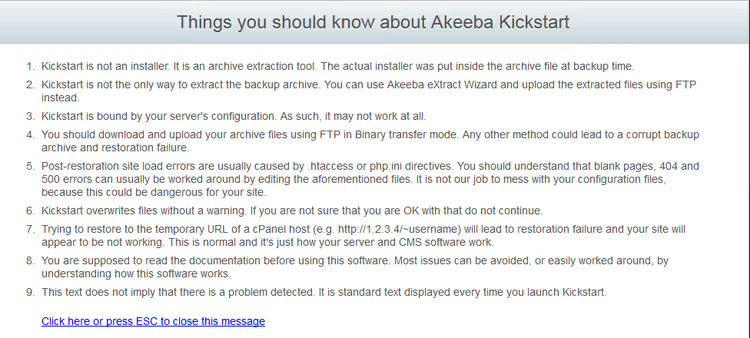
Open https://your-site.com/kickstart.php in your browser. The first thing you'll see is an informational screen titled "What you should know about Akeeba Kickstart" with warnings. Here Kickstart reminds you that restoration will overwrite existing site files, and recommends making another copy of the archive.
Press ESC or click the warning close link. The ANGIE screen will open with a preliminary environment check:
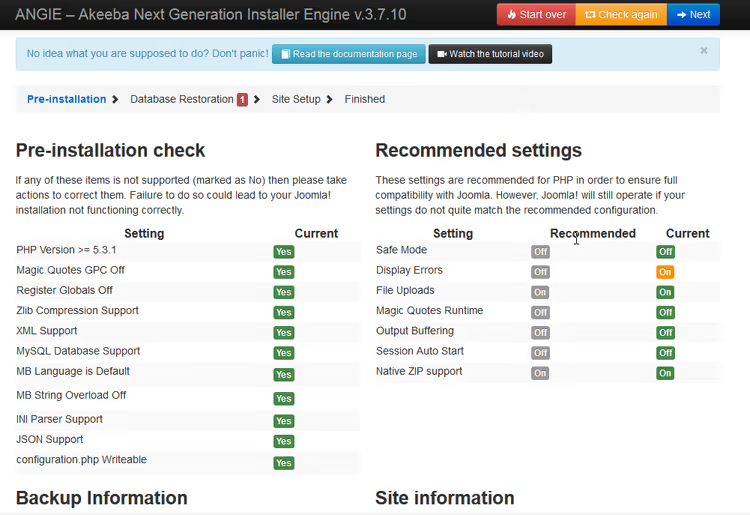
ANGIE will check the PHP version, available modules, write permissions, and archive compatibility. Green lines mean everything is fine. Yellow means warnings (you can continue). Red means critical errors that need to be fixed before continuing (usually related to PHP version or missing mysql/mysqli/pdo_mysql modules).
If the check passes successfully, click the blue Next button.
Step 3. Database restoration
The most critical stage. ANGIE will show all database connection parameters taken from the archive, but they're from the old server. If you're migrating the site to new hosting, every field needs to be checked and replaced if necessary:
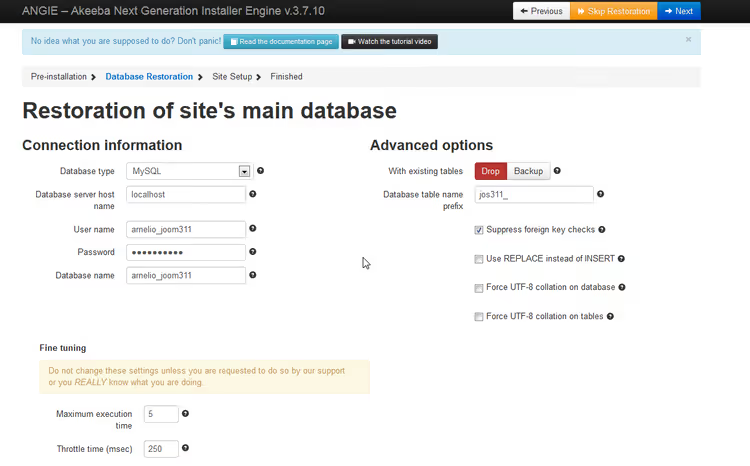
- Database server hostname, on most hosting it's
localhost, but some providers (for example, SiteGround, WP Engine) use remote database hosts. Check in your hosting control panel. - Username and Password, the login and password of the database user you created in the hosting panel.
- Database name, the name of the new database. On cPanel hosting, it often contains the account prefix:
username5_databasename. - Table prefix, no need to change unless you deliberately want to use a different prefix (for example, to host multiple Joomla installations in one database).
After filling in, click Next. ANGIE will import all tables. The process takes from a few seconds to a couple of minutes, depending on the database size.
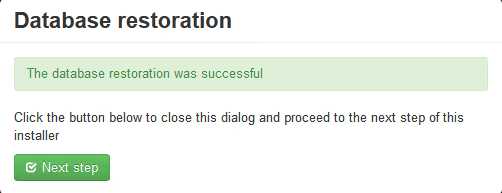
When the green confirmation appears, click Next Step to proceed to site settings.
Step 4. Site settings
On this screen, ANGIE offers to adjust the Joomla site parameters:
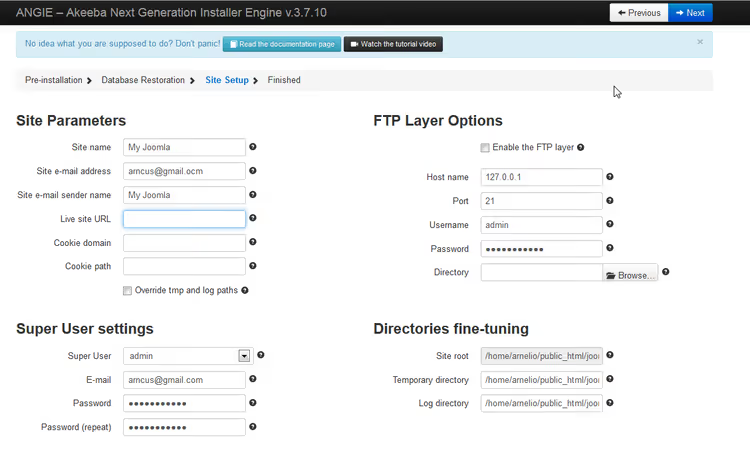
Key fields:
- Site Name, the site name. You can change it now or later in the admin panel.
- Site URL and Filesystem Path, automatically determined by Kickstart for the new location. Check that the URL starts with the correct protocol (
https://). - **Admin **Email, the administrator email for Joomla system notifications.
- Timezone, the timezone. For Russian-language sites, usually
Europe/MoscoworEurope/Kaliningrad. - SSL/HTTPS, enable Force SSL if an SSL certificate is configured on the new server.
Click the blue Next button. ANGIE will apply the settings and write them to configuration.php.
Step 5. Completion and cleanup
After applying the settings, you'll see a screen with a warning about possible path differences (relevant when migrating between servers) and a button to delete installation files:
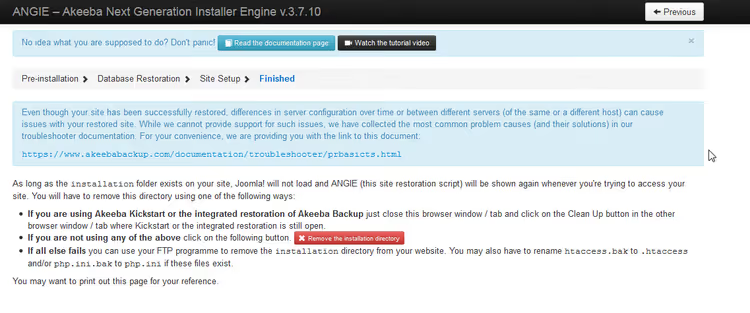
Be sure to click the button to delete installation files, this will remove kickstart.php, ANGIE, and temporary scripts. If you skip this step, you'll leave an executable PHP file on the server that could potentially be used by an attacker to overwrite the site.
The next screen is the final one:
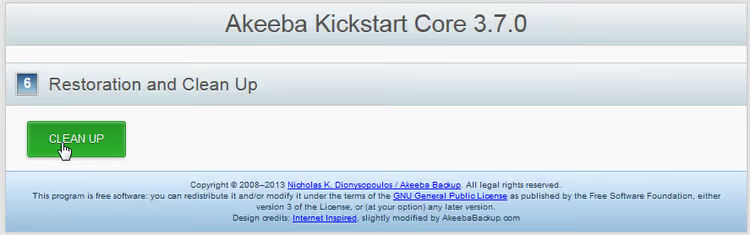
Click the green button to start cleanup. Kickstart will delete all its files and display the last screen:
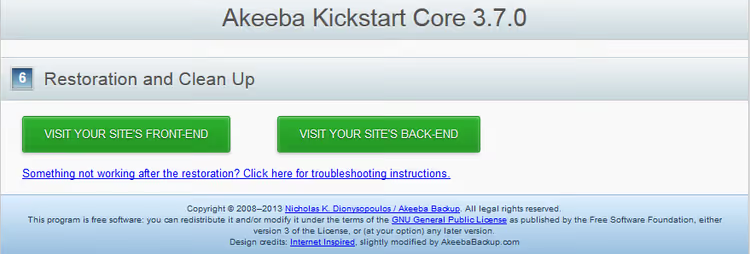
Done. From this screen, you can immediately go to the site (frontend) or admin panel (backend) using the links, verify that everything works: pages load, the admin panel opens, the database is in place.
What can go wrong and how to fix it
"Could not connect to database" error. ANGIE cannot connect to MySQL with the specified parameters. Check: correctness of the database host (on some hosting it's not localhost but a remote server), that the username and password match those you created in the hosting panel, and that the user has been granted all privileges on the database.
White screen after restoration. Most often, PHP version incompatibility. Joomla 3 won't run on PHP 8.2+. Solution: temporarily switch the PHP version in the hosting panel, log in to the admin panel, update Joomla to the current version, then return to PHP 8.2+.
"Table prefix mismatch" error. You specified a table prefix that doesn't exist in the backup. The Table prefix field at step 3 should be left as ANGIE filled it from the archive, it reads it from configuration.php inside the backup.
Internal links broken / broken images. This happens when migrating from a subfolder to root or vice versa. Log in to the Joomla admin panel after restoration, open "Global Configuration" and re-save it, Joomla will recalculate the paths.
Video: restoring a Joomla site via Akeeba Kickstart
If you're working with Kickstart for the first time, it's useful to see the entire process once on a live example. A video from the official Akeeba channel shows restoration from file upload to first admin panel login:
⁉️🤔 Frequently asked questions
Can you restore an Akeeba backup without Kickstart?
Yes, but it's inconvenient. The
.jpaarchive can be unpacked using theeXtract Wizardutility (included with Akeeba Backup) on a local computer, then manually upload the files via FTP and import the SQL dump through phpMyAdmin. Kickstart automates this entire chain, from unpacking the archive to writing parameters toconfiguration.php. Technically,.jpais a tar archive compressed with gzip, with Akeeba's proprietary header format. Neither WinRAR nor 7-Zip can read it directly, only through eXtract Wizard or Kickstart.
What if Kickstart doesn't see the backup file?
First reason, the archive is not in the same folder as kickstart.php. Second, the file extension differs from
.jpa,.zip, or.jps(for example, the hosting renamed it during upload). Third, the filename contains non-Latin characters or spaces: Kickstart doesn't recognize them on some servers. Rename the archive to a simple Latin name likebackup.jpaand try again. If the file is larger than 2 GB, verify that PHP on the server is compiled with 64-bit integer support and thatupload_max_filesizeandpost_max_sizelimits inphp.iniare sufficient. For large archives, it's better to upload the file via FTP rather than through a web form.
Can you restore an archive to a server with a different Joomla version?
Kickstart restores exactly the Joomla version that was in the archive. If you made a backup of Joomla 4 and want Joomla 5 on the new server, first restore Joomla 4, then update it the standard way through "Components → Joomla Update". Direct conversion of the archive between major versions doesn't exist. ANGIE checks the compatibility of the PHP version from the archive with the one available on the server. When migrating from Joomla 3 to modern hosting, you may need to temporarily downgrade the PHP version to 7.4, restore the site, update Joomla to 5, then upgrade PHP to 8.2+.
How does Kickstart differ from regular restoration via hosting backup?
Hosting backup (cPanel, DirectAdmin) restores the entire account at once, files, databases, email, settings. This is excessive when you only need to restore one Joomla site. Kickstart restores a specific site and in the process rewrites database connection parameters and paths for the new environment, hosting backup can't do that, it will restore old paths and the site won't run on another server. At the same time, Kickstart is free and provider-independent. You can migrate a site from any hosting to any other, having only the backup file and kickstart.php. This makes it a migration tool, not just a crash recovery tool.
Do you need to delete kickstart.php after completion?
Absolutely. ANGIE offers automatic deletion at the last step, don't skip it. A kickstart.php file left on the server is an executable script that, when run again, can overwrite a working site with the archive. Click the button to delete installation files, then verify via FTP that kickstart.php and the
installation/folder have actually disappeared.
How to restore a Joomla site without losses: final checklist
The entire restoration process via Akeeba Kickstart fits into five steps and takes 10-15 minutes with database credentials prepared in advance. The main thing is not to skip the pre-launch checklist and be sure to delete installation files after completion.
If you regularly migrate sites between servers or test updates on a local copy, keep kickstart.php and a fresh archive in a separate folder on your computer. The combination of "Akeeba Backup for creating backups + Kickstart for restoration" covers virtually all Joomla emergency restoration scenarios without needing to touch the command line or phpMyAdmin.

A professional team of writers and editors specializing in creating quality content.