














🔄 Migrating from Joomla to WordPress: K2 transfer, step by step guide 2026
Have you ever migrated a site from Joomla to WordPress? If so, you remember the headache. If not, brace yourself: the process isn't rocket science, but there are three critical points where people lose both content and a couple of days of their lives.
According to W3Techs data from June 2026, WordPress powers 43.5% of all websites, nearly half the internet. Joomla's share has dropped below 1.6% and continues to shrink. Theme and plugin developers are leaving the market, hosting providers are tailoring their plans for WP. Migration is overdue, especially if you have a content project or an online store on Joomla with the K2 component.
Below is a step-by-step migration plan, from backup to 301 redirects. With two methods for transferring K2: the official route via a paid addon and a manual SQL method for those who aren't afraid of databases. At the end, a breakdown of alternatives and a live video demonstrating the process.
💡 Quick overview:
- Create a full backup of your Joomla site using Akeeba Backup and deploy the copy on a local server.
- Install a fresh WordPress and the free FG Joomla to WordPress plugin: it will pull articles, categories, tags, and media files.
- For K2 content, connect the paid K2 addon (€24.99): it transfers items, categories, tags, images, galleries, and automatically sets up 301 redirects.
- Alternatively, copy K2 records into Joomla's main content table via an SQL query. This method works for small sites with no more than a couple hundred items.
- After import, configure redirects from old Joomla URLs to new WordPress addresses, choose a theme, and verify the content.
Step 1: Full backup of your Joomla site
Before any manipulation, backup. Not partial, not "database only," but a complete snapshot: files, database, media. Without this step, there's no way back.
Install Akeeba Backup, a free Joomla component that's the industry standard for backups with tens of millions of downloads. After installation, open Components → Akeeba Backup and click "Backup Now." The plugin will create an archive with a .jpa extension containing everything: engine files, database, images folder with K2 pictures.
Download the archive to your computer. Next, deploy a copy of the site on a local server (Open Server Panel or Local by Flywheel). You'll need Akeeba Kickstart (also free): upload the .jpa and kickstart.php to the root of your local host, open it in the browser, and complete the four-step restoration wizard. The result is an exact copy of your Joomla site running locally.
Verify that the local site opens without errors and all pages and images are in place. Only then proceed to installing WordPress.
Step 2: Installing WordPress and the FG Joomla to WordPress plugin
On the same local server, create a new host and install a fresh version of WordPress. Both CMS systems must be on the same server: the FG plugin needs direct access to the Joomla database to read tables.
In the WordPress admin panel, go to Plugins → Add New, search for "FG Joomla to WordPress," and install the free version. The author is Frédéric Gilles; the plugin has been tested with Joomla from version 1.5 through 6.x and has more than 7,000 active installations on WordPress.org. The free version transfers:
- articles (introtext + fulltext) and categories;
- images and media files, uploading them to the WordPress Media Library;
- tags and metadata;
- authors (optionally, preserving authorship).
What the free version does not do: it doesn't transfer K2 content, VirtueMart, EasyBlog, or other Joomla components. Those require paid addons.
Step 3: Configuration and running the import
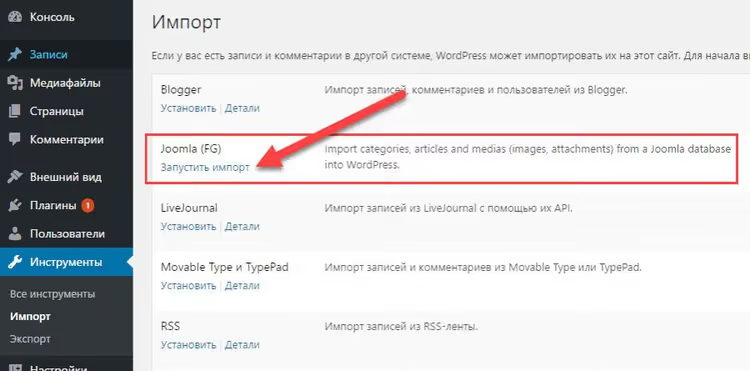
After activating the plugin, go to Tools → Import and find the "Joomla (FG)" line. Click "Run Importer."

On the page that opens, fill in the Joomla database connection fields:
- Hostname: usually
localhostsince both databases are on the same server; - Database: the name of the Joomla database;
- Username / Password: MySQL user login and password;
- Joomla Table Prefix: table prefix,
jos_by default, but verify: it may have changed after the Akeeba restoration.
Click "Test the database connection." If the data is correct, the plugin will display the number of articles, categories, and media files found.
Next is the "Behavior" section. Key settings:
- Import introtext: leave as "to the content" for the main article text;
- Import fulltext: also "to the content" so the full text joins the intro;
- Import images: required setting is "to the WordPress Media Library and in the content" so images go both into the text and the media library;
- Import media: if your Joomla articles contained PDF files or ZIP archives, enable this option.
Check "Remove all WordPress content before import" only if the WordPress site is completely empty. If you already have test posts or pages, uncheck it.
Click "Start / Resume the import." The plugin works in AJAX mode: it processes data in chunks, displays a progress bar, and won't crash on large volumes. Importing 500 articles takes 3-7 minutes on a local server. Don't close the page until you see the "Import completed" message.
Step 4: Transferring K2 content (two methods)
K2 is the most popular CCK component for Joomla: it's used for blogs, catalogs, portfolios, and news sections. The standard FG Joomla to WordPress import doesn't see K2 items because they're stored in separate tables: k2_items, k2_categories, and about ten other service tables. There are two solutions.
Method A: K2 add-on (recommended)
The author of FG Joomla to WordPress offers a separate K2 add-on for €24.99. It requires the main FG Joomla to WordPress Premium plugin (€49.99). That's about €75 total, and here's what you get:
- K2 items → WordPress posts with preserved IDs (critical for redirects);
- K2 categories, including nested ones, become WordPress categories;
- additional categories from the
k2_categories_xreftable; - tags, comments, and images: featured image, galleries, captions;
- video (YouTube links convert to oEmbed);
- attachments and custom fields, exportable to ACF fields or Toolset Types;
- authors with avatars via User Profile Picture;
- automatic 301 redirects from old K2 URLs to new WordPress posts.
Installation is straightforward: purchase Premium, install it over the free version, then buy the K2 Add-on. The next time you run the import, a "K2" tab appears in the interface with settings for which fields to transfer, how to handle galleries, and where to convert custom fields.
This is the path for sites with hundreds of K2 items and complex category structures. The plugin saves days of manual work.
Method B: Manual SQL transfer (for small sites)
If you have few K2 items (dozens, not hundreds) and no budget for the plugin, you can copy K2 records to Joomla's main content table via SQL. The concept is simple: both tables (main_content for Joomla articles and main_k2_items for K2 items) are in the same database. Copy data from the second into the first, and the standard FG import picks them up as regular articles.
Open phpMyAdmin on your local server, select the Joomla database, and run this query:
1 REPLACE INTO `jos_content` (`id`, `title`, `alias`, `catid`, `introtext`, `fulltext`, `created`, `created_by`, `publish_up`, `publish_down`, `access`) 2 SELECT `id`, `title`, `alias`, `catid`, `introtext`, `fulltext`, `created`, `created_by`, `publish_up`, `publish_down`, `access` 3 FROM `jos_k2_items`;
Replace jos_ with your table prefix. After running the query, K2 items will appear in the Joomla admin's "Articles" section as regular articles. Run the FG import again, and the plugin will see them and transfer them to WordPress.
Important: this method transfers only basic fields (title, alias, text, date, author). K2 images, tags, custom fields, and galleries remain in the K2 tables. You'll need to transfer them manually or use the K2 Add-on anyway. Duplicate records (if an article existed in both Joomla and K2) will also need manual cleanup. The method works, but for a serious site, getting the addon makes more sense.
Step 5: Redirects, theme, and final verification
The import is complete. But the site isn't ready yet: old Joomla URLs lead nowhere, there's no theme, and some content may have shifted.
301 redirects. Joomla formats URLs differently than WordPress: /component/k2/item/123-nazvanie versus /nazvanie/. Without redirects, search engines will see hundreds of 404 errors. If you used the K2 Add-on, it sets up redirects automatically (rules are added to .htaccess). If not, install the Redirection plugin and manually create rules for your most visited pages. At minimum, cover the main categories and top 20 pages by traffic from Google Search Console.
Theme. Joomla templates don't convert to WordPress themes; choose a new one. For a content site, Astra, GeneratePress, or Kadence work well: lightweight, fast, with flexible no-code customization. Import a starter template, configure the header and footer, and connect fonts.
Content verification. Go through all imported pages: check if layouts shifted, if any internal links to Joomla pages are broken, and if images load properly. The Broken Link Checker plugin will scan the site and show all problematic URLs.
Final touches. If your Joomla site had SSL, configure HTTPS on WordPress. If you had robots.txt or sitemap.xml files with custom rules, transfer them to your SEO plugin: Rank Math or Yoast SEO.
Alternatives to FG Joomla to WordPress
FG isn't the only tool. For completeness, here are three alternatives.
CMS2CMS. A cloud-based migration service supporting dozens of CMS platforms. No plugin installation required: connect both sites, choose what to transfer, and start the process. Pricing depends on data volume: for a typical site with 250 pages, around $75; for a small one, less. Plus: transfers K2 and VirtueMart out of the box. Minus: additional modules like SEO migration are charged separately; only a demo migration of 10 records is available for free.
gConverter. Specializes specifically in Joomla → WordPress migrations. Offers both a DIY plugin and a full "turnkey" migration with redirect services. Prices start at $99 for the starter package. Works with K2, EasyBlog, VirtueMart, and JoomShopping.
Manual transfer via CSV. Export content from Joomla to CSV using the J2XML plugin or similar, then import into WordPress via WP All Import. This path is for those who need full control over every field. Labor-intensive, but fully customizable: you can relink images, recalculate IDs, and merge categories on the fly.
For a typical content site, the FG + K2 Add-on combination is the most direct and affordable route. Alternatives make sense if you have an online store on VirtueMart or JoomShopping (where you need to transfer orders and products to WooCommerce) or if an agency is handling the migration with a budget for turnkey services.
⁉️🤔 Frequently asked questions
The FG plugin doesn't see the Joomla database. What should I do?
Verify that both CMS systems are on the same server, typically
localhost. For remote connections, specify the server's IP or domain in the Hostname field. Make sure the MySQL user has read permissions for both databases. If the sites are on different hosts, the most reliable option is to deploy a copy of Joomla locally via Akeeba Kickstart and import from the local server.
Can I transfer K2 for free, without Premium and the addon?
Yes, but with limitations. The SQL method from step 4 transfers basic fields: title, text, date. K2 images, tags, galleries, custom fields, and comments remain in the old tables and must be transferred manually. For a site with 20-30 items and no complex structure, this approach works. For everything else, the €75 for Premium + K2 Add-on pays for itself on the first day of saved time.
What should I do with old Joomla URLs after migration?
Set up 301 redirects. The K2 Add-on does this automatically (rules are written to
.htaccess). Without the addon, install the free Redirection plugin and create rules for key pages manually. Use Google Search Console as your guide: export the top 20 URLs by traffic and map each to its new WordPress address. You can redirect remaining pages as you discover 404 errors in the logs.
Which WordPress theme is best after migrating from Joomla?
Universal choices for a content project are Astra, GeneratePress, or Kadence. All three are lightweight: load time under 0.5 seconds with caching, and flexible customization without code. If you need a theme that visually resembles your old Joomla template, look at OceanWP or Neve, which have extensive starter site libraries. Avoid heavy themes with dozens of built-in plugins: they'll consume the speed gains you were trying to achieve by migrating.
The migration stopped halfway. How do I continue?
FG Joomla to WordPress supports stopping and resuming imports: don't close the page with the progress bar, as the plugin remembers its position. If the page closed anyway, run the import again and the plugin will skip already transferred records. Before restarting, do not check "Remove all WordPress content before import." In the worst case, restore WordPress from a backup and start the import fresh.
Migrating yourself or paying for a service: which to choose
For a typical content site on Joomla with K2, the combination of Akeeba Backup + FG Joomla to WordPress + K2 Add-on handles the job in one evening. You pay €75 and control the process from start to finish.
If you have an online store on VirtueMart or JoomShopping, the picture changes: products, orders, and customers must move to WooCommerce without losses. The Premium version of FG with addons can handle this, but setup is more complex. An alternative is gConverter or CMS2CMS with turnkey migration services. You pay from $75 to several hundred dollars and get a ready WordPress store with redirects and verified content.
The main rule we've learned from dozens of migrations: always make a full backup and always test the migration on a local copy. A live site doesn't forgive haste.

A professional team of writers and editors specializing in creating quality content.