













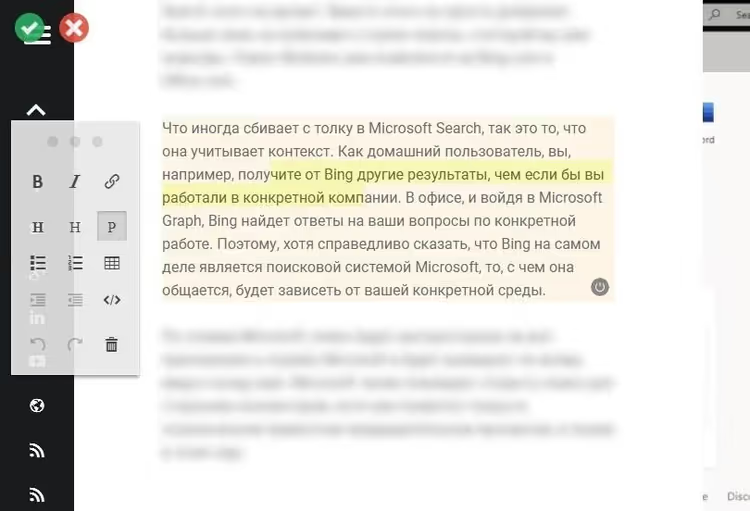
✏️ Editing Grav pages from the frontend: installation and access rights
A content manager logs into the admin panel, finds a page among 50 others, opens the editor, fixes a heading, saves, returns to the site, and refreshes the tab. Six clicks for one edit. For Grav CMS there is a simple solution: the Editable with ContentTools plugin embeds a WYSIWYG editor directly on the site page. You open the page, click "edit," fix the text, and save it back to a Markdown file without entering the admin panel.
The plugin has not been updated since 2022 (the author officially discontinued support), but it runs stably on Grav 1.7 and covers the basic scenario of editing simple Markdown pages without dynamic logic. Installation takes five minutes, and after that editing text on the frontend becomes much easier.
Below is a complete guide from installation to access rights, with a breakdown of limitations and an alternative (Fred).
💡 Quick overview:
- Install the plugin via GPM or a zip archive and copy the config.
- Set up git-sync to commit changes to a repository (optional).
- Mark editable areas with the editable shortcode using unique names.
- Grant site.editable permissions to frontend users.
- Merge admin and frontend sessions via session.split: false.
- Keep in mind the limitation: only plain Markdown, no Twig or dynamic content.
Installation: via GPM or manually
The plugin is installed through Grav Package Manager, the standard method for any add-on in Grav:
1 bin/gpm install editable-contenttools
Run the command from the site's root folder (where bin/ is located). GPM will download the latest version and extract it to /user/plugins/editable-contenttools.
Alternatively, you can install manually: download the zip archive from GitHub, extract it to /user/plugins/, and rename the folder to editable-contenttools (without the -master suffix). The structure should look like this: /user/plugins/editable-contenttools/editable-contenttools.php.
Copy the config to a safe location
After installation, be sure to copy the configuration file to the user directory:
1 cp user/plugins/editable-contenttools/editable-contenttools.yaml user/config/plugins/editable-contenttools.yaml
This step is important: if settings remain in the plugin folder, they will be reset when you update via GPM. An alternative approach is to install through the Grav Admin panel (Plugins → Add), in which case the system automatically creates the config in user/config/plugins/ and no manual copying is needed.
Configuration: three config options
The editable-contenttools.yaml file contains three parameters:
1 enabled: true 2 git-sync: false 3 git-sync-mode: foreground
enabled activates the plugin. Without enabled: true the editor will not appear on the frontend, even if permissions are granted. The default is true.
git-sync triggers synchronization with a Git repository after each save. It only works when the Git Sync plugin is installed. If your site lives in Git and you want to record every change in history, set this to true. Otherwise leave it as false.
git-sync-mode determines whether to wait for synchronization to complete before returning control to the user. foreground means the "Save" button unlocks only after the commit and push finish. background works asynchronously, but some Linux servers may have issues with background processes. For most scenarios foreground is sufficient.
Marking editable areas: the [editable] shortcode
![Example of the [editable] shortcode in a Grav page Markdown file](/wp-content/uploads/2020/03/image_1966.avif)
The plugin does not make the entire page editable automatically. You define which blocks can be edited using the [editable] shortcode:
1 [editable] 2 ## Section heading 3 4 Text that can be edited from the frontend. 5 [/editable]
A page can contain any number of such areas. Each area must have a unique name; otherwise ContentTools will not know where to save changes.
The name parameter: mandatory uniqueness
By default the plugin assigns names automatically (region-0, region-1, and so on), but it is better to specify meaningful names manually:
1 [editable name="hero-block"] 2 ## Main heading 3 4 Text that can be edited. 5 [/editable]
On the first save via the frontend, the plugin will automatically add a name parameter to the shortcode if one was missing. In practice it is easier to specify names right away during markup, as this simplifies debugging (you can see which block you are editing in the browser's developer tools).
After marking up and saving the page, visit the site as a user with the site.editable permission, click the pencil icon on the left, and edit text as you would in a standard text editor. Hold Shift for about three seconds to highlight all editable regions.
You can try it on the plugin demo site (saving is disabled, Grav 1.7.46).
Access rights: frontend and backend
For a user to see the pencil icon, they need editing permissions. The rules differ for frontend users (content managers) and backend users (administrators).
Frontend users
A user must be able to log in via the Grav Login plugin or Private Grav. Then add the following to the account file (user/accounts/username.yaml):
1 access: 2 site: 3 login: 'true' 4 editable: 'true'
Without the site.editable permission the pencil icon will not appear, even if the user is logged in and has other rights.
Backend users (administrators)
By default Grav separates admin and frontend sessions. To allow an administrator to edit pages directly on the site (without entering the admin panel), set the following in system.yaml (or through the admin panel Configuration → System):
1 session: 2 split: false
This merges sessions: logging into the admin panel will automatically grant access to the frontend editor. The administrator will also need the admin.super or admin.pages permission in their account file.
If the icon does not appear after logging in, check the admin caching settings:
1 admin: 2 super: 'true' 3 login: 'true' 4 cache: 'false'
The cache: false parameter disables caching for the admin and may resolve the issue with the invisible icon.
Limitations: what the plugin cannot do
The plugin works exclusively with plain Markdown. This is an architectural limitation, not a bug: ContentTools edits HTML in the browser, and the plugin converts HTML back to Markdown. In the process any dynamic markup will be corrupted. Do not edit content through ContentTools if it:
- is assembled by Twig templates (for example, modular pages: child blocks are inserted by the parent dynamically, and the plugin cannot see their source);
- is injected by other plugins (Page Inject and similar plugins insert content from other pages, which is a one-way process);
- changes via JavaScript in the browser (sliders, accordions, and other interactive elements will be converted to static HTML);
- contains Grav Markdown special tags (images with
?lightboxand?resizeparameters will be damaged during HTML → Markdown conversion, as processing parameters will disappear).
The safety rules are simple:
- Keep images and complex shortcodes outside editable areas.
- Keep areas small: the number is unlimited, and 10 small blocks are better than one large block with risks.
- Test on a copy of the post or a staging environment before giving access to editors.
- If you notice differences in Markdown formatting between the version with the pencil icon and the version without, move that fragment outside
[editable].
Alternative: the Fred plugin
If the functionality of Editable with ContentTools is not enough, take a look at Fred, a newer frontend editor for Grav that is also based on ContentTools. Key differences:
- Image upload via a dialog (with rotation and basic processing).
- Auto-wrapping of content through the
onPageProcessedevent, requiring less manual shortcode markup. - Active development: the author accepts issues on GitHub and continues adding features.
Installation via cloning the repository into /user/plugins/fred:
1 cd user/plugins 2 git clone https://github.com/BugHunter2k/grav-plugin-fred.git fred
Permissions are set similarly: site.editor: true in the user account file (note: site.editor, not site.editable).
Both Editable with ContentTools and Fred solve the same problem: they give content managers a tool for quick edits without entering the admin panel. The first is suitable if you need a simple, proven tool for Markdown pages without experiments. The second works if you want more automation and are prepared for the potential rough edges of active development.
Video: how ContentTools works
A two-minute demonstration of editing a Grav page in the browser: the author shows how editable areas are highlighted, changes are made, and content is saved back to Markdown. A good way to see the plugin in action before installing.
⁉️🤔 Frequently asked questions
Why doesn't the pencil icon appear after installation?
Check four things. First,
enabled: truein the plugin config (user/config/plugins/editable-contenttools.yaml). Second, the user must have thesite.editablepermission in their account file. Third, for backend userssession.splitmust befalseinsystem.yaml. Fourth, clear the Grav cache:bin/grav clear-cache. Usually the problem is either permissions or split sessions.
Can I edit modular pages?
No. Modular pages are assembled from child pages via Twig templates, which is a one-way process: the plugin cannot "disassemble" the result back into parts. On the frontend you see the finished HTML, but the source (separate Markdown files of child modules) is located in other folders, and the plugin does not know where to save changes. For modular pages use the standard Grav Admin interface.
What happens if I leave an image inside [editable]?
Grav Markdown special tags for images (with
?lightbox,?resize,?cropResizeparameters) will be damaged during HTML-to-Markdown conversion. The image itself will remain in place (the<img>tag converts to regular Markdown), but the processing parameters will disappear. Conclusion: always keep images with parameters outside the editable area. If an image is simple (without parameters), you can technically leave it inside, but in practice it is safer to move all media outside[editable].
The plugin is abandoned by the author. Is it safe to use?
The author officially announced the end of support in 2022, and the last commit is dated August 2024 (a compatibility update for Grav 1.7). The plugin is stable on Grav 1.7 and does not affect security-critical components: it only works with Markdown content and has no access to server operations. If you plan to transition to Grav 2.0, consider looking at Fred or waiting for an official frontend editing solution (new approaches based on TinyMCE and Prosemirror are being discussed on the forum).
What is the difference between Editable with SimpleMDE and the ContentTools version?
Editable with SimpleMDE uses the same approach (frontend editing), but instead of a visual editor it provides the SimpleMDE Markdown editor with live preview. It suits those who prefer writing markup by hand and want to see the result to the right of the editor rather than in WYSIWYG mode. Both plugins are from the same author (bleutzinn) and both have been abandoned since 2022.
Is it worth installing a frontend editor for Grav in 2026
If your site runs on Grav 1.7, consists of simple Markdown pages, and content managers are tired of entering the admin panel for a couple of edits, install Editable with ContentTools. Five minutes for installation, minimal configuration, and editing becomes a one-click operation. Open the page, click the pencil, fix the text, save. No searching through page lists, no tab switching.
For new projects or when planning a transition to Grav 2.0 (a release is expected in 2026, though there is no exact date), consider Fred: it is more actively developed and more likely to receive compatibility with the second version of the CMS. In any case, frontend editing saves dozens of clicks and minutes of time on each edit, which is especially noticeable on sites with frequent content updates. Try it on a test environment and decide how much this approach speeds up your workflow.

A professional team of writers and editors specializing in creating quality content.