














🚫 WooCommerce checkout index interferes with customers: 4 ways to remove verification
Why postal code validation is an unnecessary barrier
WooCommerce requires the postal code field by default and validates it. But here is the reality: dozens of countries in Africa, Central America, and Oceania do not use zip codes at all. A buyer from Kenya or Jamaica enters random digits, gets an error, and leaves.
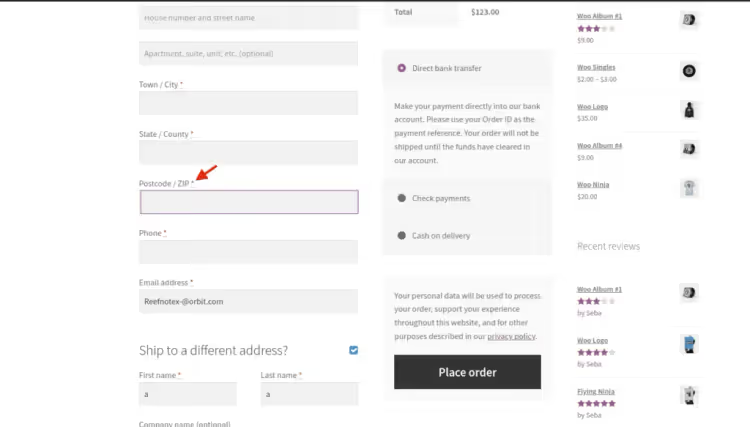
Extra fields and errors on the checkout page directly hurt conversion. According to the Baymard Institute, 17% of US buyers have abandoned a checkout specifically because it was too long or complicated. Removing one or two unnecessary fields is the cheapest way to boost sales without an ad budget.
Below, four ways to disable validation: from completely removing the field to simply renaming it. Choose based on your audience.
💡 Quick overview:
- Completely remove the postal code field via
unset(), for stores that do not need it at all - Make the postal code optional, for stores with a mixed geographic audience
- Remove unnecessary fields from the billing form, if the postal code is only part of the problem
- Change the field label to something the user understands, minimal intervention
- Consider plugins if you prefer not to touch code
Method 1: Completely remove the postal code field from checkout
The most radical and clean method. The woocommerce_checkout_fields hook gives full control over all checkout fields: take the array, cut out billing_postcode, and return it.
Add the code to your child theme's functions.php:
1 /** 2 * Remove the postal code field (billing_postcode) from checkout. 3 */ 4 add_filter( 'woocommerce_checkout_fields', 'quadlayers_remove_billing_postcode_checkout' ); 5 function quadlayers_remove_billing_postcode_checkout( $fields ) { 6 unset( $fields['billing']['billing_postcode'] ); 7 return $fields; 8 }
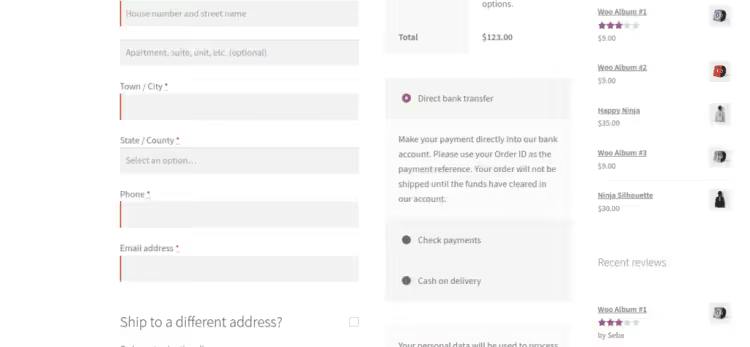
What is happening here. The woocommerce_checkout_fields hook receives the entire checkout fields array: billing, shipping, and order. The unset() function cuts the specific key billing_postcode out of the billing section. The array is returned to WooCommerce without the postal code field, so it disappears from both the form and validation.
But if your audience is mixed and some customers do need a postal code, see method 2.
Method 2: Make the postal code optional
Instead of removing the field, you can simply uncheck the required flag. The field stays on the page, but the buyer can skip it without an error.
Here we use the woocommerce_default_address_fields filter, which handles default settings for all address fields:
1 /** 2 * Make the postal code field optional. 3 */ 4 add_filter( 'woocommerce_default_address_fields', 'quadlayers_optional_postcode_checkout' ); 5 function quadlayers_optional_postcode_checkout( $p_fields ) { 6 $p_fields['postcode']['required'] = false; 7 return $p_fields; 8 }
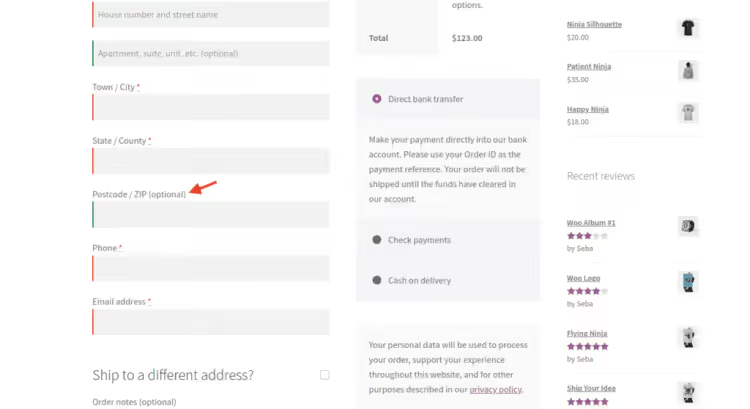
The difference from the first method is in the hook. woocommerce_default_address_fields works one level lower: it sets the properties of the fields themselves (label, placeholder, required) before they land in the billing and shipping sections. That is why the key here is simply postcode, without the billing_ prefix.
Suitable for stores that sell to countries both with and without postal codes.
Method 3: Remove unnecessary fields from the billing form
Often the problem is broader than just the postal code. The company, address_2, city, and state fields are also not always needed: each one adds friction to checkout.
The same woocommerce_checkout_fields hook removes any field by its identifier. Here is the full list of available keys for the billing section:
1 unset( $fields['billing']['billing_company'] ); 2 unset( $fields['billing']['billing_address_2'] ); 3 unset( $fields['billing']['billing_city'] ); 4 unset( $fields['billing']['billing_state'] ); 5 unset( $fields['billing']['billing_phone'] );
The names are self-explanatory. The billing_ prefix indicates that the field belongs to the billing form. For example, to remove company and address_2 along with the postal code:
1 /** 2 * Remove company, address_2 and postal code from checkout. 3 */ 4 add_filter( 'woocommerce_checkout_fields', 'quadlayers_remove_billing_fields' ); 5 function quadlayers_remove_billing_fields( $fields ) { 6 unset( $fields['billing']['billing_company'] ); 7 unset( $fields['billing']['billing_address_2'] ); 8 unset( $fields['billing']['billing_postcode'] ); 9 return $fields; 10 }
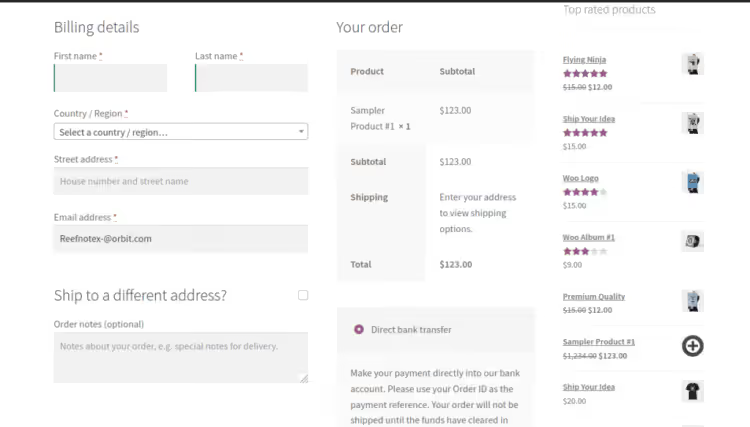
Several unset() calls coexist peacefully inside a single function: just list the keys you want to hide.
Method 4: Rename a field to something the user understands
Minimal intervention with maximum effect. You don't touch validation, you simply change the cryptic "Postcode / ZIP" label to something your audience understands. For example, "District" or "Postal code (if you have one)".
We use the gettext hook, the same one WordPress and WooCommerce use to translate the interface:
1 /** 2 * Change checkout field labels via gettext. 3 */ 4 add_filter( 'gettext', 'quadlayers_billing_field_strings', 20, 3 ); 5 function quadlayers_billing_field_strings( $translated_text, $text, $domain ) { 6 switch ( $translated_text ) { 7 case 'Postcode / ZIP': 8 $translated_text = __( 'Area code', 'woocommerce' ); 9 break; 10 } 11 return $translated_text; 12 }
If you want to rename several fields, add cases inside the switch:
1 function quadlayers_billing_field_strings( $translated_text, $text, $domain ) { 2 switch ( $translated_text ) { 3 case 'Billing details': 4 $translated_text = __( 'Order information', 'woocommerce' ); 5 break; 6 case 'Ship to a different address?': 7 $translated_text = __( 'Send to other location please', 'woocommerce' ); 8 break; 9 case 'Company name': 10 $translated_text = __( 'Company', 'woocommerce' ); 11 break; 12 case 'Postcode / ZIP': 13 $translated_text = __( 'Area code', 'woocommerce' ); 14 break; 15 } 16 return $translated_text; 17 }
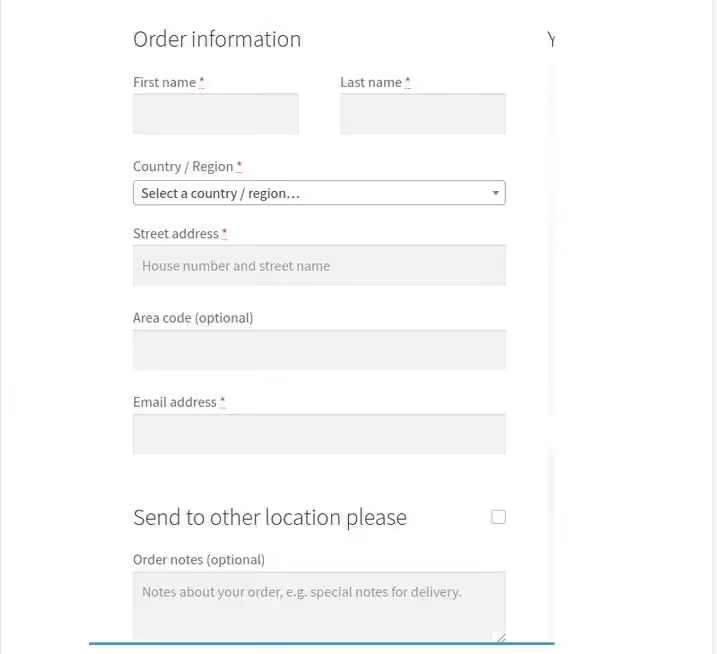
In the screenshot above, the result of combining approaches: several fields are hidden, the postcode field is renamed to "Area code" and made optional, the billing and shipping section headings are replaced with custom ones. The checkout became shorter and clearer, with no plugins.
Plugins for managing checkout fields
If you don't want to touch functions.php, there are ready-made tools. Let's look at two free plugins that solve the problem without a single line of code.
Checkout field manager for WooCommerce
Checkout Field Manager, one of the most popular checkout field editors. It lets you add, remove, and reorder fields in the Billing, Shipping, and Additional sections, all through a visual interface.
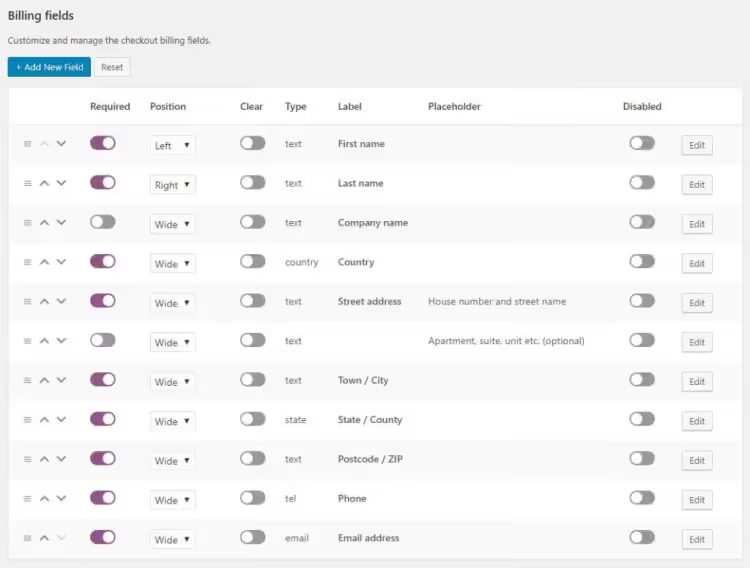
The plugin is free; the basic version covers the main scenarios: hide a field, make it optional, rename it. For conditional logic (show a field only for a specific country) and additional field types, there is a premium version.
Direct Checkout for WooCommerce
Direct Checkout for WooCommerce (formerly called "WooCommerce Direct Checkout") solves a broader problem: it simplifies the entire checkout process. Besides removing fields, it can: skip the cart and take the customer straight to checkout, change the "Add to cart" button text, add AJAX add-to-cart on product pages.
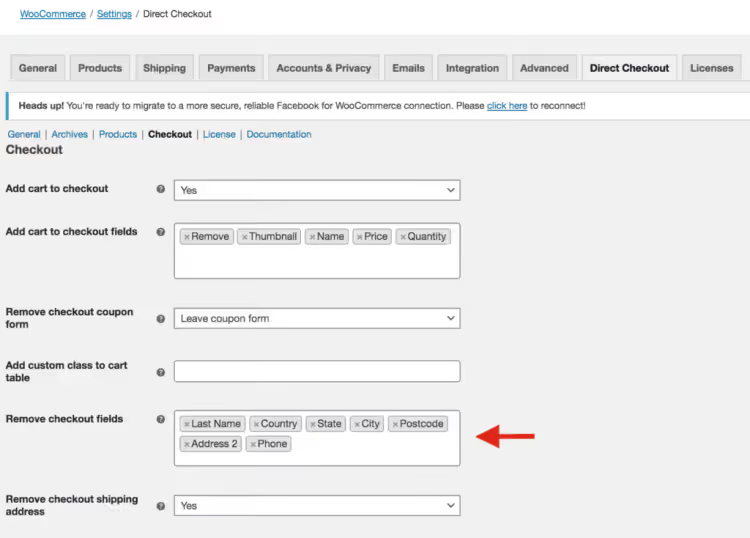
Both plugins are regularly updated and compatible with current versions of WordPress and WooCommerce.
⁉️🤔 Frequently asked questions
Can I disable validation only for certain countries?
Yes. You can tie the check to
WC()->customer->get_billing_country()inside thewoocommerce_checkout_fieldsfilter and applyunset()orrequired = falseonly for the list of countries without postal codes. That way, buyers from Germany or the US will still see a required field, while customers from Kenya will not.
Will shipping break after disabling postcode validation?
It depends on the shipping service. Postal services like USPS or Royal Mail use the postcode to calculate rates; for them, it's better to keep the field required or at least visible. If you sell digital goods or use courier delivery within a city, you can safely remove the postcode. Test the cost calculation for each shipping zone after making changes.
The code doesn't work; the postcode field is still there. What's wrong?
Three common causes. First: cache. Clear your site and browser cache; after editing
functions.php, open the checkout in incognito mode. Second: another plugin or theme overrides the field later than your filter. Try increasing the hook priority:add_filter( 'woocommerce_checkout_fields', '...', 99 ). Third: you are editing the wrongfunctions.php. The code must be in the active (child) theme's file.
How do I remove the postcode field without editing functions.php?
Install Checkout field manager for WooCommerce; it lets you disable any fields via the admin panel. Or use the Code Snippets plugin: paste the PHP code from method 1 as a snippet and activate it. Both options are safer than directly editing
functions.phpand won't be lost when the theme updates.
What if postcode validation is disabled, but WooCommerce still throws an error?
Most likely, the error is not generated by WooCommerce core but by a third-party plugin, such as a shipping service plugin or an address validator. Disable shipping and address verification plugins one by one to find the culprit. Also check whether validation is set at the JavaScript level in the theme; sometimes developers duplicate the check on the front end.
A practical example from the video
Watch a live example of checkout field configuration, from code to the front-end result:
Code or plugin: which one to pick?
If you just need to remove one or two fields and you are comfortable with the theme editor, four lines of PHP from method 1 or 2 are enough. It is lightweight and does not add extra code to the site.
If you have many fields to configure, you frequently experiment with checkout, or you prefer not to touch functions.php, go with Checkout Field Manager for WooCommerce. It is free and gives you visual control over all fields without the risk of breaking the site with a typo in the code.
For comprehensive checkout optimization (skipping the cart, AJAX buttons, custom labels), Direct Checkout for WooCommerce covers everything in a single plugin.
The golden rule: after any changes, run a test order from start to finish. Five minutes of testing saves hours of sorting through complaints from real customers.

A professional team of writers and editors specializing in creating quality content.