














🚫 Cleaning up WooCommerce checkout: removing unnecessary payment methods by country, amount and role
A customer fills their cart, reaches checkout, and sees five payment methods, two of which actually work. You tested the third one a month ago and forgot to disable it, the fourth doesn't accept payments from their country, and the fifth is dead weight left over after deactivating an old plugin. Sound familiar?
Every extra gateway on the checkout is friction. The customer wastes seconds choosing, and if they pick a broken method, they abandon the cart. According to the Baymard Institute, 22% of users leave checkout specifically because of a complicated or confusing checkout process.
Below are three ways to clean up payment methods in WooCommerce: from the built-in panel for a quick cleanup to line-by-line code for any conditions. Each one has been tested on a live store, with concrete examples and pitfalls.
What to know before disabling
💡 Quick overview:
- Method 1: WooCommerce → Settings → Payments, two clicks, disables a gateway for all customers at once
- Method 2:
woocommerce_available_payment_gatewaysfilter infunctions.php, conditions by country, cart total, user role - Method 3: free Conditional Payments for WooCommerce plugin, visual builder, zero lines of code
Before any changes, do a full backup. The free UpdraftPlus handles this: a couple of clicks and a copy of your site is in the cloud. After disabling gateways, always run a test order from cart to "thank you" to make sure the remaining methods accept payments without errors.
And most importantly: never disable ALL gateways at once. Leave at least one working payment method, otherwise customers simply won't be able to complete their order, and you'll find out about it from the deafening silence in your email.
Method 1: WooCommerce panel, two clicks, zero risk
The simplest and safest path. Works when you need to remove a specific gateway for ALL customers with no conditions.
Open WooCommerce → Settings in the admin sidebar and go to the Payments tab. You'll see a table of all registered payment methods with an Enabled column. Active gateways are highlighted in purple, disabled ones in gray.
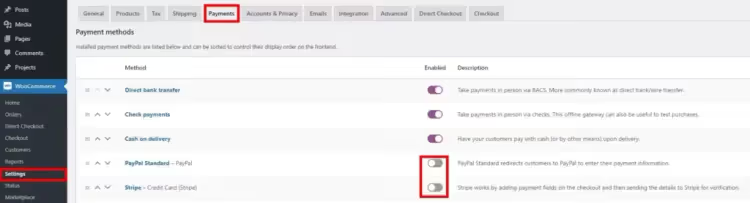
To disable a method, click the toggle in the Enabled column, it will turn gray. That's it. The gateway instantly disappears from checkout. No code, no plugins.
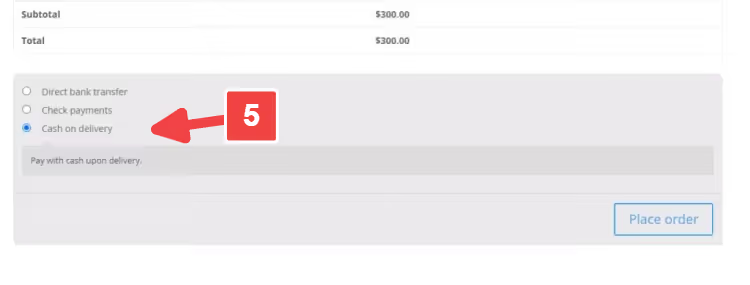
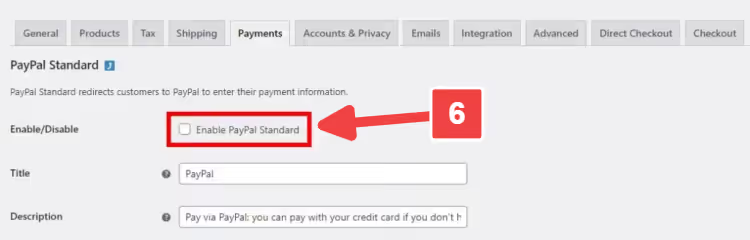
An alternative path to the same result: click the method name in the list, uncheck Enable this payment gateway, and save.
What this method CAN'T do
There's exactly one limitation, but it's significant: you disable the gateway globally. If your store operates in multiple countries or you need to hide a method only under certain conditions (order total below a threshold, a product from the "digital" category, a customer from the EU), the panel won't help. For conditional logic, move on to methods 2 and 3.
Method 2: Code, woocommerce_available_payment_gateways filter
WooCommerce provides the woocommerce_available_payment_gateways hook. It fires right before the list of methods is displayed on checkout and lets you remove gateways based on a dozen different conditions: country, cart total, user role, product category in the order.
The code is added to the functions.php of the child theme or via the Code Snippets plugin. If you don't have a child theme yet, create one before making changes, otherwise everything will break on the next parent theme update.
2.1. Hide all payment methods at once
Sometimes you need to completely remove the payment form: for example, the site is in maintenance mode while you're testing the cart. One line in functions.php:
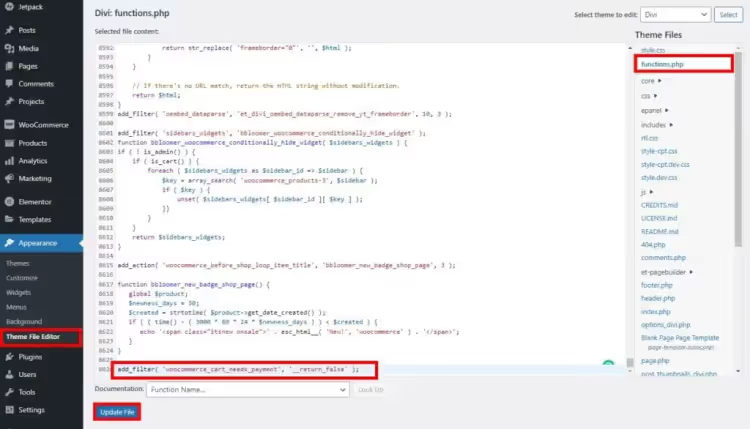
1 add_filter( 'woocommerce_cart_needs_payment', '__return_false' );
The filter tells WooCommerce: "no payment needed." The entire payment form disappears from checkout. Click Update file, and don't forget to remove the line after testing, otherwise no real order will go through.
2.2. Disable a gateway for a specific country
Suppose you accept orders from the US and Europe. US customers pay via PayPal, while Europeans don't need it, they have local gateways. The code below removes PayPal for a US billing address:
1 add_filter( 'woocommerce_available_payment_gateways', 'quadlayers_payment_gateway_disable_country' ); 2 function quadlayers_payment_gateway_disable_country( $available_gateways ) { 3 if ( is_admin() ) return $available_gateways; 4 if ( isset( $available_gateways['paypal'] ) && WC()->customer->get_billing_country() === 'US' ) { 5 unset( $available_gateways['paypal'] ); 6 } 7 return $available_gateways; 8 }
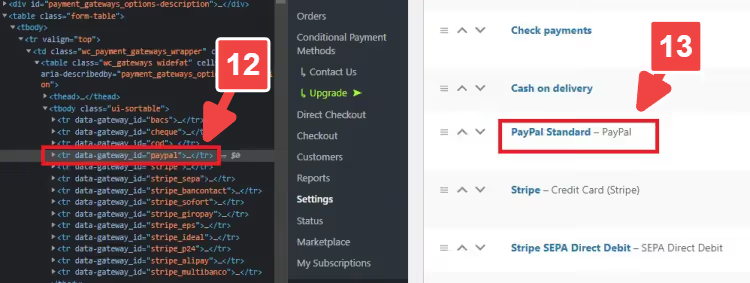
The key point is the gateway ID. Each gateway has its own: paypal (PayPal), stripe (Stripe), bacs (direct bank transfer), and cod (cash on delivery). If you don't know the ID, go to WooCommerce → Settings → Payments, right-click the method name and select "Inspect", then find the data-gateway_id attribute in the markup:
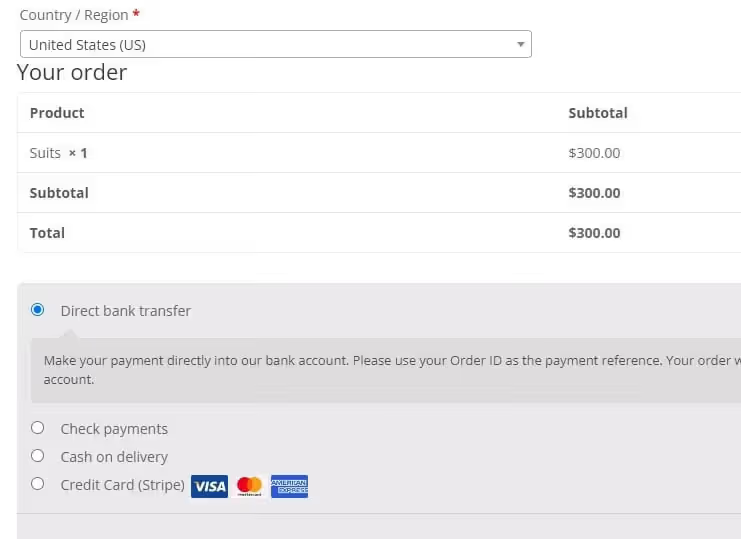
After adding the code, test the checkout: with a US billing address, PayPal disappears; for other countries, it stays.
2.3. Disable a gateway based on cart total
Some payment processors charge a flat fee that eats into your margin on small orders. For example, for totals under $200 you want to keep only direct bank transfer, and enable PayPal for larger checkouts:
1 add_filter( 'woocommerce_available_payment_gateways', 'quadlayers_disable_paypal_below_threshold' ); 2 function quadlayers_disable_paypal_below_threshold( $available_gateways ) { 3 $threshold = 200; 4 if ( WC()->cart->total < $threshold ) { 5 unset( $available_gateways['paypal'] ); 6 } 7 return $available_gateways; 8 }
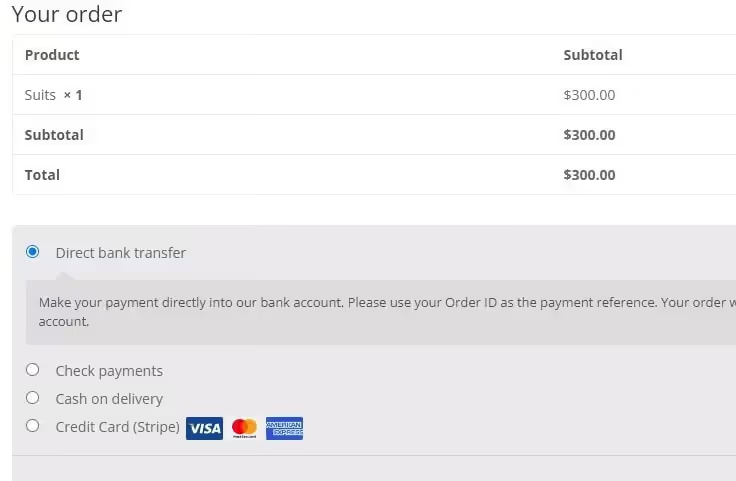
The logic is simple: if the cart total is below $threshold, PayPal is removed from the list. Replace the threshold value with your own.
Method 3: Conditional Payments plugin, visual builder
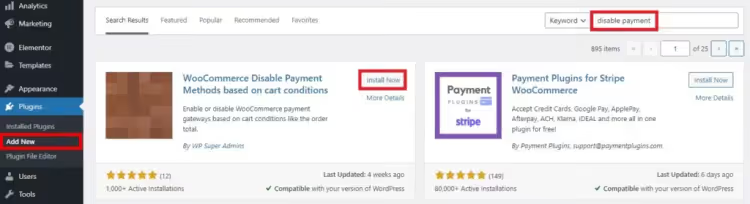
If you prefer not to touch functions.php, the plugin Conditional Payments for WooCommerce solves the same problem. As of July 2026: version 1.16.5, active installs, compatible with the latest WordPress and WooCommerce. Last updated July 11, 2025.
Installation is standard: Plugins → Add New, type "Conditional Payments for WooCommerce" in the search box, click Install Now and Activate.
Setting up conditions
After activation, a Conditional Payment Methods item appears in the WooCommerce menu. Go there, make sure the "Enable conditions" checkbox is active, and click Add condition.
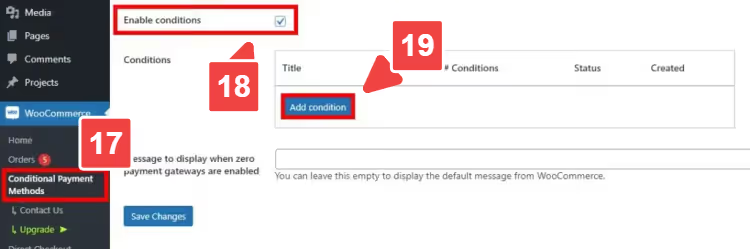
On the page that opens, set four parameters:
- Title, the condition name, e.g. "No PayPal for small orders".
- Action, select Disable the payment method(s).
- Payment methods, check the gateways you want to disable (you can select several).
- Conditions, the trigger logic. For example: "Cart total < threshold amount" → PayPal gets disabled.
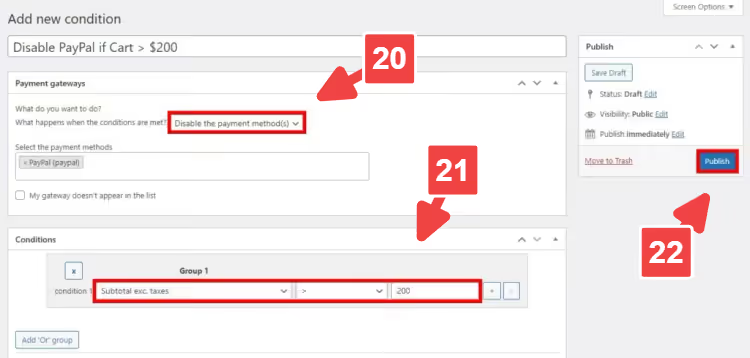
Click Publish, the condition takes effect immediately. Test the checkout with an amount below and above the threshold.
The free version works with these conditions: cart total, subtotal, and subtotal excluding taxes. AND/OR operators are available, so you can build a rule like "disable PayPal if the amount is greater than X AND less than Y".
The premium version adds filtering by country, city, user role, product category, currency, and a dozen other parameters. In practice, however, the free functionality is enough for most stores.
⁉️🤔 Frequently asked questions
How do I disable a payment method for all customers at once?
Go to WooCommerce → Settings → Payments and click the toggle in the Enabled column. The toggle turns gray, and the method disappears from checkout for everyone without exception. Ten seconds, zero risk.
Can I hide a gateway only for a specific product category?
The free version of Conditional Payments cannot do that. The premium version filters by categories, products, and attributes. An alternative is code on the
woocommerce_available_payment_gatewayshook with a check ofWC()->cart->get_cart()for items from the desired category.
Will disabling a gateway affect already placed orders?
No. Existing orders are not affected. The change applies only to future checkouts; all previous transactions remain in the history unchanged.
What if the disabled gateway still shows up at checkout?
Clear your site and browser cache. If you have a caching plugin (WP Rocket, W3 Total Cache), flush its cache. Then temporarily disable other plugins one by one and test the checkout; there may be a conflict.
Can I bring a disabled method back?
Yes, at any time. Method 1: click the toggle again in Payments. Method 2: delete or comment out the code you added. Method 3: deactivate the condition in Conditional Payment Methods.
Is it mandatory to create a child theme before editing functions.php?
It is strongly recommended. Without a child theme, your changes will be lost when the parent theme updates. The Code Snippets plugin is a safe alternative: it stores code in the database and does not depend on the theme.
Summary: what to choose for your task
Three approaches cover three different scenarios. Pick the one that fits your situation:
- Simply remove an unnecessary gateway for everyone → Method 1, WooCommerce panel. Ten seconds, zero risk.
- You need logic: by country, amount, role → Method 2 (code) or Method 3 (plugin). Code is free and adds no dependencies. The plugin gives you a visual interface and protects against typos in
functions.php. - You are testing a site and need to temporarily hide payment → one line
add_filter( 'woocommerce_cart_needs_payment', '__return_false' )from section 2.1. Don't forget to remove it after testing.
In practice we recommend starting with the WooCommerce panel for basic cleanup, and for conditional logic, install Conditional Payments. The free version covers most scenarios, and the visual builder eliminates human error in code. When you have more than five conditions and the store is growing actively, switch to code: write it once in functions.php and forget about it.

A professional team of writers and editors specializing in creating quality content.