














🔒 How to disable REST API in WordPress: 4 ways 2026
What is REST API and why disable it
The REST API in WordPress is a built-in interface through which external applications read and modify site data. Requests go to /wp-json/, the response comes back as JSON. It appeared in WordPress 4.7 and has been enabled by default on every site since.
This is convenient for developers: mobile apps, headless architecture, integrations with third-party services. But if you use none of the above, an open REST API remains a hole. Zero benefit, real risks.
Specific threats:
- User enumeration. Through
/wp-json/wp/v2/usersanyone can get a list of usernames. Next step, password brute-forcing. - Content scraping. Posts via
/wp-json/wp/v2/postsare grabbed automatically and republished on other sites. - Unnecessary load. Every REST request goes through the full WordPress cycle. A thousand bots per minute, and the site goes down.
Below are four ways to lock down the REST API: from a one-click plugin to a server-level block. Pick the one that fits your situation.
💡 Quick overview:
- Install the Disable WP REST API plugin: 30,000+ active installs, no settings, works immediately after activation.
- Configure the restriction in Solid Security: if a security plugin is already on the site, the REST API toggle is in the Advanced section.
- Add code to functions.php: for those who don't want a separate plugin for a single filter, a snippet using
rest_authentication_errors. - Add a rule to.htaccess: a block at the Apache server level, a hard method with no exceptions.
Method 1: Disable WP REST API plugin, one click
The simplest and safest method. The Disable WP REST API plugin on WordPress.org does exactly one thing: it closes the REST API to anyone not logged into the admin area. Authenticated users work as usual, the block editor, other plugins, everything functions.
Installation: Plugins → Add New, search for "Disable WP REST API", install and activate. The plugin weighs 4 KB and starts working immediately. There are no settings.
Verification: log out of the admin area and open https://вашсайт.ru/wp-json/ in your browser. You will see the message: {"code":"rest_login_required","message":"REST API restricted to authenticated users.","data":{"status":401}}. This means the REST API is closed to external requests.
The plugin author, Jeff Starr, has 15 years in WordPress and is the author of several books on the topic. The code is open, the plugin is updated regularly: as of July 2026, version 2.6.8, tested up to WordPress 7.0.2.
Pros:
- Installation takes a minute, no settings
- 4 KB of code, does not affect site speed
- Does not touch the admin area or block editor
- 30,000+ active installs, 4.8 rating on WordPress.org
Cons:
- Blocks only unauthenticated users, a logged-in user sees the full REST API
- No granular settings in the free version (the Pro version, REST Pro Tools, adds filtering by role and IP)
Price: Free. Pro version, REST Pro Tools, on the developer's site.
Download: 🔗 Disable WP REST API on WordPress.org
Method 2: Restriction via Solid Security
If you already have Solid Security (formerly iThemes Security) installed, you don't need a separate plugin for the REST API. The security settings include a ready-made toggle.
Path: Security → Settings → Advanced → WordPress REST API. In the dropdown, select "Restricted Access", the REST API will be available only to authenticated users.
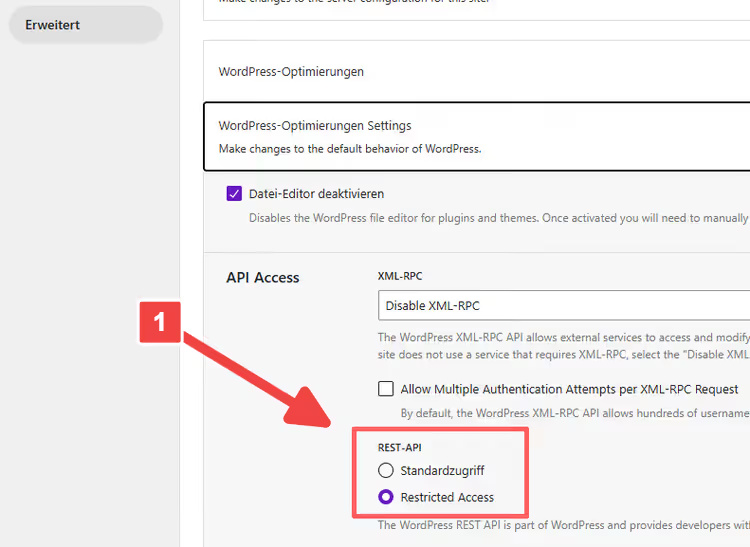
Also check the XML-RPC setting in the same section. If you don't use the WordPress mobile app and don't connect Jetpack, disable that too. Two interfaces that are rarely needed but often attacked.
Pros:
- No separate plugin needed, the feature is already built into Solid Security
- Interface with explanations, no need to touch code
- XML-RPC gets configured at the same time
Cons:
- Works only if you already use Solid Security (installing it just for this is overkill)
- The free version closes the REST API completely for unauthenticated users, with no exceptions for individual endpoints
Download: 🔗 Solid Security on WordPress.org
Method 3: Code in functions.php, no plugins
If you don't want to install a plugin for a single filter, here is a snippet that does the same thing. Add it to your child theme's functions.php or via the Code Snippets plugin.
Back up your site before editing. An error in functions.php causes the white screen of death, and without admin access you'll have to fix it via FTP.
1 /** 2 * Close REST API for unauthorized users. 3 * Authorized users work with API as usual. 4 */ 5 add_filter('rest_authentication_errors', function($access) { 6 if (! is_user_logged_in()) { 7 return new WP_Error( 8 'rest_forbidden', 9 __('REST API restricted to authenticated users.', 'textdomain'), 10 array('status' => 403) 11 ); 12 } 13 return $access; 14 });
What happens here. The rest_authentication_errors filter fires on every REST request. is_user_logged_in() checks whether the visitor is logged in. If not, a WP_Error with code 403 is returned, and WordPress blocks the request from going further. If logged in, the API works without restrictions.
After adding the code, check the result: open /wp-json/ in incognito mode. A 403 error should be returned.
Important. The old rest_enabled filter has been removed from WordPress core. Snippets with add_filter('rest_enabled', '_return_false'), which appear in old tutorials, do not work starting from WordPress 5.0. Use only rest_authentication_errors.
Method 4: Block via.htaccess, at the server level
A radical method. A rule in .htaccess blocks requests to /wp-json/ before WordPress even starts. The Apache server returns a 403 without ever reaching PHP.
Suitable when:
- The REST API is definitely not needed in any form, neither by you nor by plugins;
- the server runs on Apache (for Nginx the rule is written via a
locationblock); - you are comfortable editing the server config.
Add to the .htaccess file in the site root:
1 <IfModule mod_rewrite.c> 2 RewriteEngine On 3 RewriteCond %{REQUEST_URI} ^/wp-json/ [NC] 4 RewriteRule .* - [F] 5 </IfModule>
The rule fires on any URL starting with /wp-json/. The [F] flag means 403 Forbidden, the [NC] flag makes the comparison case-insensitive.
Be sure to make a copy of .htaccess before editing. A syntax error takes down the entire site with a 500 error.
The main downside of this approach: all REST requests are blocked without exception. If a contact form stops working after the edit (Contact Form 7 uses the REST API), go back to method 1 or 3.
Watch a 6-minute overview of REST API risks by David McAllen: he shows real requests to /wp-json/ and demonstrates both plugins in action.
⁉️🤔 FAQ
Do I need to disable the REST API on every site?
No. If you use the WordPress mobile app, the block editor (Gutenberg), or plugins like Contact Form 7 and WooCommerce, they need the REST API. In that case, it's better not to disable it completely but to configure a role-based restriction.
You should disable the REST API on sites where it is not used intentionally: blogs on the classic editor, landing pages, brochure sites. On such projects, an open
/wp-json/offers nothing but risks. Two minutes to install the Disable WP REST API plugin, and the attack vector is closed.
How do I verify that the REST API is actually disabled?
Open https://вашсайт.ru/wp-json/ in your browser in incognito mode (you must be logged out). If you see a 401 or 403 error, the REST API is closed. If JSON data is displayed, the protection is not working, check your settings.
The command line also works:
curl -I https://вашсайт.ru/wp-json/wp/v2/users. A 200 response code means the user list is being served publicly, a red flag, the protection needs to be fine-tuned.
Will disabling the REST API break the block editor?
No, if you use methods 1-3. The Disable WP REST API plugin, Solid Security, and the rest_authentication_errors snippet all let authenticated users through. The block editor works, since you are logged into the admin area.
Method 4 (.htaccess) is the exception. The server-level block cuts off everyone indiscriminately, and the block editor will stop working. If the admin area breaks after editing
.htaccess, go back to method 1 or 3.
Which is safer: a plugin or code in functions.php?
From a protection standpoint, both options are equivalent, they use the same WordPress mechanism. The difference is in convenience and maintenance.
The Disable WP REST API plugin updates automatically, does not depend on the theme, and won't disappear when you switch templates. Code in
functions.phpis for those who are fundamentally against installing plugins for a single function. Choose based on your administration approach, it does not affect security.
Can I close only the /users endpoint and leave the rest open?
You can, but that is a fine-tuning task. The free tools in this article block the REST API entirely for unauthenticated users.
If you need to keep some endpoints open and close others, use REST Pro Tools (the Pro version of the Disable WP REST API plugin) or the
rest_endpointsfilter infunctions.php. You will need to explicitly list the allowed routes, a half-hour task if you know the WordPress REST API structure.
You've locked down the REST API, what's next?
The REST API is just one attack vector. By closing it, you removed the easiest entry point for bots, but this is not a replacement for full-fledged protection.
In short: method 1 (the Disable WP REST API plugin) solves the problem in two minutes. Install it, check /wp-json/ in incognito, make sure your contact form works, done. The risks are reduced.
The next layer is a firewall and brute-force protection. Start with the free Solid Security: it will close the REST API, XML-RPC, and password brute-forcing in a single interface. Which security plugin you use, let us know in the comments.

A professional team of writers and editors specializing in creating quality content.