














🥇 4 best WordPress archive plugins 2026 (free)
Posts pile up. Each month you publish a dozen pieces, and six months later they can't be found through site search or the standard "Archives" widget. Categories swell, readers get lost in dates, and content that took hours to create sits idle somewhere on the fifth pagination page.
WordPress's built-in archive solves the problem only formally. It groups posts by month and spits out a bare list of links, with no navigation by year, no category filtering, no custom layout. For a blog that's more than two years old, this is catastrophically insufficient.
We installed 4 free plugins on a test site and ran them through real-world scenarios: from "just show by year" to "I want my own layout with filters and pagination." All four are updated in 2026, work on current WordPress, and require not a single line of PHP.
💡 Quick overview:
- Choose a plugin for a specific task: yearly list with navigation, custom shortcode layout, collapsible JS archive, or compact sidebar widget
- Place a shortcode or block on a dedicated archive page, verify indexing in Google Search Console and forget about the problem
Plugin | Active installations | Output format | Category filter | Custom types | Last update |
|---|---|---|---|---|---|
Simple Yearly Archive | 6,000+ | By year in a list with side navigation | Yes | Yes (since version 1.8) | June 2025 |
Archive Page | 700+ | 8 independent shortcodes (days, months, years, authors, tags, categories) | No | No | May 2026 |
Collapsing Archives | 3,000+ | Collapsible JS list (years → months → posts) | Yes (include/exclude) | Yes | February 2026 |
Compact Archives | 2,000+ | Compact month grid | No | No | February 2026 |
1. Simple Yearly Archive, posts by year, without clutter
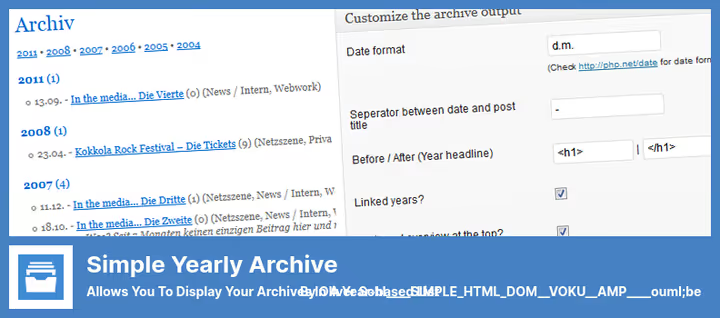
When a blog is more than three years old, a monthly list turns into an endless wall. Simple Yearly Archive solves the problem head-on: it groups all posts by publication year, displays them in a single list, and adds a side navigation panel. A reader clicks on a year and immediately jumps to the relevant block without scrolling through 150 lines.
The plugin works through the [SimpleYearlyArchive] shortcode, which is inserted on any page or directly in post text. Settings enable: comment display, thumbnails, categories, tags, and excerpt for each post. Sorting switches between chronological or reverse order. Since version 1.8, support for custom post types appeared: you can connect CPT and display them in the archive alongside regular posts.
In practice, we installed the plugin on a site with about 400 posts over 6 years. The archive page generated instantly, side navigation by year works without JavaScript (pure HTML with anchors), search engines index the page without problems. For a typical blog, a ready solution in 60 seconds.
Pros:
- Instant installation: one shortcode and the archive is ready, no PHP
- Side panel with years, reader doesn't scroll blindly
- Category filter directly in the shortcode, narrows output without additional plugins
Cons:
- List appearance isn't visually configurable, only through CSS and
sya_the_title/sya_postlinkfilters - For very complex layouts (card grid, masonry) custom development will be required
🔗 Simple Yearly Archive on WordPress.org
2. Archive Page, 8 shortcodes for any structure
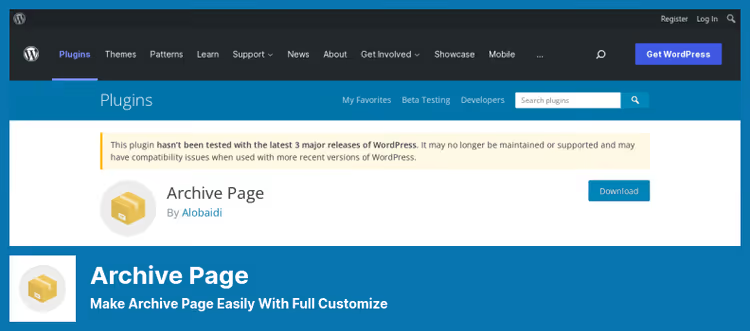
Where Simple Yearly Archive gives exactly one output method, Archive Page offers a constructor: 8 independent shortcodes, daily archives, monthly, yearly, recent posts, categories, tags, authors, and a complete list of all site documents. Each is inserted on a page separately, and you combine them as you wish.
Each shortcode has configurable title, list type, and custom element name. The global template isn't editable, but CSS classes are sufficient to adjust appearance to match the theme. All languages are supported, admin interface is translated, shortcodes work identically on any locale.
The main advantage is deployment speed. In a few minutes you assemble a full archive page with "Posts from the last month," "Categories," "Authors" blocks, without a single line of code and without manual WP_Query. For small and medium blogs, this covers the overwhelming majority of archive page scenarios.
The weak point is lack of internal filtering. If you need to show posts from only one category within a monthly archive, standard tools won't work. And there's no built-in pagination: long lists stretch the page.
Pros:
- 8 output types, covers almost any archive page scenario out of the box
- Doesn't require PHP knowledge, everything through shortcodes in the editor
- Multilingual "out of the box," interface is translated
Cons:
- Can't filter shortcode output by category or tag
- No built-in pagination, on sites with 500+ posts the page swells
🔗 Archive Page on WordPress.org
3. Collapsing Archives, collapsible JavaScript archive

When there are more than a thousand posts, even yearly grouping doesn't save it, the page still weighs heavily. Collapsing Archives solves this through collapsible levels: only years are visible on the page, clicking a year expands months, clicking a month shows posts. Nothing extra loads until the user requests it.
The plugin is installed as a sidebar widget or through the [collapsArch] shortcode in the page body. A separate block for the Gutenberg editor is also available. JavaScript logic lives on the frontend: the server isn't burdened with repeated requests when collapsing and expanding, all content is loaded at once but hidden through CSS.
On a site with about 2,500 posts, the standard "Archives" widget produced 200+ lines. Collapsing Archives collapsed this to 6 lines (by number of years) with expandability. Users got an overview picture without scrolling, exactly what the archive is needed for.
A nuance: if JavaScript is disabled for a visitor, the plugin shows a regular flat list without collapsing. Content isn't lost, but UX degrades. In practice, the share of such users is fractions of a percent, so for the overwhelming majority of scenarios this isn't a problem.
Pros:
- "Years → months → posts" hierarchy, compact and clear even for 10+ years of publications
- Only CSS and JS, without additional server requests
- Custom post type support and category filtering through shortcode parameters
Cons:
- Without JavaScript, interactivity is lost (list remains readable but doesn't collapse)
- Some recent reviews on wordpress.org report conflicts with individual themes
🔗 Collapsing Archives on WordPress.org
4. Compact Archives, month grid instead of wall

The standard WordPress archives widget outputs months in a vertical list: January 2022, February 2022…, over 5 years 60 lines accumulate. Compact Archives repacks the same content into a compact CSS grid: months go horizontally, are grouped by years, and take 3-4 lines for the entire blog period.
The plugin is authored by Syed Balkhi (Awesome Motive, creators of WPBeginner and OptinMonster). It works through a block in the editor or through the [compact_archive] shortcode. It supports three output formats: flat letter list, month grid, and dropdown list. Setup comes down to choosing a format and placement, no need to write PHP or CSS.
Compact Archives is ideal for footer or sidebar, places where space is limited and a 60-line list looks absurd. For a full archive page, we recommend combining: Compact Archives in the sidebar as a quick switcher, and Simple Yearly Archive or Archive Page on the main page for expanded viewing.
Pros:
- Vertical space saving: 60 lines turn into 4 grid rows
- Three output formats for different site zones (sidebar, footer, dedicated page)
- Regular updates (February 2026), author is a team with reputation
Cons:
- No post titles inside cells, only links to months (purely navigation tool)
- Appearance customization through CSS, no visual editor
🔗 Compact Archives on WordPress.org
Video: how to set up an archive page in WordPress
We covered plugins in words, now watch how it works live. The video shows complete archive page setup: from plugin installation to publication and indexing verification in Google Search Console.
⁉️🤔 Frequently asked questions
Is an archive plugin needed if the theme already has an "Archives" widget?
The standard widget shows a bare list of months, links without context, without thumbnails, without pagination. For a blog with 50 posts this is enough. For 200+, no: a reader won't scroll through 4 screens searching for the right month. A plugin gives grouping by year, filtering, custom layout, and collapsible levels, everything missing from the default widget.
Which plugin to choose for a blog with 10+ years of publications?
Simple Yearly Archive. It groups posts by year with side navigation: a reader jumps to 2016 in a second without scrolling through 150 months. If you want even denser, add Compact Archives in the sidebar as a quick switcher, and Collapsing Archives will give a collapsible hierarchy for maximum space savings.
Does an archive plugin affect SEO?
Yes, and rather positively. An archive page is internal linking of all site posts with grouping by date. Search robots follow these links and better index old materials. Don't put
noindexon the archive page if you use it as content, this will devalue the internal linking.
Can you display an archive of posts from only one category?
Simple Yearly Archive supports category filtering through shortcode parameter and
sya_get_postsfilter for fine-tuning WP_Query. Collapsing Archives throughinExcludeCat/inExcludeCatsparameters. Archive Page and Compact Archives don't give such filtering "out of the box," manual refinement will be required.
What to do if the plugin conflicts with the theme?
Check the browser console for JavaScript errors (F12 → Console). If there are no errors but layout floats, add reset styles for the plugin container through Appearance → Customize → Additional CSS. Developers of all four plugins respond to tickets in the WordPress.org repository, usually within 1-2 weeks.
Which archive plugin to install in 2026?
We at techblog.sdstudio.top use a combination of Simple Yearly Archive as the main page and Compact Archives in the sidebar, in 5 minutes of setup the archive turned into a readable content map instead of a wall of 200 links.
Final breakdown by task: take Simple Yearly Archive if you need a yearly list with navigation, the simplest and most reliable path for a blog with history. Archive Page when you need a full archive page with blocks by categories, authors, and dates, and you're ready to live with the absence of pagination. Collapsing Archives for large sites (1,000+ posts) where it's important not to clutter the page and let the user decide what to expand. Compact Archives as a compact widget in footer or sidebar, works best paired with one of the first three.
Try any of them on a test page, all four are free, install in a minute, and require not a single line of code.

A professional team of writers and editors specializing in creating quality content.